Introduction
Use this guide to replace the Bluetooth card for the HP Elitebook 8460p if you are having problems with Bluetooth connectivity and have ruled out any problems with the computer operating system. Use this guide to also gain access to the wire connections to the Bluetooth chip to reconnect the wires.
Take care to ground yourself using an ESD strap to prevent electrostatic discharges from damaging the Bluetooth card further, or from damaging the motherboard.
-
-
-
On the back of the computer, slide the left switch towards the outside of the laptop until you hear a click.
 Ask FixBot
-
-
-
Slide the battery away from the switches until it can be lifted away from the laptop.
-
Lift the battery away from the laptop.
-
-
-
-
-
-
On the back of the laptop, slide the right switch toward the outside of the laptop until you hear a click.
-
-
-
Slide the back shell of the laptop away from the switches until it can be lifted up.
-
Lift the shell straight up.
-
-
-
-
-
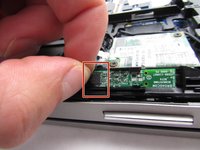
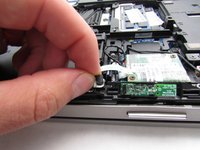
Using a fingernail, grasp the small connector and separate the connector from the Bluetooth card.
-
-



To reassemble your device, follow these instructions in reverse order.
Cancel: I did not complete this guide.
7 other people completed this guide.

Team

Embry-Riddle Aeronautical University, Team S12-G1, Lamothe Fall 2019 Member of Embry-Riddle Aeronautical University, Team S12-G1, Lamothe Fall 2019
ERAU-LAMOTHE-F19S12G1
4 Members
120 Guides authored
