Free Shipping on Domestic Orders $75+

HP Elitebook 820 G1 Monitor Display Replacement

What you need

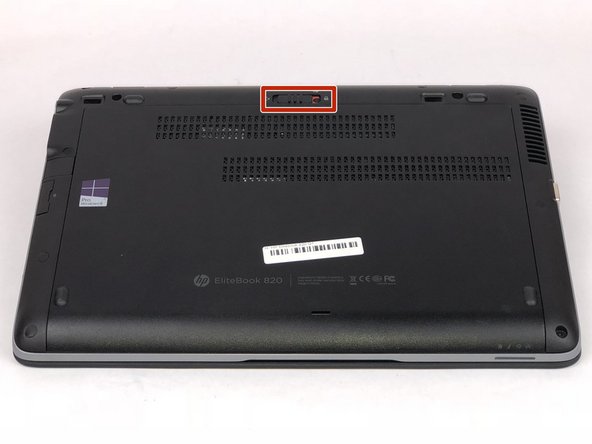
    1. HP Elitebook 820 G1 Monitor Display Replacement, Battery: step 1, image 1 of 1
      • Ensure the laptop is completely powered off and power adapter is unplugged before removing the battery.

      • Turn over laptop so that the bottom is showing.

      • Unlock the latch.

      Ask FixBot

      Add Comment

    2. HP Elitebook 820 G1 Monitor Display Replacement: step 2, image 1 of 1
      • Remove the back cover and you will then be able to see the battery.

      Ask FixBot

      Add Comment

    3. HP Elitebook 820 G1 Monitor Display Replacement: step 3, image 1 of 1
      • Unlatch the two latches securing the battery in the case.

      Ask FixBot

      Add Comment

    4. HP Elitebook 820 G1 Monitor Display Replacement: step 4, image 1 of 1
      • Use a plastic opening tool to lift and remove the battery.

      Ask FixBot

      Add Comment

    1. HP Elitebook 820 G1 Monitor Display Replacement, Fan: step 5, image 1 of 1
      • Remove the hard drive by unscrewing the four 8mm screws with the T7 philip's head.

      Ask FixBot

      Add Comment

    2. HP Elitebook 820 G1 Monitor Display Replacement: step 6, image 1 of 1
      • Pry off ten rubber paddings on the outer edge of the laptop to reveal the torx screws.

      • Unscrew the ten 8mm torx screws that are under the rubber paddings using the T7 tip torx screwdriver.

      Ask FixBot

      Add Comment

    3. HP Elitebook 820 G1 Monitor Display Replacement: step 7, image 1 of 1
      • Remove the two 4mm screws indicated by the M2.5X4 using the J00 tip screwdriver.

      • Remove SD card cap by just sliding out to reveal one screw.

      Ask FixBot

      Add Comment

    4. HP Elitebook 820 G1 Monitor Display Replacement: step 8, image 1 of 1
      • Remove the two 3mm screws indicated by the M2.03 using the J00 tip screwdriver.

      • Remove the 4mm SD card screw using the J00 tip.

      Ask FixBot

      Add Comment

    5. HP Elitebook 820 G1 Monitor Display Replacement: step 9, image 1 of 1
      • Remove the one 4mm fan screw using the J00 tip screwdriver.

      • Remove screw and metal plate to expose ribbon cable connector.

      Ask FixBot

      Add Comment

    6. HP Elitebook 820 G1 Monitor Display Replacement: step 10, image 1 of 1
      • Use an opening tool to pry up the ribbon connector to disconnect.

      Ask FixBot

      Add Comment

    7. HP Elitebook 820 G1 Monitor Display Replacement: step 11, image 1 of 1
      • Turn laptop over back to normal position as shown in the image.

      • Use opening tools to pry up keyboard.

      • When prying up keyboard, be sure to start near any corner of the keyboard.

      • There are two ribbon cables that must be disconnected before fully removing keyboard.

      Ask FixBot

      Add Comment

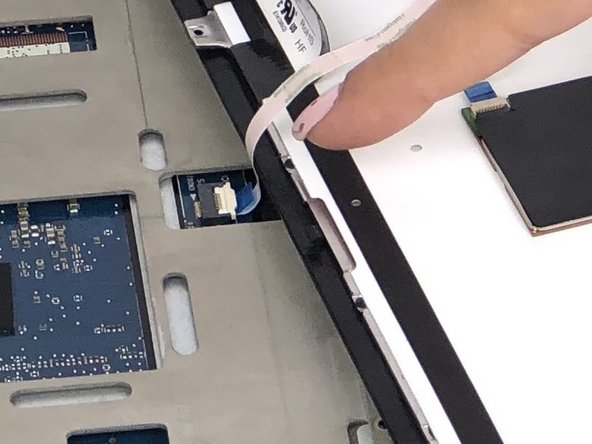
    8. HP Elitebook 820 G1 Monitor Display Replacement: step 12, image 1 of 3 HP Elitebook 820 G1 Monitor Display Replacement: step 12, image 2 of 3 HP Elitebook 820 G1 Monitor Display Replacement: step 12, image 3 of 3
      • Carefully lift keyboard on one side to expose the two ribbon cables.

      • Use an opening tool to lift up the locking clip and unplug the two ribbon cables.

      Ask FixBot

      Add Comment

    9. HP Elitebook 820 G1 Monitor Display Replacement: step 13, image 1 of 1
      • Remove the two 4mm screws centered notated by the keyboard logo using the J00 tip.

      Ask FixBot

      Add Comment

    10. HP Elitebook 820 G1 Monitor Display Replacement: step 14, image 1 of 3 HP Elitebook 820 G1 Monitor Display Replacement: step 14, image 2 of 3 HP Elitebook 820 G1 Monitor Display Replacement: step 14, image 3 of 3
      • Once keyboard has been fully removed, the system case containing the motherboard can be lifted out easily.

      • The display is connected to the shell of the laptop.

      Ask FixBot

      Add Comment

    11. HP Elitebook 820 G1 Monitor Display Replacement: step 15, image 1 of 1
      • Unplug fan cable by pulling away from its connector.

      Ask FixBot

      Add Comment

    12. HP Elitebook 820 G1 Monitor Display Replacement: step 16, image 1 of 1
      • Unscrew the two 6mm fan screws using the J00 tip.

      • Fan screws are encased in springs and cannot be removed.

      Ask FixBot

      Add Comment

    1. HP Elitebook 820 G1 Monitor Display Replacement, Monitor display: step 17, image 1 of 1
      • Retrieve the monitor display connected to the plastic chassis.

      Ask FixBot

      Add Comment

    2. HP Elitebook 820 G1 Monitor Display Replacement: step 18, image 1 of 1
      • Unscrew the two 4mm hinge screws using the Philips 00 tip screwdriver.

      Ask FixBot

      Add Comment

    3. HP Elitebook 820 G1 Monitor Display Replacement: step 19, image 1 of 1
      • Unhinge the monitor display from the chassis.

      Ask FixBot

      Add Comment

Conclusion

To reassemble your device, follow these instructions in reverse order.

Cancel: I did not complete this guide.

One other person completed this guide.

Alberto Carlos Perez

Member since: 02/14/18

431 Reputation

2 Guides authored

Team

USF Tampa, Team S5-G1, Eyestone Spring 2018 Member of USF Tampa, Team S5-G1, Eyestone Spring 2018

USFT-EYESTONE-S18S5G1

3 Members

48 Guides authored

1 Guide Comment

Hello,

I need to replace the inverter as my screen is too much dark.

I cannot see the inverter and even I cannot find any inverter for this model.

Do you know how to access to this inverter? Is it embedded within the screen?

Thanks by advance.

BR

richard P - Reply Share

Add Comment

View Statistics:

Past 24 Hours: 5

Past 7 Days: 18

Past 30 Days: 59

All Time: 4,110