
HP EliteBook x360 830 G7 Display Replacement

Jonathan Bond and 4 other contributors
Last updated on May 18, 2023
Views: 3.4K
View statistics:
- Past 24 Hours:
- 6
- Past 7 Days:
- 40
- Past 30 Days:
- 137
- All Time:
- 3,373
Comments: 0
No one has left comments on this guide. Will you be first?
Go to guide commentsCompleted: 3 4
3 people have marked this guide "completed." Will you be next?
4 people have marked this guide "completed." Including you — great job!
Favorites: 1 2
1 person has favorited (and subscribed to) this guide. Will you be next?
2 people have favorited (and subscribed to) this guide — including you!
Introduction
Go to step 1 ↓This guide will provide guidance on how to replace the display on your HP EliteBook x360 830 G7. Screens are vital for the user operation of your laptop, as it is an essential output in order for a user to see what their computer is doing and/or what they are doing. Water, cracks, and drops are all ways that your screen can become damaged.
Before you begin, remove any cases or screen protectors, disconnect your computer from it's charger (if connected), and then power off your device.
What you need
Tools

-
-
-
Use an opening tool to remove the display from the laptop case. Place it in the area that you see the most give.
 Ask FixBot
-
-
-
With the screen removed, locate the pair of wires hidden underneath the two pieces of tape.
-
-
-
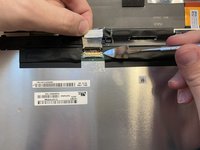
Use a plastic opening tool or nylon spudger to lift the metal digitizer-connector bracket.
-
-
-
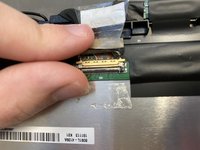
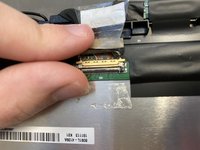
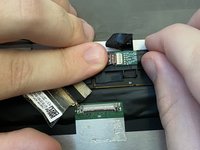
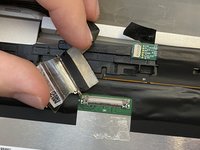
Now that the bracket is removed, pull the golden connector away from the silver base.
-
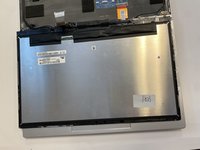
Now, the back of the display should look like this.
-
-
-
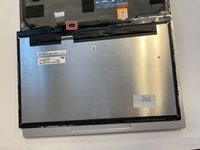
The next piece of tape that needs to be peeled, but not removed, is highlighted by the red rectangle.
-
-
-
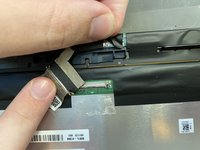
Peel, but do not remove entirely, the clear piece of tape that was underneath the black tape.
-
-
-
-
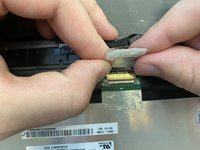
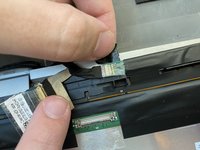
Pull the small, bronze "Brighton" ribbon cable connector from the tan connection base.
-
-
-
If you can move your display's housing away from the computer, then you have successfully detached your display and can replace it.
-
-








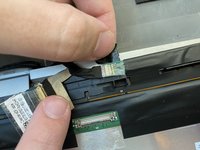
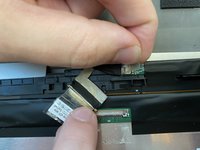
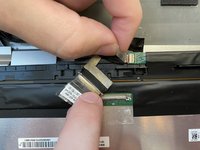


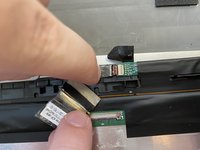

To reassemble your device, follow these instructions in reverse order.
Cancel: I did not complete this guide.
3 other people completed this guide.

Team

University of Alabama, Team 2-1, Bedsole Spring 2022 Member of University of Alabama, Team 2-1, Bedsole Spring 2022
UA-BEDSOLE-S22S2G1
4 Members
60 Guides authored
