
HP EliteBook Folio G1 Trackpad Replacement

Groupe 3 and 2 other contributors
Last updated on Dec 11, 2025
Views: 289
View statistics:
- Past 24 Hours:
- 1
- Past 7 Days:
- 16
- Past 30 Days:
- 75
- All Time:
- 289
Comments: 0
No one has left comments on this guide. Will you be first?
Go to guide commentsCompleted: 0 1
No one has marked this guide "completed." Will you be the first?
1 person has marked this guide "completed." It's you — great job!
Favorites: 0 1
No one has favorited (and subscribed to) this guide. Will you be the first?
1 person has favorited (and subscribed to) this guide — and that's you!
Introduction
Go to step 1 ↓This guide covers the replacement of the trackpad on the HP EliteBook Folio G1.
The trackpad allows users to control the cursor and perform gestures for navigation and input. If the cursor is unresponsive, erratic, or certain gestures no longer function, the trackpad may be damaged or malfunctioning.
Refer to this troubleshooting page before replacing the trackpad to verify that a replacement is required.
Following this guide will help you safely and effectively replace the trackpad to restore smooth and accurate touch control.
What you need


-
-
-
Turn the laptop upside down so the bottom panel is facing up.
-
Position the device so the QR code and text details are readable and facing you.
-
-
-
Remove the eight 3.0 mm screws securing the back case using a T5 Torx screwdriver.
-
-
-
Insert a plastic opening tool or spudger into the seam between the bottom cover and the chassis.
-
Gently pry around the edges to release the retaining clips.
-
Carefully lift the back cover up and away from the laptop.
-
-
-
-
Remove the six 3.0 mm screws securing the battery using a Phillips #0 screwdriver.
-
Remove the two 3.0 mm screws securing the battery using a JIS #000 screwdriver.
-
-
-
-
-
-
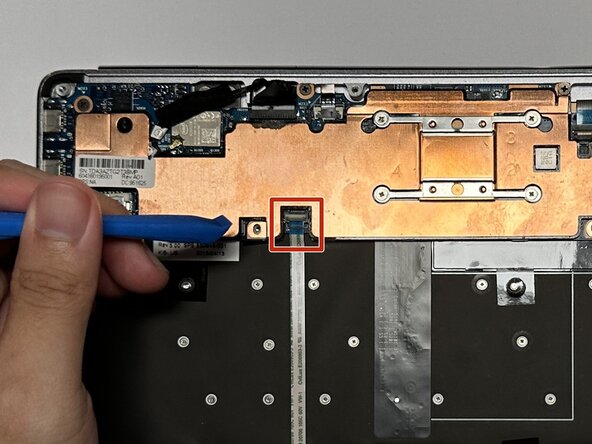
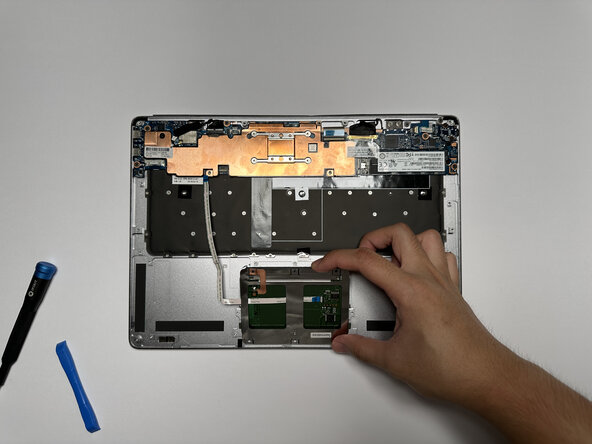
Carefully lift the ribbon cable off the motherboard using an opening tool.
-
-

 Ask FixBot







To reassemble your device, follow these instructions in reverse order.

Team

Austin Community College, Team 9-3, Watkins Fall 2025 Member of Austin Community College, Team 9-3, Watkins Fall 2025
AUSTINCC-WATKINS-F25S9G3
4 Members
108 Guides authored
