
HP EliteBook Folio G1 Keyboard Replacement

Mateya Elez and 2 other contributors
Last updated on Dec 11, 2025
Views: 550
View statistics:
- Past 24 Hours:
- 2
- Past 7 Days:
- 15
- Past 30 Days:
- 91
- All Time:
- 550
Comments: 0
No one has left comments on this guide. Will you be first?
Go to guide commentsCompleted: 1 2
1 person has marked this guide "completed." Will you be next?
2 people have marked this guide "completed." Including you — great job!
Favorites: 0 1
No one has favorited (and subscribed to) this guide. Will you be the first?
1 person has favorited (and subscribed to) this guide — and that's you!
Inconsistent Images
Updating the images on this guide to be more consistent with the prerequisites would increase its awesomeness.
Introduction
Go to step 1 ↓This guide covers the replacement of the keyboard on the HP EliteBook Folio G1.
The keyboard is the primary input device for typing and system control. This guide is meant to assist the process of replacing the physical keyboard for a HP EliteBook Folio G1, in the case that troubleshooting does not solve the issue(s) found/diagnosed.
Following this guide will help you safely and effectively replace the keyboard to restore full typing functionality.
There are a total of 48 (3mm) screws that will need to be removed in the process (20 outside, 28 inside).
What you need


-
-
-
Turn the laptop upside down so the bottom panel is facing up.
-
Position the device so the QR code and text details are readable and facing you.
-
-
-
Remove the eight 3.0 mm screws securing the back case using a T5 Torx screwdriver.
-
-
-
Insert a plastic opening tool or spudger into the seam between the bottom cover and the chassis.
-
Gently pry around the edges to release the retaining clips.
-
Carefully lift the back cover up and away from the laptop.
-
-
-
-
Using a Phillips #0 screwdriver, remove the one 3.0 mm screw securing the solid state drive.
-
-
-
-
-
Use an opening tool or your fingernail to carefully lift the small locking flap on the audio board cable connector.
-
-
-
Gently pull the ribbon cable straight out of the connector to disconnect the audio board from the motherboard.
-
-
-
Using a Phillips #00 screwdriver, remove the two 3.0 mm screws securing the audio board to the chassis.
-
-
-
Use a opening tool to gently lift the audio board straight upward from its seated position.
-
-
-
-
-
Locate the speaker cable connecting to the motherboard on the top right and carefully pull down to remove.
-
-
-
Using a Phillips #00 screwdriver, remove the six 3.0 mm screws securing the speakers.
-
-
-
Insert an opening tool under the speaker and gently lift it out of its slot.
-
-
-
-
-
Remove the six 3.0 mm screws securing the battery using a Phillips #0 screwdriver.
-
Remove the two 3.0 mm screws securing the battery using a JIS #000 screwdriver.
-
-
-
-
-
-
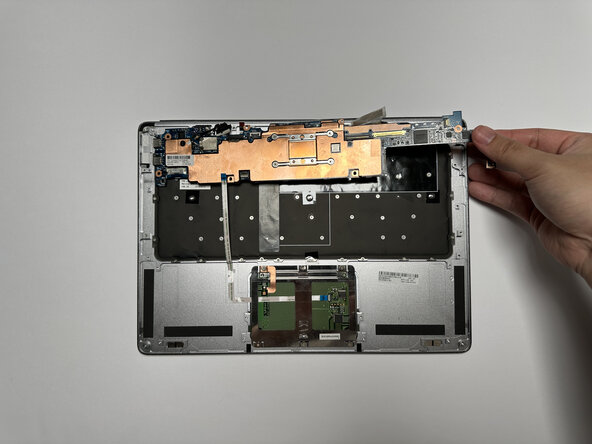
Use a plastic opening tool to carefully lift and separate the keyboard from the laptop shell.
-
-
-
Carefully lift the keyboard from the laptop chassis, ensuring no ribbon cables or connectors are strained or damaged.
-

 Ask FixBot




To reassemble your device, follow these instructions in reverse order.
Cancel: I did not complete this guide.
One other person completed this guide.
Team

Austin Community College, Team 9-3, Watkins Fall 2025 Member of Austin Community College, Team 9-3, Watkins Fall 2025
AUSTINCC-WATKINS-F25S9G3
4 Members
108 Guides authored
