Free Shipping on Domestic Orders $75+

HP EliteBook Folio G1 Display Replacement

What you need

  1. HP EliteBook Folio G1 Display Replacement, Back Case: step 1, image 1 of 1
    • Shut down the laptop completely and close the lid.

  2. HP EliteBook Folio G1 Display Replacement: step 2, image 1 of 1
    • Turn the laptop upside down so the bottom panel is facing up.

    • Position the device so the QR code and text details are readable and facing you.

  3. HP EliteBook Folio G1 Display Replacement: step 3, image 1 of 1
    • Remove the eight 3.0 mm screws securing the back case using a T5 Torx screwdriver.

  4. HP EliteBook Folio G1 Display Replacement: step 4, image 1 of 3 HP EliteBook Folio G1 Display Replacement: step 4, image 2 of 3 HP EliteBook Folio G1 Display Replacement: step 4, image 3 of 3
    • Insert a plastic opening tool or spudger into the seam between the bottom cover and the chassis.

    • Gently pry around the edges to release the retaining clips.

    • Carefully lift the back cover up and away from the laptop.

  5. HP EliteBook Folio G1 Display Replacement, Solid State Drive: step 5, image 1 of 1
    • Using a Phillips #0 screwdriver, remove the one 3.0 mm screw securing the solid state drive.

  6. HP EliteBook Folio G1 Display Replacement: step 6, image 1 of 2 HP EliteBook Folio G1 Display Replacement: step 6, image 2 of 2
    • Carefully lift the storage drive and slide it to the right to remove it.

  7. HP EliteBook Folio G1 Display Replacement, Audio Jack Port: step 7, image 1 of 3 HP EliteBook Folio G1 Display Replacement, Audio Jack Port: step 7, image 2 of 3 HP EliteBook Folio G1 Display Replacement, Audio Jack Port: step 7, image 3 of 3
    • Use an opening tool or your fingernail to carefully lift the small locking flap on the audio board cable connector.

  8. HP EliteBook Folio G1 Display Replacement: step 8, image 1 of 3 HP EliteBook Folio G1 Display Replacement: step 8, image 2 of 3 HP EliteBook Folio G1 Display Replacement: step 8, image 3 of 3
    • Gently pull the ribbon cable straight out of the connector to disconnect the audio board from the motherboard.

  9. HP EliteBook Folio G1 Display Replacement: step 9, image 1 of 3 HP EliteBook Folio G1 Display Replacement: step 9, image 2 of 3 HP EliteBook Folio G1 Display Replacement: step 9, image 3 of 3
    • Using a Phillips #00 screwdriver, remove the two 3.0 mm screws securing the audio board to the chassis.

  10. HP EliteBook Folio G1 Display Replacement: step 10, image 1 of 3 HP EliteBook Folio G1 Display Replacement: step 10, image 2 of 3 HP EliteBook Folio G1 Display Replacement: step 10, image 3 of 3
    • Avoid bending or twisting the board, as it and the connectors are fragile.

    • Use a opening tool to gently lift the audio board straight upward from its seated position.

  11. HP EliteBook Folio G1 Display Replacement, Speakers: step 11, image 1 of 2 HP EliteBook Folio G1 Display Replacement, Speakers: step 11, image 2 of 2
    • The cable is extremely fragile. Handle it carefully to avoid damage.

    • Locate the speaker cable connecting to the motherboard on the top right and carefully pull down to remove.

  12. HP EliteBook Folio G1 Display Replacement: step 12, image 1 of 1
    • Using a Phillips #00 screwdriver, remove the six 3.0 mm screws securing the speakers.

  13. HP EliteBook Folio G1 Display Replacement: step 13, image 1 of 1
    • Detach the tape that holds the cables from the battery and touchpad.

  14. HP EliteBook Folio G1 Display Replacement: step 14, image 1 of 3 HP EliteBook Folio G1 Display Replacement: step 14, image 2 of 3 HP EliteBook Folio G1 Display Replacement: step 14, image 3 of 3
    • Insert an opening tool under the speaker and gently lift it out of its slot.

  15. HP EliteBook Folio G1 Display Replacement, Battery: step 15, image 1 of 3 HP EliteBook Folio G1 Display Replacement, Battery: step 15, image 2 of 3 HP EliteBook Folio G1 Display Replacement, Battery: step 15, image 3 of 3
    • Remove the six 3.0 mm screws securing the battery using a Phillips #0 screwdriver.

    • Remove the two 3.0 mm screws securing the battery using a JIS #000 screwdriver.

  16. HP EliteBook Folio G1 Display Replacement: step 16, image 1 of 3 HP EliteBook Folio G1 Display Replacement: step 16, image 2 of 3 HP EliteBook Folio G1 Display Replacement: step 16, image 3 of 3
    • Be careful to not puncture the battery during the process.

    • After removing the screws, pry and lift the battery out.

  17. HP EliteBook Folio G1 Display Replacement, Motherboard: step 17, image 1 of 2 HP EliteBook Folio G1 Display Replacement, Motherboard: step 17, image 2 of 2
    • Disconnect the Wi-Fi antenna cable.

  18. HP EliteBook Folio G1 Display Replacement: step 18, image 1 of 3 HP EliteBook Folio G1 Display Replacement: step 18, image 2 of 3 HP EliteBook Folio G1 Display Replacement: step 18, image 3 of 3
    • Disconnect the display cable.

  19. HP EliteBook Folio G1 Display Replacement: step 19, image 1 of 2 HP EliteBook Folio G1 Display Replacement: step 19, image 2 of 2
    • Disconnect the keyboard cable.

  20. HP EliteBook Folio G1 Display Replacement: step 20, image 1 of 2 HP EliteBook Folio G1 Display Replacement: step 20, image 2 of 2
    • It is important to be careful in the disconnecting of ribbon cables. Gently use the prying tool if need be.

    • Disconnect the webcam cable.

  21. HP EliteBook Folio G1 Display Replacement: step 21, image 1 of 3 HP EliteBook Folio G1 Display Replacement: step 21, image 2 of 3 HP EliteBook Folio G1 Display Replacement: step 21, image 3 of 3
    • Grab and peel this sticker upwards and off; this is the touchpad cable.

  22. HP EliteBook Folio G1 Display Replacement: step 22, image 1 of 3 HP EliteBook Folio G1 Display Replacement: step 22, image 2 of 3 HP EliteBook Folio G1 Display Replacement: step 22, image 3 of 3
    • Lift the motherboard out of the laptop.

  23. HP EliteBook Folio G1 Display Replacement, Display: step 23, image 1 of 3 HP EliteBook Folio G1 Display Replacement, Display: step 23, image 2 of 3 HP EliteBook Folio G1 Display Replacement, Display: step 23, image 3 of 3
    • Remove the eight 3.0 mm Phillips #0 screws securing the hinge to the back chassis.

  24. HP EliteBook Folio G1 Display Replacement: step 24, image 1 of 2 HP EliteBook Folio G1 Display Replacement: step 24, image 2 of 2
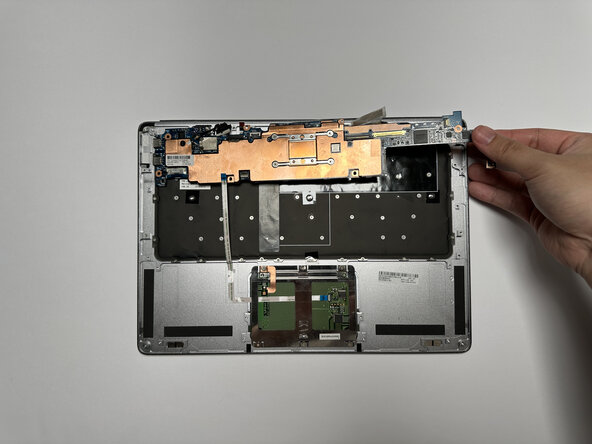
    • Flip the laptop so the bottom is facing up.

    • Gently lift and separate the screen assembly from the keyboard/base, taking care not to strain any cables.

  25. HP EliteBook Folio G1 Display Replacement: step 25, image 1 of 3 HP EliteBook Folio G1 Display Replacement: step 25, image 2 of 3 HP EliteBook Folio G1 Display Replacement: step 25, image 3 of 3
    • Unplug any remaining wires still attached.

    • Guide the detached wires through the slots in the bottom piece to fully separate the two sections.

  26. HP EliteBook Folio G1 Display Replacement: step 26, image 1 of 2 HP EliteBook Folio G1 Display Replacement: step 26, image 2 of 2
    • Separate the top and bottom sections of the device.

Conclusion

To reassemble your device, follow these instructions in reverse order.

Mateya Elez

Member since: 09/09/25

305 Reputation

2 Guides authored

0 Guide Comments

Add Comment

View Statistics:

Past 24 Hours: 4

Past 7 Days: 13

Past 30 Days: 36

All Time: 162