
HP EliteBook 8530w Hard Drive Replacement

Raymond Kwasneski and 3 other contributors
Last updated on Jun 4, 2020
Views: 1.3K
View statistics:
- Past 24 Hours:
- 4
- Past 7 Days:
- 21
- Past 30 Days:
- 68
- All Time:
- 1,324
Comments: 4
4 comments on steps.
Completed: 0 1
No one has marked this guide "completed." Will you be the first?
1 person has marked this guide "completed." It's you — great job!
Favorites: 0 1
No one has favorited (and subscribed to) this guide. Will you be the first?
1 person has favorited (and subscribed to) this guide — and that's you!
Introduction
Go to step 1 ↓This is a guide that will show you how to replace the drive of this laptop.
Replacing the drive of a computer may be done for a number of reasons. You will want to replace the drive if it no longer functional, want more storage, or upgrade from a hard disk drive (HDD) to a faster solid state drive (SSD).
What you need
Tools

-
-
-
Turn the laptop off then place it down so that the back is facing up.
-
Slide the battery release switch to the left and hold it there.
 Ask FixBot
-
-
-
Pull the battery away upward and away from the laptop while continuing to hold the release switch.
-
-
-
-
-
Remove the two screws from the hard drive cover using a Phillips #00 screwdriver.
-
-
-
Use a finger or spudger to lift the edge of the hard drive cover that was screwed down.
-
Remove the cover.
-
-
-
-
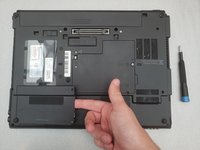
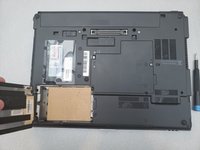
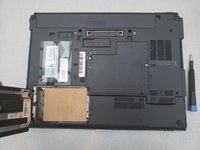
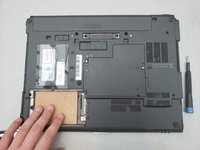
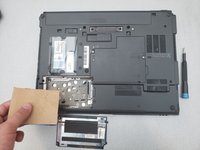
Slide the hard drive to the left to disconnect it from the connector on the right side.
-
Pull the hard drive up and out from the laptop.
-
-




To reassemble your device, follow these instructions in reverse order.

Team

Embry-Riddle Aeronautical University, Team S14-G6, Lamothe Spring 2020 Member of Embry-Riddle Aeronautical University, Team S14-G6, Lamothe Spring 2020
ERAU-LAMOTHE-S20S14G6
3 Members
60 Guides authored
