
HP EliteBook 850 G7 Fan Replacement

Caleb Pierce and one other contributor
Last updated on Mar 17, 2025
Views: 382
View statistics:
- Past 24 Hours:
- 1
- Past 7 Days:
- 13
- Past 30 Days:
- 71
- All Time:
- 382
Comments: 0
No one has left comments on this guide. Will you be first?
Go to guide commentsCompleted: 0 1
No one has marked this guide "completed." Will you be the first?
1 person has marked this guide "completed." It's you — great job!
Favorites: 0 1
No one has favorited (and subscribed to) this guide. Will you be the first?
1 person has favorited (and subscribed to) this guide — and that's you!
Community-Contributed Guide
An awesome member of our community made this guide. It was not created by iFixit staff.
What you need


-
-
-
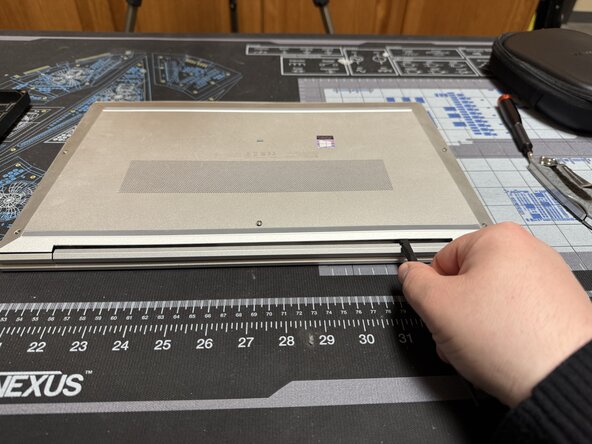
Unscrew the 5 marked captive screws with a Phillips #1 and flip the device so the hinge is faced towards you
-
Slide a spudger under the shell to pop the clips and run it around the perimeter of the shell until you can remove it.
-
-
-
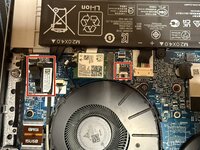
Unplug both marked cables. For the larger one pull it straight up gently but firmly.
-
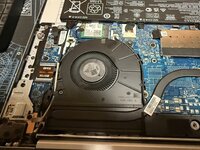
Pull the cables out of the channels.
-
Extremely gently remove the remaining cables from the channels
-
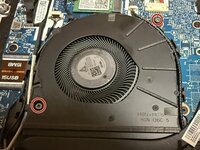
Unscrew the marked screws.
-
-
-
-
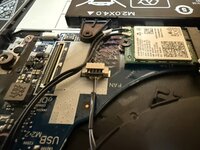
Using a pair of tweezers or a spudger pull the fan cable out
-
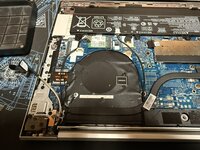
The fan can now be removed
-


 Ask FixBot





To reassemble your device, follow these instructions in reverse order.

