Free Shipping on Domestic Orders $75+

HP EliteBook 8470p Keyboard Replacement

What you need

    1. HP EliteBook 8470p Keyboard Replacement, Battery: step 1, image 1 of 1
      • Position the computer upside down with the opening latch facing away from you and the battery facing towards you.

      • If the battery is “swollen” or the shape is irregular, stop whatever you are doing and allow the battery to slowly discharge itself before removing it from the laptop casing. Click the link to learn how to replace and dispose of a “swollen” battery, What to do with a swollen battery.

      Ask FixBot

      Add Comment

    2. HP EliteBook 8470p Keyboard Replacement: step 2, image 1 of 1
      • Slide the battery latch positioned to the right over to the right side. Hold it there.

      Ask FixBot

      Add Comment

    3. HP EliteBook 8470p Keyboard Replacement: step 3, image 1 of 1
      • With the latch opened, pull the battery out of its socket firmly.

      • There will likely be some resistance. However, if you find it to be excessive, the latch may not be properly opened.

      Ask FixBot

      Add Comment

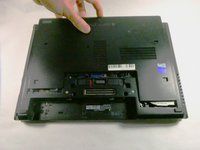
    1. HP EliteBook 8470p Keyboard Replacement, Case/Service Cover: step 4, image 1 of 1
      • With the laptop latch still facing away from you, slide the left release latch to the left.

      • Some models may have a screw installed on this latch, if so, be sure to remove it first to avoid damaging the latch.

      Ask FixBot

      Add Comment

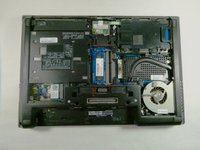
    2. HP EliteBook 8470p Keyboard Replacement: step 5, image 1 of 2 HP EliteBook 8470p Keyboard Replacement: step 5, image 2 of 2
      • Slide the door away from you, toward the opening latch.

      • Lift the door upwards away from the computer.

      Ask FixBot

      Add Comment

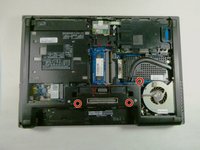
    1. HP EliteBook 8470p Keyboard Replacement, Keyboard: step 6, image 1 of 3 HP EliteBook 8470p Keyboard Replacement, Keyboard: step 6, image 2 of 3 HP EliteBook 8470p Keyboard Replacement, Keyboard: step 6, image 3 of 3
      • Loosen the three captive Phillips screws securing the keyboard to the computer with a Phillips #00 screwdriver.

      • These are all positioned just above the middle of the laptop.

      Ask FixBot

      Add Comment

    2. HP EliteBook 8470p Keyboard Replacement: step 7, image 1 of 1
      • Rest the computer on its right edge carefully so that you can open the laptop.

      • Open the laptop.

      Ask FixBot

      Add Comment

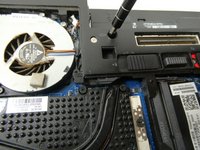
    3. HP EliteBook 8470p Keyboard Replacement: step 8, image 1 of 2 HP EliteBook 8470p Keyboard Replacement: step 8, image 2 of 2
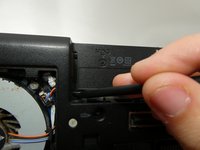
      • Insert a spudger or another small tool into the slot in the battery bay to release the keyboard.

      • Push firmly to disengage.

      Ask FixBot

      Add Comment

    4. HP EliteBook 8470p Keyboard Replacement: step 9, image 1 of 1
      • Open the computer towards you as if you were going to use it.

      Ask FixBot

      Add Comment

    5. HP EliteBook 8470p Keyboard Replacement: step 10, image 1 of 1
      • Lift the rear edge of the laptop.

      • Flip the far edge over and position the keyboard upside down on top of the touchpad.

      Ask FixBot

      Add Comment

    6. HP EliteBook 8470p Keyboard Replacement: step 11, image 1 of 2 HP EliteBook 8470p Keyboard Replacement: step 11, image 2 of 2
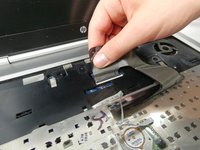
      • Release the connector in the middle of the back of the keyboard.

      • Disconnect the pointing stick.

      Ask FixBot

      Add Comment

    7. HP EliteBook 8470p Keyboard Replacement: step 12, image 1 of 1
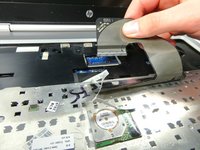
      • Release the connector for the keyboard cable.

      • Remove the cable from the system.

      Ask FixBot

      Add Comment

    8. HP EliteBook 8470p Keyboard Replacement: step 13, image 1 of 1
      • Remove the keyboard.

      Ask FixBot

      Add Comment

Conclusion

To reassemble your device, follow these instructions in reverse order.

Cancel: I did not complete this guide.

3 other people completed this guide.

Owen Bangs

Member since: 10/25/22

798 Reputation

5 Guides authored

Team

UMass Dartmouth, Team 5-3, Sinclaire Fall 2022 Member of UMass Dartmouth, Team 5-3, Sinclaire Fall 2022

UMASSD-SINCLAIRE-F22S5G3

5 Members

77 Guides authored

0 Guide Comments

Add Comment

View Statistics:

Past 24 Hours: 0

Past 7 Days: 8

Past 30 Days: 62

All Time: 1,970