Introduction
Use this guide to replace the trackpad of the HP EliteBook 1040 G4. The trackpad is an essential laptop component used for controlling the cursor without an external mouse. If a drastic decrease in trackpad sensitivity is noticed and/or if the trackpad clicker buttons no longer function properly, then the trackpad should be repaired or replaced.
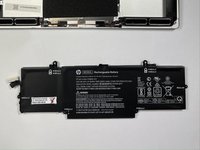
Before replacing the trackpad, make sure your battery isn't swollen. Swollen batteries can disrupt trackpad function, and can be dangerous. Replace and properly dispose of swollen batteries immediately.
To complete this guide, you will need a T5 Torx head screwdriver and a Phillips #00 screwdriver.
Before beginning, be sure to completely power off and unplug your computer.
What you need
-
-
-
Use a T5 Torx screwdriver to remove the eight 5 mm screws securing the back cover to the chassis.
 Ask FixBot
-
-
-
-
-
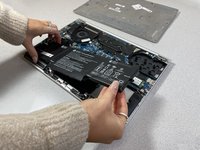
Use a Phillips #00 screwdriver to remove the eight 4 mm screws securing the battery to the motherboard.
-
-
-
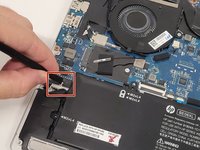
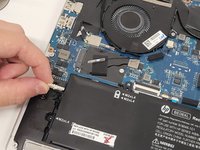
Use a plastic spudger to carefully disconnect the battery pin connector from its port, slowly lifting the pin connector from each side until it releases.
-
-
-
-
-
-
Carefully disconnect the white ribbon cable attached to the underside of the trackpad.
-
-
-
Use a Phillips #00 screwdriver to remove the six 2 mm screws securing the trackpad.
-






To reassemble your device, follow these instructions in reverse order.

Team

The Citadel Military College of South Carolina, Team 7-10, Eggleston Spring 2022 Member of The Citadel Military College of South Carolina, Team 7-10, Eggleston Spring 2022
CMCSC-EGGLESTON-S22S7G10
3 Members
36 Guides authored
