
HP EliteBook 1040 G4 Coin Cell Battery Replacement

SW Reeves and 2 other contributors
Last updated on Jun 17, 2022
Views: 1.3K
View statistics:
- Past 24 Hours:
- 2
- Past 7 Days:
- 23
- Past 30 Days:
- 82
- All Time:
- 1,295
Comments: 0
No one has left comments on this guide. Will you be first?
Go to guide commentsCompleted: 2 3
2 people have marked this guide "completed." Will you be next?
3 people have marked this guide "completed." Including you — great job!
Favorites: 0 1
No one has favorited (and subscribed to) this guide. Will you be the first?
1 person has favorited (and subscribed to) this guide — and that's you!
Introduction
Go to step 1 ↓Use this guide to replace the coin cell battery on the HP Elitebook 1040 G4. The coin cell battery is essential in laptops to retain certain system settings, such as date and time, while the device is powered off. If you are experiencing problems regarding the time settings or other internal system settings, you may need to replace the coin cell battery.
To complete this guide, you will need a T5 Torx head screwdriver and a Phillips #1 and #00 screwdriver.
Before beginning, be sure to completely power off and unplug your computer.
What you need
Tools


-
-
-
Use a T5 Torx screwdriver to remove the eight 5 mm screws securing the back cover to the chassis.
 Ask FixBot
-
-
-
-
-
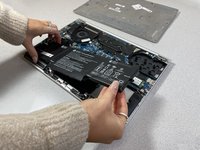
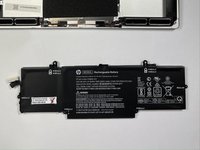
Use a Phillips #00 screwdriver to remove the eight 4 mm screws securing the battery to the motherboard.
-
-
-
-
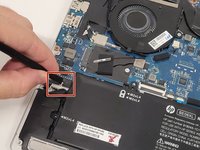
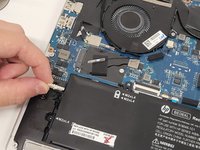
Use a plastic spudger to carefully disconnect the battery pin connector from its port, slowly lifting the pin connector from each side until it releases.
-
-
-
-
-
Carefully disconnect the pin connector from the right side of the speaker assembly.
-
-
-
Use a Phillips #1 screwdriver to remove the two 6 mm black screws securing the speakers to the device.
-
Lift the speakers up and out.
-
-
-
Carefully disconnect the coin cell battery cable located under the motherboard.
-
-






To reassemble your device, follow these instructions in reverse order.
Cancel: I did not complete this guide.
2 other people completed this guide.

Team

The Citadel Military College of South Carolina, Team 7-10, Eggleston Spring 2022 Member of The Citadel Military College of South Carolina, Team 7-10, Eggleston Spring 2022
CMCSC-EGGLESTON-S22S7G10
3 Members
36 Guides authored
