Free Shipping on Domestic Orders $75+

HP Deskjet 1055 Ink Cartridge Replacement

What you need

  1. HP Deskjet 1055 Ink Cartridge Replacement, Ink Cartridge: step 1, image 1 of 1
    • Turn on the printer by pressing the power button.

    Ask FixBot

    Add Comment

  2. HP Deskjet 1055 Ink Cartridge Replacement: step 2, image 1 of 2 HP Deskjet 1055 Ink Cartridge Replacement: step 2, image 2 of 2
    • Place your index finger in the opening on the front of the printer (right side below scanner/copier) and pull the door down.

    • Pull down on the tab that lies in the middle of the newly-exposed gray cover.

    Ask FixBot

    Add Comment

  3. HP Deskjet 1055 Ink Cartridge Replacement: step 3, image 1 of 1
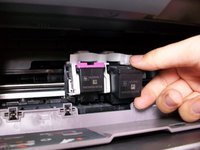
    • The tri-color cartridge sits on the left side; the black cartridge sits on the right.

    • Grab the cartridge from the top and bottom and pull down until it clicks.

    • Pull out the freed cartridge.

    Ask FixBot

    Add Comment

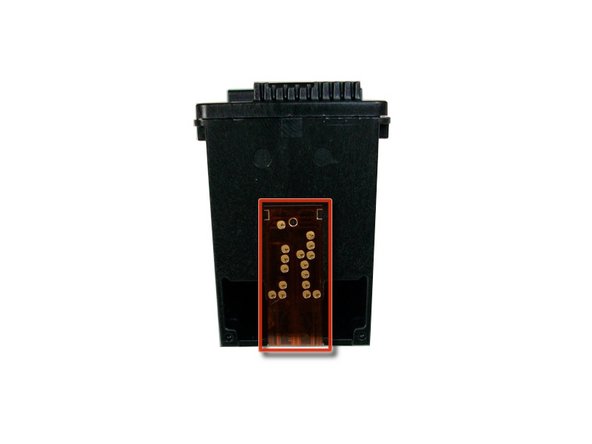
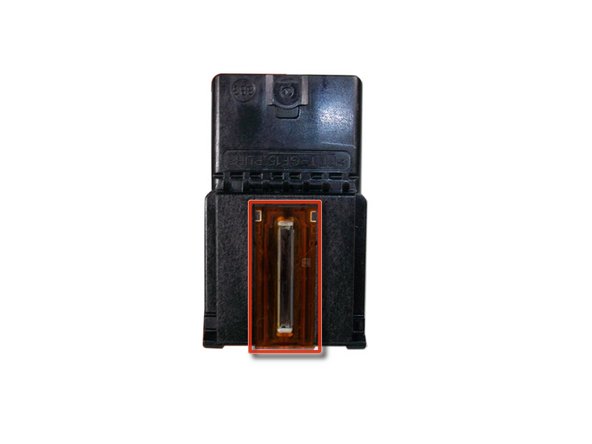
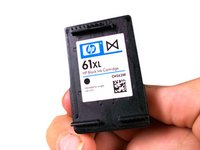
  4. HP Deskjet 1055 Ink Cartridge Replacement: step 4, image 1 of 3 HP Deskjet 1055 Ink Cartridge Replacement: step 4, image 2 of 3 HP Deskjet 1055 Ink Cartridge Replacement: step 4, image 3 of 3
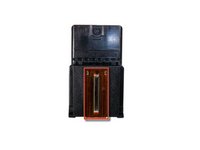
    • Take the replacement cartridge out of its packaging and pull off the plastic tab.

    • Do not touch the electrical contacts or ink nozzles. Touching may cause malfunctions.

    • Hold the cartridge on both sides with the title sticker facing upwards.

    Ask FixBot

    Add Comment

  5. HP Deskjet 1055 Ink Cartridge Replacement: step 5, image 1 of 2 HP Deskjet 1055 Ink Cartridge Replacement: step 5, image 2 of 2
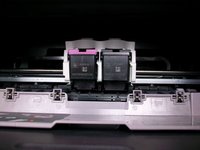
    • Slide the cartridge directly into open slot (tri-color on the left, black on the right).

    • Push it forward until you hear it snap.

    Ask FixBot

    Add Comment

  6. HP Deskjet 1055 Ink Cartridge Replacement: step 6, image 1 of 1
    • Close the gray access door.

    Ask FixBot

    Add Comment

  7. HP Deskjet 1055 Ink Cartridge Replacement: step 7, image 1 of 2 HP Deskjet 1055 Ink Cartridge Replacement: step 7, image 2 of 2
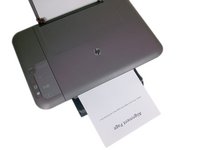
    • Wait 30 seconds for the alignment page to print.

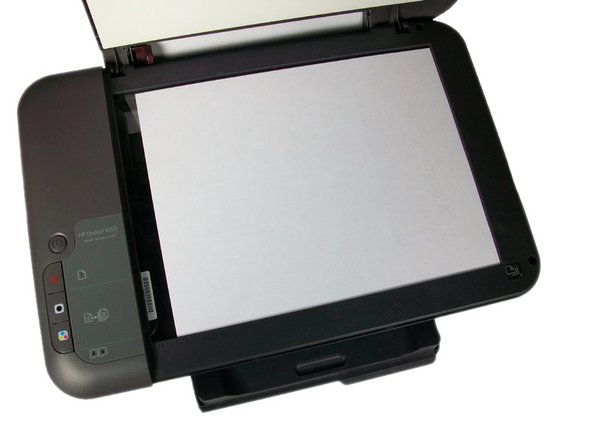
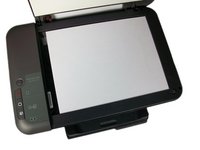
    • Open up the scanner lid and place the alignment page face-down in the right-front corner of the glass.

    • Close the lid.

    Ask FixBot

    Add Comment

  8. HP Deskjet 1055 Ink Cartridge Replacement: step 8, image 1 of 1
    • Press the color copy button to begin scan.

    • Wait until the power button stops blinking.

    Ask FixBot

    Add Comment

Conclusion

When the power button stops blinking, your can now use your printer.

Cancel: I did not complete this guide.

4 other people completed this guide.

Daniel

Member since: 10/06/12

314 Reputation

2 Guides authored

Team

Cal Poly, Team 9-18, Amido Fall 2012 Member of Cal Poly, Team 9-18, Amido Fall 2012

CPSU-AMIDO-F12S9G18

4 Members

10 Guides authored

0 Guide Comments

Add Comment

View Statistics:

Past 24 Hours: 1

Past 7 Days: 15

Past 30 Days: 72

All Time: 16,966