Free Shipping on Domestic Orders $75+

HP Compaq Presario CQ56-110US Keyboard Replacement

What you need

Video Overview

  1. HP Compaq Presario CQ56-110US Keyboard Replacement, Battery: step 1, image 1 of 2 HP Compaq Presario CQ56-110US Keyboard Replacement, Battery: step 1, image 2 of 2
    • Ensure that the laptop is completely powered off, then flip it over to identify the battery latch located towards the bottom of the back panel.

    • Push the latch to the unlocked position.

    Ask FixBot

    Add Comment

  2. HP Compaq Presario CQ56-110US Keyboard Replacement: step 2, image 1 of 1
    • Gently take out the battery.

    Ask FixBot

    Add Comment

  3. HP Compaq Presario CQ56-110US Keyboard Replacement, Keyboard: step 3, image 1 of 2 HP Compaq Presario CQ56-110US Keyboard Replacement, Keyboard: step 3, image 2 of 2
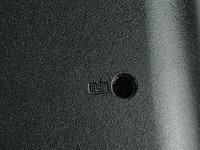
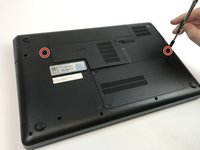
    • On the back panel of the laptop are two screws which have a keyboard symbol next to them.

    • Using a Phillips screwdriver with a PH0 bit, remove both the 7mm and 5.5mm screws.

    Ask FixBot

    Add Comment

  4. HP Compaq Presario CQ56-110US Keyboard Replacement: step 4, image 1 of 2 HP Compaq Presario CQ56-110US Keyboard Replacement: step 4, image 2 of 2
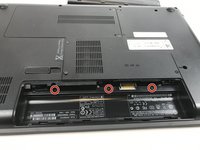
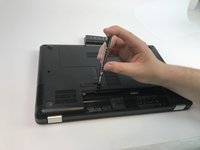
    • From left to right, unscrew the 5.5mm screw, the 7mm screw, and the 5.5mm screw located in the battery panel with the screwdriver.

    Ask FixBot

    Add Comment

  5. HP Compaq Presario CQ56-110US Keyboard Replacement: step 5, image 1 of 2 HP Compaq Presario CQ56-110US Keyboard Replacement: step 5, image 2 of 2
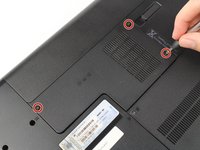
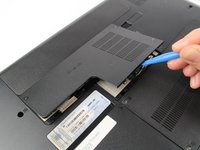
    • Remove the RAM panel by unscrewing the three screws with the PH0 Screwdriver Bit.

    • The screws do not come free from the panel. They only need to be loosened enough so that the panel can be lifted/pried using a plastic opening tool

    • Remove the RAM panel using a plastic opening tool.

    Ask FixBot

    Add Comment

  6. HP Compaq Presario CQ56-110US Keyboard Replacement: step 6, image 1 of 1
    • Inside the RAM panel, use the screwdriver to remove the 5mm screw pictured.

    Ask FixBot

    Add Comment

  7. HP Compaq Presario CQ56-110US Keyboard Replacement: step 7, image 1 of 1
    • Flip the laptop back over and lift the lid to expose the keyboard.

    Ask FixBot

    Add Comment

  8. HP Compaq Presario CQ56-110US Keyboard Replacement: step 8, image 1 of 2 HP Compaq Presario CQ56-110US Keyboard Replacement: step 8, image 2 of 2
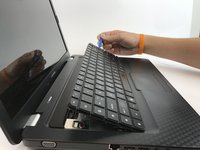
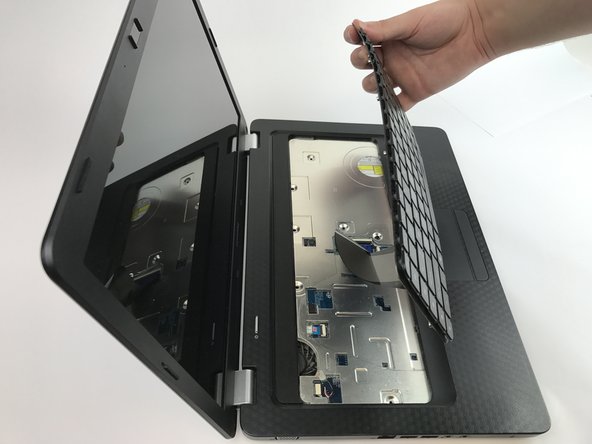
    • Use a plastic opening tool to pry up the keyboard.

    Ask FixBot

    Add Comment

  9. HP Compaq Presario CQ56-110US Keyboard Replacement: step 9, image 1 of 2 HP Compaq Presario CQ56-110US Keyboard Replacement: step 9, image 2 of 2
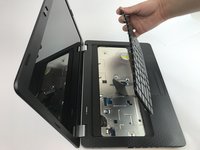
    • Once the keyboard is lifted, disconnect the band.

    Ask FixBot

    Add Comment

Conclusion

To reassemble your device, follow these instructions in reverse order.

Cancel: I did not complete this guide.

3 other people completed this guide.

Iyonna L. Tynes

Member since: 02/15/17

500 Reputation

3 Guides authored

Team

USF Tampa, Team 8-4, Eyestone Spring 2017 Member of USF Tampa, Team 8-4, Eyestone Spring 2017

USFT-EYESTONE-S17S8G4

4 Members

5 Guides authored

1 Guide Comment

Difficulty HARD ? oh please… please change to EASY… just some screws?

Assembler Computer - Reply Share

Add Comment

View Statistics:

Past 24 Hours: 2

Past 7 Days: 9

Past 30 Days: 53

All Time: 4,122