Free Shipping on Domestic Orders $75+

HP Compaq C700 Fan Replacement

What you need

  1. HP Compaq C700 Fan Replacement, Keyboard: step 1, image 1 of 1
    • It is advised to work on the device only when it is powered off so as to avoid electrocution risks.

    • Turn off computer by pressing and holding the power button.

    Ask FixBot

    Add Comment

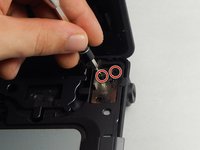
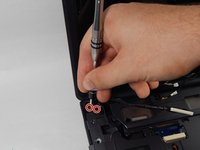
  2. HP Compaq C700 Fan Replacement: step 2, image 1 of 3 HP Compaq C700 Fan Replacement: step 2, image 2 of 3 HP Compaq C700 Fan Replacement: step 2, image 3 of 3
    • Locate and unscrew the two screws on the back marked with a small keyboard. These screws hold the keyboard in place.

    • Locate the metal hooks where the keyboard connects to the laptop and use a metal spudger to gently pry up the keyboard.

    Ask FixBot

    Add Comment

  3. HP Compaq C700 Fan Replacement: step 3, image 1 of 1
    • Gently lift up and remove the keyboard.

    Ask FixBot

    Add Comment

  4. HP Compaq C700 Fan Replacement, Fan: step 4, image 1 of 1
    • Turn the laptop over so that you see the bottom.

    • Locate the twenty 3 mm Phillips head screws.

    • Unscrew them using the PH0 screwdriver

    Ask FixBot

    Add Comment

  5. HP Compaq C700 Fan Replacement: step 5, image 1 of 1
    • After unscrewing the 3 mm screws, remove the hard drive covering by lifting upward.

    Ask FixBot

    Add Comment

  6. HP Compaq C700 Fan Replacement: step 6, image 1 of 1
    • Remove the hard drive by pulling on the plastic tab and lifting upward.

    Ask FixBot

    Add Comment

  7. HP Compaq C700 Fan Replacement: step 7, image 1 of 1
    • Remove the covering that houses the RAM modules.

    Ask FixBot

    Add Comment

  8. HP Compaq C700 Fan Replacement: step 8, image 1 of 1
    • Locate and unscrew the two Phillips head 3 mm screws on the wireless card.

    Ask FixBot

    Add Comment

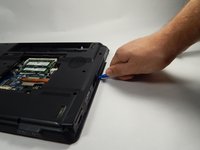
  9. HP Compaq C700 Fan Replacement: step 9, image 1 of 1
    • Unhook the two wires connecting to the wireless card by gently pulling them out.

    Ask FixBot
    Add Comment

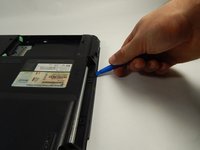
  10. HP Compaq C700 Fan Replacement: step 10, image 1 of 1
    • Gently lift and pull out the card.

    Ask FixBot
    Add Comment
  11. HP Compaq C700 Fan Replacement: step 11, image 1 of 1
    Tool used on this step:
    Tweezers
    $4.99
    Buy
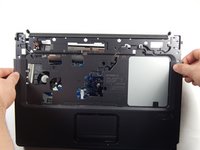
    • Locate the power button connector wire. (This can be found where the keyboard sits.)

    • Using the tweezers, unhook the wire.

    Ask FixBot

    Add Comment

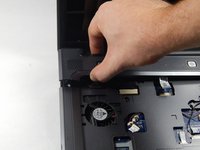
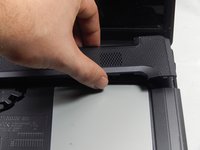
  12. HP Compaq C700 Fan Replacement: step 12, image 1 of 2 HP Compaq C700 Fan Replacement: step 12, image 2 of 2
    • Press and hold the lock to pop the panel piece above the keyboard and pull up to remove it.

    Ask FixBot

    Add Comment

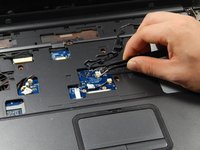
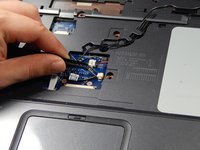
  13. HP Compaq C700 Fan Replacement: step 13, image 1 of 2 HP Compaq C700 Fan Replacement: step 13, image 2 of 2
    • Unplug the remaining wires using the tweezers.

    Ask FixBot

    Add Comment

  14. HP Compaq C700 Fan Replacement: step 14, image 1 of 1
    • Gently pull out the three wires.

    Ask FixBot

    Add Comment

  15. HP Compaq C700 Fan Replacement: step 15, image 1 of 2 HP Compaq C700 Fan Replacement: step 15, image 2 of 2
    • Locate the four 3 mm Phillips head screws.

    • Unscrew them using the PH0 screwdriver.

    Ask FixBot

    Add Comment

  16. HP Compaq C700 Fan Replacement: step 16, image 1 of 1
    • Unhook the display connector wire.

    Ask FixBot

    Add Comment

  17. HP Compaq C700 Fan Replacement: step 17, image 1 of 1
    • Gently disconnect the display by pulling it upwards.

    Ask FixBot

    Add Comment

  18. HP Compaq C700 Fan Replacement: step 18, image 1 of 1
    • Locate the disk drive on the side of the device.

    • Remove it by pulling it all the way out.

    Ask FixBot

    Add Comment

  19. HP Compaq C700 Fan Replacement: step 19, image 1 of 1
    • Use the PH0 screwdriver to remove the two 3 mm Phillips head screws in the disk drive port.

    Ask FixBot

    Add Comment

  20. HP Compaq C700 Fan Replacement: step 20, image 1 of 1
    • Locate and unplug the touchpad connection using the tweezers.

    Ask FixBot

    Add Comment

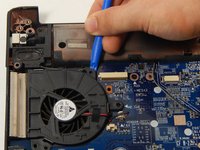
  21. HP Compaq C700 Fan Replacement: step 21, image 1 of 3 HP Compaq C700 Fan Replacement: step 21, image 2 of 3 HP Compaq C700 Fan Replacement: step 21, image 3 of 3
    • Using the Opening tool, gently pry up the cover and remove it.

    Ask FixBot

    Add Comment

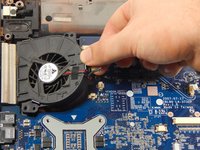
  22. HP Compaq C700 Fan Replacement: step 22, image 1 of 1
    • Unplug the fan wire connection using the tweezers.

    Ask FixBot

    Add Comment

  23. HP Compaq C700 Fan Replacement: step 23, image 1 of 1
    • Locate the 3 mm Phillips head screw.

    • Unscrew it using the PH0 screwdriver.

    Ask FixBot

    Add Comment

  24. HP Compaq C700 Fan Replacement: step 24, image 1 of 2 HP Compaq C700 Fan Replacement: step 24, image 2 of 2
    • Using the opening tool, gently pry up and remove the fan.

    Ask FixBot

    Add Comment

Conclusion

To reassemble your device, follow these instructions in reverse order.

Cancel: I did not complete this guide.

One other person completed this guide.

Taylor Johansen

Member since: 10/20/16

711 Reputation

5 Guides authored

Team

UMass Dartmouth, Team 5-6, Martin Fall 2016 Member of UMass Dartmouth, Team 5-6, Martin Fall 2016

UMASSD-MARTIN-F16S5G6

3 Members

6 Guides authored

0 Guide Comments

Add Comment

View Statistics:

Past 24 Hours: 0

Past 7 Days: 3

Past 30 Days: 30

All Time: 1,717