
HP Compaq 515 RAM Replacement

Aleks B and 2 other contributors
Last updated on Jun 5, 2018
Views: 753
View statistics:
- Past 24 Hours:
- 1
- Past 7 Days:
- 16
- Past 30 Days:
- 64
- All Time:
- 753
Comments: 0
No one has left comments on this guide. Will you be first?
Go to guide commentsCompleted: 0 1
No one has marked this guide "completed." Will you be the first?
1 person has marked this guide "completed." It's you — great job!
Favorites: 0 1
No one has favorited (and subscribed to) this guide. Will you be the first?
1 person has favorited (and subscribed to) this guide — and that's you!
Introduction
Go to step 1 ↓Replacing the RAM card is a very common task that takes no time at all. The only tool needed for this replacement guide is the PH00 bit. Don't worry about losing the one screw that gets unscrewed because it is attached to the device for your convenience. Make sure the device is off before starting the guide. Be careful and gentle once you access the RAM because the tabs you slide and the RAM itself is delicate.
What you need
Tools

-
-
-
Turn the laptop over. The screw for the RAM is located in the middle of the device.
 Ask FixBot
-
-
-
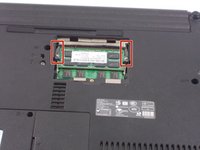
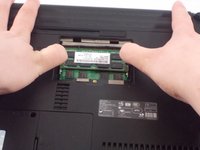
There are two tabs on either side of the RAM card that are holding it in place. Slide them to the sides; one to the left and the other to the right. The RAM pops out.
-
-
-
-
Repeat these steps for the second RAM card which is stored underneath the first one.
-
-




To reassemble your device, follow these instructions in reverse order.

Team

UMass Dartmouth, Team S4-G1, Covino Spring 2018 Member of UMass Dartmouth, Team S4-G1, Covino Spring 2018
UMASSD-COVINO-S18S4G1
3 Members
60 Guides authored
