Free Shipping on Domestic Orders $75+

HP Chromebook CB2L Speaker Replacement

What you need

    1. HP Chromebook CB2L Speaker Replacement, Battery: step 1, image 1 of 2 HP Chromebook CB2L Speaker Replacement, Battery: step 1, image 2 of 2
      • First flip your HP Chromebook CB2L over such that the bottom is facing upwards.

      • Next, using the plastic opening tool remove the blue panel.

      Ask FixBot

      Add Comment

    2. HP Chromebook CB2L Speaker Replacement: step 2, image 1 of 3 HP Chromebook CB2L Speaker Replacement: step 2, image 2 of 3 HP Chromebook CB2L Speaker Replacement: step 2, image 3 of 3
      • Using the Phillips #1 screwdriver, remove the six 1.2mm screws.

      • Gently pry off the white back panel using the plastic opening tool.

      Ask FixBot

      Add Comment

    3. HP Chromebook CB2L Speaker Replacement: step 3, image 1 of 1
      • Disconnect the battery input to the motherboard using the plastic opening tool

      Ask FixBot

      Add Comment

    4. HP Chromebook CB2L Speaker Replacement: step 4, image 1 of 1
      • Unscrew the four 1.2mm screws using the Phillips #1 screwdriver.

      Ask FixBot

      Add Comment

    5. HP Chromebook CB2L Speaker Replacement: step 5, image 1 of 1
      • Using the plastic opening tool remove the battery from the Chromebook.

      Ask FixBot

      Add Comment

    1. HP Chromebook CB2L Speaker Replacement, Speaker: step 6, image 1 of 1
      • Using the plastic opening tool lift the black tab.

      • Disconnect the blue and black strip from the motherboard.

      Ask FixBot

      Add Comment

    2. HP Chromebook CB2L Speaker Replacement: step 7, image 1 of 1
      • Use the Phillips #1 screwdriver to remove the four 1.2mm screws circled red.

      Ask FixBot

      Add Comment

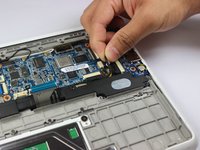
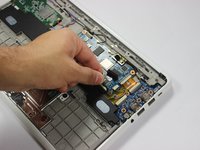
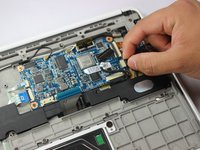
    3. HP Chromebook CB2L Speaker Replacement: step 8, image 1 of 3 HP Chromebook CB2L Speaker Replacement: step 8, image 2 of 3 HP Chromebook CB2L Speaker Replacement: step 8, image 3 of 3
      • Gently pull the black wire to disconnect the audio port from the motherboard.

      • Disconnect the black wire connecting the speaker to the motherboard with caution.

      Ask FixBot

      Add Comment

    4. HP Chromebook CB2L Speaker Replacement: step 9, image 1 of 1
      • Use the plastic opening tool to remove the speaker from back panel.

      Ask FixBot

      Add Comment

Conclusion

To reassemble your device, follow these instructions in reverse order.

Cancel: I did not complete this guide.

Gregory Hinkson

Member since: 02/13/17

352 Reputation

3 Guides authored

Team

USF Tampa, Team S2-G6, Lacy Spring 2017 Member of USF Tampa, Team S2-G6, Lacy Spring 2017

USFT-LACY-S17S2G6

3 Members

36 Guides authored

0 Guide Comments

Add Comment

View Statistics:

Past 24 Hours: 0

Past 7 Days: 3

Past 30 Days: 17

All Time: 378