Free Shipping on Domestic Orders $75+

HP Chromebook CB2L Keyboard Replacement

What you need

  1. HP Chromebook CB2L Keyboard Replacement, Keyboard: step 1, image 1 of 1
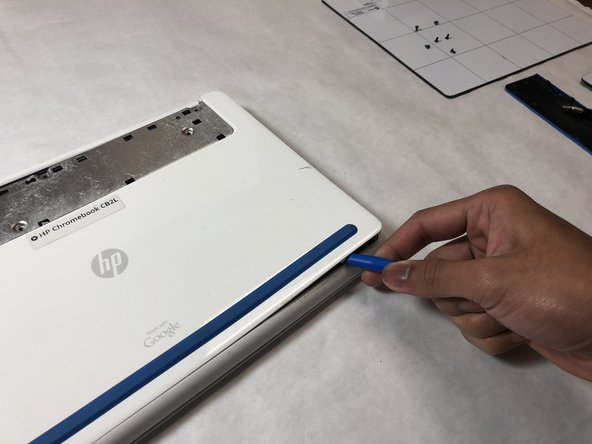
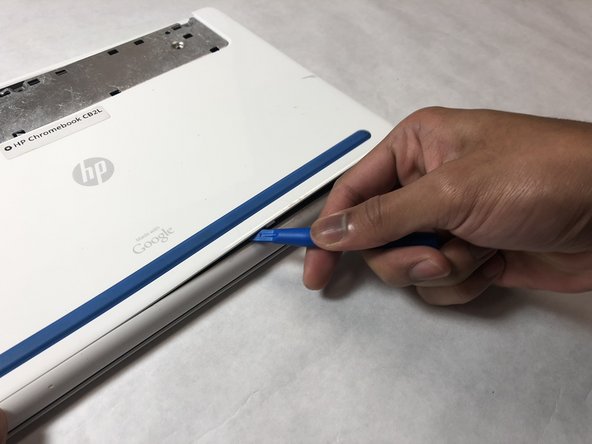
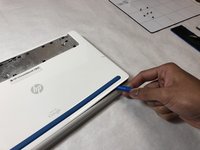
    • Flip the Chromebook over so the blue panels are showing.

    • Starting in the top left or right corner, use the plastic opening tool to remove the large blue panel.

    • This piece has fragile plastic connectors. Don't damage them.

    Ask FixBot

    Add Comment

  2. HP Chromebook CB2L Keyboard Replacement: step 2, image 1 of 2 HP Chromebook CB2L Keyboard Replacement: step 2, image 2 of 2
    • Remove six 4.77mm screws using the Phillips #1 screwdriver.

    Ask FixBot

    Add Comment

  3. HP Chromebook CB2L Keyboard Replacement: step 3, image 1 of 3 HP Chromebook CB2L Keyboard Replacement: step 3, image 2 of 3 HP Chromebook CB2L Keyboard Replacement: step 3, image 3 of 3
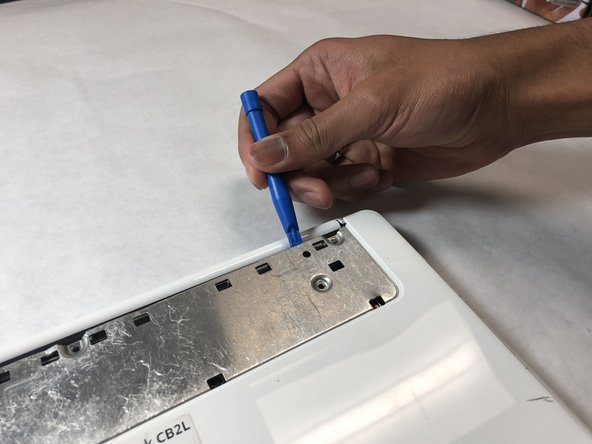
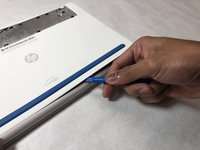
    • Starting in the top right-hand corner of the exposed metal piece, use the blue plastic opening tool to remove the back panel.

    Ask FixBot

    Add Comment

  4. HP Chromebook CB2L Keyboard Replacement: step 4, image 1 of 2 HP Chromebook CB2L Keyboard Replacement: step 4, image 2 of 2
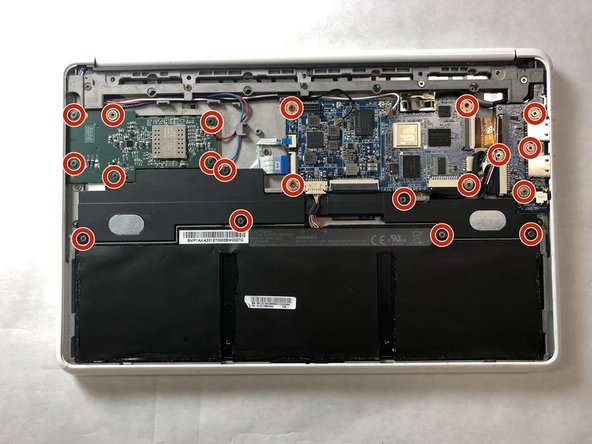
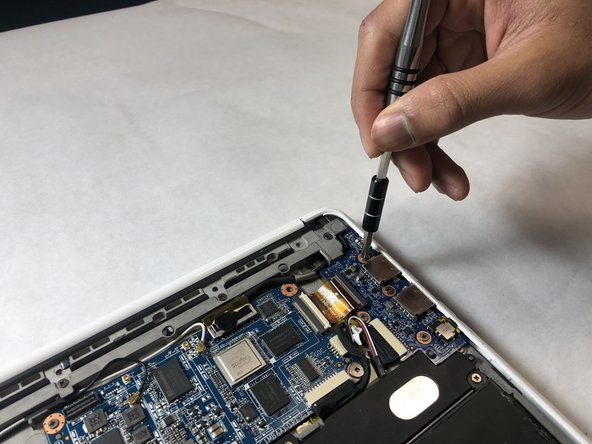
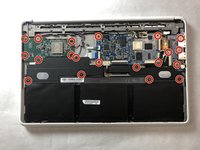
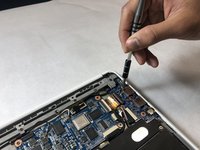
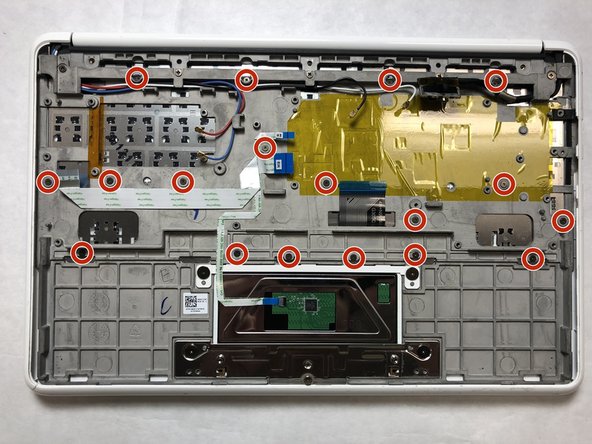
    • Remove twenty 3.42mm screws with the Phillips #1 screwdriver.

    Ask FixBot

    Add Comment

  5. HP Chromebook CB2L Keyboard Replacement: step 5, image 1 of 2 HP Chromebook CB2L Keyboard Replacement: step 5, image 2 of 2
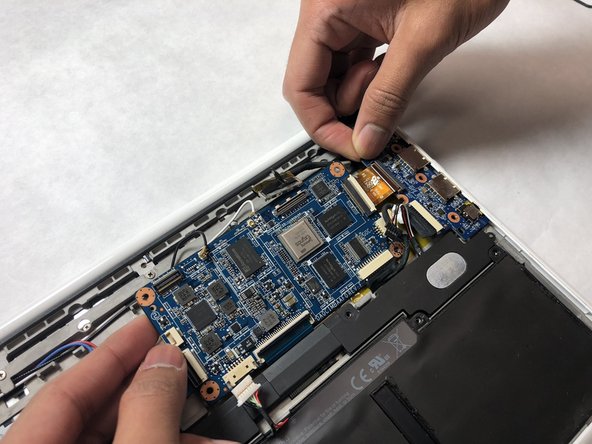
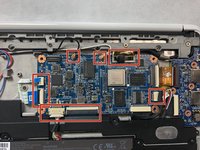
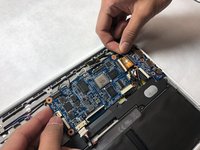
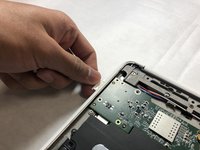
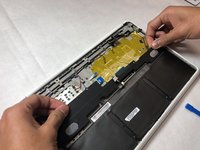
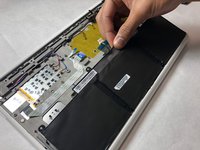
    • Remove the black and white antennae wires, the white ribbon cables, the large black connecter, and the speaker cable from the motherboard.

    • Grabbing the boards by the edges, remove the motherboard and audio/USB board.

    Ask FixBot

    Add Comment

  6. HP Chromebook CB2L Keyboard Replacement: step 6, image 1 of 3 HP Chromebook CB2L Keyboard Replacement: step 6, image 2 of 3 HP Chromebook CB2L Keyboard Replacement: step 6, image 3 of 3
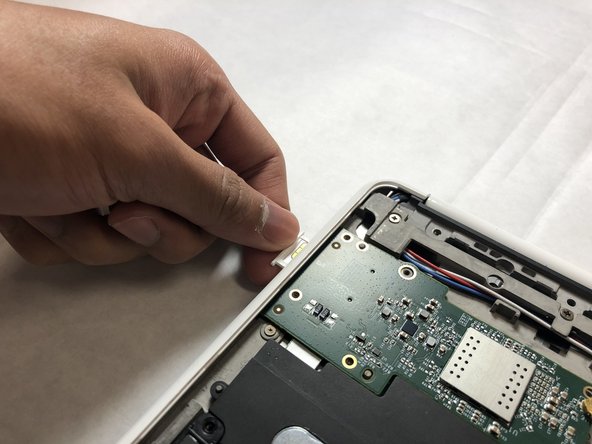
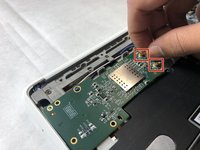
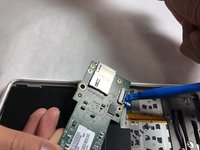
    • Remove the red and blue antennae wires from the SIM card board.

    • Remove the SIM card tray.

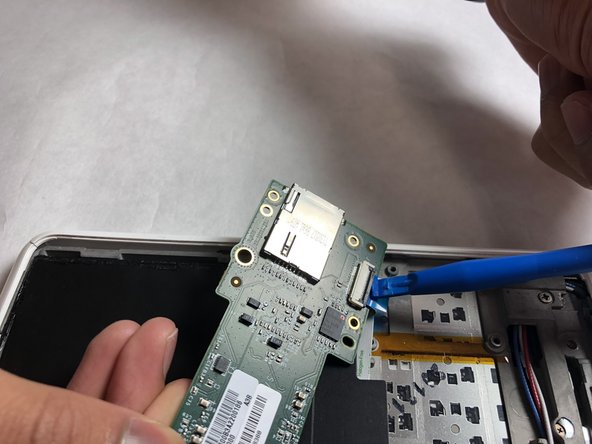
    • Flip the board over and use the plastic opening tool to remove the ribbon cable, then remove the board.

    Ask FixBot

    Add Comment

  7. HP Chromebook CB2L Keyboard Replacement: step 7, image 1 of 2 HP Chromebook CB2L Keyboard Replacement: step 7, image 2 of 2
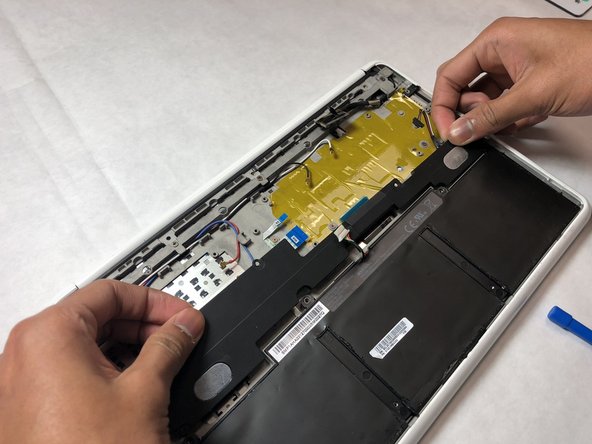
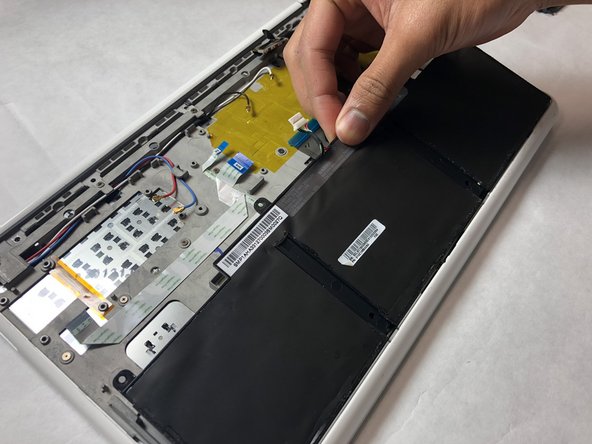
    • Remove the speakers and battery.

    Ask FixBot

    Add Comment

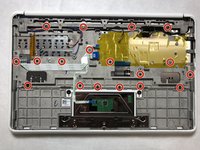
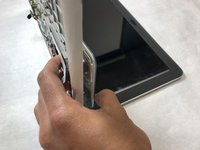
  8. HP Chromebook CB2L Keyboard Replacement: step 8, image 1 of 2 HP Chromebook CB2L Keyboard Replacement: step 8, image 2 of 2
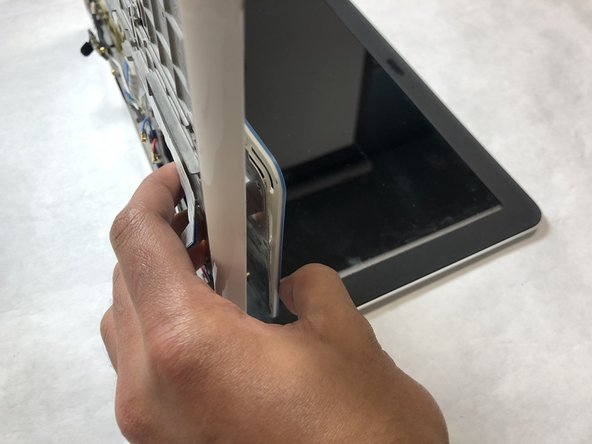
    • Remove eighteen 2.5mm screws using the Phillips #1 screwdriver.

    • Flip the Chromebook so the top is on the table and the push out the keyboard from the back.

    Ask FixBot

    Add Comment

Conclusion

To reassemble your device, follow these instructions in reverse order.

Cancel: I did not complete this guide.

Nathan Petrie

Member since: 10/31/18

277 Reputation

2 Guides authored

Team

IUPUI, Team S1-G4, Harley Fall 2018 Member of IUPUI, Team S1-G4, Harley Fall 2018

IUPUI-HARLEY-F18S1G4

3 Members

2 Guides authored

0 Guide Comments

Add Comment

View Statistics:

Past 24 Hours: 2

Past 7 Days: 6

Past 30 Days: 32

All Time: 419