Introduction
Don't let a broken or unresponsive keyboard slow you down. Whether you're dealing with "sticky" keys from a spill, missing keycaps, or a keyboard that has stopped responding entirely, replacing the keyboard on your HP Chromebook 14-SMB is an effective way to extend the life of your device and save money on professional repairs.
The keyboard serves as the primary input for your laptop. If only a few keys are failing, try cleaning beneath them with compressed air before beginning this replacement. If the entire keyboard is unresponsive, ensure the issue isn't software-related by performing a hard reset.
This guide will walk you through the process of opening the laptop chassis and disconnecting the internal ribbon cables to swap out the keyboard assembly. You will use a Phillips #0 screwdriver to remove the case screws and iFixit opening tools and picks to safely seperate the plastic clips around the palm rest. Because this repair involves working near internal electronics, it is critical for your safety to unplug all peripheries, discharge the battery below 25% to reduce fire risk, and power down your device completely before beginning disassembly.
What you need
-
-
-
Remove the eleven Phillips screws securing the lower case.
-
Remove the two rubber stoppers, then remove the two Phillips screws hidden underneath.
 Ask FixBot
-
-
-
-
Flip the laptop over and open the lid.
-
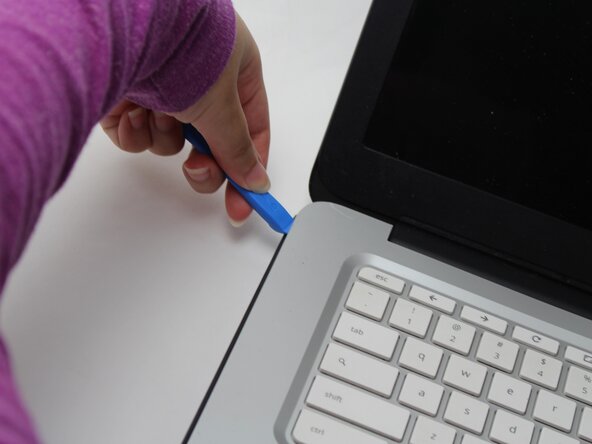
Insert an opening pick into the seam between the keyboard assembly and chassis.
-
Slide the pick along the edge to release the plastic clips, then use an opening tool to pry around the entire perimeter until the keyboard assembly fully releases.
-
-
-
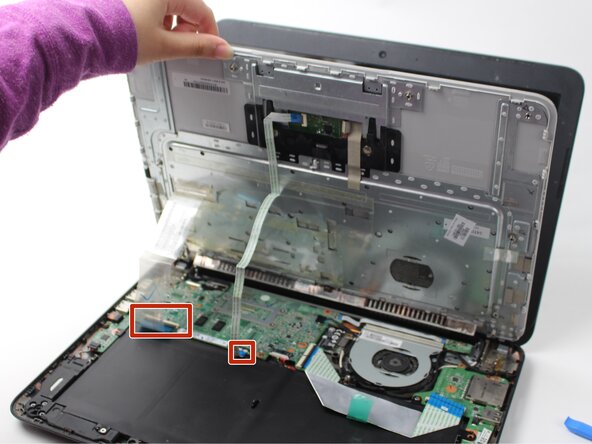
Lift the keyboard perpendicular to the laptop.
-
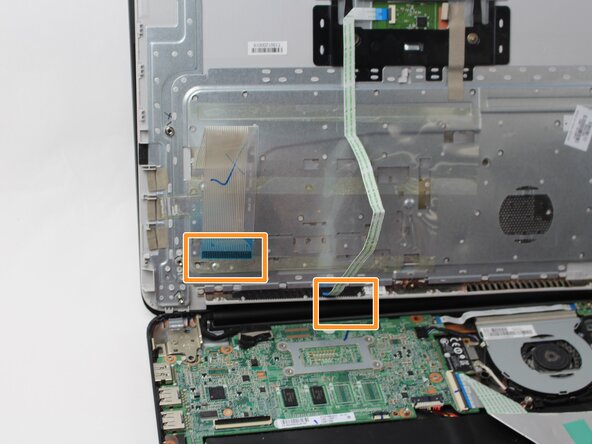
Flip up each of the two black ZIF locking flaps that secure the keyboard and trackpad ribbon cables to their motherboard sockets.
-
Disconnect the keyboard and trackpad ribbon cables.
-
Remove the keyboard.
-
-






To reassemble your device, follow the above steps in reverse order.
Take your e-waste to an R2 or e-Stewards certified recycler.
Repair didn’t go as planned? Try some basic troubleshooting or ask our Answers community for help.

Team

Sam Houston State, Team 17-3, Thornton Spring 2025 Member of Sam Houston State, Team 17-3, Thornton Spring 2025
SHSU-THORNTON-S25S17G3
3 Members
60 Guides authored
