Free Shipping on Domestic Orders $75+

HP Chromebook 14-Q010DX Hard drive Replacement

What you need

  1. HP Chromebook 14-Q010DX Hard drive Replacement, Keyboard and Touchpad: step 1, image 1 of 2 HP Chromebook 14-Q010DX Hard drive Replacement, Keyboard and Touchpad: step 1, image 2 of 2
    • Flip the laptop so the base of the laptop is facing you.

    • Using the #00 screwdriver, unscrew the 13 screws.

    Ask FixBot

    Add Comment

  2. HP Chromebook 14-Q010DX Hard drive Replacement: step 2, image 1 of 3 HP Chromebook 14-Q010DX Hard drive Replacement: step 2, image 2 of 3 HP Chromebook 14-Q010DX Hard drive Replacement: step 2, image 3 of 3
    • Warning! When prying open a laptop it could require some force, but it also has fragile connectors underneath. Use caution so as to avoid breaking these connectors.

    • Start from the top right corner of the laptop and work clockwise with an iFixit opening tool or spudger to pry the keyboard from the frame of the laptop.

    Ask FixBot

    Add Comment

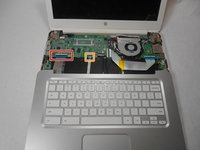
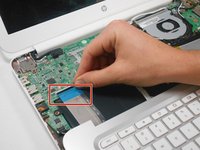
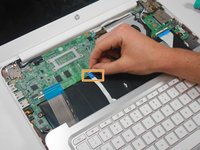
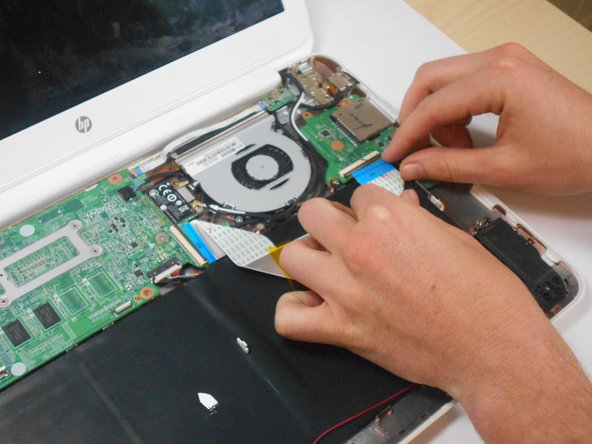
  3. HP Chromebook 14-Q010DX Hard drive Replacement: step 3, image 1 of 3 HP Chromebook 14-Q010DX Hard drive Replacement: step 3, image 2 of 3 HP Chromebook 14-Q010DX Hard drive Replacement: step 3, image 3 of 3
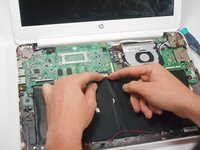
    • Warning! Handle the flaps and ribbon cables with care to prevent damage.

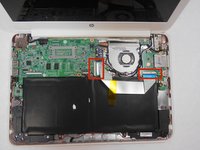
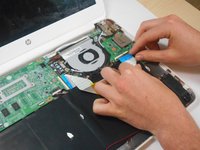
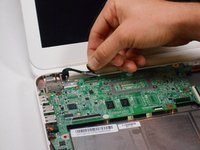
    • Gently pull the keyboard in the opposite direction of the screen, so the wires beneath are exposed.

    • Lift the black flap and pull the blue ribbon gently towards you until it is disconnected.

    • Lift the white flap and pull the blue ribbon towards you until it is disconnected.

    Ask FixBot

    Add Comment

  4. HP Chromebook 14-Q010DX Hard drive Replacement: step 4, image 1 of 1
    • Lift keyboard slightly and remove the strip gently to prevent damaging any parts.

    • The tape has no function other than to keep the wire tucked away.

    Ask FixBot

    Add Comment

  5. HP Chromebook 14-Q010DX Hard drive Replacement: step 5, image 1 of 1
    • Set aside the detached keyboard.

    Ask FixBot

    Add Comment

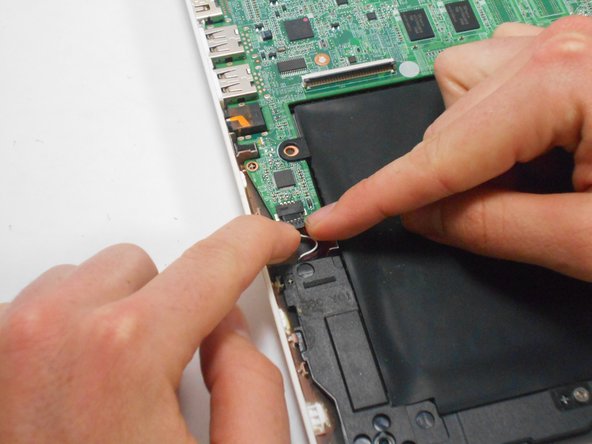
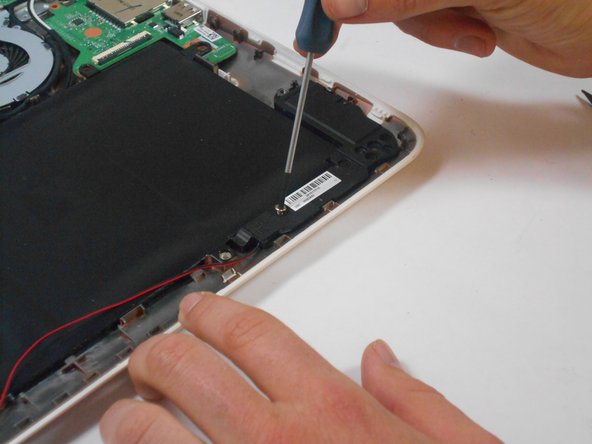
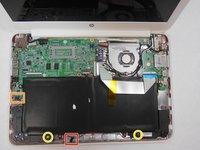
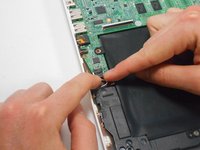
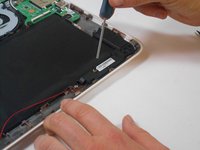
  6. HP Chromebook 14-Q010DX Hard drive Replacement, Speaker: step 6, image 1 of 3 HP Chromebook 14-Q010DX Hard drive Replacement, Speaker: step 6, image 2 of 3 HP Chromebook 14-Q010DX Hard drive Replacement, Speaker: step 6, image 3 of 3
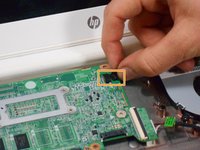
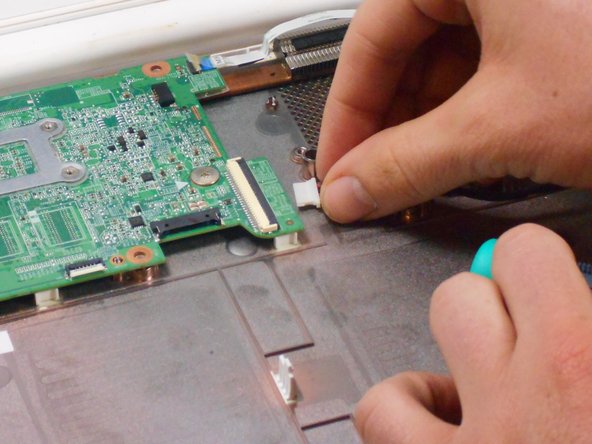
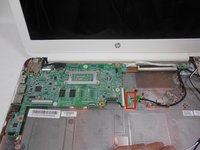
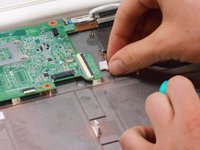
    • Undo the black tape located on the bottom from the frame of the laptop.

    • The tape has no function other than to keep the wire tucked away.

    • Using fingers or the spudger, slide out the black connector indicated on the left.

    • Use a #00 screwdriver to remove the two screws.

    Ask FixBot

    Add Comment

  7. HP Chromebook 14-Q010DX Hard drive Replacement: step 7, image 1 of 2 HP Chromebook 14-Q010DX Hard drive Replacement: step 7, image 2 of 2
    • Gently remove the speakers.

    Ask FixBot

    Add Comment

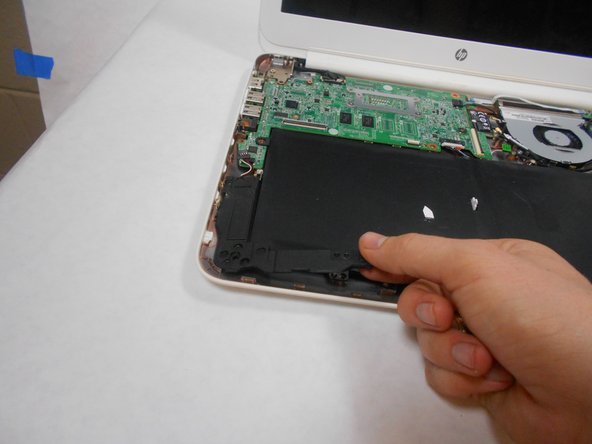
  8. HP Chromebook 14-Q010DX Hard drive Replacement, Battery: step 8, image 1 of 2 HP Chromebook 14-Q010DX Hard drive Replacement, Battery: step 8, image 2 of 2
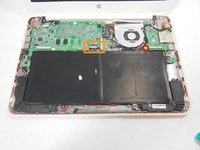
    • Note the shape that this wire strip is resting at and that the blue tip of the strip goes into the right connector for reassembly.

    • Lift the black flaps and gently pull the strip out.

    • Set the strip aside.

    Ask FixBot

    Add Comment

  9. HP Chromebook 14-Q010DX Hard drive Replacement: step 9, image 1 of 3 HP Chromebook 14-Q010DX Hard drive Replacement: step 9, image 2 of 3 HP Chromebook 14-Q010DX Hard drive Replacement: step 9, image 3 of 3
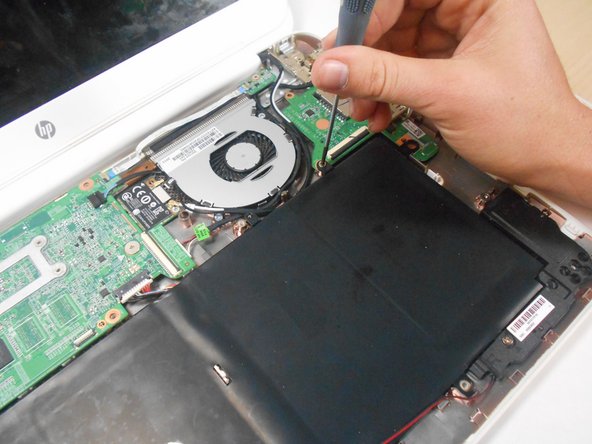
    • Remove the screw.

    • Use your fingers to pull the white tab out of the black slot above the battery.

    Ask FixBot

    Add Comment

  10. HP Chromebook 14-Q010DX Hard drive Replacement: step 10, image 1 of 1
    • Gently remove battery.

    Ask FixBot

    Add Comment

  11. HP Chromebook 14-Q010DX Hard drive Replacement, Bluetooth and Wireless Card: step 11, image 1 of 2 HP Chromebook 14-Q010DX Hard drive Replacement, Bluetooth and Wireless Card: step 11, image 2 of 2
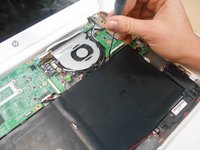
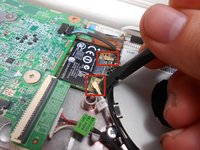
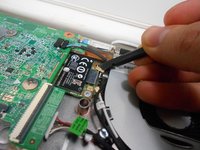
    • Using a spudger, remove the white and black cables from the card.

    Ask FixBot

    Add Comment

  12. HP Chromebook 14-Q010DX Hard drive Replacement: step 12, image 1 of 2 HP Chromebook 14-Q010DX Hard drive Replacement: step 12, image 2 of 2
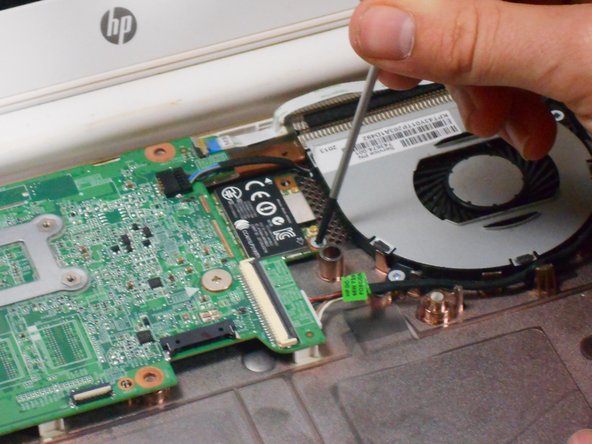
    • Remove screw from card.

    Ask FixBot

    Add Comment

  13. HP Chromebook 14-Q010DX Hard drive Replacement: step 13, image 1 of 1
    • Gently pull card at a 45° angle to remove it.

    Ask FixBot

    Add Comment

  14. HP Chromebook 14-Q010DX Hard drive Replacement, USB/SD card: step 14, image 1 of 2 HP Chromebook 14-Q010DX Hard drive Replacement, USB/SD card: step 14, image 2 of 2
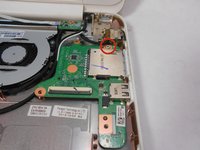
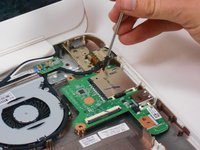
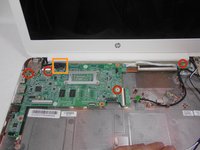
    • Remove screw indicated by the red circle at the top of the card port.

    Ask FixBot

    Add Comment

  15. HP Chromebook 14-Q010DX Hard drive Replacement: step 15, image 1 of 1
    • Gently remove the USB/SD card port.

    Ask FixBot

    Add Comment

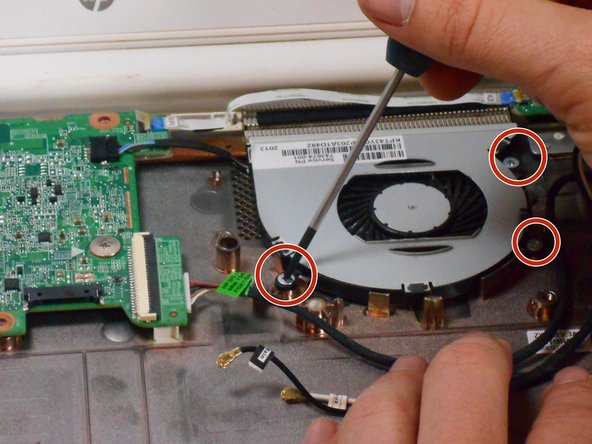
  16. HP Chromebook 14-Q010DX Hard drive Replacement, Fan replacement for a HP Chromebook: step 16, image 1 of 3 HP Chromebook 14-Q010DX Hard drive Replacement, Fan replacement for a HP Chromebook: step 16, image 2 of 3 HP Chromebook 14-Q010DX Hard drive Replacement, Fan replacement for a HP Chromebook: step 16, image 3 of 3
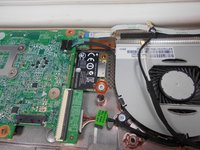
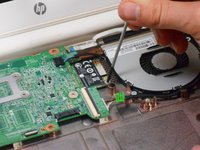
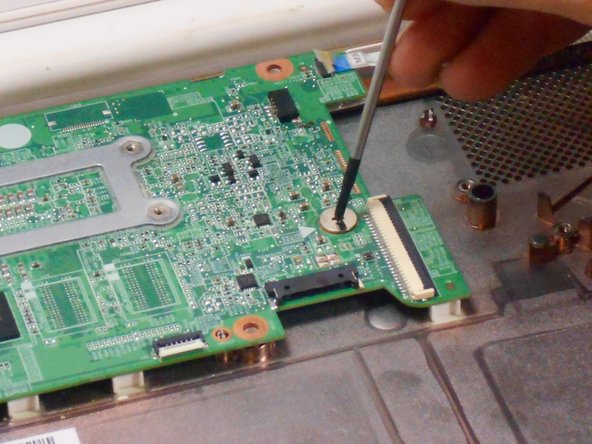
    • Remove the 3 screws around the fan.

    • Using your fingers or the spudger, disconnect the cable connecting the fan to the motherboard.

    Ask FixBot

    Add Comment

  17. HP Chromebook 14-Q010DX Hard drive Replacement: step 17, image 1 of 1
    • Once the cable connecting the fan to the motherboard is revomed gently remove fan with hands.

    Ask FixBot

    Add Comment

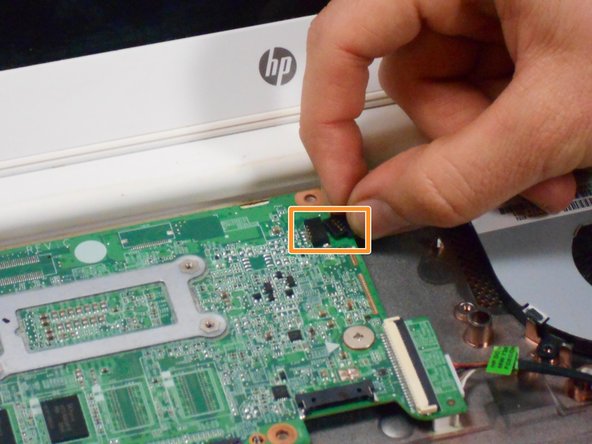
  18. HP Chromebook 14-Q010DX Hard drive Replacement, Motherboard: step 18, image 1 of 2 HP Chromebook 14-Q010DX Hard drive Replacement, Motherboard: step 18, image 2 of 2
    • Using your fingers or spudger, pull out the connector.

    Ask FixBot

    Add Comment

  19. HP Chromebook 14-Q010DX Hard drive Replacement: step 19, image 1 of 3 HP Chromebook 14-Q010DX Hard drive Replacement: step 19, image 2 of 3 HP Chromebook 14-Q010DX Hard drive Replacement: step 19, image 3 of 3
    • Remove all of the indicated screws.

    • Pull up on black strip to remove the monitor cord.

    Ask FixBot

    Add Comment

  20. HP Chromebook 14-Q010DX Hard drive Replacement: step 20, image 1 of 1
    • Gently remove motherboard.

    Ask FixBot

    Add Comment

  21. HP Chromebook 14-Q010DX Hard drive Replacement, Hard drive: step 21, image 1 of 1
    • Flip motherboard over.

    Ask FixBot

    Add Comment

  22. HP Chromebook 14-Q010DX Hard drive Replacement: step 22, image 1 of 1
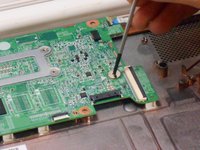
    • Remove the screw indicated by the red circle.

    Ask FixBot

    Add Comment

  23. HP Chromebook 14-Q010DX Hard drive Replacement: step 23, image 1 of 1
    • Remove the hard drive by pulling the device from the black slot.

    Ask FixBot

    Add Comment

Conclusion

To reassemble your device, follow these instructions in reverse order.

Cancel: I did not complete this guide.

14 other people completed this guide.

Kevin Piper

Member since: 01/16/15

1,602 Reputation

6 Guides authored

Team

USF Tampa, Team 17-2, Watkins Winter 2015 Member of USF Tampa, Team 17-2, Watkins Winter 2015

USFT-WATKINS-W15S17G2

4 Members

8 Guides authored

5 Guide Comments

Thanks so much for your clearly , detailed and easy to follow guide, nice job!

pedro munoz - Reply Share
Buenas tarde y despuesnde quitar el disco duro que se hace se cambia por otro igual o que modelo

chaffa_45 - Reply Share

Can you add more storage on the HP Chromebook 14 SMB about 500GB. I also want to know if the Chromebook can run Windows 10 without any problems.

Fire Alarm Collector - Reply Share

Useful. Wish I would have read it B4 I started this project.

Maria Jones - Reply Share

how do i upgrde my chrom browser?

Danielle Curtis - Reply Share

Add Comment

View Statistics:

Past 24 Hours: 3

Past 7 Days: 26

Past 30 Days: 111

All Time: 22,457