Free Shipping on Domestic Orders $75+

HP Chromebook 11 G6 EE Keyboard Assembly Replacement

  1. HP Chromebook 11 G6 EE Keyboard Assembly Replacement, Remove keyboard screws: step 1, image 1 of 1
    • Remove the screws from the bottom case.

    • Two M2.5x8 PH1 screws.

    • Six M2.5x6 PH1 screws.

    Ask FixBot
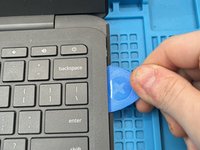
  2. HP Chromebook 11 G6 EE Keyboard Assembly Replacement, Remove keyboard: step 2, image 1 of 2 HP Chromebook 11 G6 EE Keyboard Assembly Replacement, Remove keyboard: step 2, image 2 of 2
    • Use a plastic opening pick to release the clips that secure the keyboard.

    • Avoid too much prying force. If you pry too hard, you'll break your pick. The trick is to get the pick in just a little bit, and then run it along the edge of the device.

    • DO NOT use metal tools for this step.

    Ask FixBot
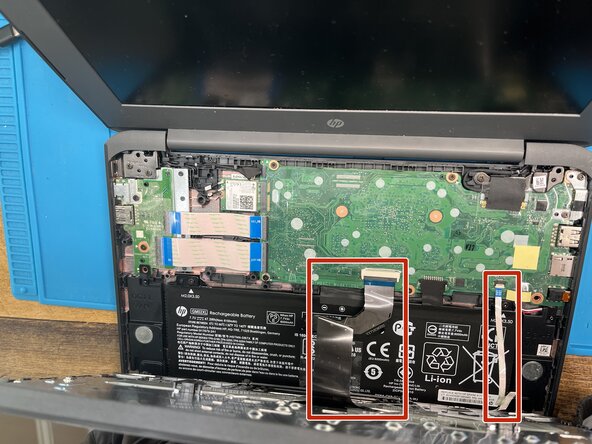
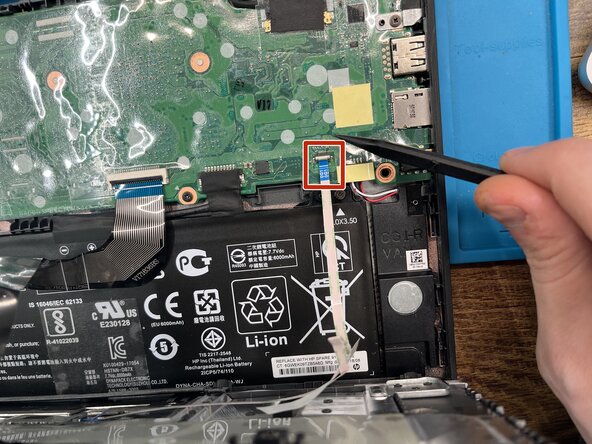
  3. HP Chromebook 11 G6 EE Keyboard Assembly Replacement, Disconnect keyboard: step 3, image 1 of 1
    • Lift up the keyboard part way, being careful to not put stress on the keyboard and touchpad ribbon cables.

    Ask FixBot
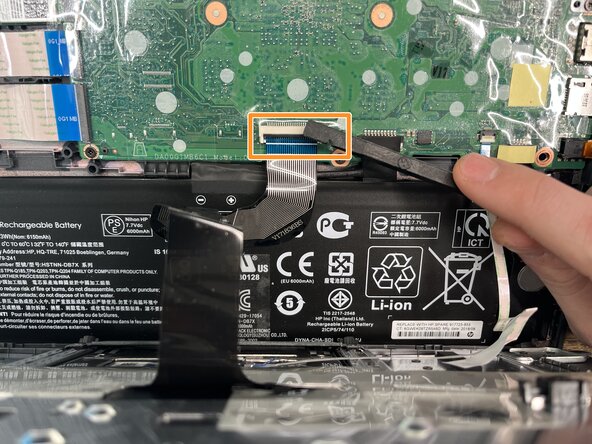
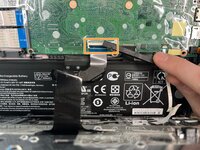
  4. HP Chromebook 11 G6 EE Keyboard Assembly Replacement, Disconnect keyboard: step 4, image 1 of 3 HP Chromebook 11 G6 EE Keyboard Assembly Replacement, Disconnect keyboard: step 4, image 2 of 3 HP Chromebook 11 G6 EE Keyboard Assembly Replacement, Disconnect keyboard: step 4, image 3 of 3
    • Lift up the keyboard part way, being careful to not put stress on the keyboard and touchpad ribbon cables.

    • Disconnect the keyboard ZIF connector

    Ask FixBot
  5. HP Chromebook 11 G6 EE Keyboard Assembly Replacement, Disconnect touchpad: step 5, image 1 of 2 HP Chromebook 11 G6 EE Keyboard Assembly Replacement, Disconnect touchpad: step 5, image 2 of 2
    • Disconnect touchpad ZIF connector.

    • Now you can remove the keyboard assembly completely.

    Ask FixBot
    • If your replacement keyboard came with touchpad and cable, you can start reassembling the computer now. If you need to retrieve the touchpad from the old keyboard, keep reading.

    Ask FixBot
  6. HP Chromebook 11 G6 EE Keyboard Assembly Replacement, Remove touchpad: step 7, image 1 of 1
    • Lift up the plastic guard covering the three PH0 M2x2 screws and remove them.

    • Lift the touchpad out and place into new keyboard.

    • Be sure to evenly tighten the touchpad screws during reinstallation. Even a small variance can lead to a touchpad that feels "off".

    Ask FixBot
Conclusion

To reassemble your device, follow these instructions in reverse order.

3 other people completed this guide.

0 Guide Comments

Add Comment

View Statistics:

Past 24 Hours: 2

Past 7 Days: 6

Past 30 Days: 46

All Time: 1,410