Free Shipping on Domestic Orders $75+

HP Chromebook 11 G4 SD Card Reader Replacement

What you need

    1. HP Chromebook 11 G4 SD Card Reader Replacement, Keyboard: step 1, image 1 of 1
      • Position the closed Chromebook with the rubber pads are facing up.

      Ask FixBot
      Add Comment

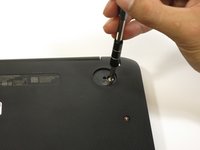
    2. HP Chromebook 11 G4 SD Card Reader Replacement: step 2, image 1 of 2 HP Chromebook 11 G4 SD Card Reader Replacement: step 2, image 2 of 2
      • Slide the flat end of the spudger under the rubber pads at the upper right-hand and the upper left-hand corners.

      • Pry off the rubber pads to reveal a screw under each pad.

      • The rubber pads are attached with a strong adhesive. The force applied may damage the pads.

      Ask FixBot
      Add Comment

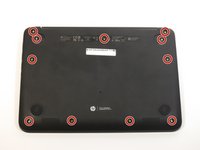
    3. HP Chromebook 11 G4 SD Card Reader Replacement: step 3, image 1 of 2 HP Chromebook 11 G4 SD Card Reader Replacement: step 3, image 2 of 2
      • Remove the eleven 6mm Phillips #1 screws.

      Ask FixBot
      Add Comment

    4. HP Chromebook 11 G4 SD Card Reader Replacement: step 4, image 1 of 1
      • Flip over the Chromebook and open it.

      Ask FixBot

      Add Comment

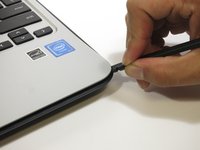
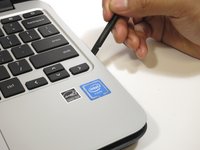
    5. HP Chromebook 11 G4 SD Card Reader Replacement: step 5, image 1 of 2 HP Chromebook 11 G4 SD Card Reader Replacement: step 5, image 2 of 2
      • Insert the flat end of the spudger between the bottom body of the Chromebook and keyboard body.

      • Slide the spudger along the gap, applying downward pressure to separate the two components.

      • You should hear popping sounds as you slide the spudger along the edge.

      • If the spudger gets stuck while sliding, simply slide the spudger back for a bit, and continue sliding forward.

      Ask FixBot

      Add Comment

    6. HP Chromebook 11 G4 SD Card Reader Replacement: step 6, image 1 of 1
      • Lift the bottom of the keyboard assembly to reveal the internal components of the device.

      Ask FixBot
      Add Comment

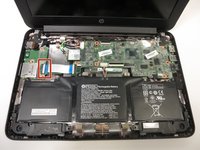
    7. HP Chromebook 11 G4 SD Card Reader Replacement: step 7, image 1 of 3 HP Chromebook 11 G4 SD Card Reader Replacement: step 7, image 2 of 3 HP Chromebook 11 G4 SD Card Reader Replacement: step 7, image 3 of 3
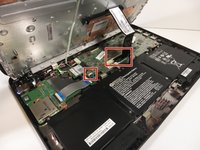
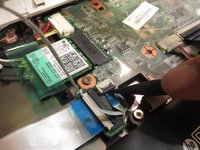
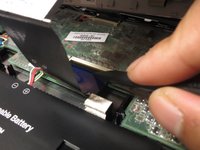
      • Use the pointed end of the spudger to flip up the black tabs on the two ZIF connectors located on the motherboard.

      • Disconnect the ribbon cables from the motherboard by gently sliding them out of their sockets.

      Ask FixBot
      Add Comment

    8. HP Chromebook 11 G4 SD Card Reader Replacement: step 8, image 1 of 1
      • Remove the keyboard assembly by lifting it off the laptop base.

      Ask FixBot

      Add Comment

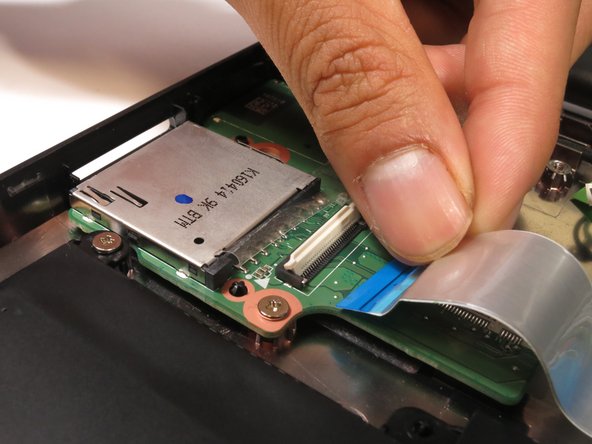
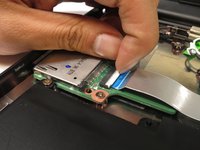
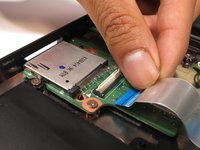
    1. HP Chromebook 11 G4 SD Card Reader Replacement, SD Card Reader: step 9, image 1 of 3 HP Chromebook 11 G4 SD Card Reader Replacement, SD Card Reader: step 9, image 2 of 3 HP Chromebook 11 G4 SD Card Reader Replacement, SD Card Reader: step 9, image 3 of 3
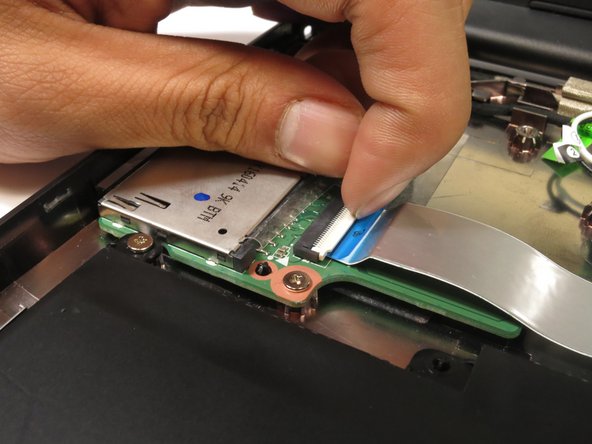
      • Flip up the flap on the ZIP connector with your finger.

      • Gently pull out the ribbon cable.

      Ask FixBot

      Add Comment

    2. HP Chromebook 11 G4 SD Card Reader Replacement: step 10, image 1 of 2 HP Chromebook 11 G4 SD Card Reader Replacement: step 10, image 2 of 2
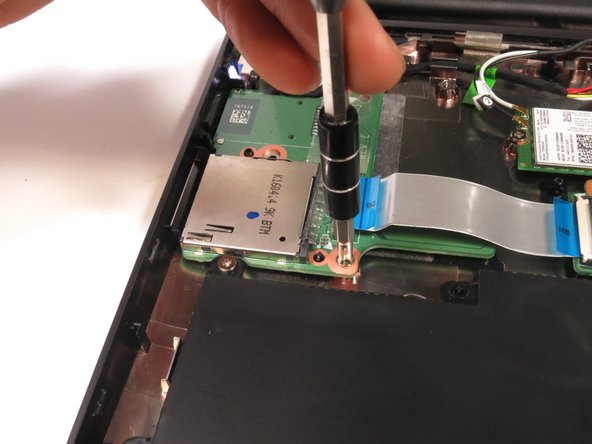
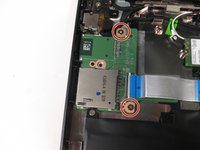
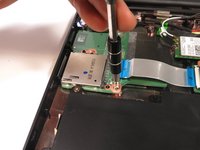
      • Remove the two 4 mm Phillips #1 screws.

      Ask FixBot

      Add Comment

    3. HP Chromebook 11 G4 SD Card Reader Replacement: step 11, image 1 of 2 HP Chromebook 11 G4 SD Card Reader Replacement: step 11, image 2 of 2
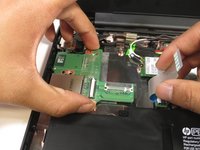
      • Lift the ribbon cable back and out of the way.

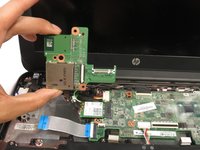
      • Pull out the SD card reader.

      Ask FixBot

      Add Comment

Conclusion

To reassemble your device, follow these instructions in reverse order.

Cancel: I did not complete this guide.

2 other people completed this guide.

Jair Herrera

Member since: 04/26/17

694 Reputation

4 Guides authored

0 Guide Comments

Add Comment

View Statistics:

Past 24 Hours: 1

Past 7 Days: 13

Past 30 Days: 47

All Time: 1,686