Free Shipping on Domestic Orders $75+

HP Chromebook 11 G3 Camera Replacement

What you need

  1. HP Chromebook 11 G3 Camera Replacement, Keyboard Mount: step 1, image 1 of 2 HP Chromebook 11 G3 Camera Replacement, Keyboard Mount: step 1, image 2 of 2
    • Flip the laptop upside down so that the lid lies flat on the table.

    • Remove the nine 6mm Phillips #00 screws that line the border.

    Ask FixBot

    Add Comment

  2. HP Chromebook 11 G3 Camera Replacement: step 2, image 1 of 2 HP Chromebook 11 G3 Camera Replacement: step 2, image 2 of 2
    Tool used on this step:
    Tweezers
    $4.99
    Buy
    • Remove the two rubber feet closest to the hinge using tweezers.

    • Remove the two 6mm Phillips #00 screws revealed under these rubber feet.

    • The rubber feet may tear while removal; preventing this can be difficult, but it won’t harm the laptop. If desired, replace these rubber feet during reassembly.

    Ask FixBot

    Add Comment

  3. HP Chromebook 11 G3 Camera Replacement: step 3, image 1 of 1
    • Flip the laptop so it is in the upright position.

    • Open the lid.

    • Unsnap the keyboard mount along the border of the laptop using a plastic opening tool.

    • This may require more force than expected. Hearing loud clicks as the plastic opening tool slides along the seam is normal.

    Ask FixBot

    Add Comment

  4. HP Chromebook 11 G3 Camera Replacement: step 4, image 1 of 3 HP Chromebook 11 G3 Camera Replacement: step 4, image 2 of 3 HP Chromebook 11 G3 Camera Replacement: step 4, image 3 of 3
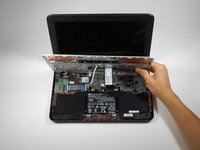
    • Tilt the keyboard mount up.

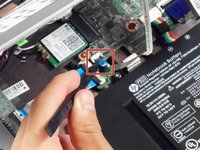
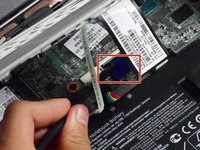
    • Use a spudger to flip up the two ZIF connector retaining flaps for the ribbon cables that connect the keyboard mount to the motherboard.

    • Gently remove both ribbon cables.

    Ask FixBot

    Add Comment

  5. HP Chromebook 11 G3 Camera Replacement: step 5, image 1 of 1
    • Lift the keyboard mount out of the laptop.

    Ask FixBot

    Add Comment

  6. HP Chromebook 11 G3 Camera Replacement, Display Assembly: step 6, image 1 of 1
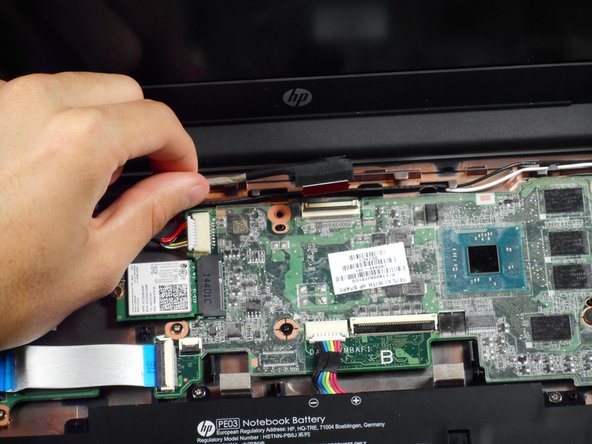
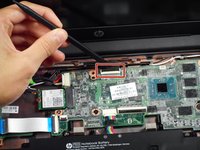
    • Gently tug on the black and white wires connected to the Wi-Fi module to disconnect them.

    Ask FixBot

    Add Comment

  7. HP Chromebook 11 G3 Camera Replacement: step 7, image 1 of 2 HP Chromebook 11 G3 Camera Replacement: step 7, image 2 of 2
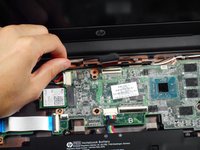
    • Using a spudger, lift the ZIF retaining flap that secures the display’s ribbon cable to the motherboard.

    • Gently pull the ribbon cable out of its socket.

    Ask FixBot

    Add Comment

  8. HP Chromebook 11 G3 Camera Replacement: step 8, image 1 of 1
    • Free the wire from the casing.

    Ask FixBot

    Add Comment

  9. HP Chromebook 11 G3 Camera Replacement: step 9, image 1 of 1
    • Remove the two 6mm Phillips #00 screws located near the upper left and right corners of the hinge mounts.

    • Hold the lid so that it is folded slightly inwards while removing the screws so that the lid doesn’t fall.

    Ask FixBot

    Add Comment

  10. HP Chromebook 11 G3 Camera Replacement: step 10, image 1 of 1
    • Rotate the lid to a 90-degree angle with the table.

    • Shimmy the lid out of the laptop.

    Ask FixBot

    Add Comment

  11. HP Chromebook 11 G3 Camera Replacement, Screen Bezel: step 11, image 1 of 3 HP Chromebook 11 G3 Camera Replacement, Screen Bezel: step 11, image 2 of 3 HP Chromebook 11 G3 Camera Replacement, Screen Bezel: step 11, image 3 of 3
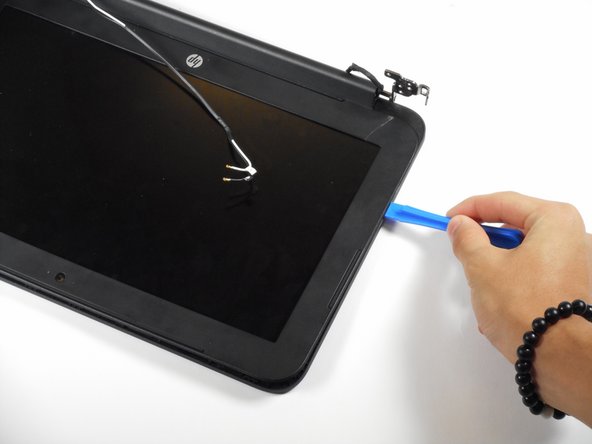
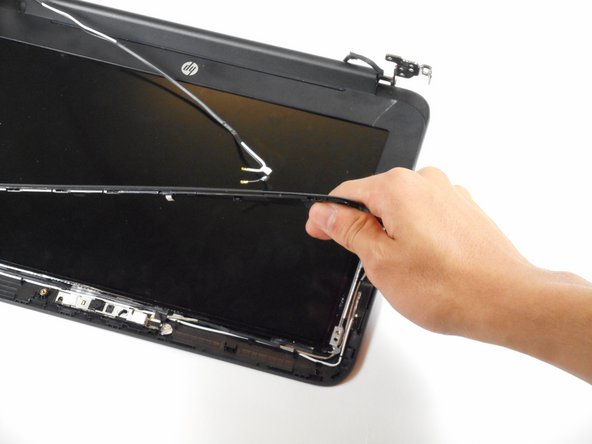
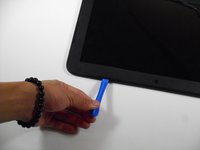
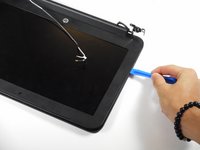
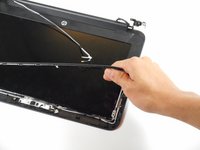
    • Use the plastic opening tool to pry the left and right side of the top of the lid, and proceed inwards from the sides.

    • Do not attempt to remove the entire frame; this isn't necessary for removing the camera.

    • Do not pry at the center of the lid; this may damage the camera inside.

    Ask FixBot

    Add Comment

  12. HP Chromebook 11 G3 Camera Replacement, Camera: step 12, image 1 of 1
    • Gently remove the slide-out connector near the bottom left corner of the camera mount.

    Ask FixBot

    Add Comment

  13. HP Chromebook 11 G3 Camera Replacement: step 13, image 1 of 1
    Tool used on this step:
    Tweezers
    $4.99
    Buy
    • Locate the two silver strips of tape on each edge of the camera mount.

    • Use tweezers to peel off these strips.

    Ask FixBot

    Add Comment

  14. HP Chromebook 11 G3 Camera Replacement: step 14, image 1 of 1
    • Use a plastic opening tool to pry the camera mount out of the lid.

    • Apply force evenly to prevent bending the mount.

    Ask FixBot

    Add Comment

  15. HP Chromebook 11 G3 Camera Replacement: step 15, image 1 of 1
    • Lift the camera out of the lid.

    Ask FixBot

    Add Comment

Conclusion

To reassemble your device, follow these instructions in reverse order.

Cancel: I did not complete this guide.

3 other people completed this guide.

Rahul Goyal

Member since: 04/26/17

1,401 Reputation

10 Guides authored

Team

Cal Poly, Team S23-G3, Livingston Spring 2017 Member of Cal Poly, Team S23-G3, Livingston Spring 2017

CPSU-LIVINGSTON-S17S23G3

4 Members

12 Guides authored

0 Guide Comments

Add Comment

View Statistics:

Past 24 Hours: 1

Past 7 Days: 8

Past 30 Days: 31

All Time: 1,458