Free Shipping on Domestic Orders $75+

HP 280 Silent Wireless Mouse Scroll Wheel Replacement

What you need

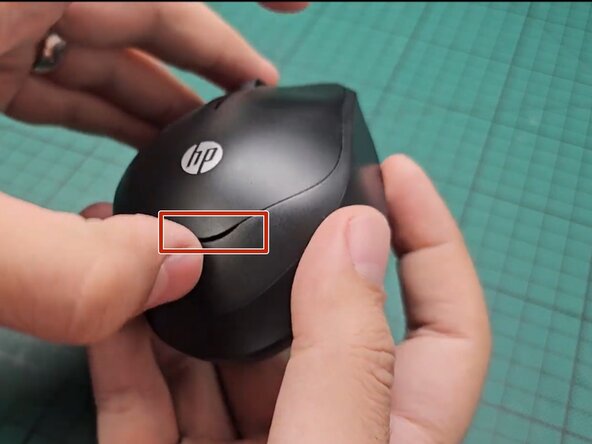
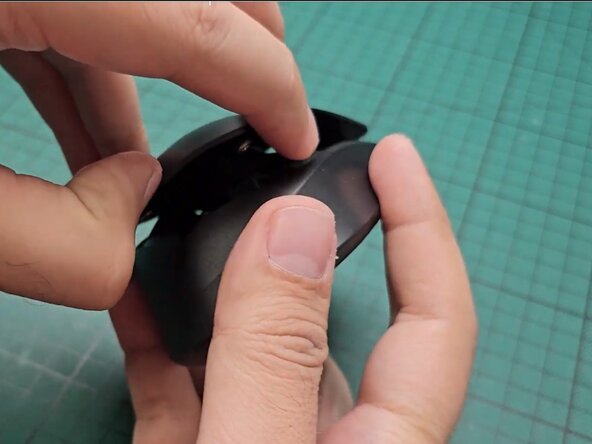
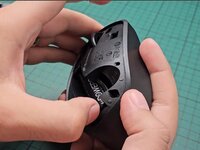
  1. HP 280 Silent Wireless Mouse Scroll Wheel Replacement, Scroll wheel: step 1, image 1 of 2 HP 280 Silent Wireless Mouse Scroll Wheel Replacement, Scroll wheel: step 1, image 2 of 2
    • Lift the top cover of the mouse off the base.

    Ask FixBot
    Add Comment

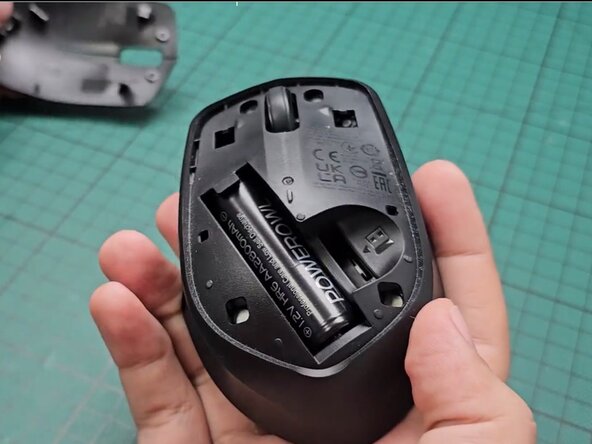
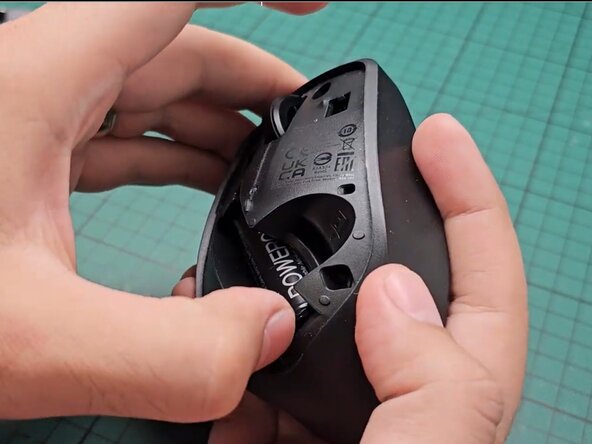
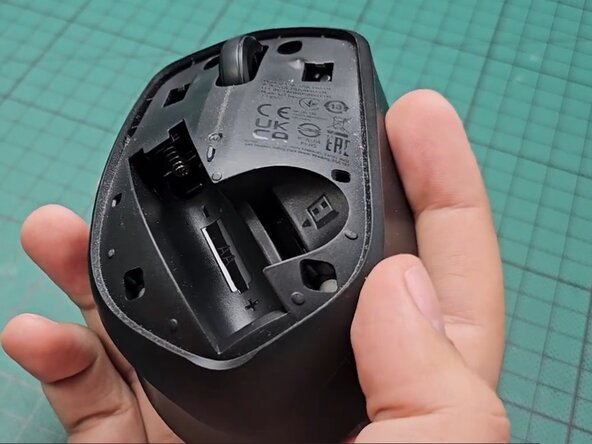
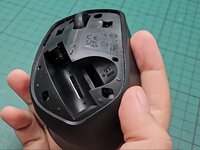
  2. HP 280 Silent Wireless Mouse Scroll Wheel Replacement: step 2, image 1 of 3 HP 280 Silent Wireless Mouse Scroll Wheel Replacement: step 2, image 2 of 3 HP 280 Silent Wireless Mouse Scroll Wheel Replacement: step 2, image 3 of 3
    • Remove the battery.

    Ask FixBot
    Add Comment

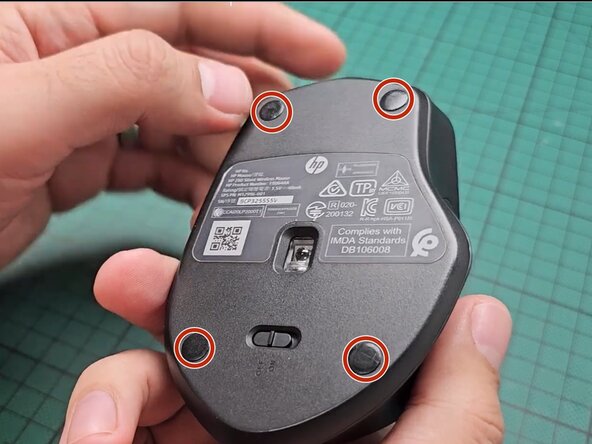
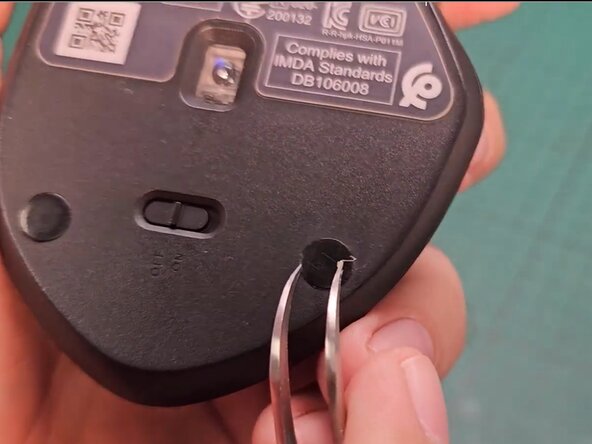
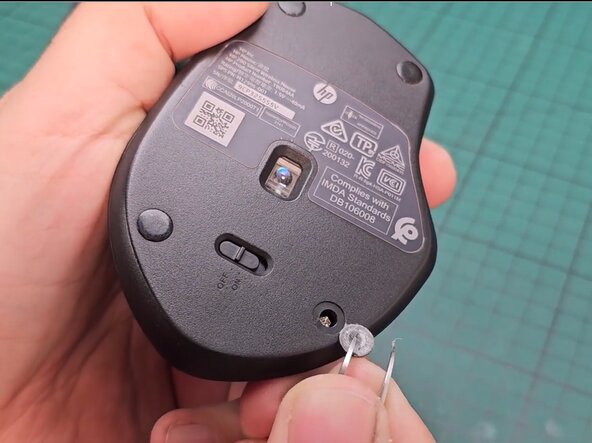
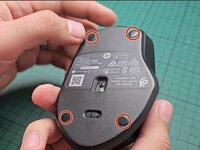
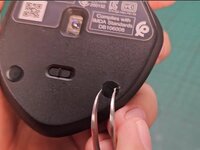
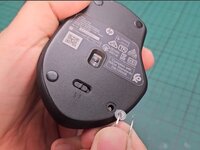
  3. HP 280 Silent Wireless Mouse Scroll Wheel Replacement: step 3, image 1 of 3 HP 280 Silent Wireless Mouse Scroll Wheel Replacement: step 3, image 2 of 3 HP 280 Silent Wireless Mouse Scroll Wheel Replacement: step 3, image 3 of 3
    • Flip the mouse so the bottom is facing up.

    • Use tweezers to gently remove the rubber pads, revealing the screws underneath.

    • After removing the rubber pads, keep them in a secure place. You will need them later for reassembly.

    Ask FixBot
    Add Comment

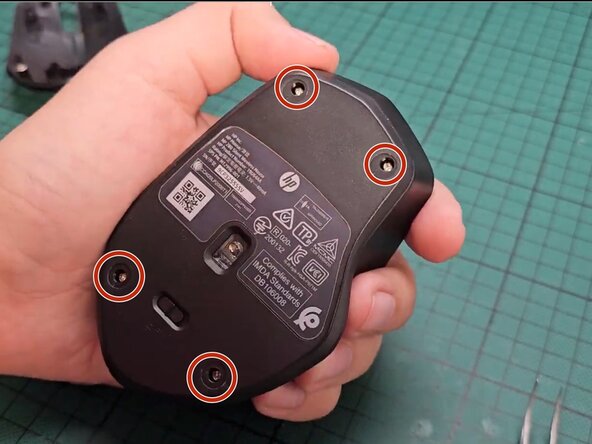
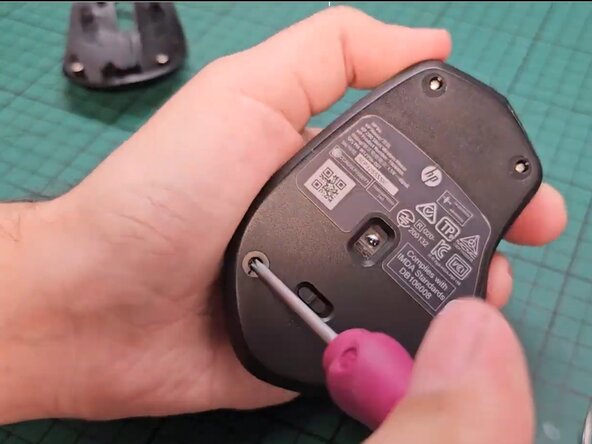
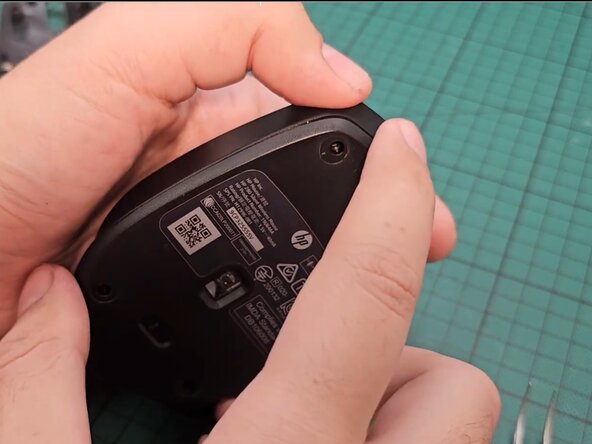
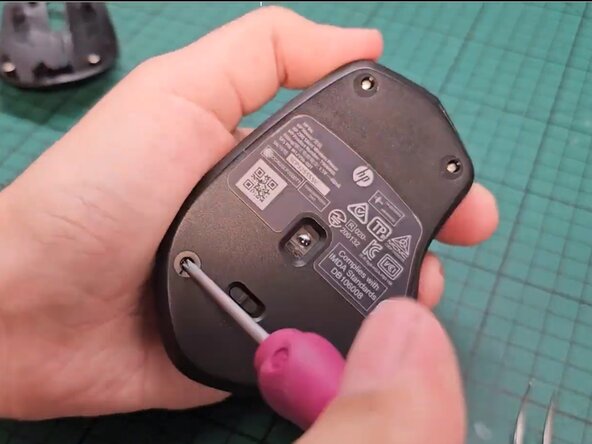
  4. HP 280 Silent Wireless Mouse Scroll Wheel Replacement: step 4, image 1 of 2 HP 280 Silent Wireless Mouse Scroll Wheel Replacement: step 4, image 2 of 2
    • Use a Phillips #0 screwdriver to remove four 3 mm screws.

    Ask FixBot
    Add Comment

  5. HP 280 Silent Wireless Mouse Scroll Wheel Replacement: step 5, image 1 of 2 HP 280 Silent Wireless Mouse Scroll Wheel Replacement: step 5, image 2 of 2
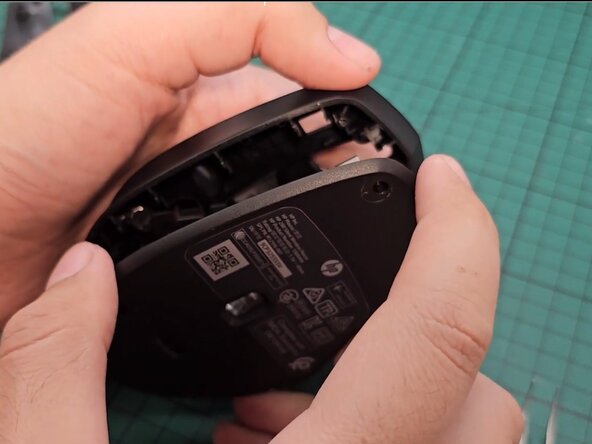
    • Use a spudger to release the clips along the perimeter between the top and bottom casing of the mouse.

    • Separate the top and bottom halves of the mouse.

    • Do not force them apart, as this could damage the device.

    Ask FixBot
    Add Comment

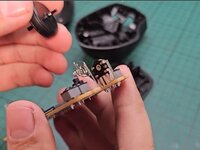
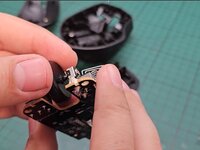
  6. HP 280 Silent Wireless Mouse Scroll Wheel Replacement: step 6, image 1 of 2 HP 280 Silent Wireless Mouse Scroll Wheel Replacement: step 6, image 2 of 2
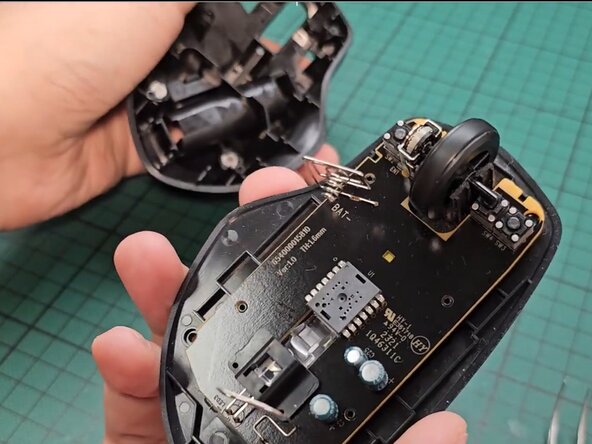
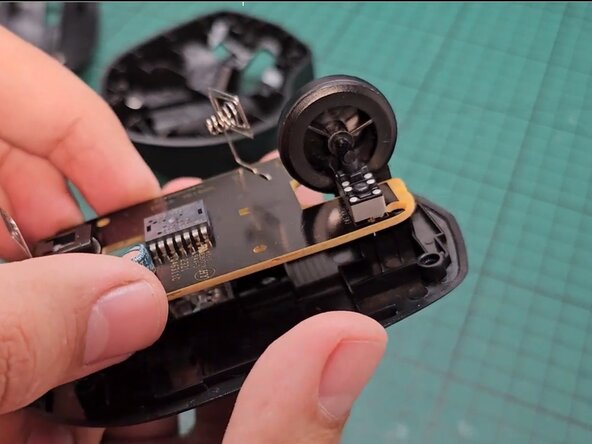
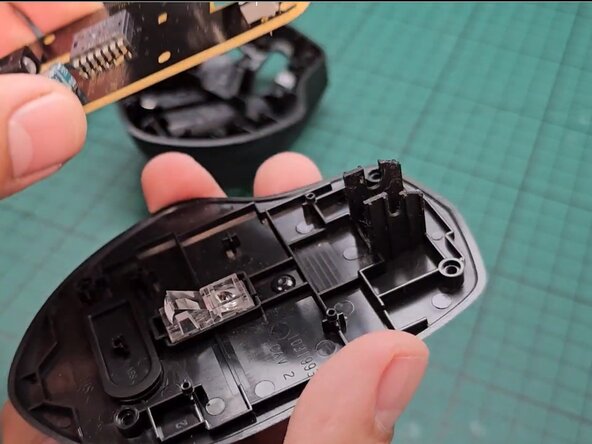
    • Gently detach the circuit board from its housing, ensuring you do not bend or damage any components.

    Ask FixBot
    Add Comment

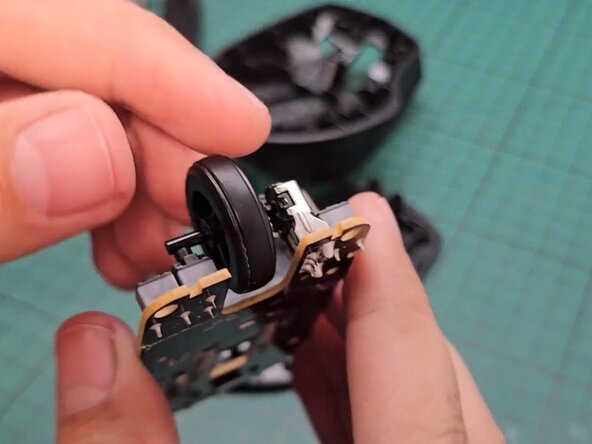
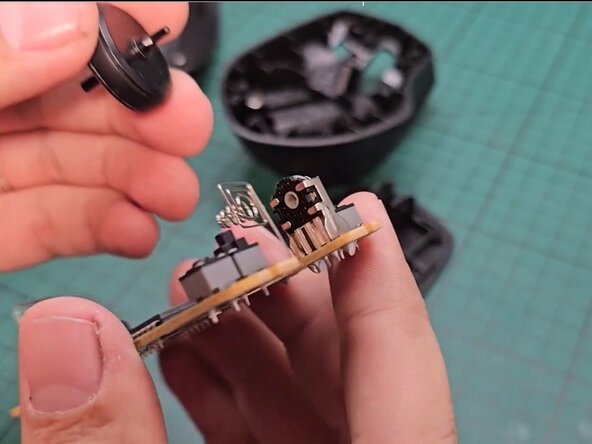
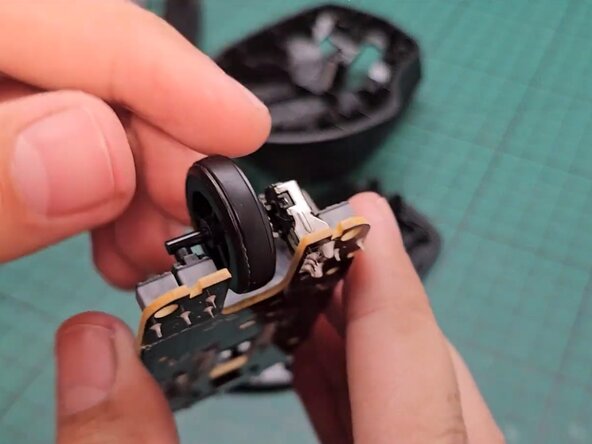
  7. HP 280 Silent Wireless Mouse Scroll Wheel Replacement: step 7, image 1 of 2 HP 280 Silent Wireless Mouse Scroll Wheel Replacement: step 7, image 2 of 2
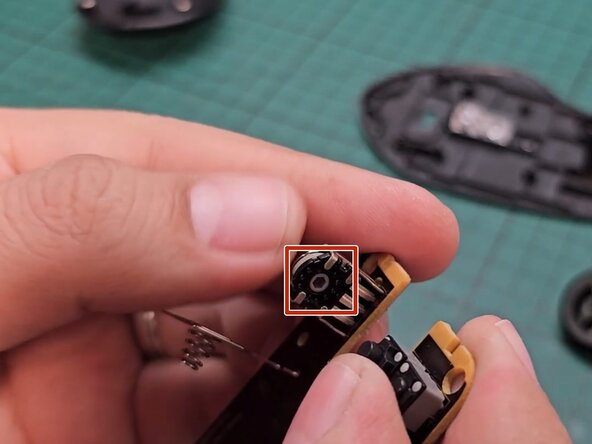
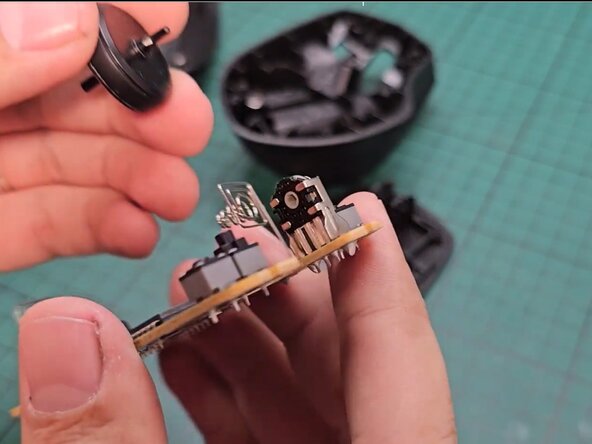
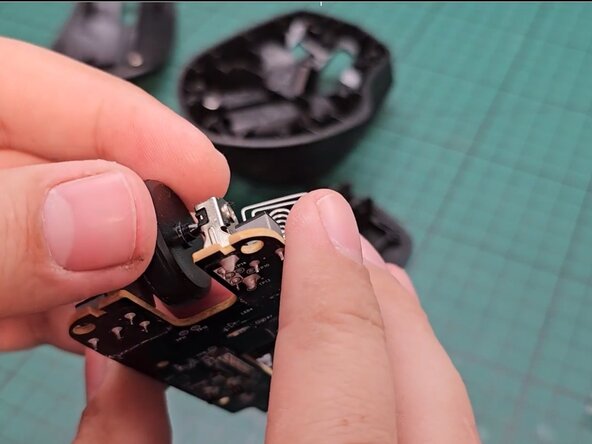
    • Slide the scroll wheel out of the scroll encoder to remove it.

    Ask FixBot
    Add Comment

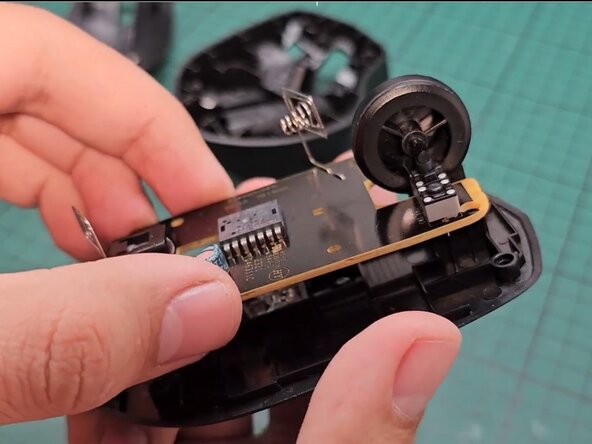
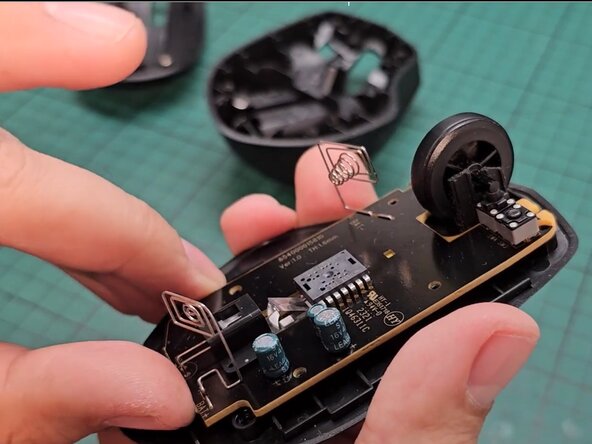
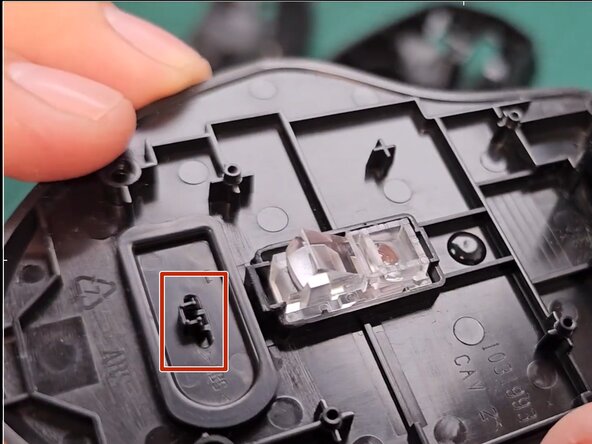
  8. HP 280 Silent Wireless Mouse Scroll Wheel Replacement: step 8, image 1 of 3 HP 280 Silent Wireless Mouse Scroll Wheel Replacement: step 8, image 2 of 3 HP 280 Silent Wireless Mouse Scroll Wheel Replacement: step 8, image 3 of 3
    • Identify the two sides of the scroll wheel: hexagonal side,circular side

    • Align the new scroll wheel so the circular side is against the button assembly and the hexagonal side towards the scroll encoder.

    • Slide the hexagonal side into the slot of the scroll encoder, and press the scroll wheel into place.

    Ask FixBot
    Add Comment

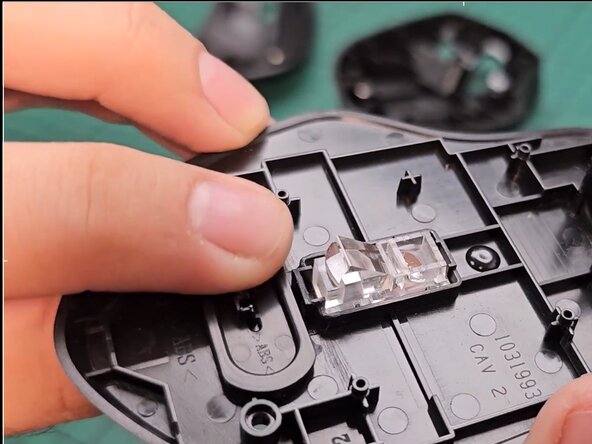
  9. HP 280 Silent Wireless Mouse Scroll Wheel Replacement: step 9, image 1 of 1
    • After placing the scroll wheel, verify that it rotates smoothly and that the scroll encoder is also rotating to detect movement correctly.

    • If the scroll wheel does not function properly, double-check its alignment and placement.

    Ask FixBot
    Add Comment

  10. HP 280 Silent Wireless Mouse Scroll Wheel Replacement: step 10, image 1 of 2 HP 280 Silent Wireless Mouse Scroll Wheel Replacement: step 10, image 2 of 2
    • If the on/off button is not already in the off position, push it to the off position before proceeding.
    Ask FixBot

    Add Comment

  11. HP 280 Silent Wireless Mouse Scroll Wheel Replacement: step 11, image 1 of 2 HP 280 Silent Wireless Mouse Scroll Wheel Replacement: step 11, image 2 of 2
    • Carefully place the circuit board back into the housing, ensuring it is in the correct position and is not inverted.

    Ask FixBot

    Add Comment

  12. HP 280 Silent Wireless Mouse Scroll Wheel Replacement: step 12, image 1 of 2 HP 280 Silent Wireless Mouse Scroll Wheel Replacement: step 12, image 2 of 2
    • Carefully snap the top and bottom halves back together.

    • Replace the four 3 mm Phillips #0 screws.

    • Reattach the rubber pads to their original positions.

    • Put the battery back into the battery compartment.

    • Ensure all parts are securely in place before using the mouse.

    Ask FixBot

    Add Comment

Conclusion

Replacing the scroll wheel on the HP 280 Wireless Mouse is a quick and effective fix to restore smooth scrolling. With proper maintenance, you can extend the lifespan of your mouse and keep it functioning like new. Take your e-waste to an R2 or e-Stewards certified recycler.

Cancel: I did not complete this guide.

3 other people completed this guide.

Divine

Member since: 02/03/25

235 Reputation

1 Guide authored

0 Guide Comments

Add Comment

View Statistics:

Past 24 Hours: 2

Past 7 Days: 29

Past 30 Days: 159

All Time: 1,392