Free Shipping on Domestic Orders $75+

HP 17-bs049dx USB Port Replacement

What you need

    1. HP 17-bs049dx USB Port Replacement, Battery: step 1, image 1 of 1
      • To remove the battery, simply push the tabs towards each other.

      • The battery will come out with force, be sure to keep anything fragile away from the laptop during this process.

      Ask FixBot

      Add Comment

    1. HP 17-bs049dx USB Port Replacement, Back Panel: step 2, image 1 of 1
      • Remove the four screws (13.7mm) with a Phillips #0 screwdriver.

      • Be sure to lift all four rubber tabs to access screws (7.51mm) underneath.

      • Rubber tabs will require force to access screws.

      Ask FixBot

      Add Comment

    2. HP 17-bs049dx USB Port Replacement: step 3, image 1 of 1
      • Use the Philips 0 screwdriver to unscrew the screws (7.51mm) that were underneath the battery.

      Ask FixBot

      Add Comment

    3. HP 17-bs049dx USB Port Replacement: step 4, image 1 of 2 HP 17-bs049dx USB Port Replacement: step 4, image 2 of 2
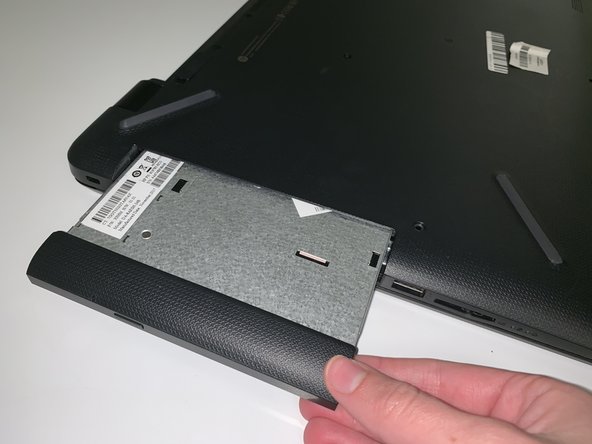
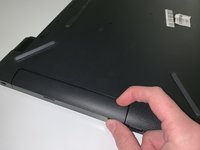
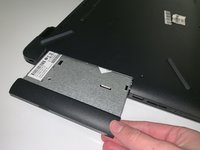
      • Pull outwards on the disk reader to remove from main frame.

      • This removal will require force.

      • All screws must be removed before removing disk reader.

      Ask FixBot

      Add Comment

    4. HP 17-bs049dx USB Port Replacement: step 5, image 1 of 1
      • Lift back panel to access internal components.

      • You will need to use force to pry it open.

      Ask FixBot

      Add Comment

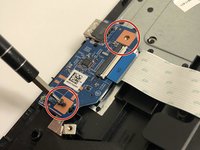
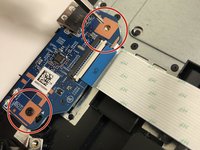
    1. HP 17-bs049dx USB Port Replacement, USB Port: step 6, image 1 of 2 HP 17-bs049dx USB Port Replacement, USB Port: step 6, image 2 of 2
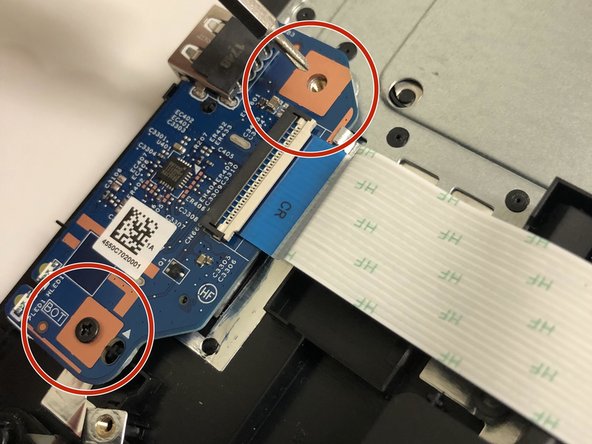
      • Remove the two screws using a Phillips #0 screwdriver.

      Ask FixBot

      Add Comment

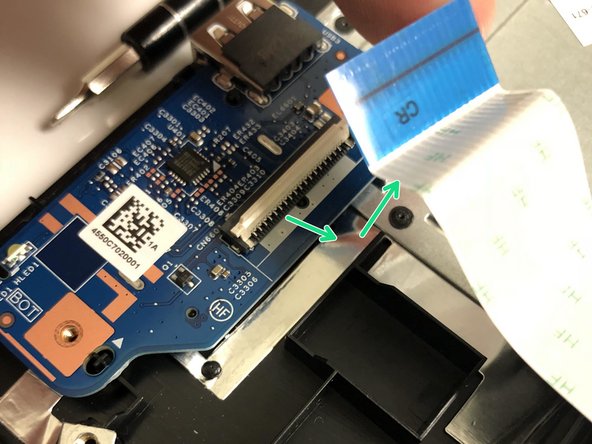
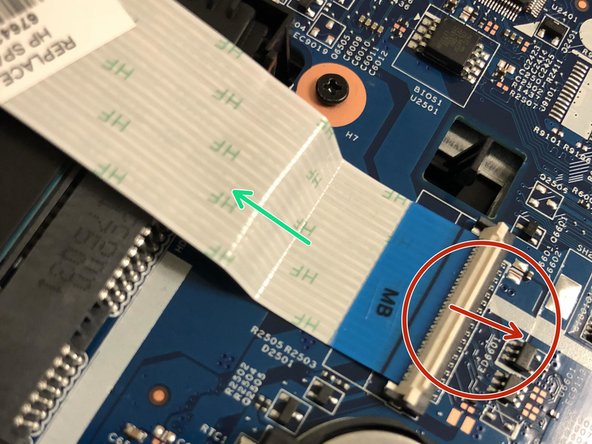
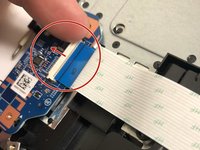
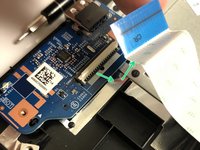
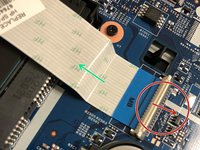
    2. HP 17-bs049dx USB Port Replacement: step 7, image 1 of 3 HP 17-bs049dx USB Port Replacement: step 7, image 2 of 3 HP 17-bs049dx USB Port Replacement: step 7, image 3 of 3
      • At both ends of the connector ribbon, unclip both connectors.

      • Gently remove the ribbon from the unlatched area.

      Ask FixBot

      Add Comment

Conclusion

To reassemble your device, follow these instructions in reverse order.

Cancel: I did not complete this guide.

0 Guide Comments

Add Comment

View Statistics:

Past 24 Hours: 0

Past 7 Days: 5

Past 30 Days: 27

All Time: 555