Free Shipping on Domestic Orders $75+

HP 15-r137wm TouchSmart Screen Replacement

What you need

  1. HP 15-r137wm TouchSmart Screen Replacement, Front Panel Assembly: step 1, image 1 of 3 HP 15-r137wm TouchSmart Screen Replacement, Front Panel Assembly: step 1, image 2 of 3 HP 15-r137wm TouchSmart Screen Replacement, Front Panel Assembly: step 1, image 3 of 3
    • Make sure that the device is powered off and unplugged before removing components.

    • Remove all ten (10) 5.5 mm Phillips #0 screws.

    • Remove the two (2) plastic tabs located at the rear of the panel. Locate the two (2) 7.5mm Phillips #0 screws underneath the pads and remove.

    Ask FixBot

    Add Comment

  2. HP 15-r137wm TouchSmart Screen Replacement: step 2, image 1 of 1
    Tool used on this step:
    Anti-Static Wrist Strap
    $7.95
    Buy
    • Use a wide plastic opening tool to pry off the top casing.

    • Be cautious not to crack the casing near the keyboard as it is quite fragile.

    • Lift the cover off carefully as there are wires still attached to internal components.

    • After panel is removed, use an anti-static wrist strap to ensure the motherboard does not get any external shocks from static discharge.

    Ask FixBot

    Add Comment

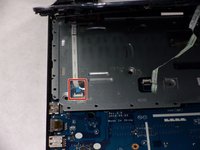
  3. HP 15-r137wm TouchSmart Screen Replacement: step 3, image 1 of 1
    • The connection for the track pad is still connected.

    • Move the keyboard slightly out of the way to locate the connection.

    • Disconnect the small wire protruding from the motherboard underneath the metal plate.

    Ask FixBot

    Add Comment

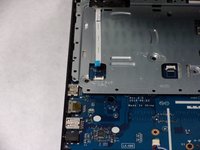
  4. HP 15-r137wm TouchSmart Screen Replacement: step 4, image 1 of 2 HP 15-r137wm TouchSmart Screen Replacement: step 4, image 2 of 2
    • Locate the connection between the power button and the connecting cable.

    • Do not lift the front panel off to far as the cable is still attached.

    • Remove the cable from the motherboard carefully.

    Ask FixBot

    Add Comment

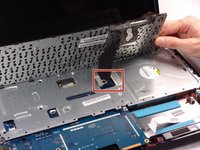
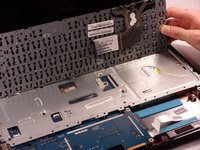
  5. HP 15-r137wm TouchSmart Screen Replacement, Keyboard: step 5, image 1 of 2 HP 15-r137wm TouchSmart Screen Replacement, Keyboard: step 5, image 2 of 2
    • Disconnect the connection between the keyboard the the motherboard.

    Ask FixBot

    Add Comment

  6. HP 15-r137wm TouchSmart Screen Replacement: step 6, image 1 of 2 HP 15-r137wm TouchSmart Screen Replacement: step 6, image 2 of 2
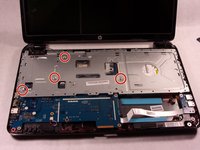
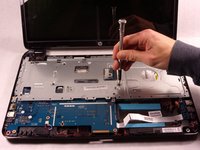
    • Remove the four (4) 2.5mm by 3.5mm Phillips #0 screws from the metal retaining plate.

    • Lift the metal retaining plate off and away from the device.

    Ask FixBot

    Add Comment

  7. HP 15-r137wm TouchSmart Screen Replacement, CD Drive: step 7, image 1 of 2 HP 15-r137wm TouchSmart Screen Replacement, CD Drive: step 7, image 2 of 2
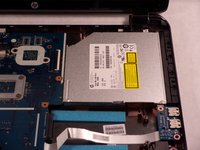
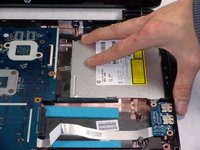
    • Slide the CD drive out slowly by pulling it to the right. There are no screws attached, but there is a connection to the motherboard.

    Ask FixBot

    Add Comment

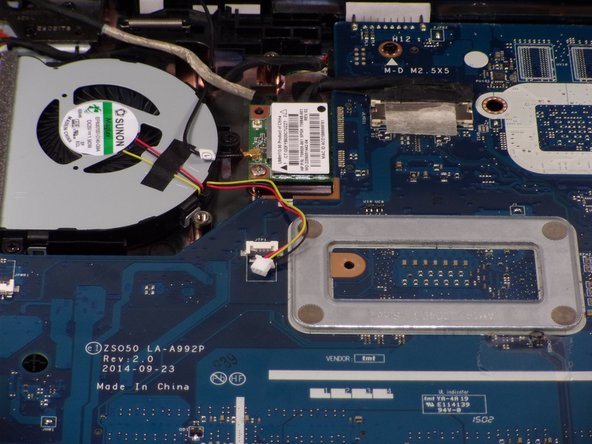
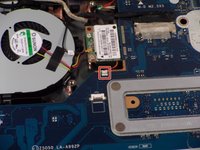
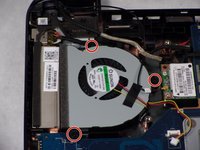
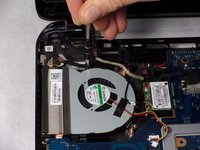
  8. HP 15-r137wm TouchSmart Screen Replacement, Cooling Fan: step 8, image 1 of 2 HP 15-r137wm TouchSmart Screen Replacement, Cooling Fan: step 8, image 2 of 2
    • Locate the small connection on the motherboard and disconnect it by slowly pulling it away from the motherboard.

    • Slowly disconnect the cable as the wires are very small and fragile

    Ask FixBot

    Add Comment

  9. HP 15-r137wm TouchSmart Screen Replacement: step 9, image 1 of 2 HP 15-r137wm TouchSmart Screen Replacement: step 9, image 2 of 2
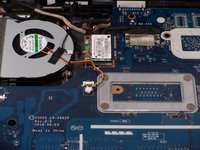
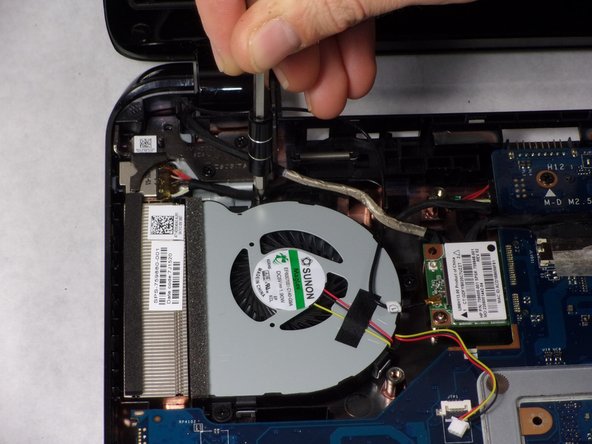
    • Remove the three (3) 2.5mm by 3.5mm Phillips #0 screws from the fan.

    Ask FixBot

    Add Comment

  10. HP 15-r137wm TouchSmart Screen Replacement: step 10, image 1 of 1
    • Remove the cooling fan from the housing carefully.

    • The fan may be connected to the small foam screen. Pull gently to release it.

    Ask FixBot

    Add Comment

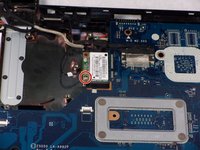
  11. HP 15-r137wm TouchSmart Screen Replacement, Screen: step 11, image 1 of 2 HP 15-r137wm TouchSmart Screen Replacement, Screen: step 11, image 2 of 2
    • Remove the 5.5mm Phillips #0 screw.

    Ask FixBot

    Add Comment

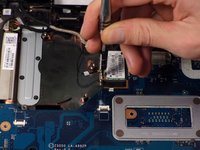
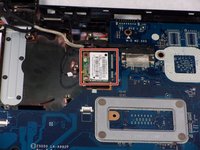
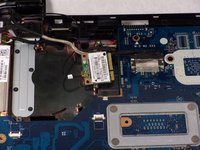
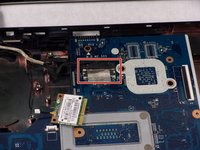
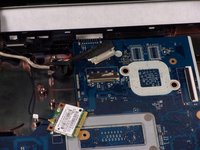
  12. HP 15-r137wm TouchSmart Screen Replacement: step 12, image 1 of 2 HP 15-r137wm TouchSmart Screen Replacement: step 12, image 2 of 2
    • Gently pull and slide the video card out of its connector.

    Ask FixBot

    Add Comment

  13. HP 15-r137wm TouchSmart Screen Replacement: step 13, image 1 of 2 HP 15-r137wm TouchSmart Screen Replacement: step 13, image 2 of 2
    • Lift up tape, and then remove the power cable from its connector.

    Ask FixBot

    Add Comment

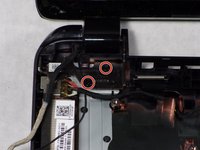
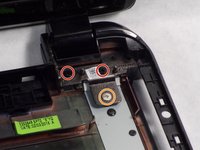
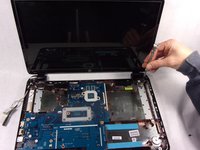
  14. HP 15-r137wm TouchSmart Screen Replacement: step 14, image 1 of 3 HP 15-r137wm TouchSmart Screen Replacement: step 14, image 2 of 3 HP 15-r137wm TouchSmart Screen Replacement: step 14, image 3 of 3
    • Remove all four (4) 5.5mm Phillips #0 screws.

    • Remove the one (1) 2.5mm Phillips #0 screw.

    • Since all of the screws are now removed, the screen will begin to fall off on its own. make sure the screen is supported before removal.

    Ask FixBot

    Add Comment

  15. HP 15-r137wm TouchSmart Screen Replacement: step 15, image 1 of 1
    • The screen can now be lifted out of place from the laptop.

    Ask FixBot

    Add Comment

Conclusion

To reassemble your device, follow these instructions in reverse order.

Cancel: I did not complete this guide.

2 other people completed this guide.

Ross B Jacques

Member since: 10/18/17

881 Reputation

7 Guides authored

Team

0 Guide Comments

Add Comment

View Statistics:

Past 24 Hours: 1

Past 7 Days: 8

Past 30 Days: 21

All Time: 924