Free Shipping on Domestic Orders $75+

HP 15-g029wm RAM Replacement

What you need

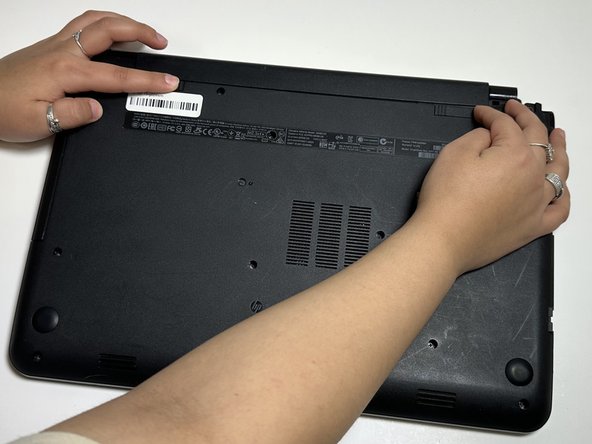
  1. HP 15-g029wm RAM Replacement, Battery: step 1, image 1 of 1
    • Unplug any charging cord or accessories connected to the device before beginning.

  2. HP 15-g029wm RAM Replacement: step 2, image 1 of 1
    • Place the laptop bottom-side up on a secure, flat surface.

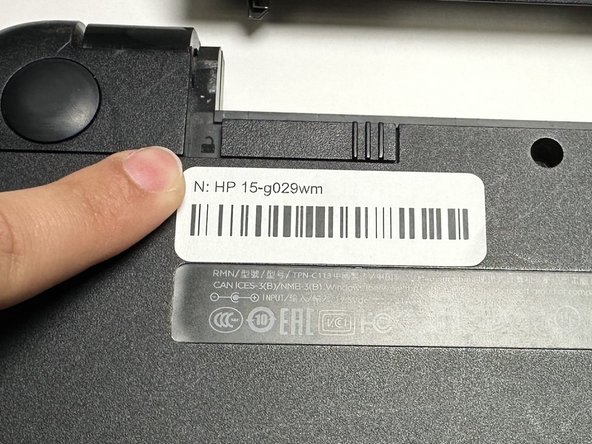
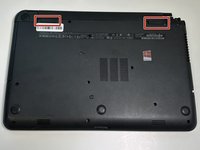
  3. HP 15-g029wm RAM Replacement: step 3, image 1 of 3 HP 15-g029wm RAM Replacement: step 3, image 2 of 3 HP 15-g029wm RAM Replacement: step 3, image 3 of 3
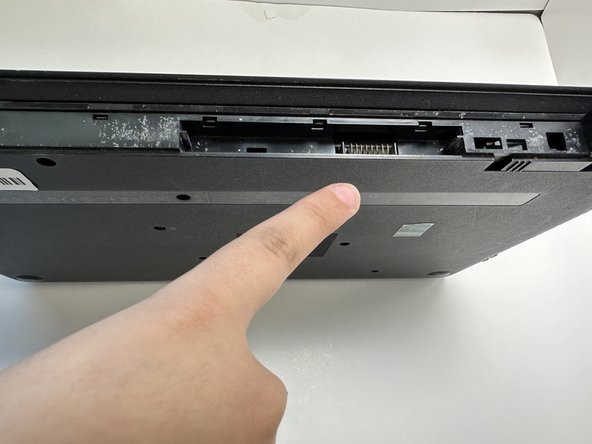
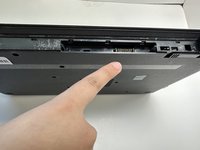
    • Slide each of the two switches that secure the battery to the left.

    • This will reveal an image of an unlocked lock.

  4. HP 15-g029wm RAM Replacement: step 4, image 1 of 3 HP 15-g029wm RAM Replacement: step 4, image 2 of 3 HP 15-g029wm RAM Replacement: step 4, image 3 of 3
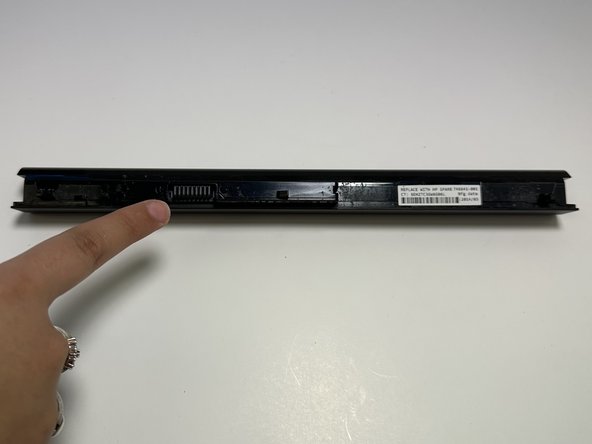
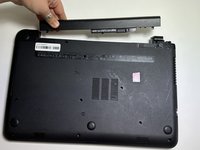
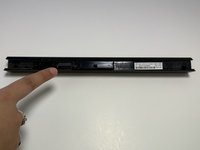
    • Use your hands to gently pull the disconnected battery out of the device.

    • When inserting the new battery, pay special attention to align the battery connections correctly.

  5. HP 15-g029wm RAM Replacement, Upper Case: step 5, image 1 of 2 HP 15-g029wm RAM Replacement, Upper Case: step 5, image 2 of 2
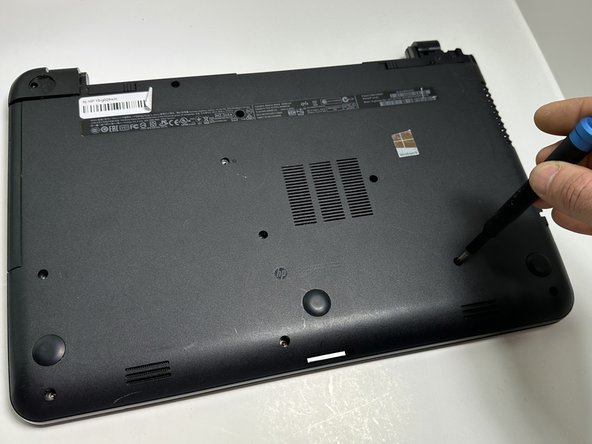
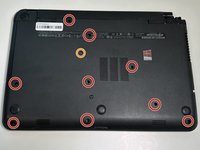
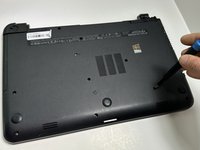
    • Remove the following Phillips screws on the lower case:

    • Nine 5 mm

    • One 6 mm

    • This will allow the optical drive to separate from the chassis.

  6. HP 15-g029wm RAM Replacement: step 6, image 1 of 1
    • Slide the optical drive directly out of its slot.

  7. HP 15-g029wm RAM Replacement: step 7, image 1 of 1
    • Remove the two 2 mm Phillips screws on the lip of the optical drive slot.

  8. HP 15-g029wm RAM Replacement: step 8, image 1 of 3 HP 15-g029wm RAM Replacement: step 8, image 2 of 3 HP 15-g029wm RAM Replacement: step 8, image 3 of 3
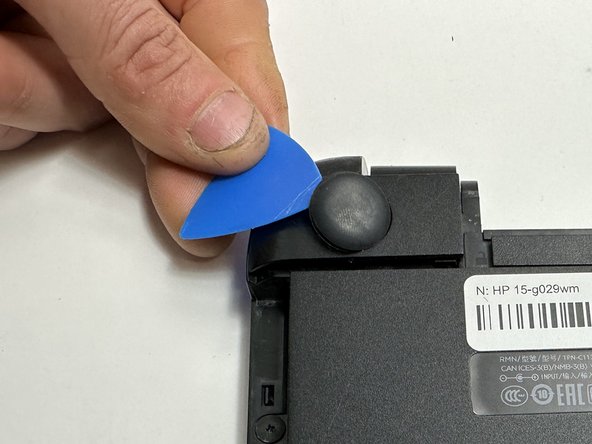
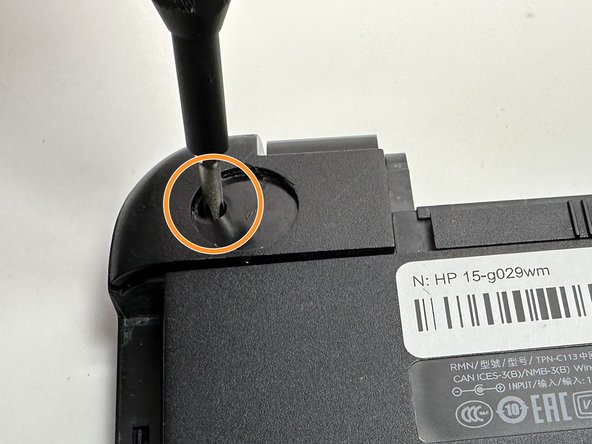
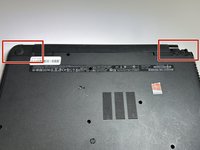
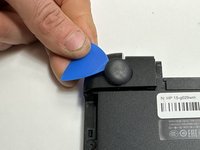
    • Use an opening pick to remove the two circular rubber feet near the laptop hinges.

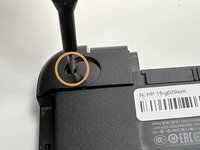
    • Remove both of the 8 mm Phillips screws.

    • The screws were hidden by the rubber feet.

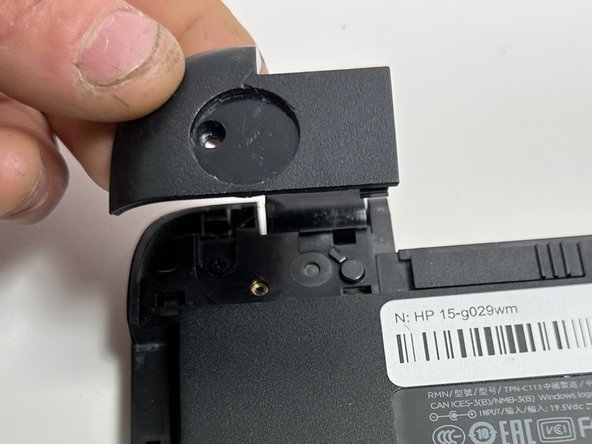
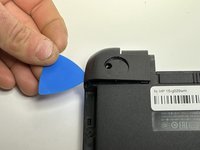
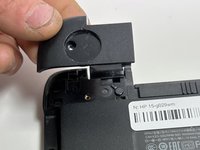
  9. HP 15-g029wm RAM Replacement: step 9, image 1 of 2 HP 15-g029wm RAM Replacement: step 9, image 2 of 2
    • Use an opening pick to pry up and remove the left hinge cover.

    • Use an opening pick to pry up and remove the right hinge cover.

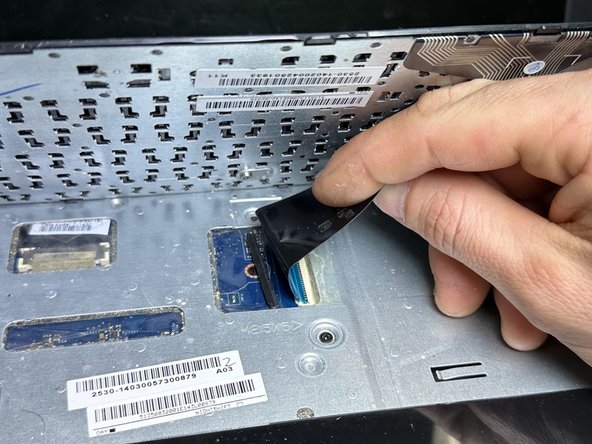
  10. HP 15-g029wm RAM Replacement: step 10, image 1 of 3 HP 15-g029wm RAM Replacement: step 10, image 2 of 3 HP 15-g029wm RAM Replacement: step 10, image 3 of 3
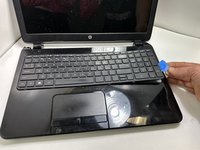
    • Flip the device face up and open the lid.

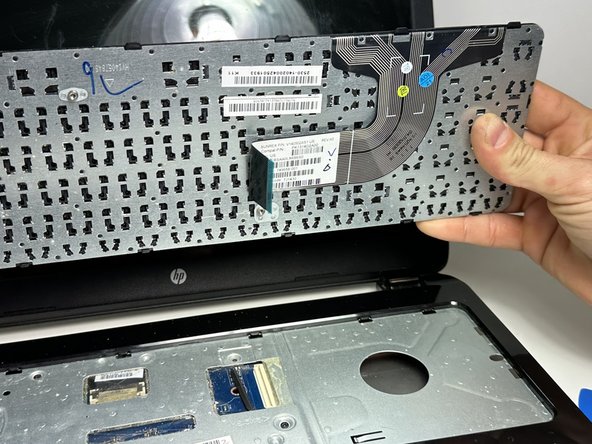
    • Insert an opening pick under the keyboard and pry around the perimeter of the keyboard until it fully releases.

    • Lift the keyboard slightly.

    • There is a ribbon cable connecting the keyboard to the device on the underside. Do NOT pull it away or you risk ripping the ribbon cable and causing damage.

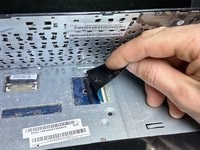
    • Use your fingers or an opening pick to unlock the ZIF locking flap that secures the keyboard ribbon cable.

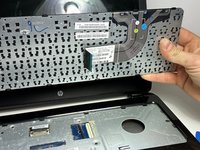
    • Disconnect the keyboard ribbon cable.

    • Lift the keyboard off.

  11. HP 15-g029wm RAM Replacement: step 11, image 1 of 3 HP 15-g029wm RAM Replacement: step 11, image 2 of 3 HP 15-g029wm RAM Replacement: step 11, image 3 of 3
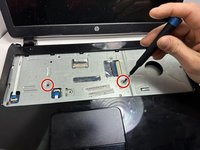
    • Remove two 5 mm screws using a Phillips screwdriver.

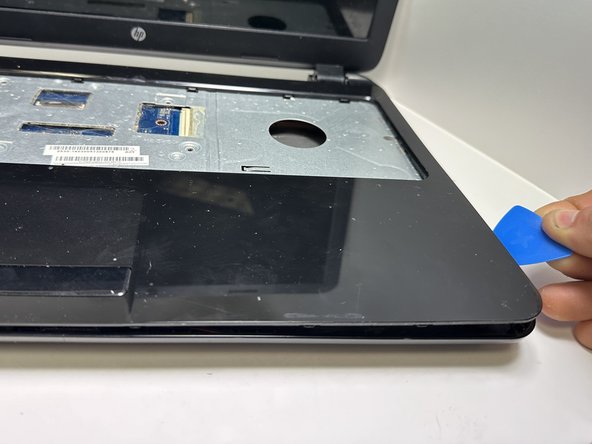
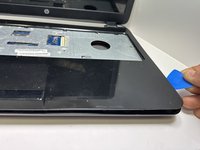
    • Insert an opening pick in the seam between the top case and chassis.

    • Slide the opening pick around the edge of the device to separate the top case from the chassis.

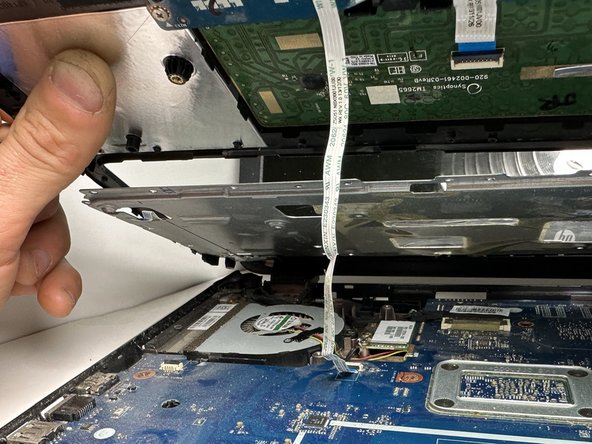
    • Slightly lift the top case up and away from the chassis.

    • There is a ribbon cable connecting the top plate to the device. Handle with care, and do NOT yank on the ribbon cable to prevent damage.

  12. HP 15-g029wm RAM Replacement: step 12, image 1 of 3 HP 15-g029wm RAM Replacement: step 12, image 2 of 3 HP 15-g029wm RAM Replacement: step 12, image 3 of 3
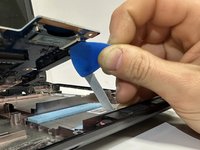
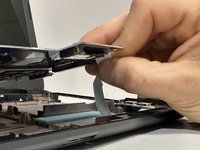
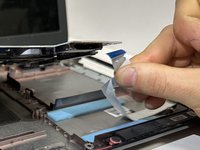
    • Use your fingers or an opening pick to flip up the black ZIF locking flap.

    • Disconnect the ribbon cable.

    • Lift off the top case.

  13. HP 15-g029wm RAM Replacement, Fan: step 13, image 1 of 2 HP 15-g029wm RAM Replacement, Fan: step 13, image 2 of 2
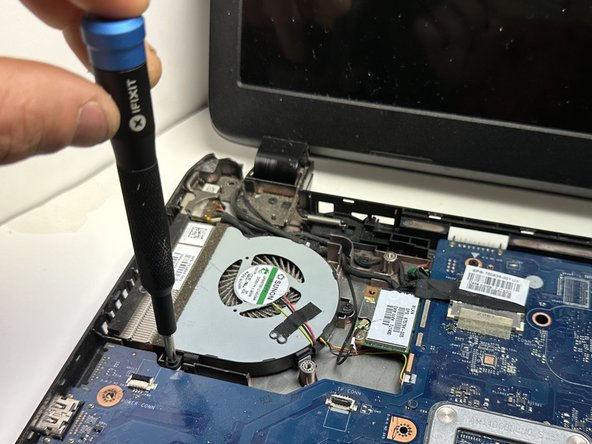
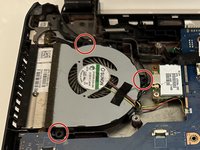
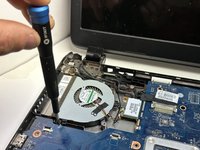
    • Use a Phillips screwdriver to remove the three 5 mm screws that secure the fan.

  14. HP 15-g029wm RAM Replacement: step 14, image 1 of 2 HP 15-g029wm RAM Replacement: step 14, image 2 of 2
    • Gently "walk" the fan connector directly out of its motherboard socket.

    • Do not pull on the wires.

  15. HP 15-g029wm RAM Replacement: step 15, image 1 of 1
    • Lift the fan up and out of the chassis.

  16. HP 15-g029wm RAM Replacement, Motherboard: step 16, image 1 of 3 HP 15-g029wm RAM Replacement, Motherboard: step 16, image 2 of 3 HP 15-g029wm RAM Replacement, Motherboard: step 16, image 3 of 3
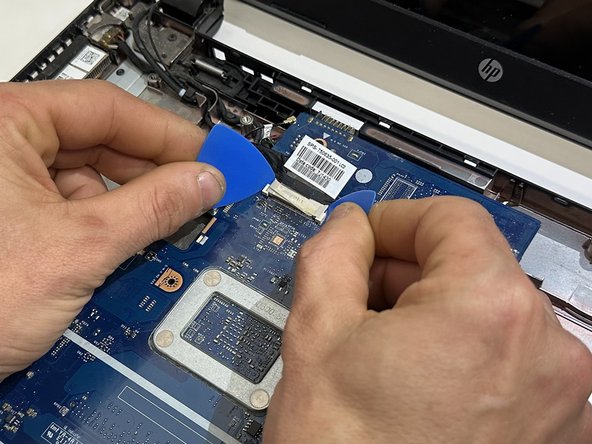
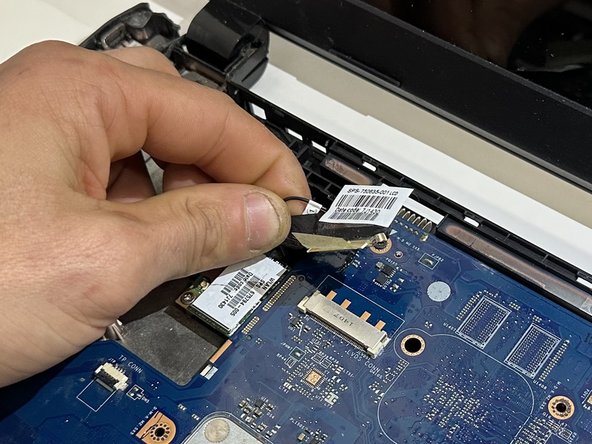
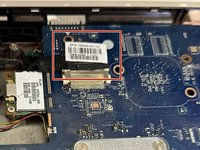
    • Use two opening picks to disconnect the display cable.

  17. HP 15-g029wm RAM Replacement: step 17, image 1 of 1
    • Use an opening pick to gently "walk" the white speaker connector directly out of its port.

  18. HP 15-g029wm RAM Replacement: step 18, image 1 of 3 HP 15-g029wm RAM Replacement: step 18, image 2 of 3 HP 15-g029wm RAM Replacement: step 18, image 3 of 3
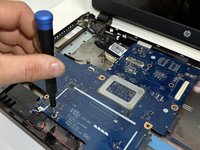
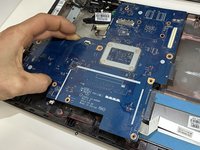
    • Remove the four 3 mm screws that secure the motherboard.

    • Lift the front edge of the motherboard slightly.

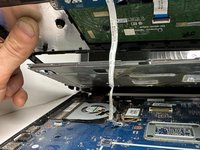
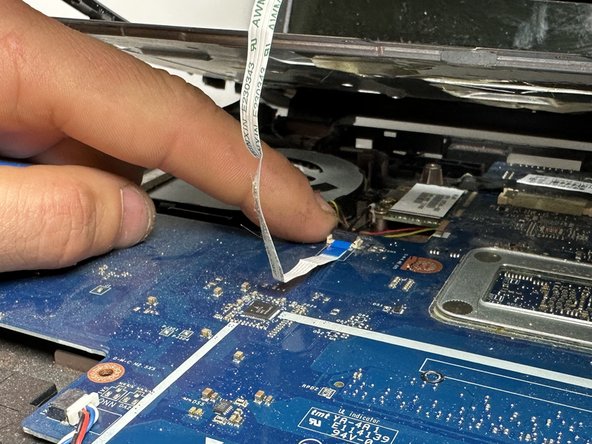
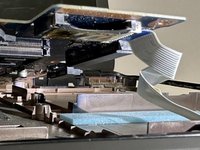
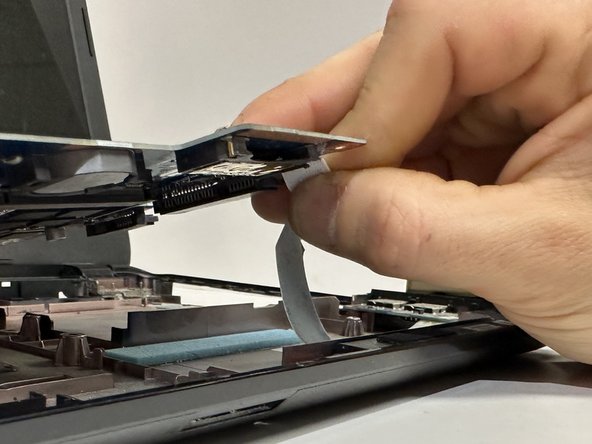
    • There is a ribbon cable connecting the motherboard to the device chassis. Do not yank it away.

  19. HP 15-g029wm RAM Replacement: step 19, image 1 of 3 HP 15-g029wm RAM Replacement: step 19, image 2 of 3 HP 15-g029wm RAM Replacement: step 19, image 3 of 3
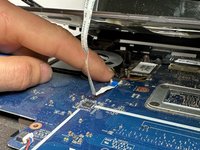
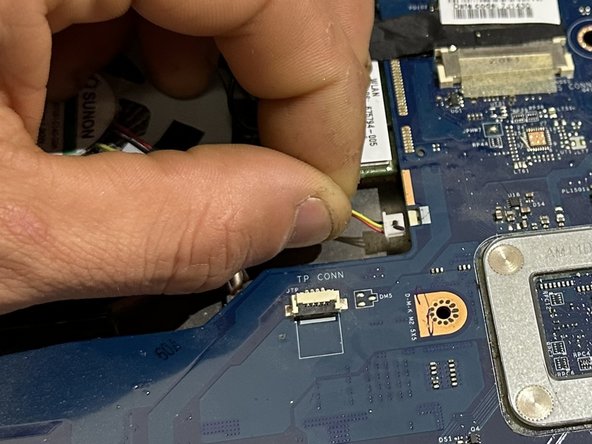
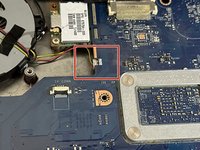
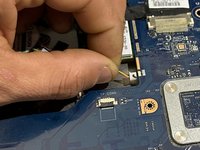
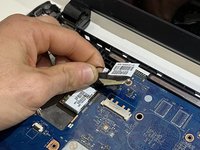
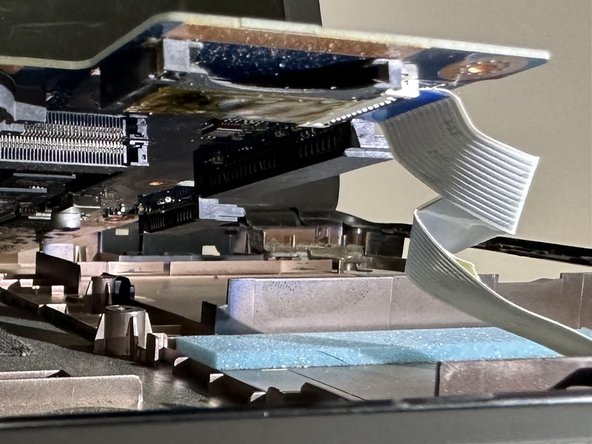
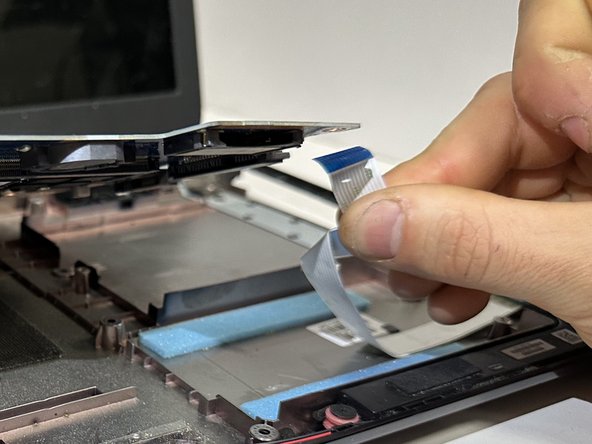
    • Use an opening pick or your fingers to release the ZIF locking flap.

    • Pull the ribbon cable out of its port.

  20. HP 15-g029wm RAM Replacement: step 20, image 1 of 1
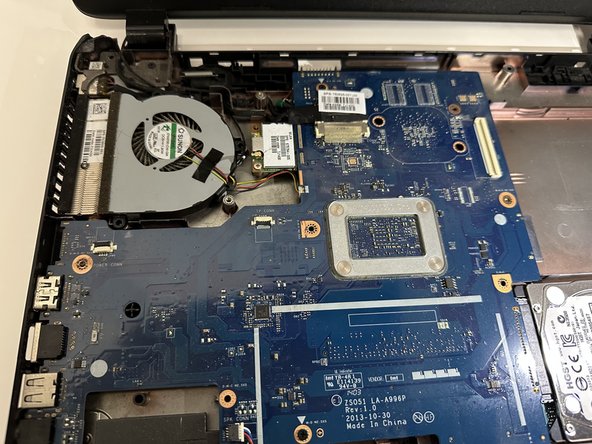
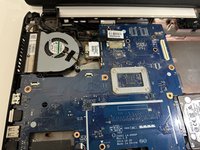
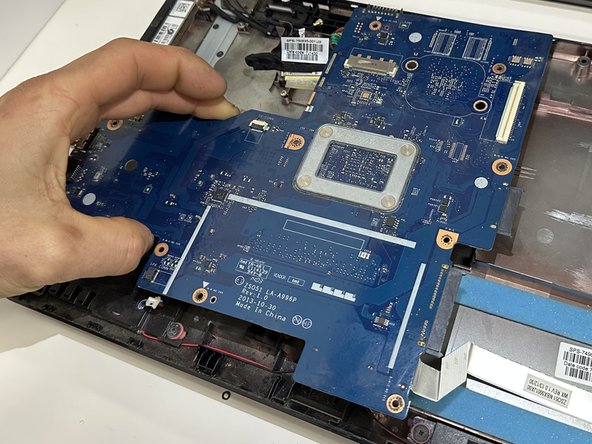
    • The motherboard is now fully disconnected and able to be removed from the chassis by lifting it out with your hands.

    • Remove the following components for your new motherboard: Heatsink, RAM, CMOS battery.

  21. HP 15-g029wm RAM Replacement, RAM: step 21, image 1 of 1
    • Two clips secure the RAM module in place, one on each side. Using your fingers, spread the clips away from the RAM module

    • When released, the RAM modules will pop up at a slight angle.

    • Slide the RAM module straight out of its socket.

Conclusion

To reassemble your device, follow these instructions in reverse order.

One other person completed this guide.

0 Guide Comments

Add Comment

View Statistics:

Past 24 Hours: 0

Past 7 Days: 2

Past 30 Days: 22

All Time: 310