Introduction
In the case that the laptop does not respond to the adapter being plugged in, the power jack may be faulty. Follow this guide to replace the power jack.
What you need
-
-
-
Turn power off using the power button located in the top left corner of the keyboard. Press and hold the power button for 3 seconds until it turns off.
 Ask FixBot
-
-
-
Close the laptop and flip it over so that the HP cover logo is on the underside of the laptop.
-
-
-
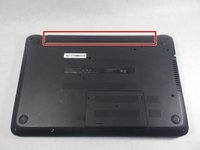
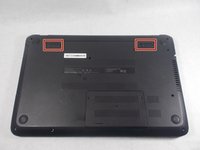
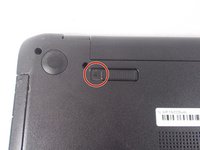
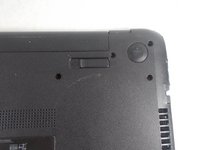
Locate the battery and the two switches that release the battery when they are unlocked.
-
-
-
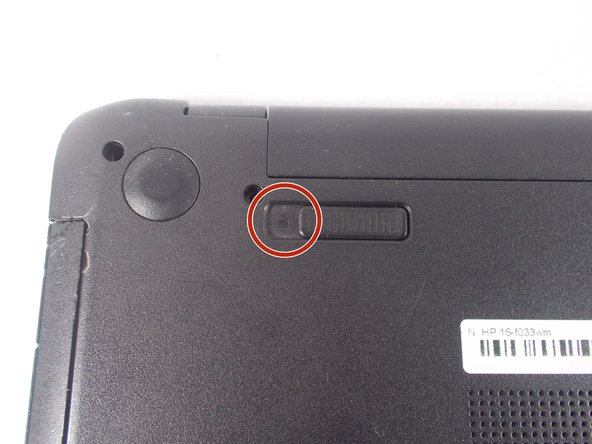
Slide the left switch to the right so that the icon of a locked padlock is no longer visible and the icon of an unlocked padlock is now visible.
-
-
-
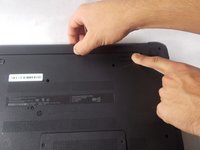
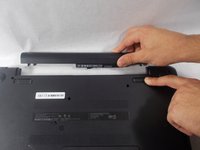
With your left hand, slide the right switch to the left and hold it in place. This will unlock the battery and allow you to easily slide it out of its port.
-
While holding the switch in place, use your right hand to gently remove the battery from its port.
-
-
-
-
-
-
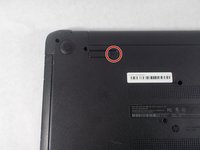
Remove the thirteen 7 mm PH1 Phillips head screws from the bottom of the laptop.
-
-
-
Pry up and detach the keyboard. Starting at the top, slowly work the side and pull the keyboard away from you to unseat the bottom tabs.
-
-
-
Remove the keyboard connection from the laptop by flipping up the black tab on the ZIF connector.
-
-
-
-
-
After removing the battery and the palm rest, remove the two 7 mm PH1 Phillips head screws holding in the small metal power jack holder.
-
-
-
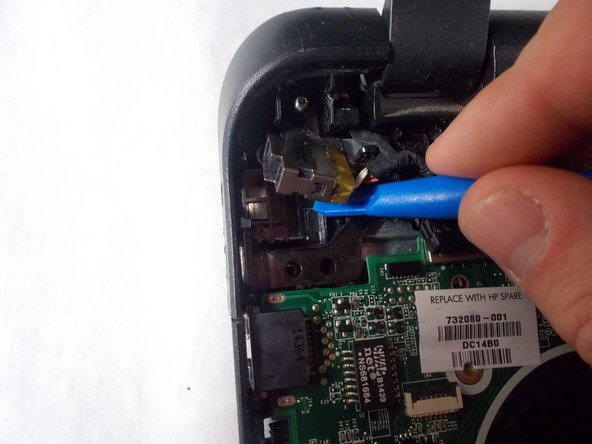
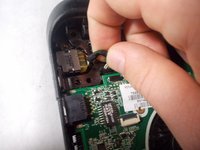
Unplug the wired connection from the laptop to the power jack.
-
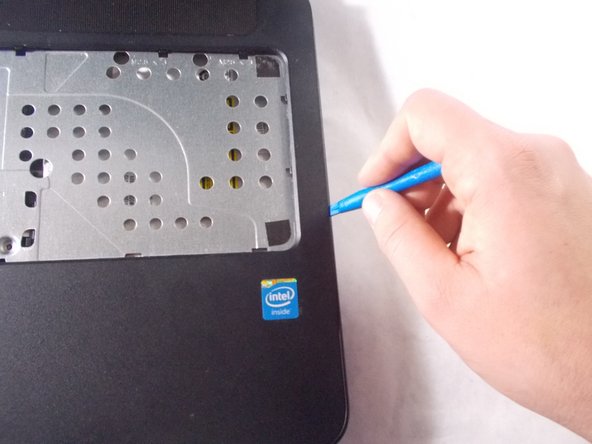
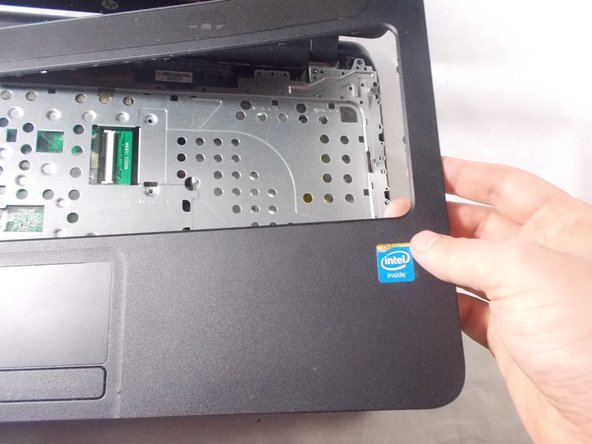
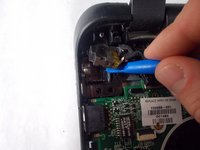
Detach broken power jack using blue spudger.
-
-









To reassemble your device, follow these instructions in reverse order.
Cancel: I did not complete this guide.
5 other people completed this guide.

Team

UMass Dartmouth, Team S1-G4, Simcock Fall 2017 Member of UMass Dartmouth, Team S1-G4, Simcock Fall 2017
UMASSD-SIMCOCK-F17S1G4
3 Members
72 Guides authored
1 Guide Comment
I have hp pavilion 15xxxxxx i3 laptop. Its power jack was damaged. I replaced it. When I connected it with power, the light on the jack blinks one time then turned off. Every time I connect it with power, same thing happens. It is neither charging the batyery nor turning the laptop on. Can anyo e tell me what is the issue and how to solve.
Thanks.
AbdulHafeez.
