
HP 15-ef2025nr Trackpad Replacement

Maribella Rivera and 3 other contributors
Last updated on May 7, 2024
Views: 684
View statistics:
- Past 24 Hours:
- 3
- Past 7 Days:
- 18
- Past 30 Days:
- 66
- All Time:
- 684
Comments: 10
10 comments on steps.
Completed: 0 1
No one has marked this guide "completed." Will you be the first?
1 person has marked this guide "completed." It's you — great job!
Favorites: 0 1
No one has favorited (and subscribed to) this guide. Will you be the first?
1 person has favorited (and subscribed to) this guide — and that's you!
Introduction
Go to step 1 ↓If the touchpad of your HP 15-ef2025nr laptop is not responding, it may be a good time to replace it. However, please see the troubleshooting guide prior to replacing the touchpad. The touchpad is what allows you to move the cursor on your laptop. Without an operating touchpad, it is much harder to use your laptop because you would need a separate mouse.
Before starting this guide make sure you remove the computer battery for safety reasons.
What you need
Tools


-
-
-
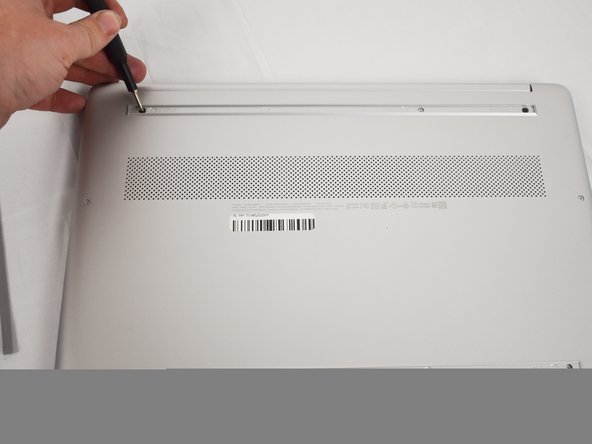
Use an opening tool to remove the rubber strips by prying up a corner and gently pulling off the strip.
-
-
-
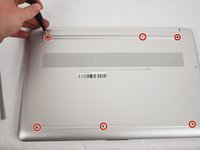
Use a Phillips screwdriver to remove the eight 3 mm screws (including the 2 screws that were not under the rubber strips) securing the lower case.
-
-
-
-
Flip the laptop over and open the lid.
-
Insert an opening tool into the seam between the edge of the lower case and the chassis.
-
Gently pry around the entire perimeter until the lower case separates from the chassis.
-
Close the lid and flip the laptop back over.
-
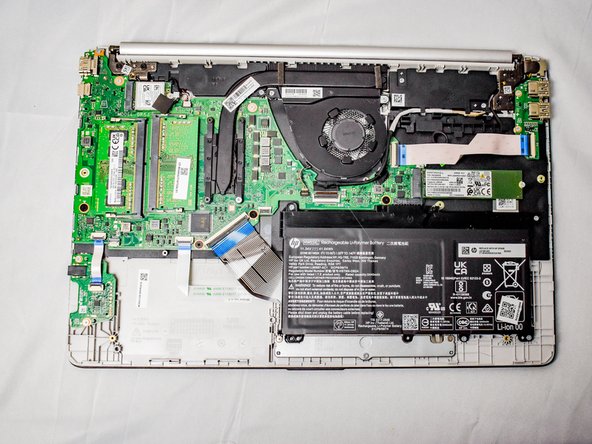
Remove the lower case.
-
-
-
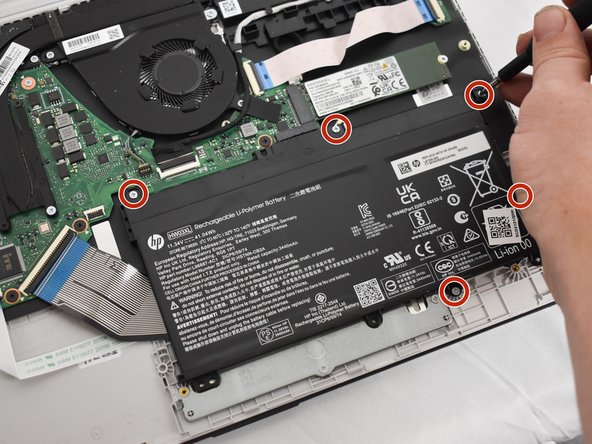
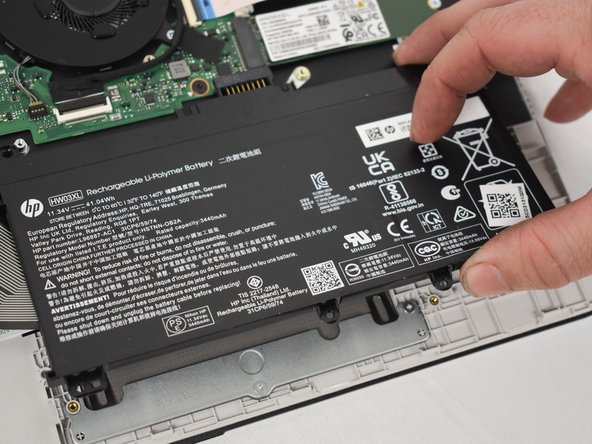
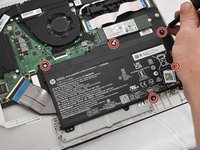
Remove the five 2 mm Phillips screws holding the battery down.
-
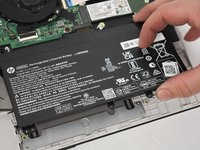
Gently lift the front edge of the battery up to disconnect the socket.
-
Lift the battery up and out.
-
-
-
Tool used on this step:Tweezers$4.99
-
-
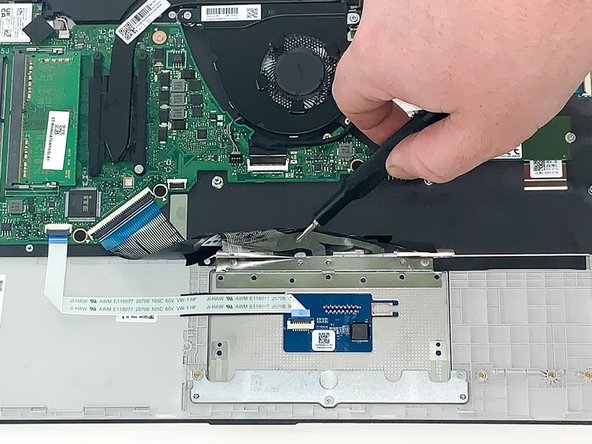
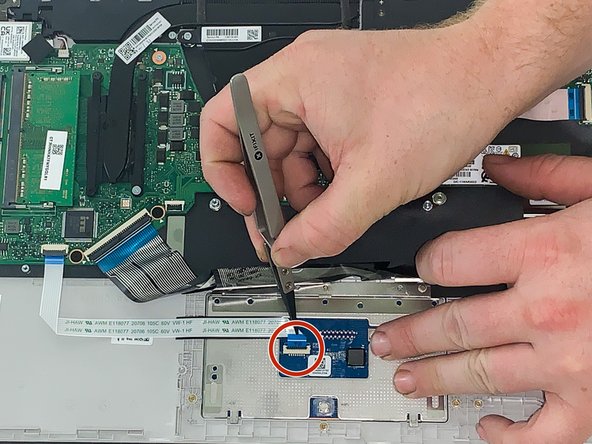
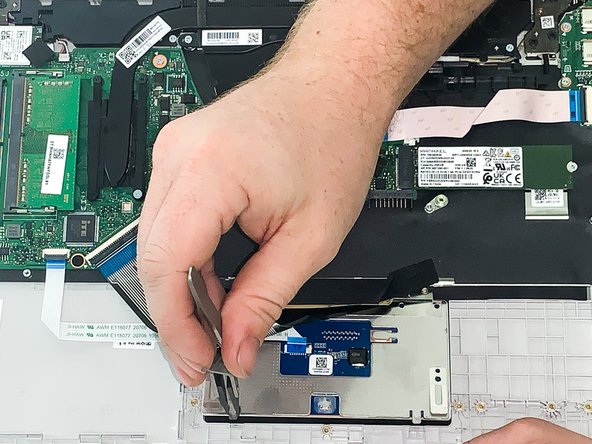
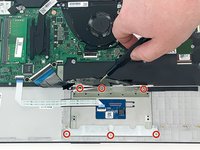
Remove the six 2 mm Phillips screws securing the trackpad.
-
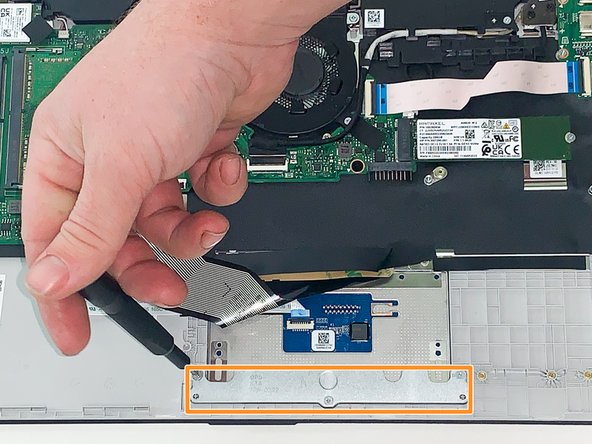
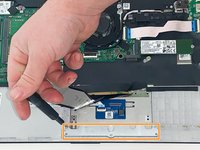
Remove the retaining plate from the bottom of the track pad.
-
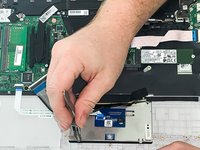
Remove the track pad.
-
-

 Ask FixBot










To reassemble your device, follow these instructions in reverse order.

Team

Austin Community College, Team 1-1, Watkins Spring 2023 Member of Austin Community College, Team 1-1, Watkins Spring 2023
AUSTINCC-WATKINS-S23S1G1
4 Members
60 Guides authored
