Introduction
This guide demonstrates how to remove the back cover of the HP 15-ef1041nr laptop in order to access and replace the trackpad. Before continuing please look at this troubleshooting guide to ensure that your trackpad is the problem, "trackpad not responding." Accessing the trackpad is necessary for repairing unresponsive input, fixing clicking issues, or replacing a damaged unit. Before beginning, ensure the laptop is completely powered off and disconnected from any external power sources. It is also recommended to work on a clean, static-free surface and use proper tools to avoid damaging internal components or ribbon cables. This guide is intended foronding beginners and assumes no prior disassembly experience. Follow each step carefully to safely access the trackpad without damaging the back cover or surrounding hardware.
What you need
-
-
-
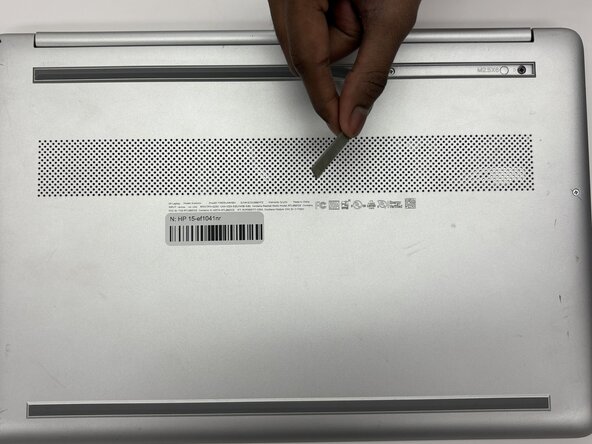
Use an opening tool to remove the two rubber feet on the lower case.
-
Place the rubber strips off to the side with the stickey side up.
 Ask FixBot
-
-
-
Use a Phillips #1 screwdriver to remove the following screws securing the lower case:
-
Six 2 mm x 6mm screws
-
Two 2.5 mm x 6 mm screws
-
-
-
-
Insert an iFixit opening tool into the seam betwen the keyboard area and bottom cover.
-
Using another iFixit opening tool, slide along the seam to unhook the clips.
-
Remove the lower case.
-
-
-
-
-
Remove the five 2 mm x 3 mm screws that secures the battery.
-
Use an opening tool to carefully lift the battery up.
-
At a 45 degree angle, pull the battery away from the motherboard.
-
-
-
-
-
Remove two 3 mm screws securing the trackpad with a Phillips #1 screwdriver.
-
Remove the three 2 mm screws securing the trackpad with a Phillips #0 screwdriver.
-
The metal bracket is hooked to the chasis. To remove, lift the metal bracket and turn it horizontally toward the laptop, as seen in photo.
-
-
-
Peel away the rubber with an opening tool, but not all the way. Just enough to where the trackpad can be removed.
-
To disconnect the trackpad ribbon cable, lift up on the black tab of the connector.
-
Remove the trackpad.
-
-



To reassemble your device, follow the above steps in reverse order.
Take your e-waste to an R2 or e-Stewards certified recycler.
Repair didn’t go as planned? Try some basic troubleshooting or ask our Answers community for help.

Team

Purdue University Northwest, Team 8-12, Dieterle Spring 2026 Member of Purdue University Northwest, Team 8-12, Dieterle Spring 2026
PNW-DIETERLE-S26S8G12
4 Members
72 Guides authored
