Free Shipping on Domestic Orders $75+

HP 15-dy2702dx Trackpad Replacement

Views: 582

View statistics:

Past 24 Hours:
3
Past 7 Days:
26
Past 30 Days:
86
All Time:
582
Comments: 0

No one has left comments on this guide. Will you be first?

Go to guide comments
Completed: 0

No one has marked this guide "completed." Will you be the first?

Favorites: 0

No one has favorited (and subscribed to) this guide. Will you be the first?

Time Required: 25 - 50 minutes
Difficulty: Moderate
HP 15-dy2702dx Trackpad Replacement

Introduction

Go to step 1 ↓

This is a guide that explains how to replace the trackpad for the HP 15-dy2072dx. The trackpad may need replacement in case it stops working, cracks, or wears out.

The trackpad is responsible for allowing users to move their pointer and click on items without the need for a external mouse. Trackpads are usually found on laptop to aid with portability.

What you need

Tools

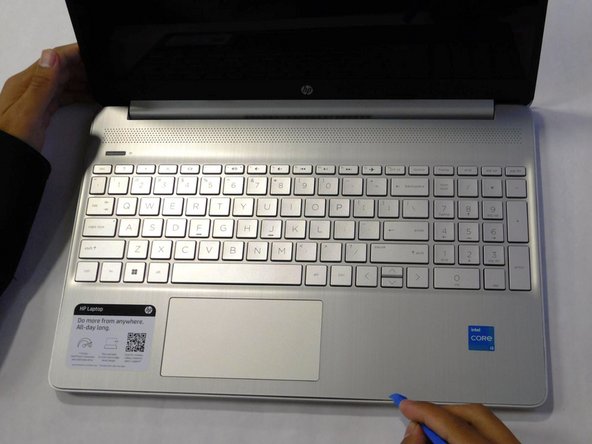
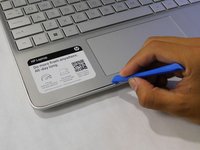
    1. HP 15-dy2702dx Trackpad Replacement, Lower Case: step 1, image 1 of 1
      • Remove both of the rubber strips to uncover the hidden screws.

      • You can use a prying tool to help lift an end.

      Ask FixBot
      Add Comment

    2. HP 15-dy2702dx Trackpad Replacement: step 2, image 1 of 1
      • Unscrew all 8 Phillips #1 screws on the bottom panel:

      • Two M2.5x6

      • Six M2x6

      Ask FixBot
      Add Comment

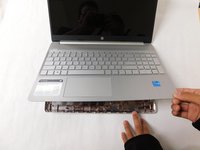
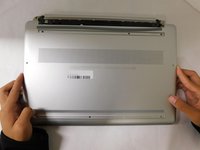
    3. HP 15-dy2702dx Trackpad Replacement: step 3, image 1 of 2 HP 15-dy2702dx Trackpad Replacement: step 3, image 2 of 2
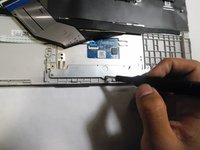
      • Flip the laptop over and open the lid.

      • Separate the bottom panel from the main body by using the iFixit opening tool.

      • Ensure that the bottom panel is completely separated along the edges.

      Ask FixBot
      Add Comment

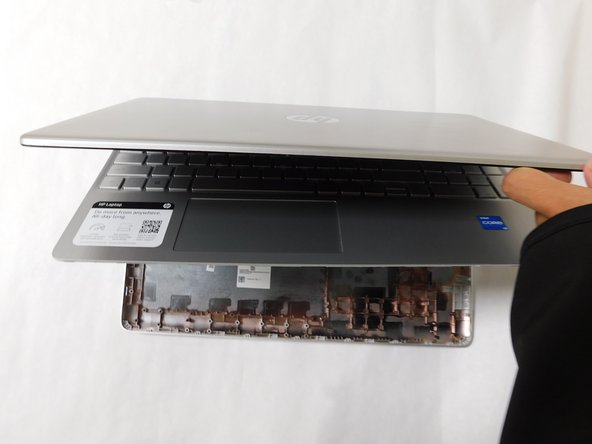
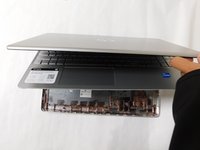
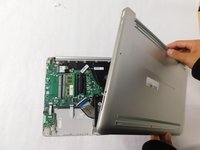
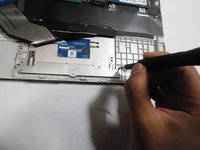
    4. HP 15-dy2702dx Trackpad Replacement: step 4, image 1 of 2 HP 15-dy2702dx Trackpad Replacement: step 4, image 2 of 2
      • If you can lift the laptop like shown in the first picture, the bottom panel is nearly separated.

      • Close the laptop to allow the back edges to fully separate

      Ask FixBot
      Add Comment

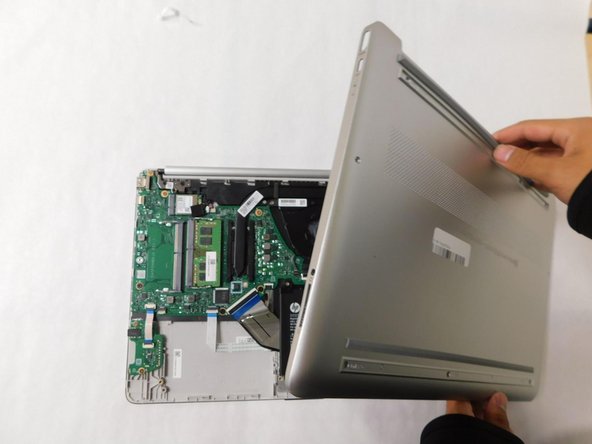
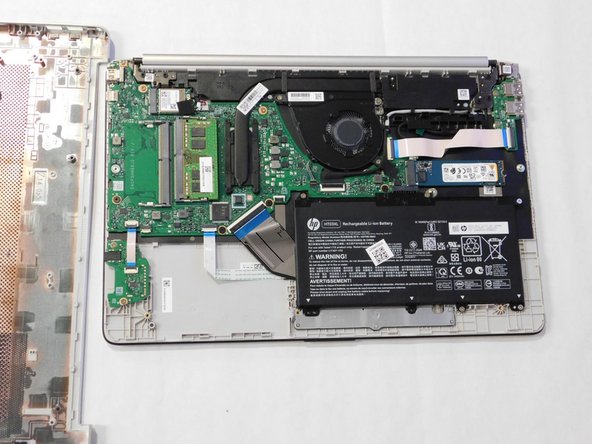
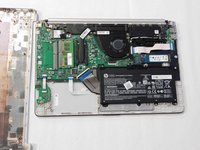
    5. HP 15-dy2702dx Trackpad Replacement: step 5, image 1 of 3 HP 15-dy2702dx Trackpad Replacement: step 5, image 2 of 3 HP 15-dy2702dx Trackpad Replacement: step 5, image 3 of 3
      • Flip the laptop over and carefully remove the lower case.

      Ask FixBot

      Add Comment

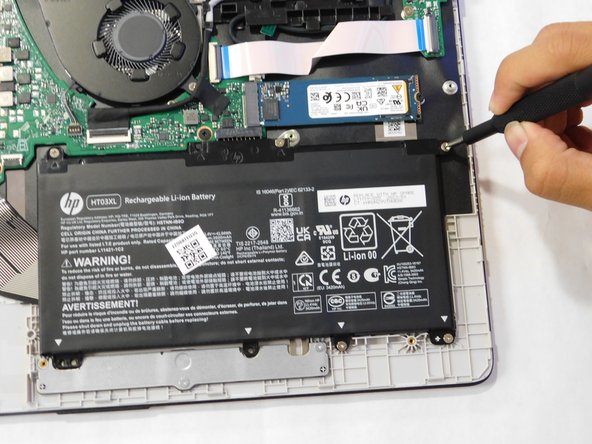
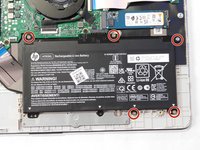
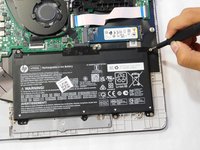
    1. HP 15-dy2702dx Trackpad Replacement, Battery: step 6, image 1 of 2 HP 15-dy2702dx Trackpad Replacement, Battery: step 6, image 2 of 2
      • Remove the five M2x6 screws that secure the battery with a Phillips #1 screwdriver.

      Ask FixBot
      Add Comment

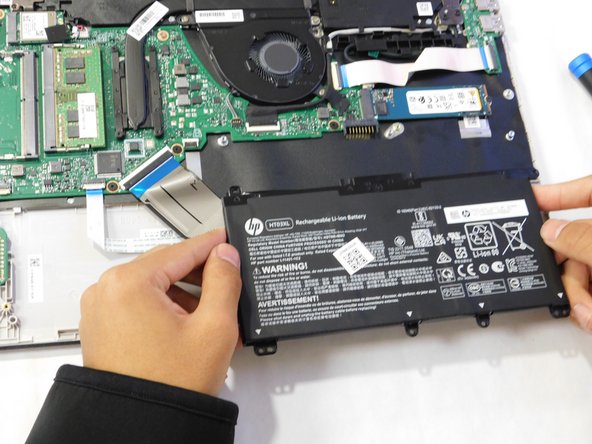
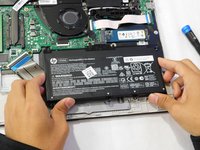
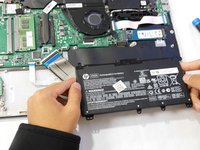
    2. HP 15-dy2702dx Trackpad Replacement: step 7, image 1 of 3 HP 15-dy2702dx Trackpad Replacement: step 7, image 2 of 3 HP 15-dy2702dx Trackpad Replacement: step 7, image 3 of 3
      • Grab the sides of the battery and gently pull the battery until it disconnects from the connector on motherboard.

      • Lift the battery up and out.

      Ask FixBot
      Add Comment

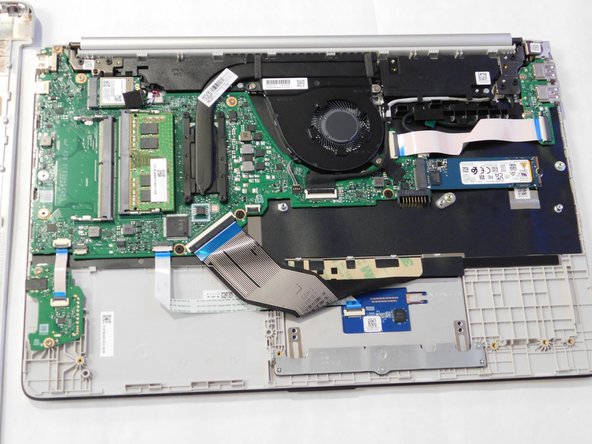
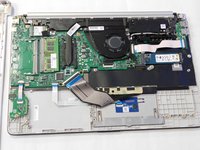
    1. HP 15-dy2702dx Trackpad Replacement, Trackpad: step 8, image 1 of 1
      • Find the trackpad.

      Ask FixBot
      Add Comment

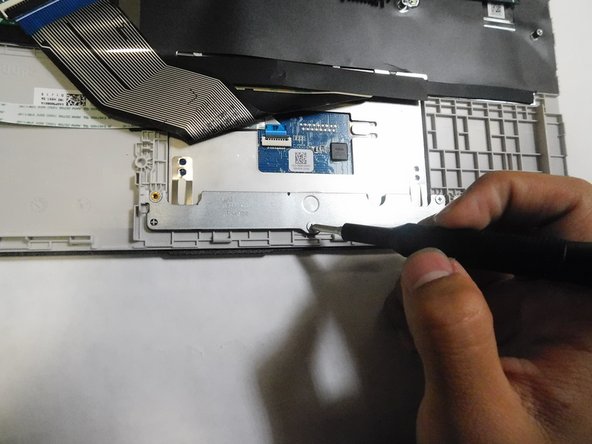
    2. HP 15-dy2702dx Trackpad Replacement: step 9, image 1 of 3 HP 15-dy2702dx Trackpad Replacement: step 9, image 2 of 3 HP 15-dy2702dx Trackpad Replacement: step 9, image 3 of 3
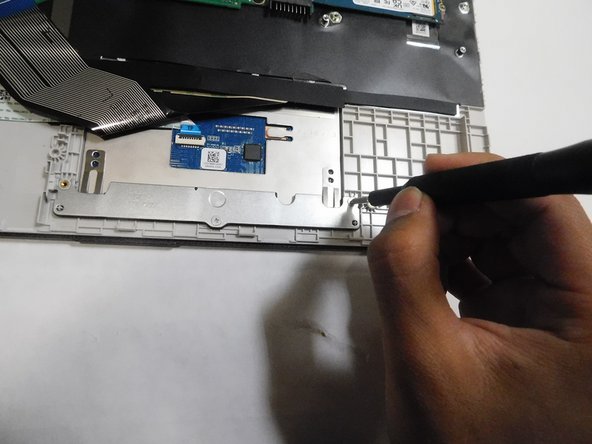
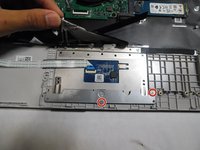
      • Unscrew the two M2x6 Phillips #1 screws securing the trackpad.

      Ask FixBot

      Add Comment

    3. HP 15-dy2702dx Trackpad Replacement: step 10, image 1 of 2 HP 15-dy2702dx Trackpad Replacement: step 10, image 2 of 2
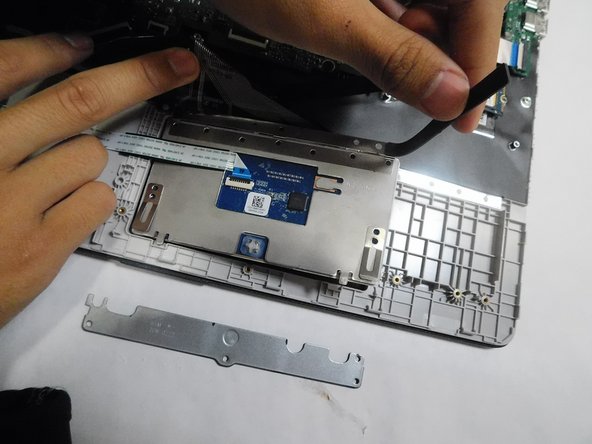
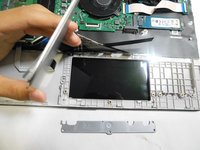
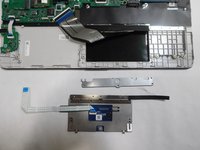
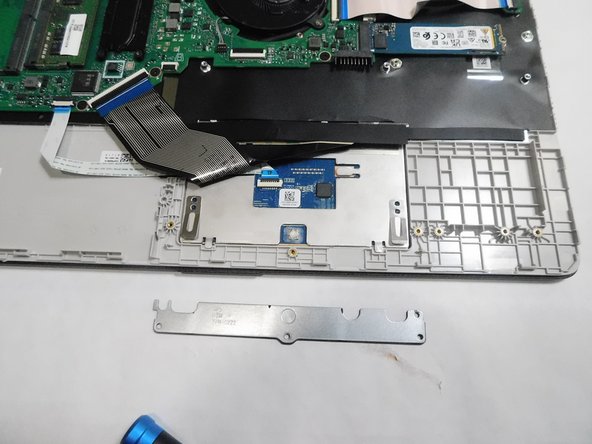
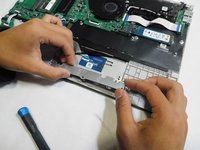
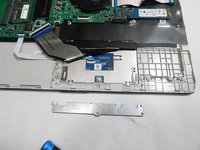
      • Remove the metal bracket.

      Ask FixBot
      Add Comment
    4. HP 15-dy2702dx Trackpad Replacement: step 11, image 1 of 3 HP 15-dy2702dx Trackpad Replacement: step 11, image 2 of 3 HP 15-dy2702dx Trackpad Replacement: step 11, image 3 of 3
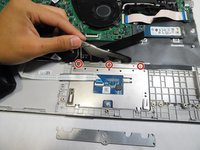
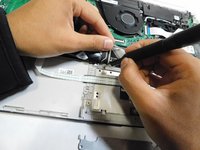
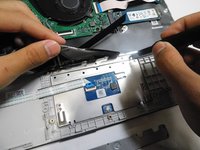
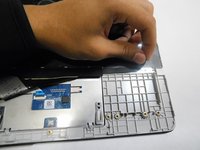
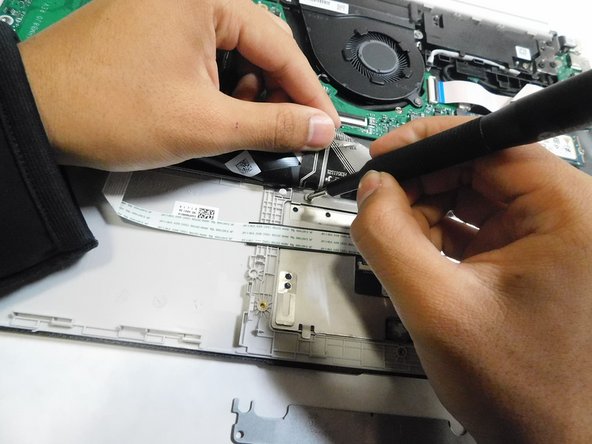
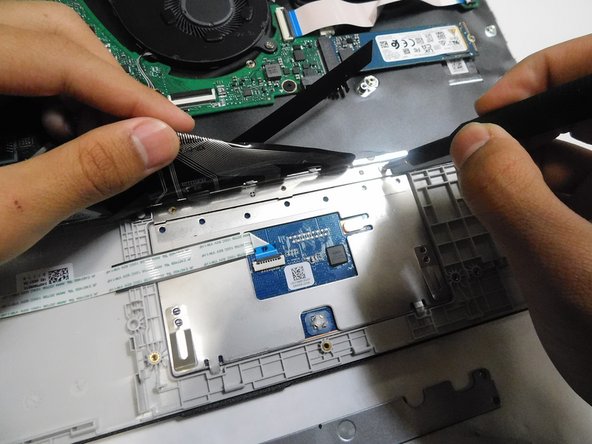
      • Lift the black ribbon covering the screws.

      • Unscrew the top three M2x3 Phillips #0 screws.

      Ask FixBot

      Add Comment

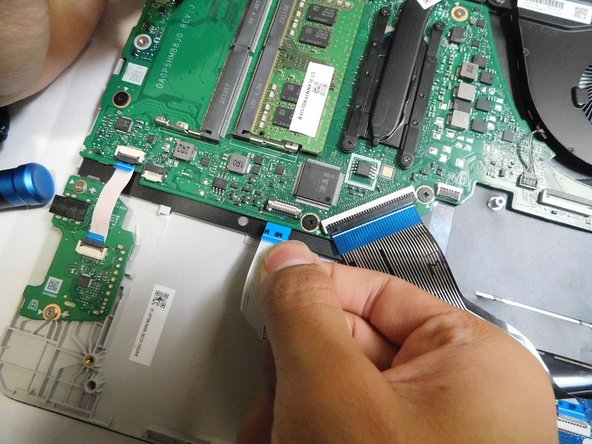
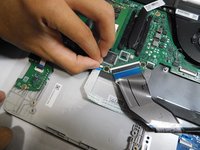
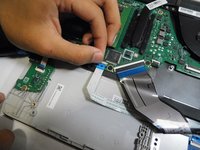
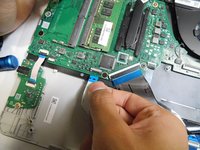
    5. HP 15-dy2702dx Trackpad Replacement: step 12, image 1 of 3 HP 15-dy2702dx Trackpad Replacement: step 12, image 2 of 3 HP 15-dy2702dx Trackpad Replacement: step 12, image 3 of 3
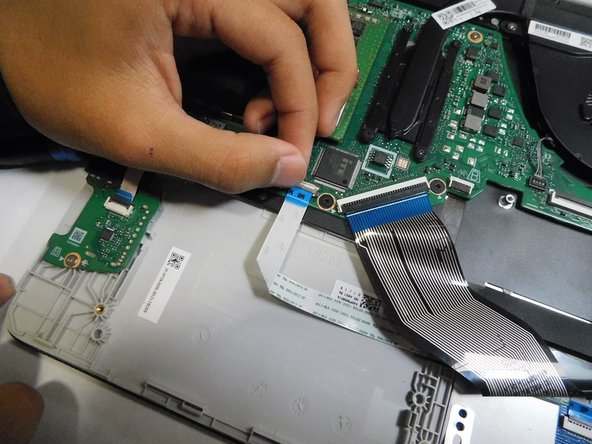
      • Flip up the locking flap holding the trackpad ribbon in place.

      • Pull the ribbon straight out of its socket.

      Ask FixBot

      Add Comment

    6. HP 15-dy2702dx Trackpad Replacement: step 13, image 1 of 2 HP 15-dy2702dx Trackpad Replacement: step 13, image 2 of 2
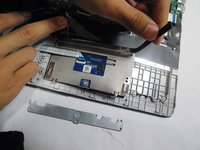
      • Peel back the sticky black strip holding the trackpad in place.

      Ask FixBot

      Add Comment

    7. HP 15-dy2702dx Trackpad Replacement: step 14, image 1 of 2 HP 15-dy2702dx Trackpad Replacement: step 14, image 2 of 2
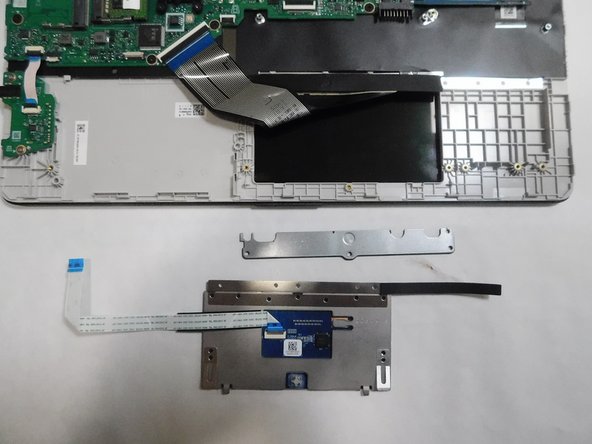
      • Remove the trackpad from the laptop.

      Ask FixBot

      Add Comment

Conclusion

To reassemble your device, follow these instructions in reverse order.

Cancel: I did not complete this guide.

Zander Herbold

Member since: 09/05/23

703 Reputation

4 Guides authored

Team

Gateway, Team 1-4, Pee Fall 2023 Member of Gateway, Team 1-4, Pee Fall 2023

GCC-PEE-F23S1G4

4 Members

96 Guides authored

0 Guide Comments

Add Comment

View Statistics:

Past 24 Hours: 3

Past 7 Days: 26

Past 30 Days: 86

All Time: 582