
HP 15-dy2702dx SSD Replacement

Zander Herbold and 2 other contributors
Last updated on Mar 10, 2025
Views: 1.6K
View statistics:
- Past 24 Hours:
- 4
- Past 7 Days:
- 27
- Past 30 Days:
- 138
- All Time:
- 1,584
Comments: 0
No one has left comments on this guide. Will you be first?
Go to guide commentsCompleted: 1 2
1 person has marked this guide "completed." Will you be next?
2 people have marked this guide "completed." Including you — great job!
Favorites: 0 1
No one has favorited (and subscribed to) this guide. Will you be the first?
1 person has favorited (and subscribed to) this guide — and that's you!
Introduction
Go to step 1 ↓This guide explains how to replace the storage drive on the HP 15-dy2072dx. The storage drive on this laptop is a solid state drive(SSD). A replacement may be necessary in case of drive failures or a need to upgrade to a greater storage space.
The storage drive is responsible for storing all your files, boot files, and the OS files. A replacement may be an exact part replacement or a upgrade to the amount of storage(i.e. 256 GB to 1 TB).
Caution to use ESD safe tools and ESD wrist strap as static discharge may damage the new drive or the motherboard.
What you need
Tools


-
-
-
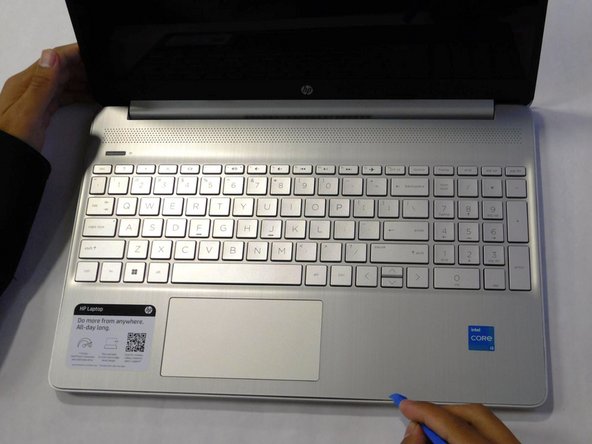
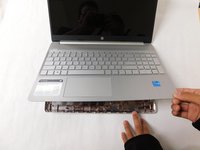
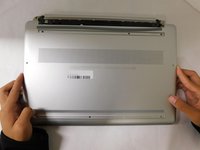
Flip the laptop over and open the lid.
-
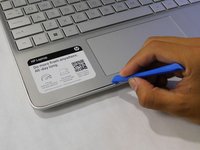
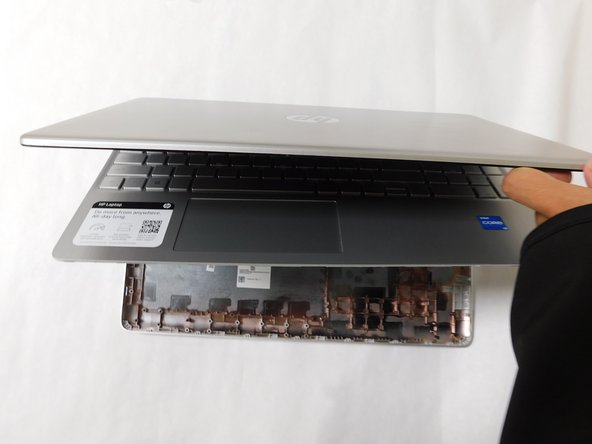
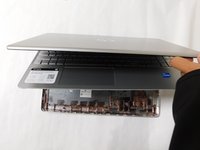
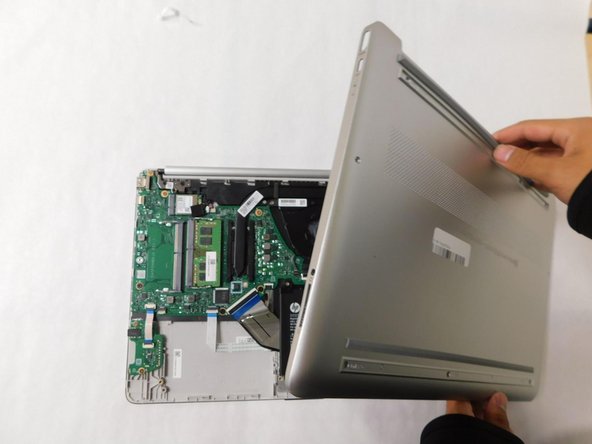
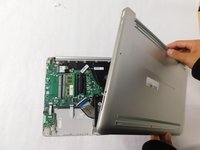
Separate the bottom panel from the main body by using the iFixit opening tool.
-
-
-
-
-
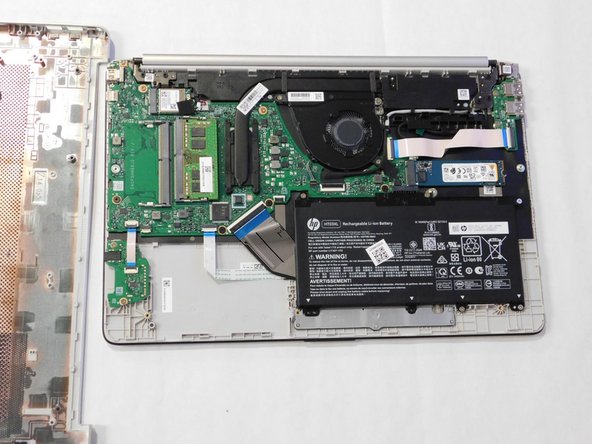
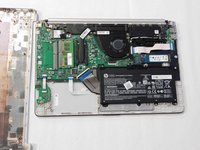
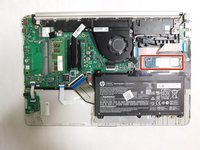
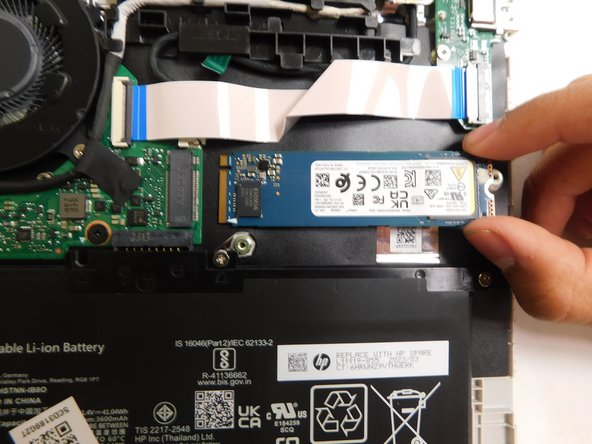
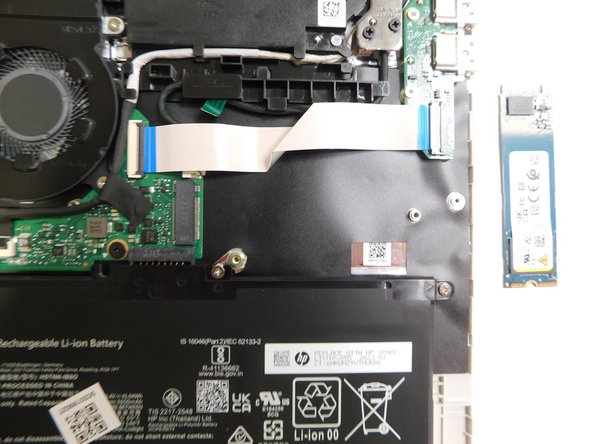
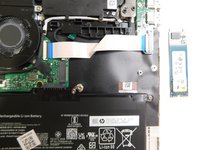
Locate the storage drive.
-
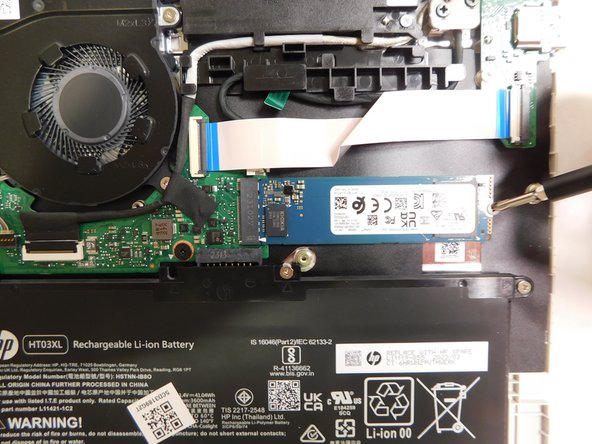
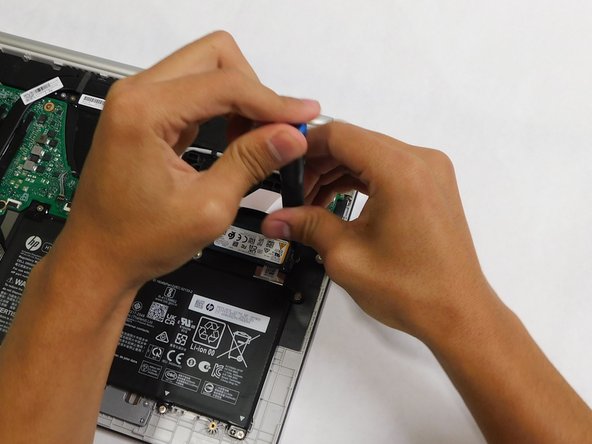
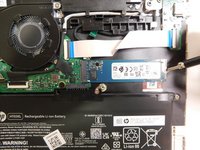
Unscrew the single screw holding the drive in place.
-
-

 Ask FixBot






To reassemble your device, follow these instructions in reverse order.
Cancel: I did not complete this guide.
One other person completed this guide.

Team

Gateway, Team 1-4, Pee Fall 2023 Member of Gateway, Team 1-4, Pee Fall 2023
GCC-PEE-F23S1G4
4 Members
96 Guides authored
