Free Shipping on Domestic Orders $75+

HP 15-dy2702dx Fan Replacement

What you need

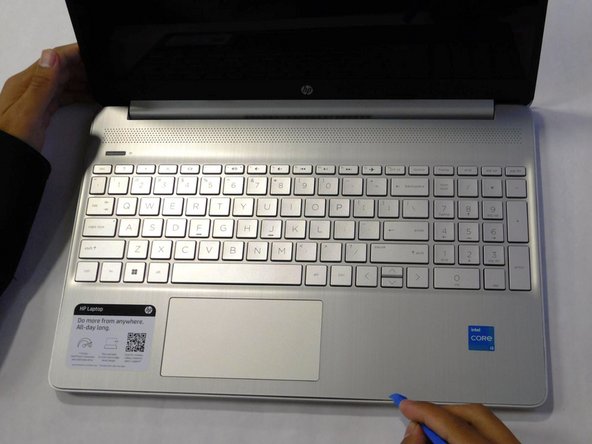
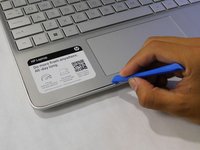
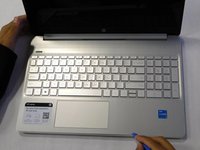
    1. HP 15-dy2702dx Fan Replacement, Lower Case: step 1, image 1 of 1
      • Remove both of the rubber strips to uncover the hidden screws.

      • You can use a prying tool to help lift an end.

      Ask FixBot

      Add Comment

    2. HP 15-dy2702dx Fan Replacement: step 2, image 1 of 1
      • Unscrew all 8 Phillips #1 screws on the bottom panel:

      • Two M2.5x6

      • Six M2x6

      Ask FixBot

      Add Comment

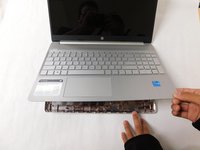
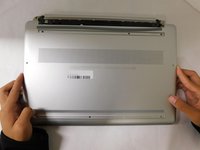
    3. HP 15-dy2702dx Fan Replacement: step 3, image 1 of 2 HP 15-dy2702dx Fan Replacement: step 3, image 2 of 2
      • Flip the laptop over and open the lid.

      • Separate the bottom panel from the main body by using the iFixit opening tool.

      • Ensure that the bottom panel is completely separated along the edges.

      Ask FixBot

      Add Comment

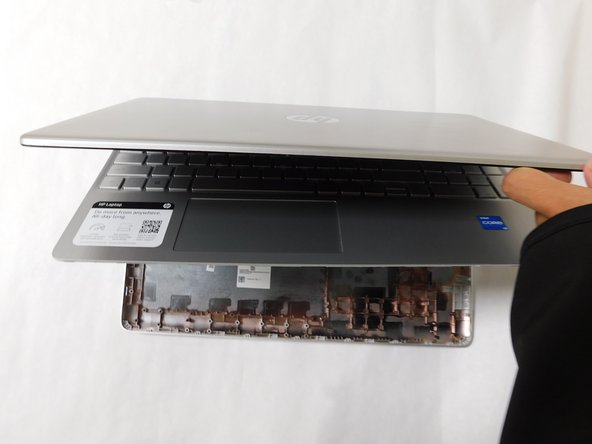
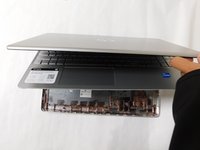
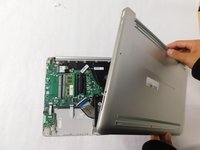
    4. HP 15-dy2702dx Fan Replacement: step 4, image 1 of 2 HP 15-dy2702dx Fan Replacement: step 4, image 2 of 2
      • If you can lift the laptop like shown in the first picture, the bottom panel is nearly separated.

      • Close the laptop to allow the back edges to fully separate

      Ask FixBot

      Add Comment

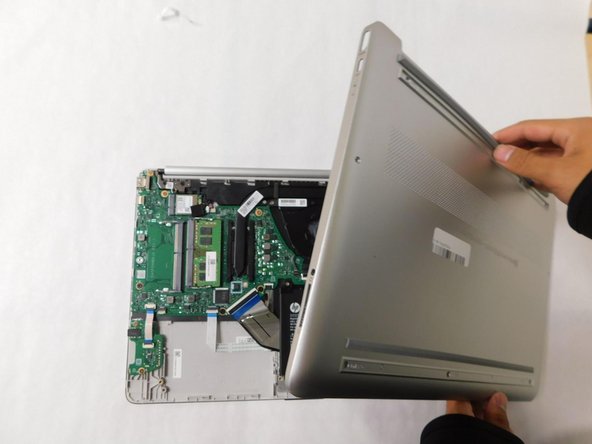
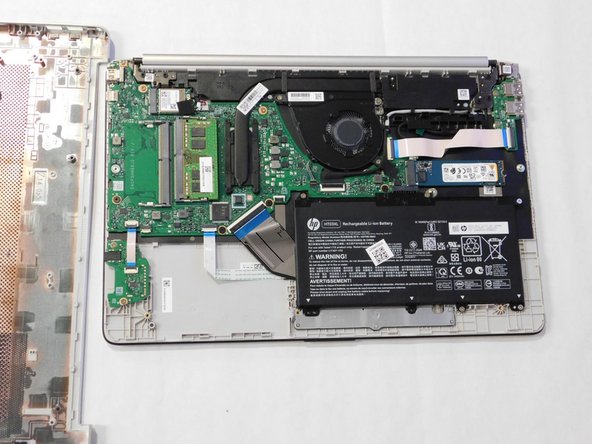
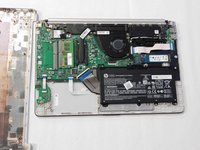
    5. HP 15-dy2702dx Fan Replacement: step 5, image 1 of 3 HP 15-dy2702dx Fan Replacement: step 5, image 2 of 3 HP 15-dy2702dx Fan Replacement: step 5, image 3 of 3
      • Flip the laptop over and carefully remove the lower case.

      Ask FixBot

      Add Comment

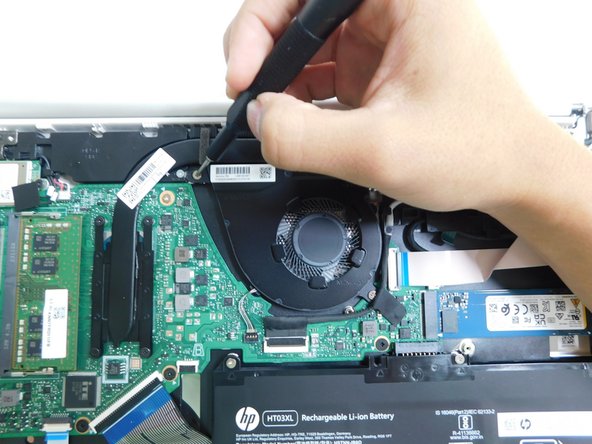
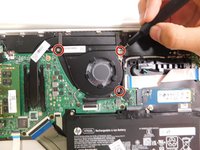
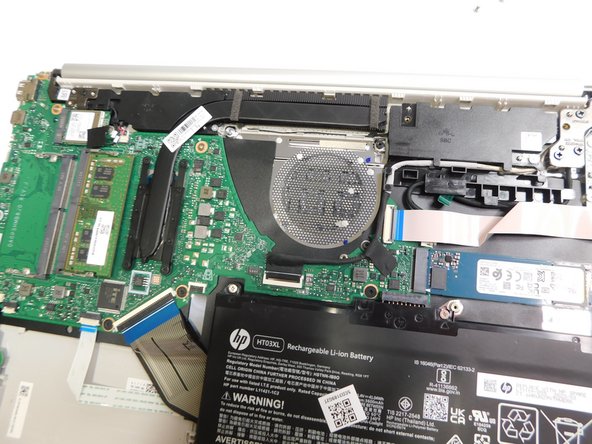
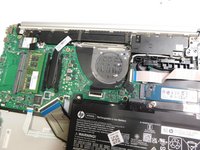
    1. HP 15-dy2702dx Fan Replacement, Fan: step 6, image 1 of 3 HP 15-dy2702dx Fan Replacement, Fan: step 6, image 2 of 3 HP 15-dy2702dx Fan Replacement, Fan: step 6, image 3 of 3
      • Use a Phillips #1 screwdriver to unscrew the three screws that secure the fan.

      • These screws sizes are M2x6.

      Ask FixBot

      Add Comment

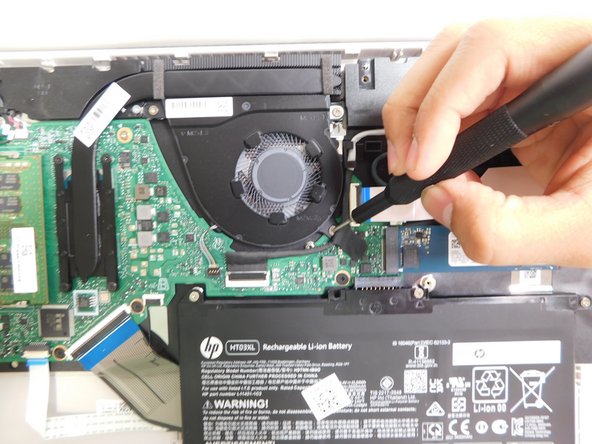
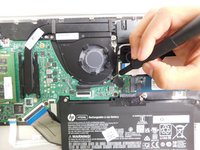
    2. HP 15-dy2702dx Fan Replacement: step 7, image 1 of 1
      • Grip the cord that connects the fan to the motherboard and gently pull out to disconnect the cable from the connector.

      • Alternatively, we recommend using a tool to push the connector out of its socket to avoid damaging the wires.

      Ask FixBot

      Add Comment

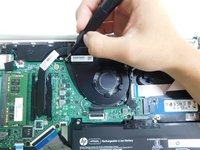
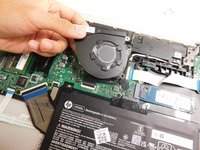
    3. HP 15-dy2702dx Fan Replacement: step 8, image 1 of 2 HP 15-dy2702dx Fan Replacement: step 8, image 2 of 2
      • Gently lift the fan to remove it from the case.

      Ask FixBot

      Add Comment

Conclusion

To reassemble your device, follow these instructions in reverse order.

Cancel: I did not complete this guide.

September Oo

Member since: 09/07/23

439 Reputation

4 Guides authored

Team

Gateway, Team 1-4, Pee Fall 2023 Member of Gateway, Team 1-4, Pee Fall 2023

GCC-PEE-F23S1G4

4 Members

96 Guides authored

0 Guide Comments

Add Comment

View Statistics:

Past 24 Hours: 1

Past 7 Days: 19

Past 30 Days: 77

All Time: 894