
HP 15-dy2024nr Trackpad Replacement

Eylandra and one other contributor
Last updated on Jun 19, 2024
Views: 647
View statistics:
- Past 24 Hours:
- 2
- Past 7 Days:
- 19
- Past 30 Days:
- 71
- All Time:
- 647
Comments: 0
No one has left comments on this guide. Will you be first?
Go to guide commentsCompleted: 0 1
No one has marked this guide "completed." Will you be the first?
1 person has marked this guide "completed." It's you — great job!
Favorites: 0 1
No one has favorited (and subscribed to) this guide. Will you be the first?
1 person has favorited (and subscribed to) this guide — and that's you!
Featured Student Guide
This guide has been the hard work of our awesome students and is found to be exceptionally cool by the iFixit staff.
Introduction
Go to step 1 ↓This guide will show you how to replace the trackpad on the HP 15-dy2024nr. A trackpad detects the motion and position of a user's fingers, and translates them to a position on the screen.
To indicate whether your trackpad needs replacing, it will show signs of:
- Touch not being registered.
- Unable to click.
- Lag.
- Dents and/or scratches.
- If liquid is spilled on it.
- Heating up.
What you need
Tools


-
-
-
Use a spudger to peel one corner of each of the rubber feet from the bottom of the laptop.
-
Gently peel the feet from the laptop using the spudger revealing the screws underneath.
 Ask FixBot
-
-
-
Use a Phillips #1 screwdriver to remove:
-
Two 2.5mm x 6mm screws
-
Six 2mm x 6mm screws
-
-
-
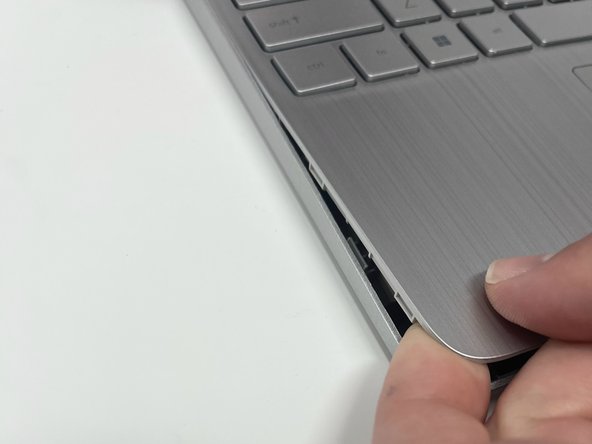
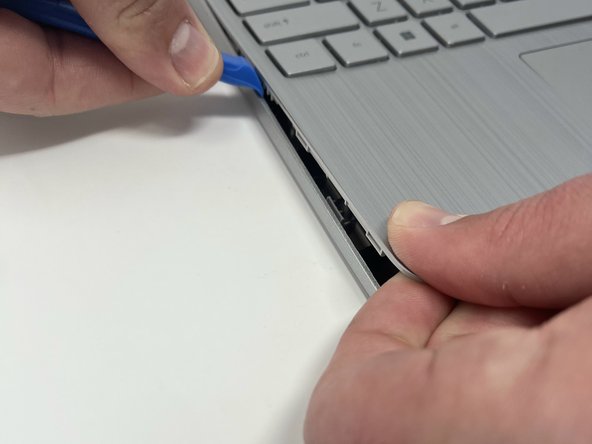
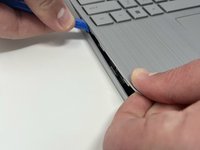
Insert an iFixit opening tool into the seam between the keyboard area and bottom cover.
-
Using another iFixit opening tool, slide along the seam to unhook the clips.
-
When the front of the laptop is open, you can use your finger to hold a corner open then slide an iFixit opening tool along the seam toward the back corner.
-
After the clips have been released, flip the laptop over and lift the cover.
-
-
-
-
-
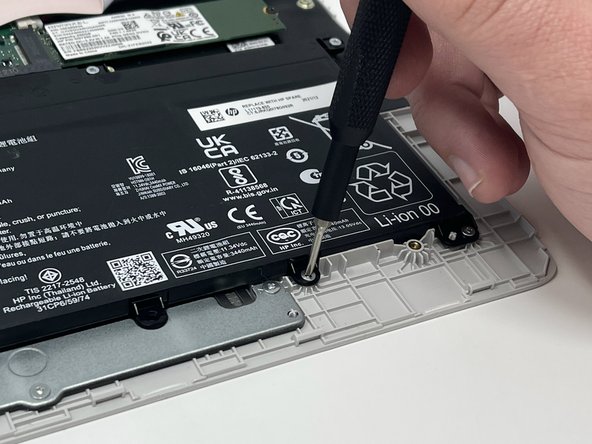
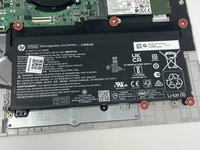
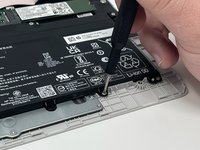
Remove five 2.0mm x 3.0mm screws using a Phillips #00 screwdriver.
-
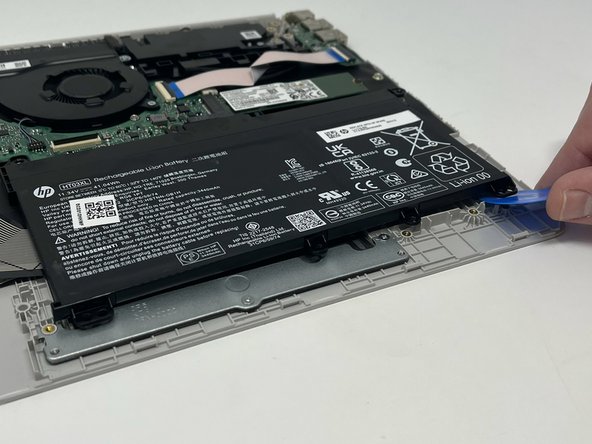
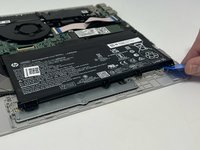
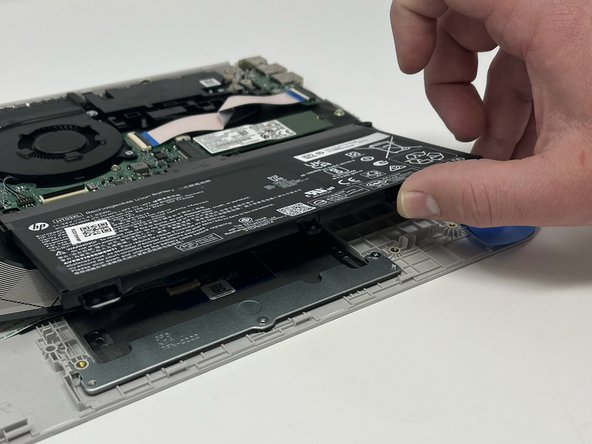
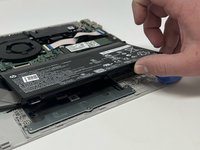
Use the iFixit opening picks to lift the battery away from the laptop.
-
-
-
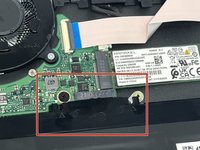
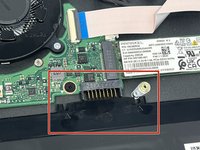
Unplug the battery from the motherboard.
-
Lift the battery away from the laptop and remove.
-
-
-
-
-
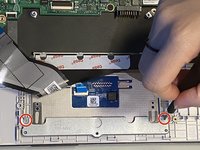
Remove two 3.0 mm screws using a Phillips #1 screwdriver.
-
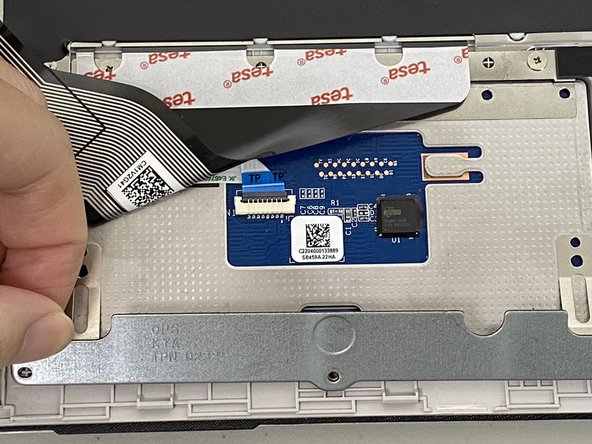
Lift the metal bracket away from the laptop and remove it with your hands.
-
-
-






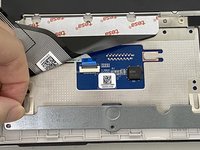


To reassemble your device, follow these instructions in reverse order.

Team

University of North Texas, Team 5-5, Coppersmith Spring 2024 Member of University of North Texas, Team 5-5, Coppersmith Spring 2024
UNT-COPPERSMITH-S24S5G5
4 Members
48 Guides authored
