Introduction
If your HP 15-dw0037wm is freezing or experiencing performance issues, it could be due to faulty or insufficient RAM, which may need replacement. RAM (Random Access Memory) temporarily stores data your computer needs to access quickly over time, defective or outdated RAM can cause instability. Before replacing the RAM, always ensure your device is powered down before starting the replacement process.
What you need
-
-
-
Power off your laptop and disconnect the charger and any peripheries before beginning disassembly.
-
Set the laptop down with the lower case facing up.
-
Lift a corner of the lower silicone foot and peel it completely off.
-
Repeat for the upper silicone foot.
 Ask FixBot
-
-
-
Use a Phillips screwdriver to remove the five 8 mm screws.
-
Remove the two 5 mm Phillips screws.
-
-
-
-
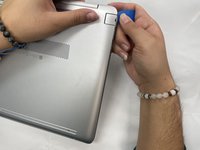
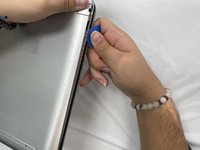
Insert an opening pick into the gap between the lower case and chassis.
-
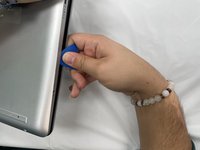
Slide the pick around the entire perimeter of the device until the lower case fully releases.
-
Remove the lower case.
-
-
-
-
-
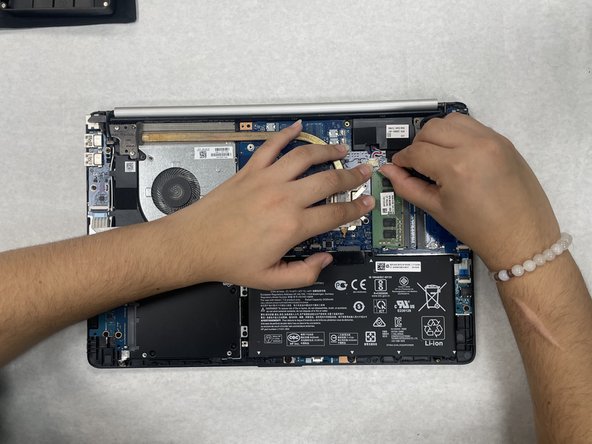
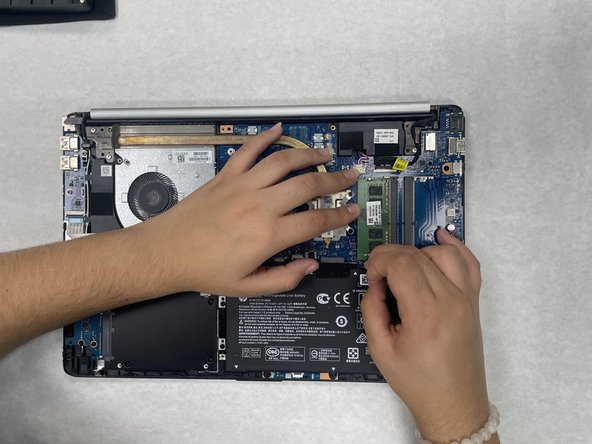
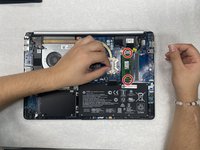
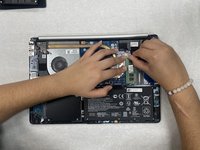
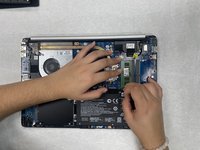
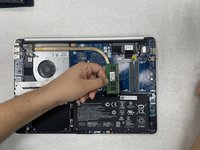
Two clips secure the RAM module in place, one on each side. Using your fingers, spread the clips away from the RAM module.
-
-




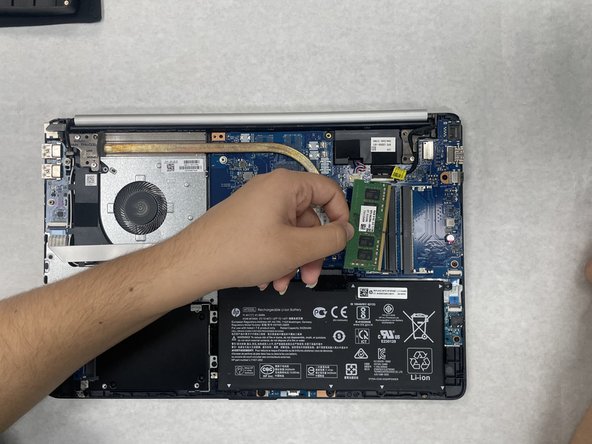
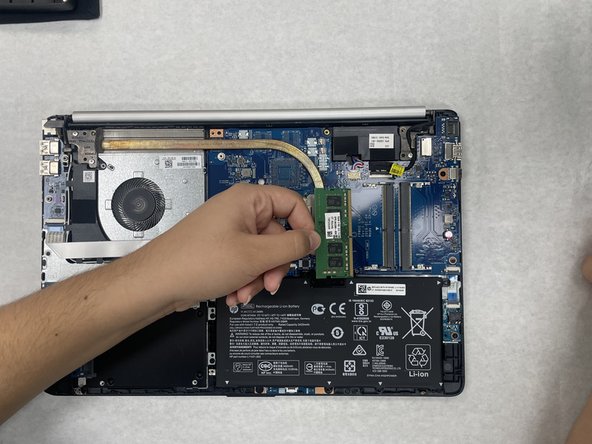
To reassemble your device, follow these instructions in reverse order.
Cancel: I did not complete this guide.
One other person completed this guide.

Team

University of North Texas, Team 1-5, Kilpatrick Fall 2024 Member of University of North Texas, Team 1-5, Kilpatrick Fall 2024
UNT-KILPATRICK-F24S1G5
2 Members
60 Guides authored
