
HP 15-dw0037wm Fan Replacement

Emily Davila and 2 other contributors
Last updated on Dec 19, 2024
Views: 596
View statistics:
- Past 24 Hours:
- 3
- Past 7 Days:
- 19
- Past 30 Days:
- 80
- All Time:
- 596
Comments: 1
1 guide comment.
Go to guide commentsCompleted: 2 3
2 people have marked this guide "completed." Will you be next?
3 people have marked this guide "completed." Including you — great job!
Favorites: 0 1
No one has favorited (and subscribed to) this guide. Will you be the first?
1 person has favorited (and subscribed to) this guide — and that's you!
Introduction
Go to step 1 ↓If your HP 15-dw0037wm laptop is freezing or running slowly, a clogged or malfunctioning fan could be the cause. The fan helps keep your laptop cool, and dust or debris can reduce its efficiency, leading to overheating and performance issues. If your laptop feels hot or the fan is noisy, replacing the fan may resolve the issue. Before replacing the fan make sure to power off your device.
What you need
Fix Kit
This kit contains all the parts and tools needed to complete this guide.

Parts

Tools


-
-
-
Power off your laptop and disconnect the charger and any peripheries before beginning disassembly.
-
Set the laptop down with the lower case facing up.
-
Lift a corner of the lower silicone foot and peel it completely off.
-
Repeat for the upper silicone foot.
 Ask FixBot
-
-
-
Use a Phillips screwdriver to remove the five 8 mm screws.
-
Remove the two 5 mm Phillips screws.
-
-
-
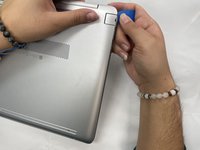
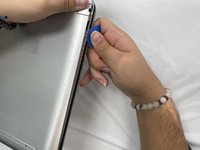
Insert an opening pick into the gap between the lower case and chassis.
-
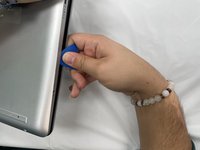
Slide the pick around the entire perimeter of the device until the lower case fully releases.
-
Remove the lower case.
-
-
-
-
-
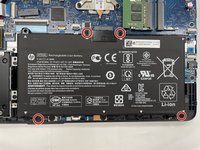
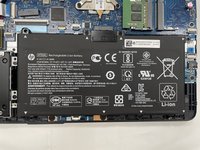
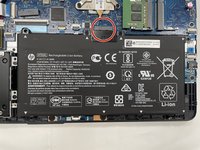
Use a Phillips screwdriver to remove the the four 4 mm screws that secure the battery.
-
-
-
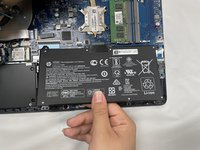
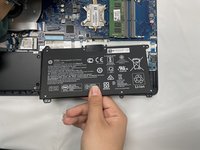
Lift the battery out slowly to disconnect it from the socket that connects it to the motherboard.
-
-
-
-
-
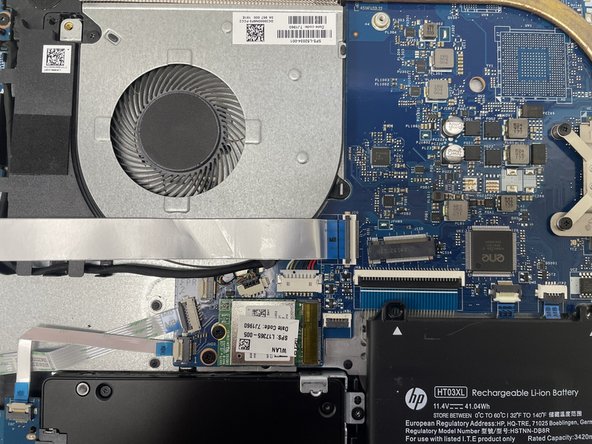
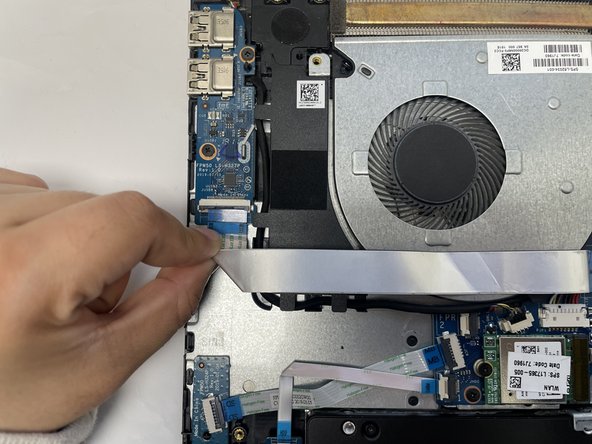
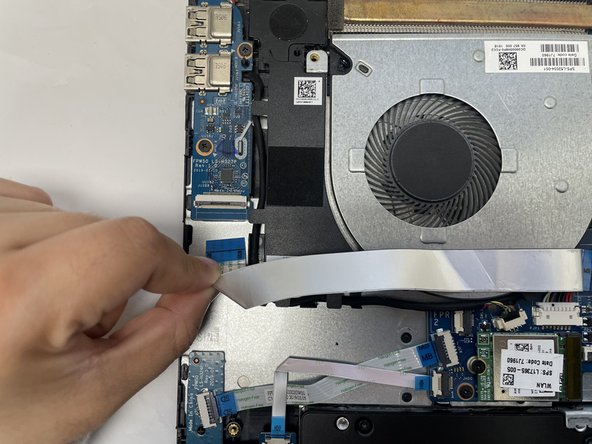
Use your fingernail or a spudger to gently lift the black ZIF locking flap that secures the ribbon cable.
-
Repeat the previous bullet on the other end of the ribbon cable.
-
-
-
Slide the ribbon cable out from the socket gently.
-
Repeat on the other end of the ribbon cable.
-
-
-
-
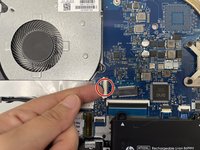
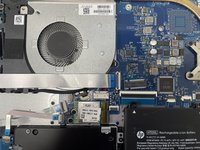
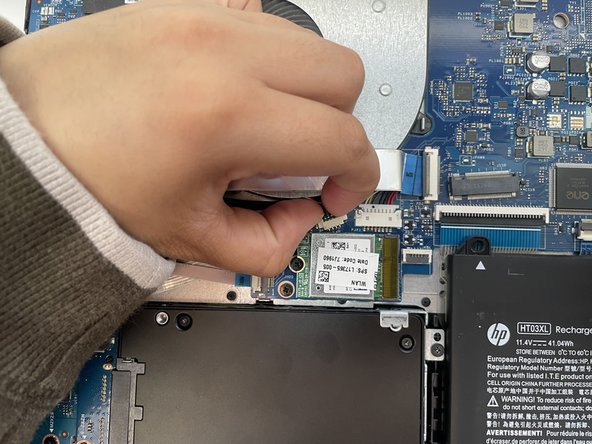
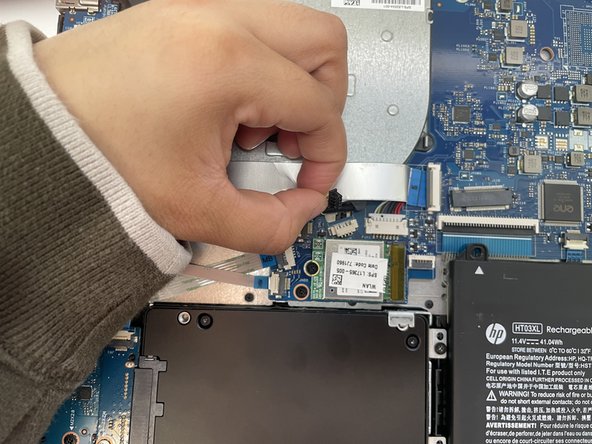
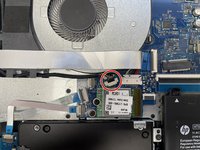
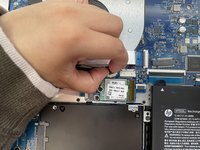
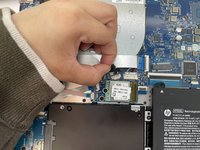
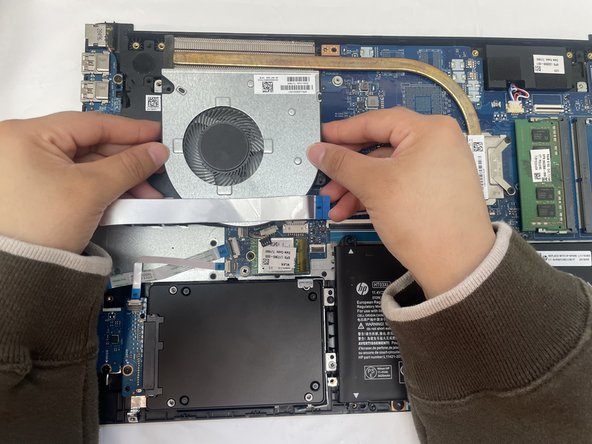
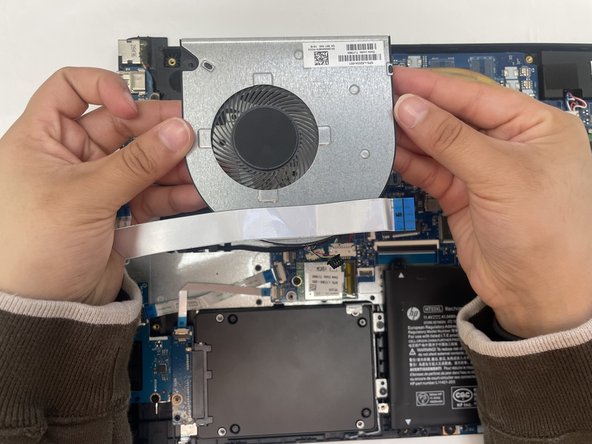
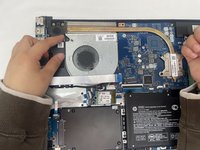
Gently using your fingernails to push the fan connector out of its motherboard socket.
-
-











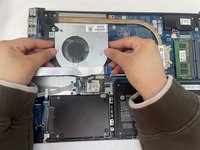
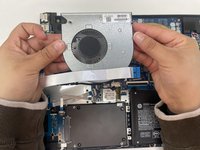
To reassemble your device, follow these instructions in reverse order.
Cancel: I did not complete this guide.
2 other people completed this guide.

Team

University of North Texas, Team 1-5, Kilpatrick Fall 2024 Member of University of North Texas, Team 1-5, Kilpatrick Fall 2024
UNT-KILPATRICK-F24S1G5
2 Members
60 Guides authored
