Up to 20% off select tools
Free Shipping on Domestic Orders $75+

HP 15-db0004dx RAM Replacement

Views: 942

View statistics:

Past 24 Hours:
2
Past 7 Days:
22
Past 30 Days:
67
All Time:
942
Comments: 0

No one has left comments on this guide. Will you be first?

Go to guide comments
Completed: 0

No one has marked this guide "completed." Will you be the first?

Favorites: 0

No one has favorited (and subscribed to) this guide. Will you be the first?

Time Required: 1 minute
Difficulty: Moderate
Better Introduction

Improve this guide by completing or revising its introduction.

HP 15-db0004dx RAM Replacement

What you need

Tools

Introduction

Go to step 1 ↓

If your device is failing to reboot or save your short-term data, then the RAM might need to be checked or replaced. The RAM specializes in saving short-term data for the device to function properly.

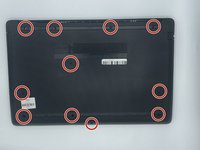
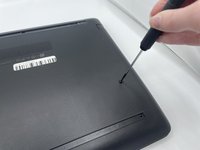
    1. HP 15-db0004dx RAM Replacement, Bottom Case: step 1, image 1 of 2 HP 15-db0004dx RAM Replacement, Bottom Case: step 1, image 2 of 2
      • Turn the laptop off and unplug it before starting.

      • Flip your laptop over, face down.

      Ask FixBot

      Add Comment

    2. HP 15-db0004dx RAM Replacement: step 2, image 1 of 1
      • Peel off the two long rubber grips running lengthwise on the laptop.

      Ask FixBot

      Add Comment

    3. HP 15-db0004dx RAM Replacement: step 3, image 1 of 2 HP 15-db0004dx RAM Replacement: step 3, image 2 of 2
      • Using a Phillips #000 screwdriver, remove the eleven 10 mm screws located on the underside of the laptop, that are holding the back panel in place.

      Ask FixBot

      Add Comment

    4. HP 15-db0004dx RAM Replacement: step 4, image 1 of 1
      • Carefully slide the optical drive out of the laptop.

      Ask FixBot

      Add Comment

    5. HP 15-db0004dx RAM Replacement: step 5, image 1 of 1
      • Use a plastic opening tool to separate the back panel from the laptop.

      • For an easier removal, start at the corner and run the tool along the edge of the cover.

      • If you do not have a plastic opening tool, open it carefully using your hands, as shown.

      • Be careful to not bend the back panel, or to not apply too much pressure and force, doing so could cause the panel to break.

      Ask FixBot

      Add Comment

    1. HP 15-db0004dx RAM Replacement, RAM: step 6, image 1 of 1
      • Gently pull apart the two silver arms securing the RAM until it slightly flips up.

      • Pull the RAM directly out of its port.

      Ask FixBot

      Add Comment

    2. HP 15-db0004dx RAM Replacement: step 7, image 1 of 1
      • To put the RAM back into the device. Have the RAM facing you with the four grey boxes towards you. Then carefully slide it under the first grey bar shown circled in the picture and push slightly downwards as it will pop back into place.

      Ask FixBot

      Add Comment

Conclusion

To reassemble your device, follow these instructions in reverse order.

Cancel: I did not complete this guide.

Author

with

giselle

Member since: 09/22/22

135 Reputation

1 Guide authored

0 Guide Comments

Add Comment

View Statistics:

Past 24 Hours: 2

Past 7 Days: 22

Past 30 Days: 67

All Time: 942