Free Shipping on Domestic Orders $75+

HP 15-db0004dx Battery Replacement

What you need

    1. HP 15-db0004dx Battery Replacement, Bottom Case: step 1, image 1 of 2 HP 15-db0004dx Battery Replacement, Bottom Case: step 1, image 2 of 2
      • Turn the laptop off and unplug it before starting.

      • Flip your laptop over, face down.

      Ask FixBot

      Add Comment

    2. HP 15-db0004dx Battery Replacement: step 2, image 1 of 1
      • Peel off the two long rubber grips running lengthwise on the laptop.

      Ask FixBot

      Add Comment

    3. HP 15-db0004dx Battery Replacement: step 3, image 1 of 2 HP 15-db0004dx Battery Replacement: step 3, image 2 of 2
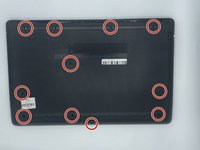
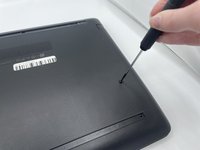
      • Using a Phillips #000 screwdriver, remove the eleven 10 mm screws located on the underside of the laptop, that are holding the back panel in place.

      Ask FixBot

      Add Comment

    4. HP 15-db0004dx Battery Replacement: step 4, image 1 of 1
      • Carefully slide the optical drive out of the laptop.

      Ask FixBot

      Add Comment

    5. HP 15-db0004dx Battery Replacement: step 5, image 1 of 1
      • Use a plastic opening tool to separate the back panel from the laptop.

      • For an easier removal, start at the corner and run the tool along the edge of the cover.

      • If you do not have a plastic opening tool, open it carefully using your hands, as shown.

      • Be careful to not bend the back panel, or to not apply too much pressure and force, doing so could cause the panel to break.

      Ask FixBot

      Add Comment

    1. HP 15-db0004dx Battery Replacement, Battery: step 6, image 1 of 2 HP 15-db0004dx Battery Replacement, Battery: step 6, image 2 of 2
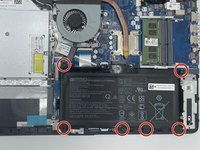
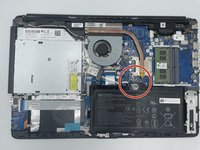
      • Using the Philips #000 screwdriver remove all of the six 5mm screws.

      Ask FixBot

      Add Comment

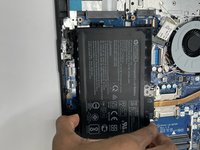
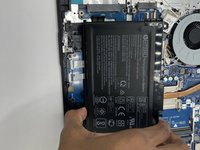
    2. HP 15-db0004dx Battery Replacement: step 7, image 1 of 3 HP 15-db0004dx Battery Replacement: step 7, image 2 of 3 HP 15-db0004dx Battery Replacement: step 7, image 3 of 3
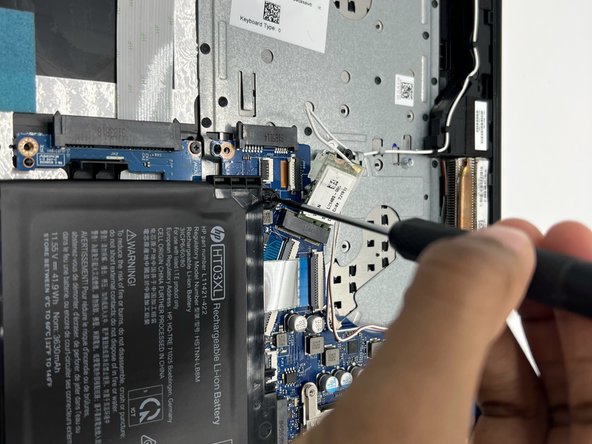
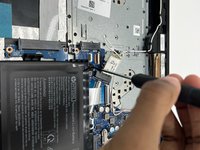
      • Disconnect the battery connector.

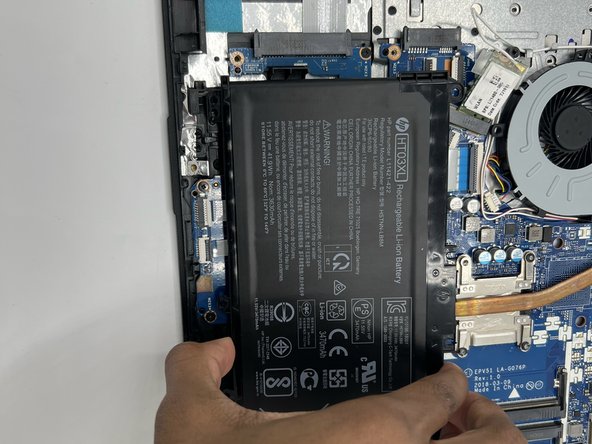
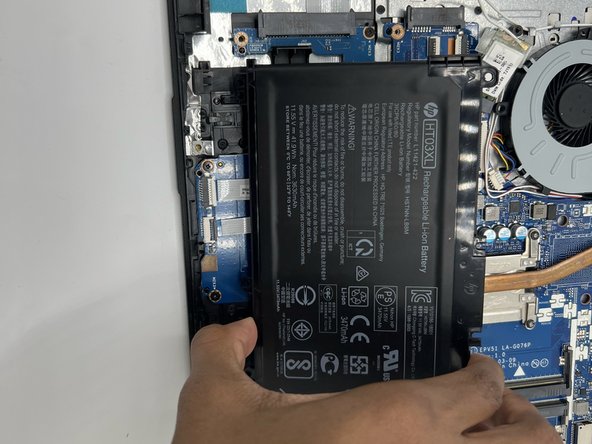
      • Slide the battery up and out.

      Ask FixBot

      Add Comment

Conclusion

To reassemble your device, follow these instructions in reverse order.

Cancel: I did not complete this guide.

2 other people completed this guide.

0 Guide Comments

Add Comment

View Statistics:

Past 24 Hours: 0

Past 7 Days: 10

Past 30 Days: 40

All Time: 1,273