Introduction
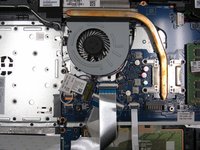
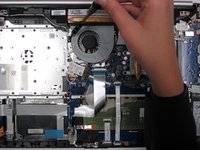
If your HP Notebook 15-da0002dx laptop is overheating, the system randomly shuts down, or the fan is making noise, use this guide to replace the fan. The fan’s purpose it to cool the laptop by drawing cooler air from the outside and expelling warm air from the inside.
Make sure your computer is not randomly shutting down because of other issues. If the fan stopped working, usually a “CPU fan failure” or “power supply failure” pop-up message appears on the screen.
Before using this guide, power off the computer and wait for the components to cool. Working over a non-carpeted surface will reduce the risk of ESD damage (electrostatic discharge). A non-carpeted surface should not be able to conduct electricity and is connected to a grounded surface. Another way to reduce the risk of ESD damage is by using a plastic tool when removing the battery as plastic does not conduct electricity.
What you need
-
-
-
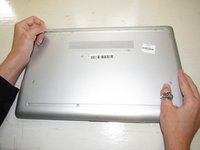
Turn over the laptop.
-
The HP label should be touching the table and the bottom cover should be facing up.
-
-
-
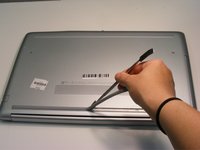
Two plastic feet are located on adjacent sides of the back cover.
-
Peel back the plastic feet using the plastic opening tools.
-
-
-
Using the Phillips #1 screwdriver, unscrew the eleven 9.0 mm screws holding the back cover in place.
-
-
-
-
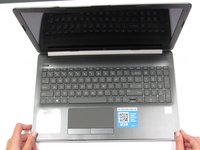
Open the screen.
-
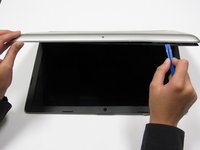
Run the plastic opening tools along the edge of the back cover. Do this until the back cover becomes loose.
-
-
-
Close the screen and flip over the laptop. Using the plastic opening tools, gently take off the back cover starting from the middle, bottom edge.
-
-
-
-
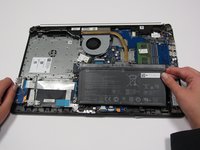
Remove the screws holding the battery in place using a Phillips #1 screwdriver.
-
-
-
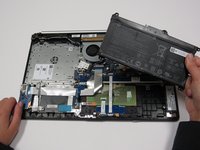
Using your fingers, tilt the top part of the battery towards you.
-
Continue to pull the rest of the battery away from the mounting tabs to remove.
-
-
-

 Ask FixBot










To reassemble your device, follow these instructions in reverse order.
Cancel: I did not complete this guide.
One other person completed this guide.

Team

University of Alabama, Team S2-G8, Bedsole Fall 2019 Member of University of Alabama, Team S2-G8, Bedsole Fall 2019
UA-BEDSOLE-F19S2G8
4 Members
60 Guides authored
