Free Shipping on Domestic Orders $75+

HP 15-bw0xx Battery Replacement

What you need

    1. HP 15-bw0xx Battery Replacement, HP 15-bw0xx Battery: step 1, image 1 of 3 HP 15-bw0xx Battery Replacement, HP 15-bw0xx Battery: step 1, image 2 of 3 HP 15-bw0xx Battery Replacement, HP 15-bw0xx Battery: step 1, image 3 of 3
      • First, start by identifying your laptop. Be sure it is specifically the "HP Laptop 15-bw0xx" model.

      • If you are unsure of the model, turn on your laptop. Then press and hold the "FN" key and the "ESC" key at the same time.

      • The model type is under the title "Product name."

      Ask FixBot

      Add Comment

    2. HP 15-bw0xx Battery Replacement: step 2, image 1 of 1
      • Turn the closed laptop over onto its face, with the hinged side facing away from you.

      • Be sure to unplug your laptop and turn it off before continuing.

      Ask FixBot

      Add Comment

    3. HP 15-bw0xx Battery Replacement: step 3, image 1 of 3 HP 15-bw0xx Battery Replacement: step 3, image 2 of 3 HP 15-bw0xx Battery Replacement: step 3, image 3 of 3
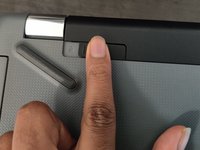
      • Place a finger on the top left slider, then push the black piece all the way to the right.

      • A finger grip to slide the hinge lock open lies to the left of a closed padlock symbol. This is how the battery is unlocked or locked in place.

      Ask FixBot

      Add Comment

    4. HP 15-bw0xx Battery Replacement: step 4, image 1 of 3 HP 15-bw0xx Battery Replacement: step 4, image 2 of 3 HP 15-bw0xx Battery Replacement: step 4, image 3 of 3
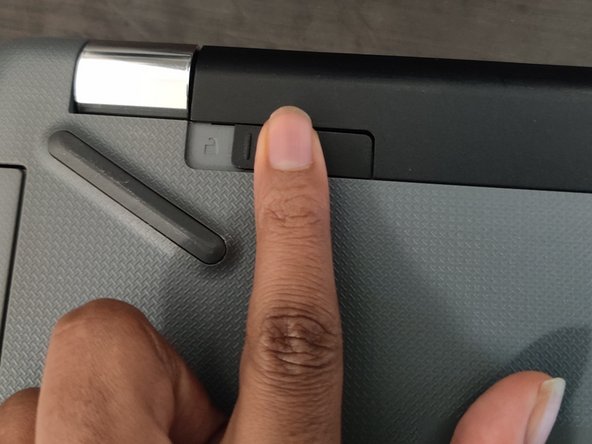
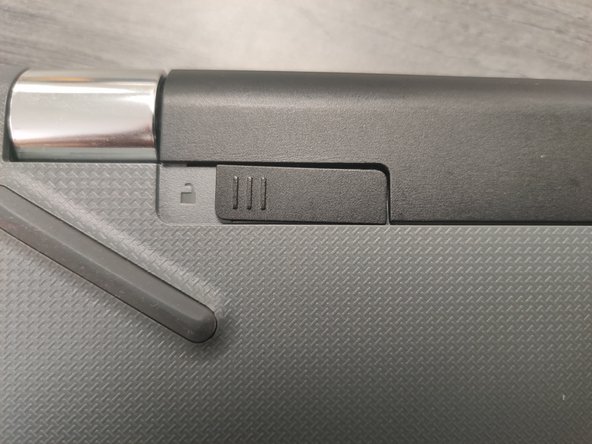
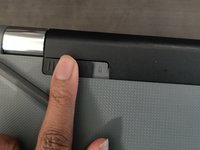
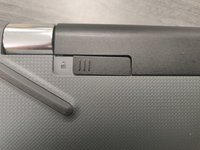
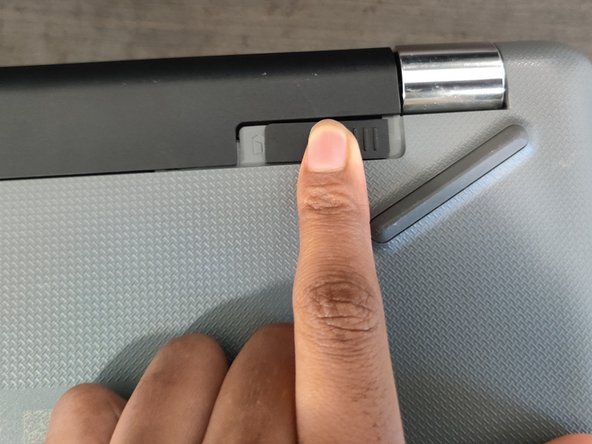
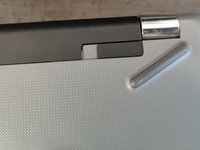
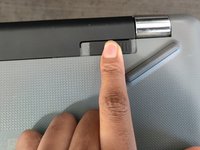
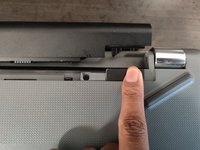
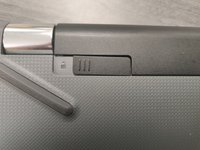
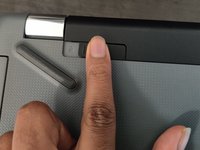
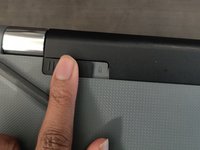
      • Place a finger on the top right slider, then slide the black piece all the way to the left until it clicks out of place.

      • There will be three vertically parallel finger grips on the slider and a small 3/4 full battery symbol to the left of the slider. This slider is what detaches the battery from the laptop.

      • You may need to use a thumb or a little force to complete this step.

      Ask FixBot

      Add Comment

    5. HP 15-bw0xx Battery Replacement: step 5, image 1 of 1
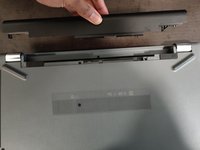
      • Remove the battery from the laptop.

      Ask FixBot

      Add Comment

    6. HP 15-bw0xx Battery Replacement: step 6, image 1 of 3 HP 15-bw0xx Battery Replacement: step 6, image 2 of 3 HP 15-bw0xx Battery Replacement: step 6, image 3 of 3
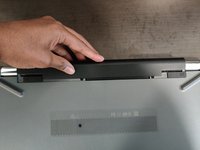
      • Gently line the new battery up to the slot in which you removed the old battery from.

      • Press the battery into the slot until you hear it click into place.

      Ask FixBot

      Add Comment

    7. HP 15-bw0xx Battery Replacement: step 7, image 1 of 3 HP 15-bw0xx Battery Replacement: step 7, image 2 of 3 HP 15-bw0xx Battery Replacement: step 7, image 3 of 3
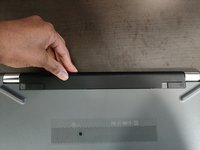
      • Reverse Step #4 in order to safely lock the battery in place.

      Ask FixBot

      Add Comment

Conclusion

After completing all of these steps, you will have successfully replaced your HP Laptop 15-bw0xx battery.

Cancel: I did not complete this guide.

3 other people completed this guide.

1 Guide Comment

hello, any idea where I can get a genuine battery for this laptop?

Brian Mwangi - Reply Share

Add Comment

View Statistics:

Past 24 Hours: 5

Past 7 Days: 13

Past 30 Days: 62

All Time: 4,234