
HP 15-bs080wm Hard Drive Replacement

Landon Dickerson and 2 other contributors
Last updated on May 27, 2022
Views: 1.1K
View statistics:
- Past 24 Hours:
- 2
- Past 7 Days:
- 21
- Past 30 Days:
- 70
- All Time:
- 1,131
Comments: 0
No one has left comments on this guide. Will you be first?
Go to guide commentsCompleted: 1 2
1 person has marked this guide "completed." Will you be next?
2 people have marked this guide "completed." Including you — great job!
Favorites: 0 1
No one has favorited (and subscribed to) this guide. Will you be the first?
1 person has favorited (and subscribed to) this guide — and that's you!
Introduction
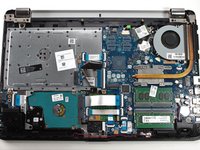
Go to step 1 ↓If the hard drive in your HP 15-bs080wm has failed or if you want to replace the drive with something new, this guide will show you how to access the hard drive for replacement. While hard drive replacement for this laptop is not very complicated, it could still result in the loss of data or damage to your laptop if done incorrectly. Be sure to backup your laptop before beginning this guide.
What you need
Fix Kit
This kit contains all the parts and tools needed to complete this guide.

Parts

Tools
-
Magnetic Project Mat (optional)$19.954.9
useful screw sorting tool, do not place electronics on this mat


-
-
-
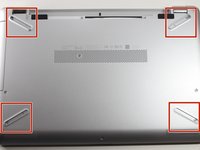
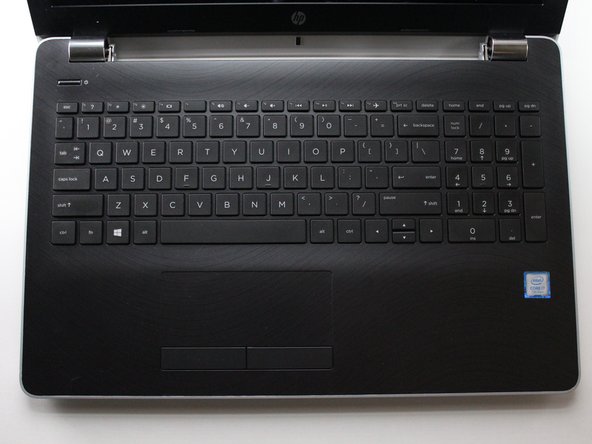
Slide the battery lock to the unlock position..
-
Slide the battery release inwards to remove the battery.
-
-
-
-
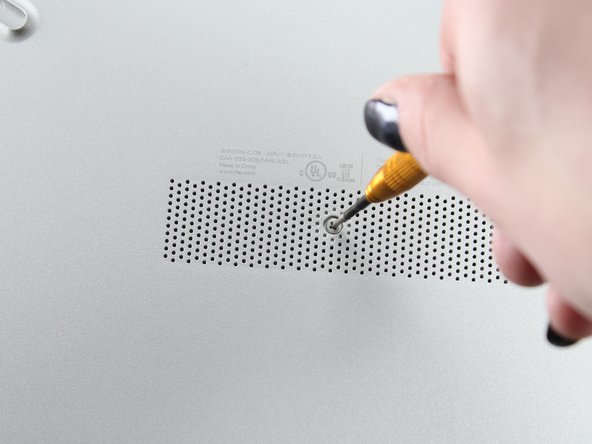
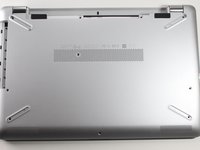
Remove the center screw from the back of the laptop using a Phillips #000 screwdriver.
-
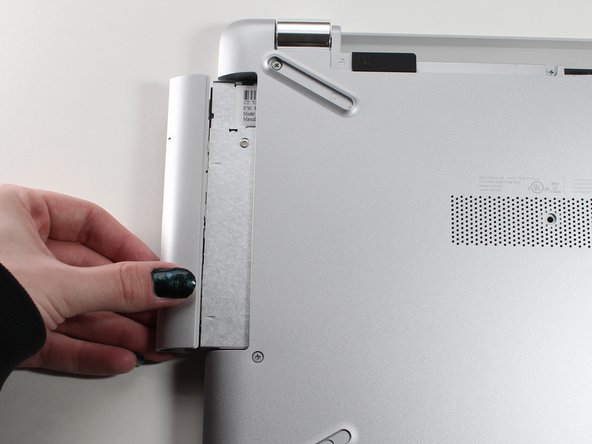
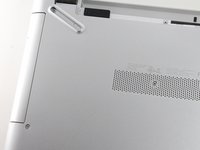
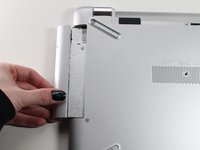
Remove the optical drive.
-
-
-
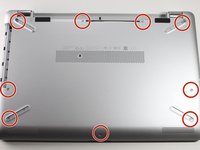
Remove the nine screws from the back of the laptop using a Phillips #000 screwdriver.
-
-
-
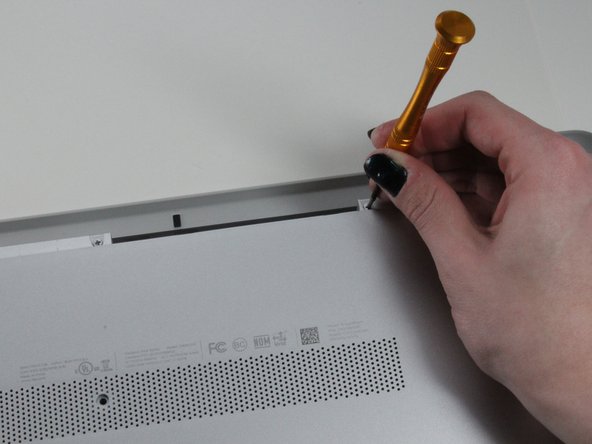
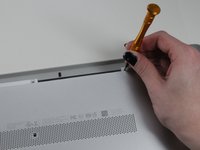
Use the plastic opening tool to wedge the back plate from the body of the laptop.
-
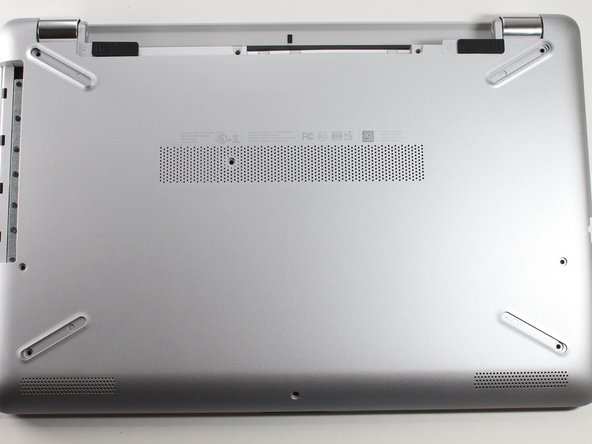
Flip the laptop over and remove the back plate.
-
Use the opening tool around the entire perimeter of the laptop's base.
-
-
-
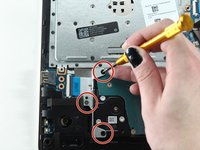
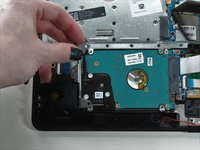
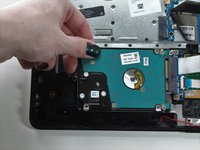
Remove the three screws from the hard drive bracket using a Phillips #000 screwdriver.
-
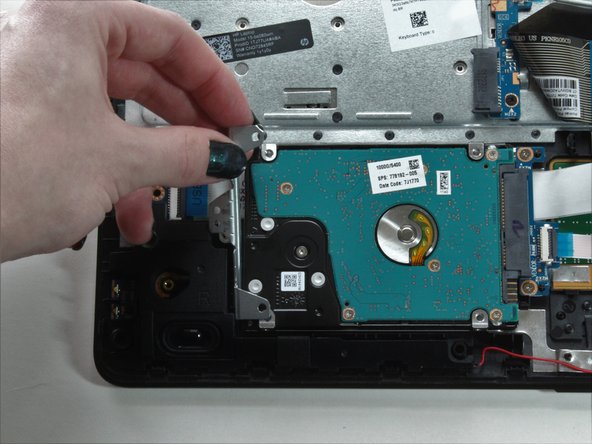
Remove the bracket.
-
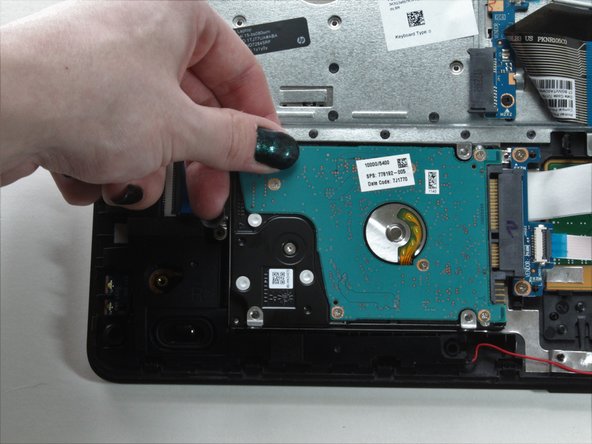
Slide the hard drive the left to remove it from the socket.
-


 Ask FixBot


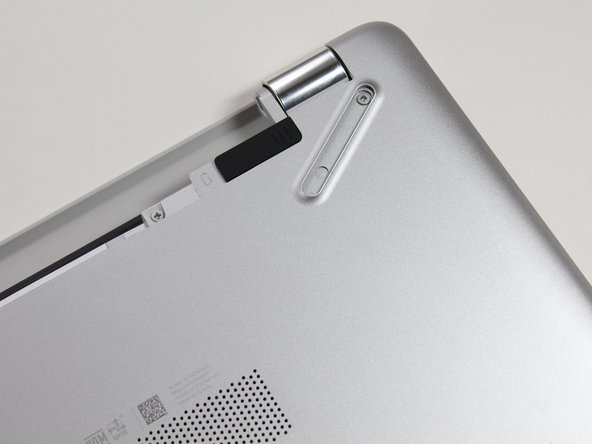
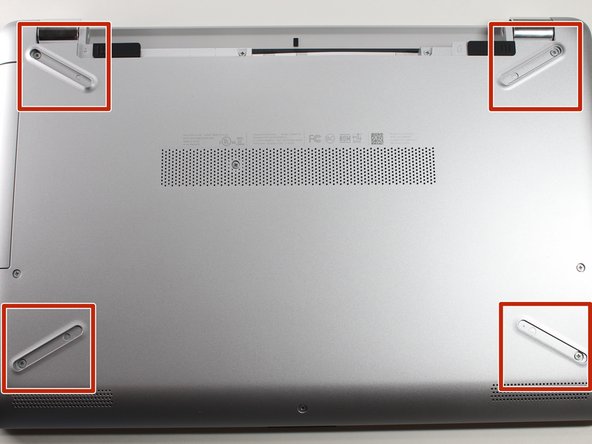







To reassemble your device, follow these instructions in reverse order.
Cancel: I did not complete this guide.
One other person completed this guide.

Team

University of North Texas, Team 1-4, Raign Spring 2022 Member of University of North Texas, Team 1-4, Raign Spring 2022
UNT-RAIGN-S22S1G4
2 Members
12 Guides authored
