Introduction
If your HP 15-ay114cy (also known as the HP Notebook 15) is running slow due to overheating, then you may have a faulty or broken laptop fan that will need to be replaced.
A proper working fan would maintain your laptop at a cool temperature while ensuring a fast-running device during use. If your laptop is new, then you may simply have a faulty fan. However, if your laptop has had extensive use, is also possible to experience these symptoms with your fan.
Before removing the fan, relate back to this troubleshooting page for further information about what is causing your symptoms. Moving forward, be sure to follow all prerequisite guides included for dismantling your device.
No special skills are required to remove and replace the device fan. However, you will need a plastic opening tool (plastic spudger) as well as a Phillips #0 Screwdriver.
What you need
-
-
-
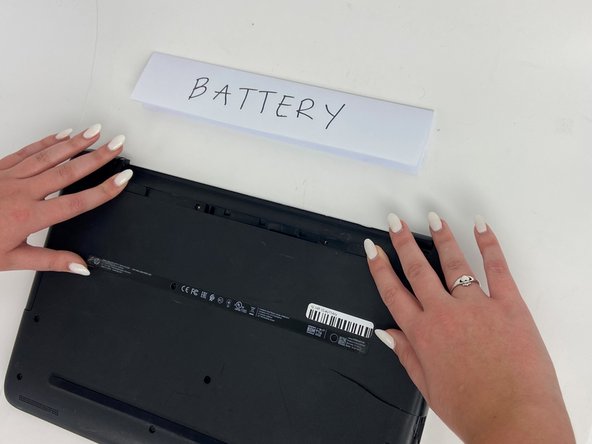
Orient the Laptop so the HP logo is facing the table and the battery tabs are accessible.
 Ask FixBot
-
-
-
Place your index fingers on each of the two battery holder clips.
-
Using your index fingers, push the battery holder clips inwards (towards the center of the laptop).
-
-
-
After the battery clips are pushed in, use either hand to grab hold of the battery.
-
Gently push up to remove the battery.
-
-
-
-
-
-
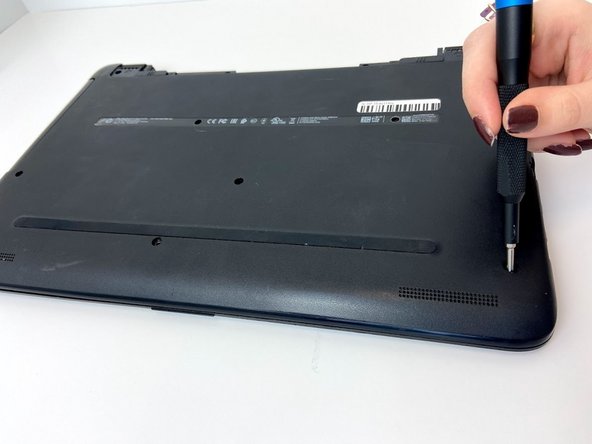
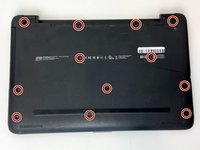
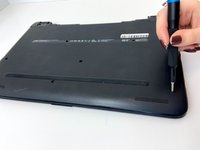
Use a Phillips #0 screwdriver to remove the twelve 8 mm Phillips screws that are holding down the bottom cover of the laptop.
-
-
-
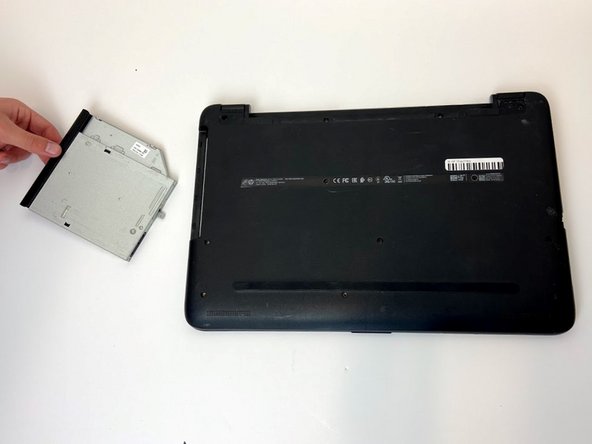
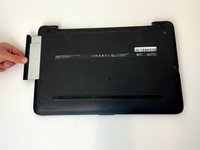
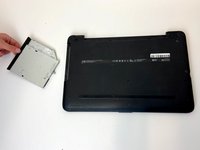
Grab a hold of the disk drive and carefully pull it away from the computer.
-
Continue to slide the disk drive out of the laptop until fully removed.
-
-
-
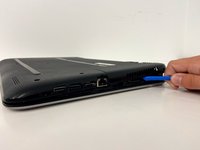
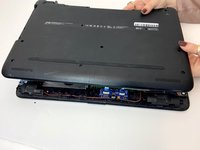
Place a plastic opening tool in-between the upper and lower pieces of the bottom cover.
-
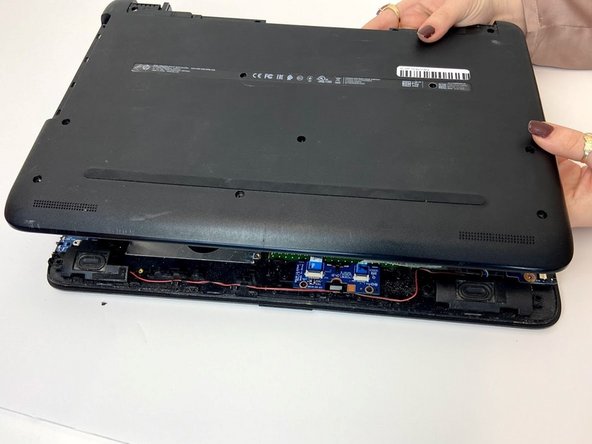
Using your hands and the plastic opening tool, gently separate the cover from the frame.
-
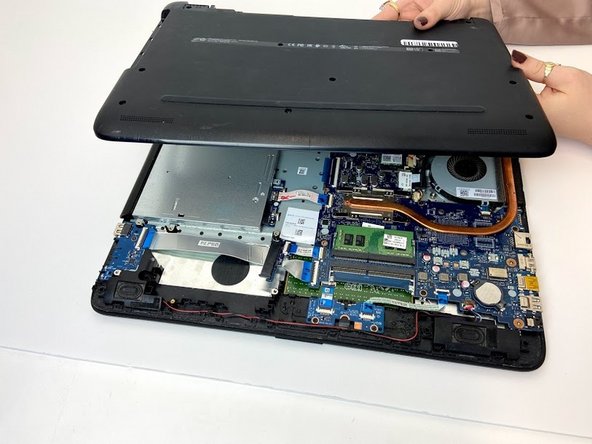
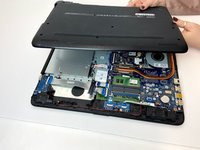
Slowly remove the bottom cover from the base of the laptop.
-
-
-
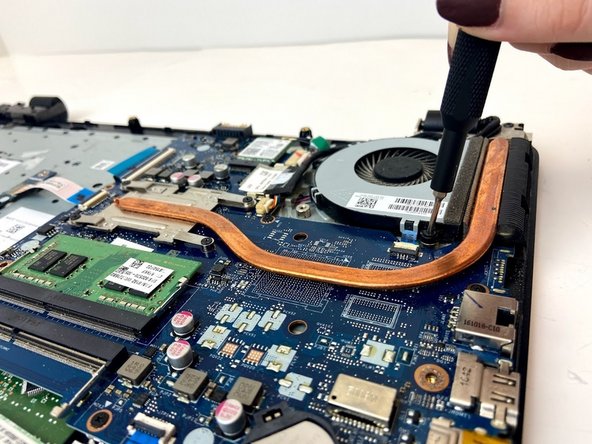
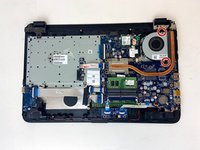
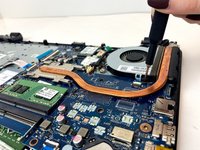
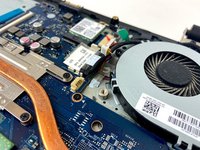
Use a Phillips #0 screwdriver to remove the two 8 mm Phillips-head screws that attach the fan to the base.
-
-
-
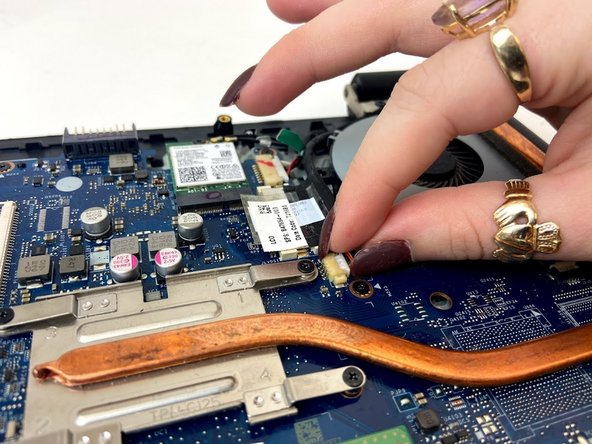
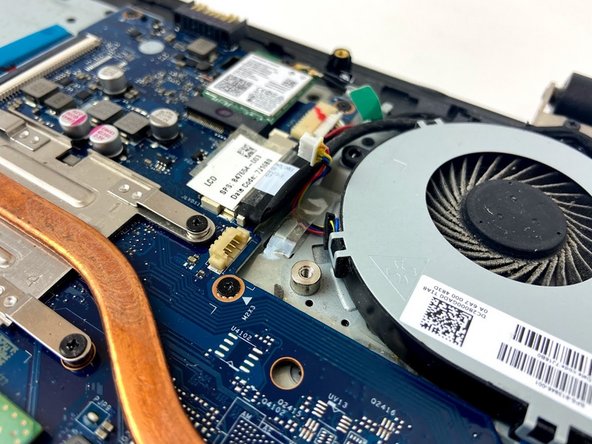
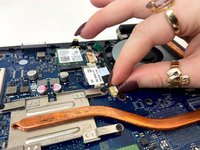
Using your index finger and thumb, carefully grab the wire that connects the fan to the motherboard.
-
Using a bit of force, remove the cable from the connector on the motherboard.
-
-
-
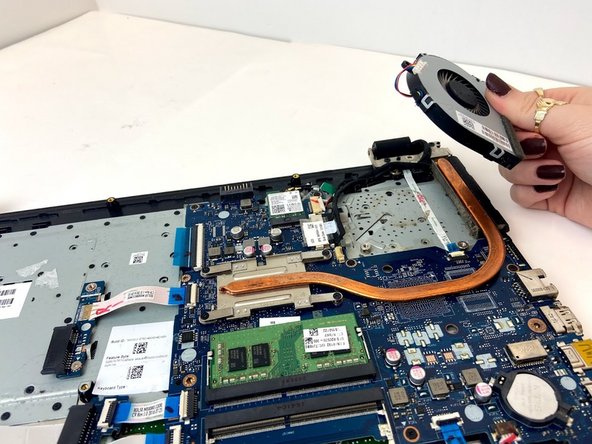
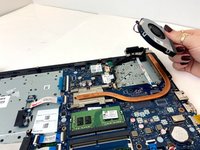
Using your hand, grab one of the fan corners and pull up.
-
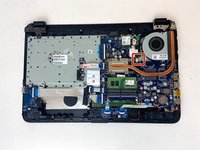
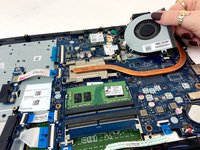
Carefully remove the entire fan from the base of the laptop.
-
-








To reassemble your device, follow these instructions in reverse order.
Cancel: I did not complete this guide.
3 other people completed this guide.


