
HP 15-af123cl Hard Drive Replacement

Victoria Santos and 5 other contributors
Last updated on May 30, 2025
Views: 980
View statistics:
- Past 24 Hours:
- 3
- Past 7 Days:
- 15
- Past 30 Days:
- 84
- All Time:
- 980
Comments: 0
No one has left comments on this guide. Will you be first?
Go to guide commentsCompleted: 0 1
No one has marked this guide "completed." Will you be the first?
1 person has marked this guide "completed." It's you — great job!
Favorites: 1 2
1 person has favorited (and subscribed to) this guide. Will you be next?
2 people have favorited (and subscribed to) this guide — including you!
Introduction
Go to step 1 ↓This guide will show you how to replace the hard disk drive (HDD) of your HP 15-af123cl. This could be necessary if your computer fails to boot, or if your computer reports corrupted memory for your HDD.
The HP 15 series includes multiple model numbers and shares many attributes with the HP 255 G4 notebook—HP's support page for the af123cl includes a link to the HP 255 G4 repair guide.
Before beginning this repair, here are some preliminary steps that you should follow:
- Use electrostatic discharge (ESD) safe tools, including an ESD-band, to protect against damage to your computer.
- Back-up all the data on your HDD before replacing it. If you miss this step, you will lose any data that you have not backed-up.
- Before beginning, turn off your computer and disconnect all cables, including the power cable.
What you need
Tools
-
Spudger4.9
-


-
-
-
Push the slider with a lock symbol to the right to unlock the battery.
 Ask FixBot
-
-
-
Push the slider with a battery symbol to the left to push the battery out slightly.
-
Pull the battery out fully now that it is released.
-
-
-
-
-
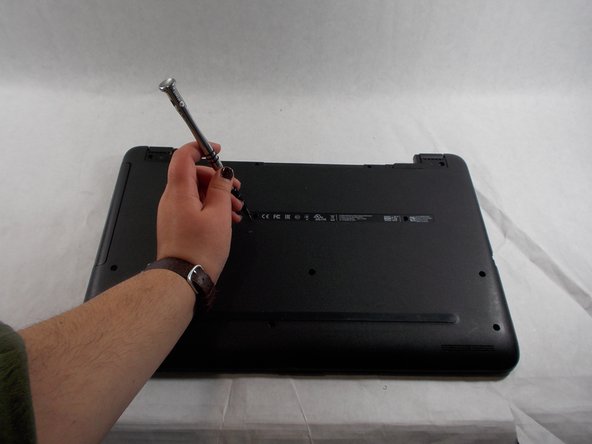
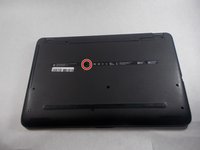
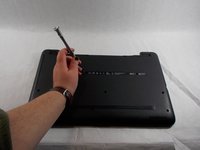
Remove the single screw that holds in the optical drive using a Phillips #00 screwdriver.
-
-
-
-
-
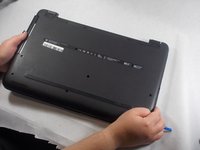
Remove the twelve screws from the bottom of the laptop using a Phillips #00 screwdriver.
-
-
-
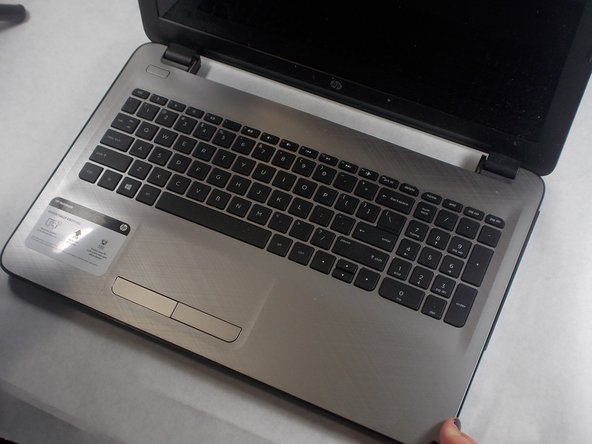
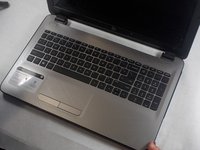
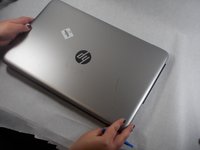
Turn the laptop over and open the lid.
-
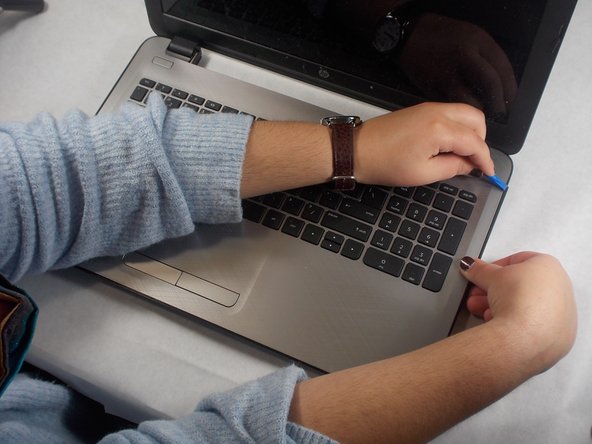
Use an opening tool to pry the bottom cover from the body of the laptop.
-
-
-
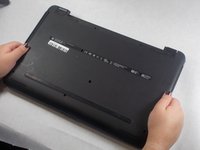
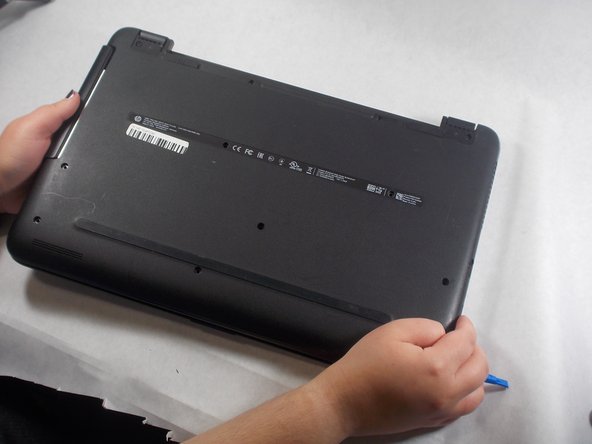
Close and turn over the laptop again.
-
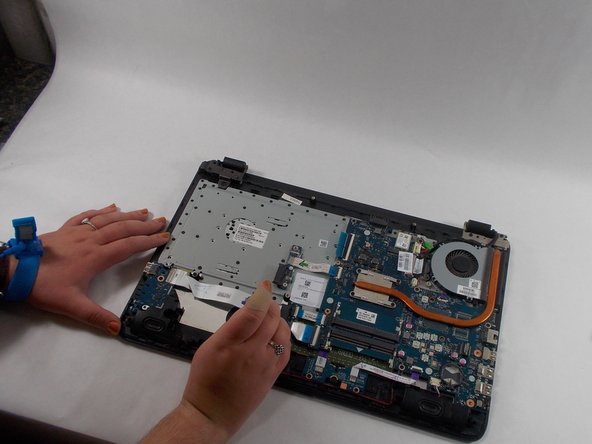
Pull the back cover up to remove it from the laptop.
-
-
-
-
-
-
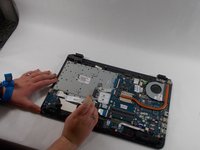
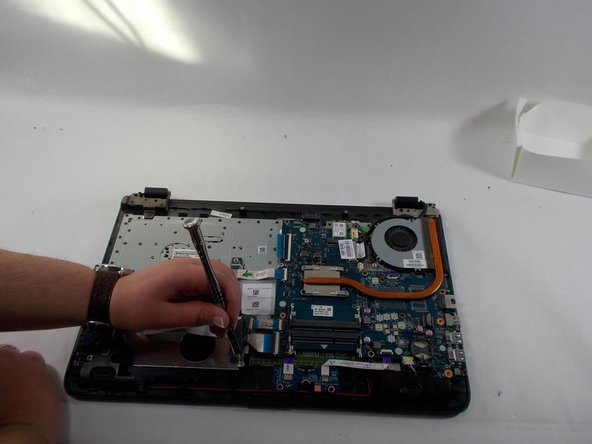
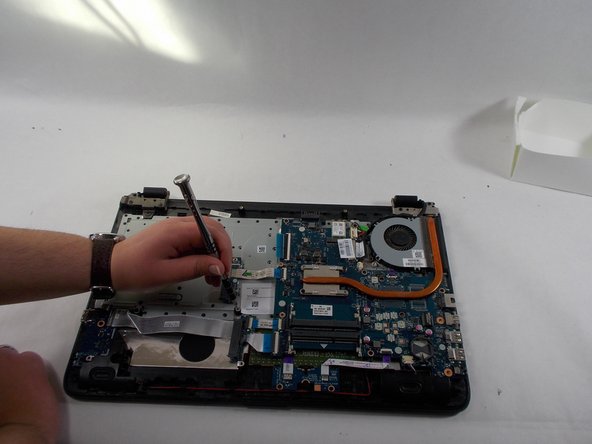
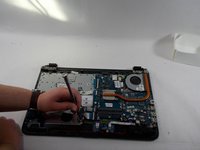
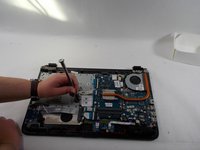
Remove the screws from the brackets around the hard drive using a Phillips #00 screwdriver.
-
-
-
Remove the brackets from around the hard drive.
-
Remove the hard drive from the laptop.
-









To reassemble your device, follow these instructions in reverse order.
Attached Documents

Team

UMass Dartmouth, Team 2-5, Sinclaire Fall 2021 Member of UMass Dartmouth, Team 2-5, Sinclaire Fall 2021
UMASSD-SINCLAIRE-F21S2G5
3 Members
72 Guides authored
