
HP 15-AF131DX Speaker Replacement

Anthony Martinez and 4 other contributors
Last updated on Mar 4, 2024
Views: 1.2K
View statistics:
- Past 24 Hours:
- 2
- Past 7 Days:
- 17
- Past 30 Days:
- 94
- All Time:
- 1,151
Comments: 0
No one has left comments on this guide. Will you be first?
Go to guide commentsCompleted: 0 1
No one has marked this guide "completed." Will you be the first?
1 person has marked this guide "completed." It's you — great job!
Favorites: 0 1
No one has favorited (and subscribed to) this guide. Will you be the first?
1 person has favorited (and subscribed to) this guide — and that's you!
Introduction
Go to step 1 ↓Speakers are part of your notebook's hardware. They are internal components that allow you to listen any audio being transmitted by your laptop. Make sure that the notebook is unplugged, shut down, and the battery has been removed.
What you need
Tools


-
-
-
Use a Phillips screwdriver to remove the 10 visible screws on the bottom.
-
Peel up the rubber feet near the hinges.
-
Remove the screw under each.
 Ask FixBot
-
-
-
Tool used on this step:Plastic Cards$2.99
-
Turn the computer over and use a plastic card, opening pick, or opening tool to pry the space between the keyboard and bottom surface of the computer.
-
Work plastic card, opening pick, or opening tool carefully around the three edges (excluding the side with the screen, which should be positioned at 90 degrees.
-
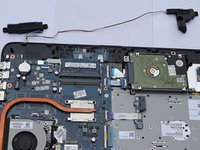
Gently lift the top surface of the bottom half of the laptop, revealing the speakers.
-
-
-
Pull up on each individual speaker, removing the rubber holds from their plastic pins.
-
Unplug the wire that connects the speakers.
-
Carefully remove the speakers from their plastic holds.
-
-


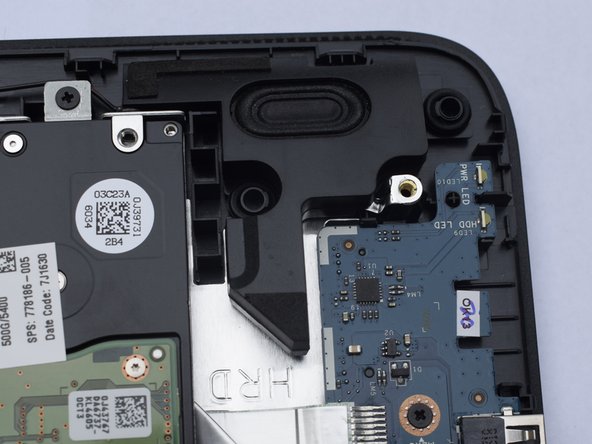
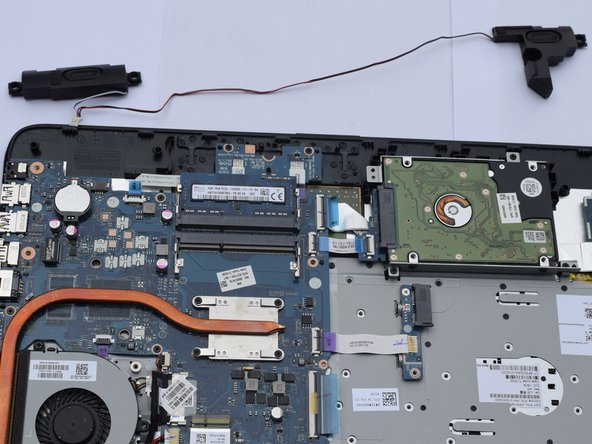
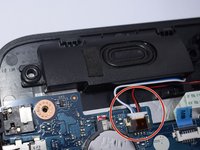
To reassemble your device, follow these instructions in reverse order.

Team

Cal Poly, Team S6-G2, Banghart Fall 2017 Member of Cal Poly, Team S6-G2, Banghart Fall 2017
CPSU-BANGHART-F17S6G2
5 Members
60 Guides authored
