Introduction
If you are replacing your battery on your HP-14 (Model cf2112wm) since it won't turn on, check out this guide before proceeding.
Things to keep in mind with your new battery:
- Charge the battery fully: Before using your new battery, it's important to charge it fully. This will ensure that the battery has maximum capacity and will help to extend its lifespan.
- Use the correct charger: Using the correct charger for your laptop battery is important, as using an incorrect charger can damage the battery and reduce its lifespan.
- Avoid overcharging: Overcharging can damage the battery and reduce its lifespan. To avoid overcharging, unplug the charger from the laptop once the battery is fully charged.
- Keep the battery cool: High temperatures can damage the battery and reduce its lifespan. To keep the battery cool, avoid using your laptop on soft surfaces such as beds or couches, as this can block the ventilation and cause the laptop to overheat.
- Use power-saving settings: Adjusting your laptop's power-saving settings can help to prolong the battery life. For example, reducing the screen brightness, turning off Wi-Fi or Bluetooth when not in use, and closing unnecessary applications can help to conserve the battery.
By following these essential steps, you can help to prolong the life of your laptop battery and ensure that it performs optimally for as long as possible.
Before you begin this repair, be sure to power off your laptop and unplug it from the charger.
What you need
-
-
-
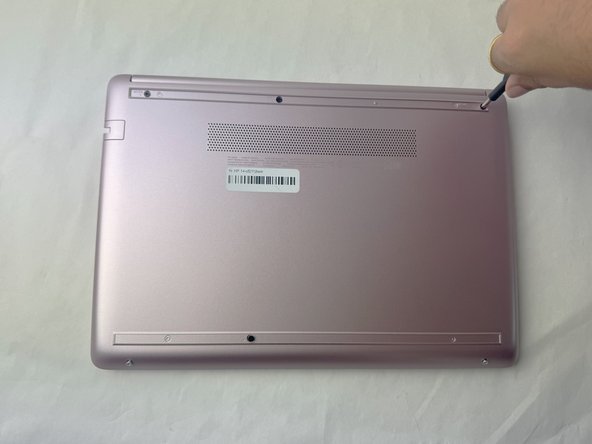
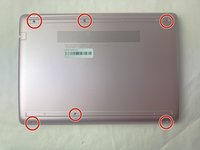
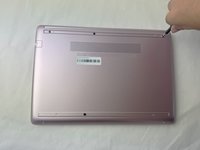
Use a spudger to pry under the end of the screw cover.
-
When the edge is lifted up, use your fingers to pull the rest of the strip off.
-
-
-
-
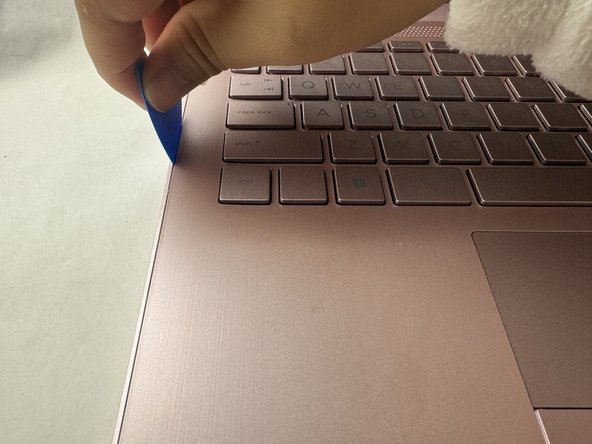
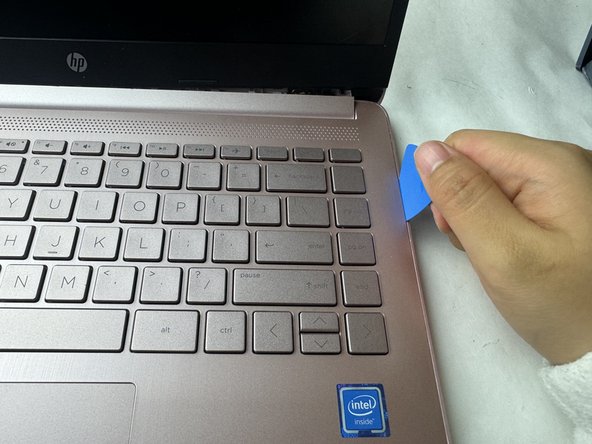
Use a pick or opening tool to pry along the edges of the back cover from the keyboard side of the laptop.
-
-
-
-
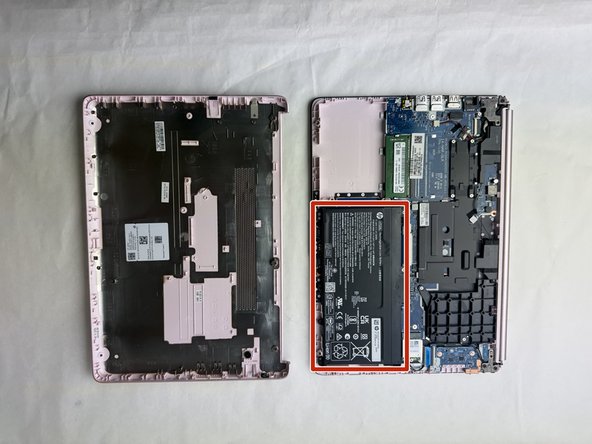
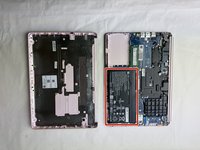
Place your opened laptop on a flat surface.
-
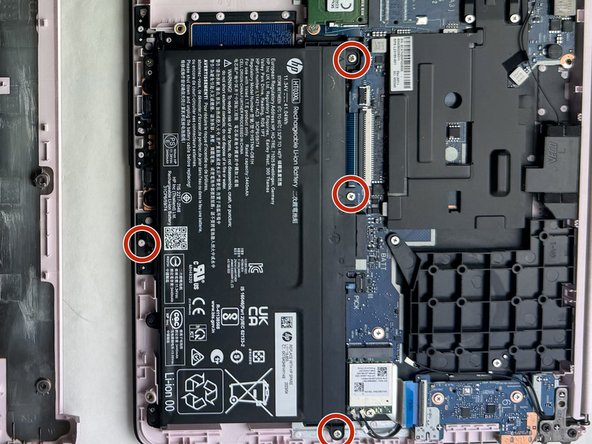
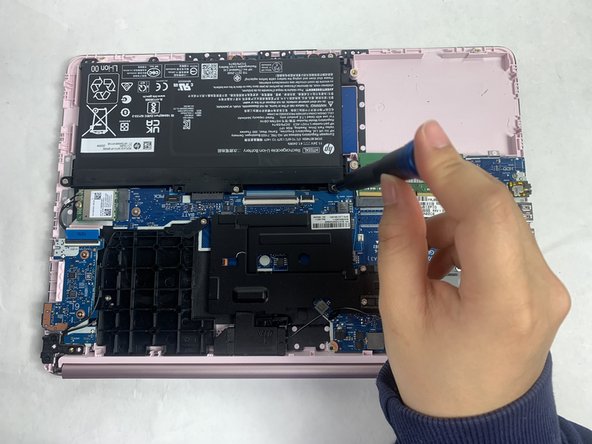
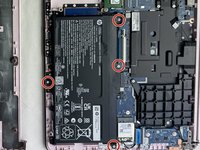
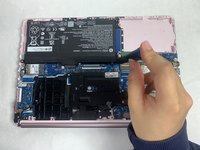
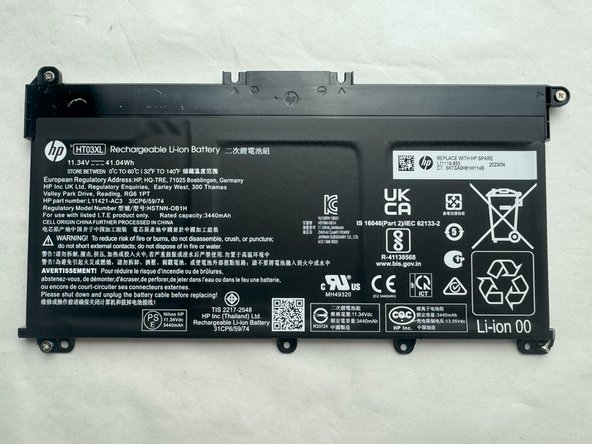
Use a Phillips #1 screwdriver to remove the four Phillips 3.0 mm screws securing the battery.
-
-

 Ask FixBot







To reassemble your device, follow these instructions in reverse order. Take your e-waste to an R2 or e-Stewards certified recycler.
Cancel: I did not complete this guide.
2 other people completed this guide.

Team

UMass Dartmouth, Team 1-2, Konn Spring 2024 Member of UMass Dartmouth, Team 1-2, Konn Spring 2024
UMASSD-KONN-S24S1G2
4 Members
60 Guides authored
