Free Shipping on Domestic Orders $75+

HMD Skyline Loudspeaker Replacement

What you need

  1. HMD Skyline Loudspeaker Replacement, Prepare your phone for disassembly: step 1, image 1 of 1
    • Let your phone's battery drain below 25% before starting this repair. A charged lithium‑ion battery may catch fire if damaged.

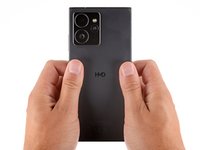
    • Unplug all cables and completely power off your phone.

    Ask FixBot

    Add Comment

  2. HMD Skyline Loudspeaker Replacement, Separate the back cover: step 2, image 1 of 3 HMD Skyline Loudspeaker Replacement, Separate the back cover: step 2, image 2 of 3 HMD Skyline Loudspeaker Replacement, Separate the back cover: step 2, image 3 of 3
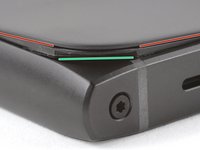
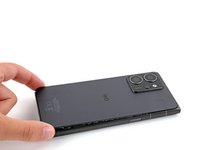
    • A screw‑driven camshaft in the bottom left corner pushes the back cover away from the phone, creating a gap to begin separating the cover.

    • With the back cover facing up, use a T3 Torx screwdriver to turn the screw in the bottom edge counterclockwise until the back cover pops up.

    Ask FixBot

    Add Comment

  3. HMD Skyline Loudspeaker Replacement: step 3, image 1 of 3 HMD Skyline Loudspeaker Replacement: step 3, image 2 of 3 HMD Skyline Loudspeaker Replacement: step 3, image 3 of 3
    • Before separating the back cover, note the following:

    • There's a seam just under the back cover panel. Don't insert your tool here.

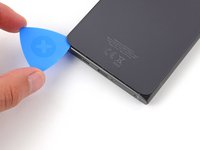
    • Insert your tool completely under the back cover, so it's between the frame and the underside of the back cover.

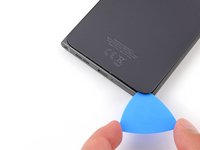
    • Insert an opening pick under the bottom left corner of the back cover and slide it along the bottom edge to release the clips and separate the adhesive.

    • You should feel and hear the back cover clips release. If you don't, insert the pick deeper and try again.

    Ask FixBot

    Add Comment

  4. HMD Skyline Loudspeaker Replacement: step 4, image 1 of 3 HMD Skyline Loudspeaker Replacement: step 4, image 2 of 3 HMD Skyline Loudspeaker Replacement: step 4, image 3 of 3
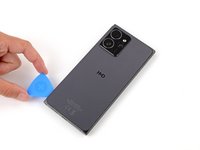
    • Continue sliding the pick under the perimeter of the back cover to fully separate the clips and adhesive.

    Ask FixBot

    Add Comment

  5. HMD Skyline Loudspeaker Replacement, Remove the back cover: step 5, image 1 of 3 HMD Skyline Loudspeaker Replacement, Remove the back cover: step 5, image 2 of 3 HMD Skyline Loudspeaker Replacement, Remove the back cover: step 5, image 3 of 3
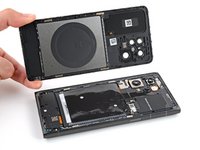
    • Lift and remove the back cover.

    • During reassembly:

    • Now is a good time to test your phone before sealing it up. Power it on and check that it works. Power it back down before you continue reassembly.

    • If you're installing a new back cover:

    • Make sure you remove all liners from the underside.

    • Use the flat end of a spudger to press the small cable above the wireless charging coil into place over its alignment posts.

    • Place the back cover onto the frame and firmly squeeze around the perimeter to reengage all the clips.

    Ask FixBot

    Add Comment

  6. HMD Skyline Loudspeaker Replacement, Disconnect the battery: step 6, image 1 of 2 HMD Skyline Loudspeaker Replacement, Disconnect the battery: step 6, image 2 of 2
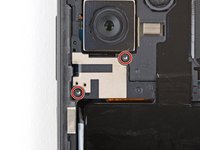
    • Use a T3 Torx screwdriver to remove the two screws securing the battery connector cover.

    Ask FixBot

    Add Comment

  7. HMD Skyline Loudspeaker Replacement: step 7, image 1 of 2 HMD Skyline Loudspeaker Replacement: step 7, image 2 of 2
    • Gently flip the graphite sheet on the battery over the top edge of your phone.

    • Be careful not to tear the sheet, as it's very delicate.

    Ask FixBot

    Add Comment

  8. HMD Skyline Loudspeaker Replacement: step 8, image 1 of 3 HMD Skyline Loudspeaker Replacement: step 8, image 2 of 3 HMD Skyline Loudspeaker Replacement: step 8, image 3 of 3
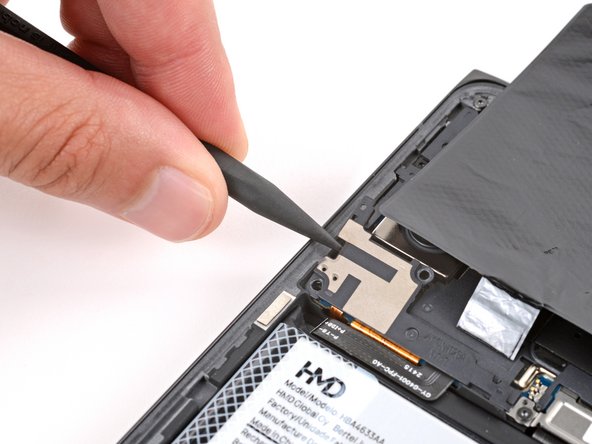
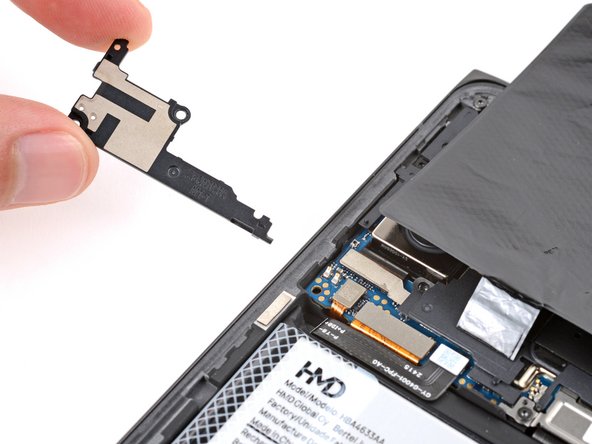
    • Insert the point of a spudger in the notch on the left edge of the battery connector cover and pry up to release its clips.

    • Only insert your tool enough to pry up the cover. Otherwise, you may accidentally disconnect the rear camera press connector.

    • Remove the cover.

    • During reassembly, firmly press the cover into place to engage the clips.

    Ask FixBot

    Add Comment

  9. HMD Skyline Loudspeaker Replacement: step 9, image 1 of 3 HMD Skyline Loudspeaker Replacement: step 9, image 2 of 3 HMD Skyline Loudspeaker Replacement: step 9, image 3 of 3
    • Insert the tip of an opening pick under the top edge of the battery press connector and pry up to disconnect it.

    • Check if the rear camera press connector got disconnected during the previous step. If it did, reconnect it.

    • To reconnect a press connector, align it over the socket and gently press down on one side until it clicks into place, then press down on the other side. It might take a few tries to align the connector.

    Ask FixBot

    Add Comment

  10. HMD Skyline Loudspeaker Replacement, Remove the loudspeaker: step 10, image 1 of 2 HMD Skyline Loudspeaker Replacement, Remove the loudspeaker: step 10, image 2 of 2
    • Use a T3 Torx screwdriver to remove the seven screws securing the loudspeaker:

    • Four 3.9 mm‑long screws

    • Three 4.9 mm‑long screws

    Ask FixBot

    Add Comment

  11. HMD Skyline Loudspeaker Replacement: step 11, image 1 of 3 HMD Skyline Loudspeaker Replacement: step 11, image 2 of 3 HMD Skyline Loudspeaker Replacement: step 11, image 3 of 3
    • Insert the tip of a spudger under the center of the loudspeaker's top edge and lift to release its clips.

    • Don't pry against the battery, and be very careful not to puncture it with your tool.

    Ask FixBot

    Add Comment

  12. HMD Skyline Loudspeaker Replacement: step 12, image 1 of 2 HMD Skyline Loudspeaker Replacement: step 12, image 2 of 2
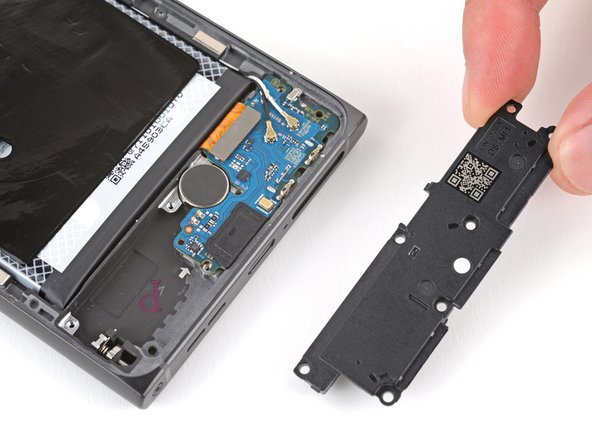
    • Remove the loudspeaker.

    • During reassembly, lay the loudspeaker in place and press firmly around its perimeter to engage the clips.

    Ask FixBot

    Add Comment

Conclusion

To reassemble your device, follow these instructions in reverse order.

Take your e-waste to an R2 or e-Stewards certified recycler.

Repair didn’t go as planned? Try some basic troubleshooting, or ask our Answers community for help.

Cancel: I did not complete this guide.

2 other people completed this guide.

Spencer Day

Member since: 09/14/22

195,058 Reputation

1,243 Guides authored

Team

iFixit Member of iFixit

Staff

122 Members

26,593 Guides authored

0 Guide Comments

Add Comment

View Statistics:

Past 24 Hours: 1

Past 7 Days: 7

Past 30 Days: 37

All Time: 1,042