Free Shipping on Domestic Orders $75+

HMD Fusion Back Cover Replacement

What you need

  1. HMD Fusion Back Cover Replacement, Remove the SIM card tray: step 1, image 1 of 3 HMD Fusion Back Cover Replacement, Remove the SIM card tray: step 1, image 2 of 3 HMD Fusion Back Cover Replacement, Remove the SIM card tray: step 1, image 3 of 3
    • Firmly press a SIM eject tool, bit, or straightened paper clip into the SIM card tray hole on the left edge of your phone until the tray ejects.

    • Remove the SIM card tray.

    Ask FixBot

    Add Comment

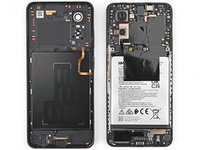
  2. HMD Fusion Back Cover Replacement, Remove the back cover screws: step 2, image 1 of 3 HMD Fusion Back Cover Replacement, Remove the back cover screws: step 2, image 2 of 3 HMD Fusion Back Cover Replacement, Remove the back cover screws: step 2, image 3 of 3
    • Use a T3 Torx screwdriver to remove the sixteen 5.0 mm‑long screws securing the back cover.

    • Use your fingernails, or angled tweezers, to remove any stuck screws.

    • The screws are secured tightly in the back cover, so you might not be able to remove all of them. If you can't remove a few screws, don't worry! Move to the next step and follow the guide normally.

    Ask FixBot

    Add Comment

  3. HMD Fusion Back Cover Replacement: step 3, image 1 of 1
    Tool used on this step:
    Magnetic Project Mat
    $19.95
    Buy
    • During the next four steps, the remaining back cover screws might fall out unexpectedly.

    • To avoid losing screws, you can place a tray, bowl, or Magnetic Project Mat under the phone while you work.

    Ask FixBot

    Add Comment

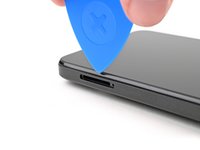
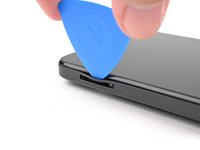
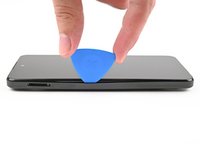
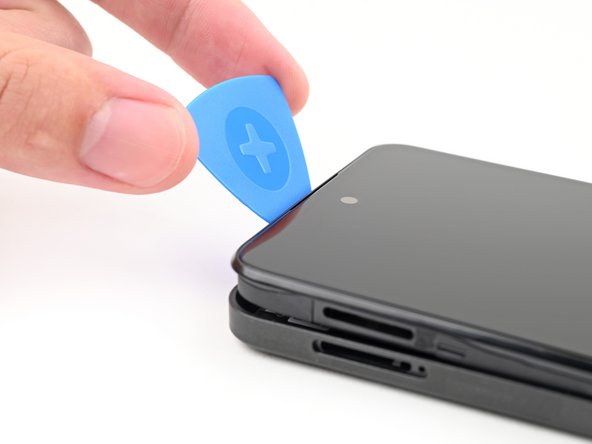
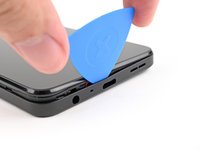
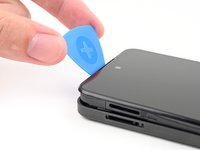
  4. HMD Fusion Back Cover Replacement, Unclip the back cover: step 4, image 1 of 2 HMD Fusion Back Cover Replacement, Unclip the back cover: step 4, image 2 of 2
    • Flip your phone over so the screen is facing up.

    • Insert the tip of an opening pick between the back cover and frame at the SIM card tray cutout.

    Ask FixBot

    Add Comment

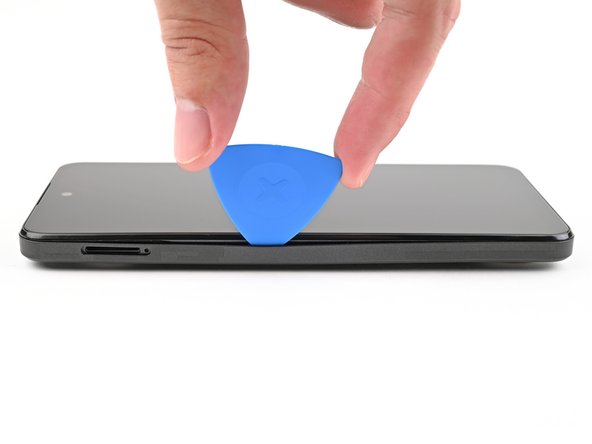
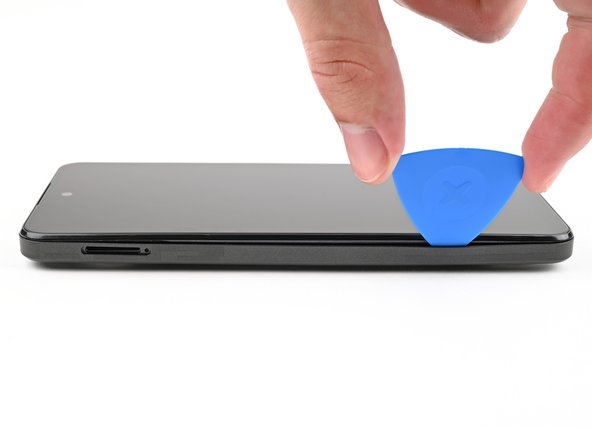
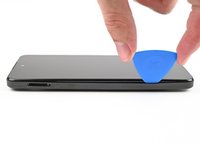
  5. HMD Fusion Back Cover Replacement: step 5, image 1 of 3 HMD Fusion Back Cover Replacement: step 5, image 2 of 3 HMD Fusion Back Cover Replacement: step 5, image 3 of 3
    • Slide the opening pick along the left edge to begin unclipping the back cover.

    Ask FixBot

    Add Comment

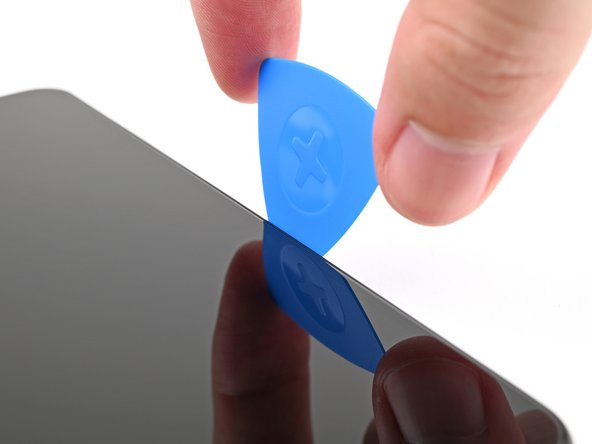
  6. HMD Fusion Back Cover Replacement: step 6, image 1 of 3 HMD Fusion Back Cover Replacement: step 6, image 2 of 3 HMD Fusion Back Cover Replacement: step 6, image 3 of 3
    • Continue sliding the pick around the perimeter of your phone until the back cover is fully unclipped.

    • The corners can be tricky to unclip and may take some force. If you're having trouble, try prying up with the pick.

    • Don't try to fully remove the cover yet, as it's still connected by a delicate cable.

    Ask FixBot

    Add Comment

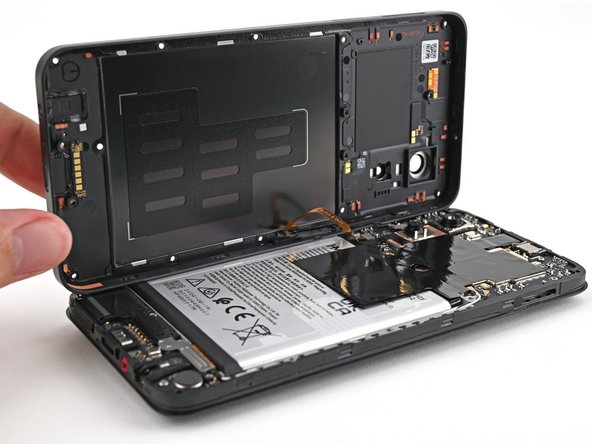
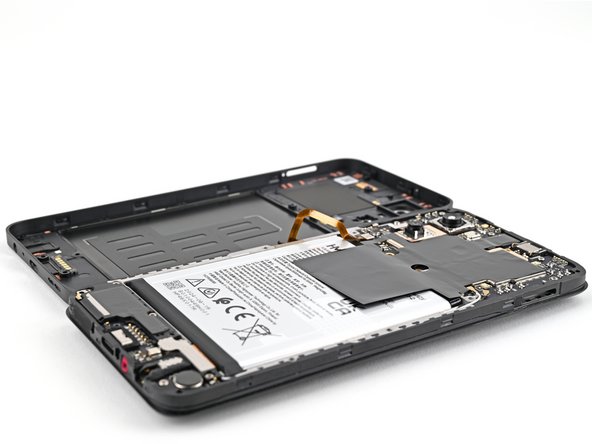
  7. HMD Fusion Back Cover Replacement: step 7, image 1 of 3 HMD Fusion Back Cover Replacement: step 7, image 2 of 3 HMD Fusion Back Cover Replacement: step 7, image 3 of 3
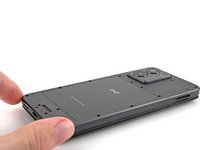
    • Carefully flip your phone over so the back cover is facing up.

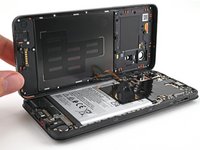
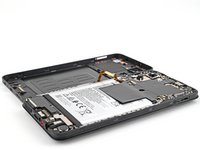
    • Lift the back cover off the frame and flip it over the left edge of your phone, laying the cover flat on your work surface.

    • Be very careful not to strain the back cover's delicate cable.

    • During reassembly, place the back cover onto the frame and firmly press around the perimeter to reengage all the clips.

    Ask FixBot

    Add Comment

  8. HMD Fusion Back Cover Replacement, Disconnect the battery: step 8, image 1 of 3 HMD Fusion Back Cover Replacement, Disconnect the battery: step 8, image 2 of 3 HMD Fusion Back Cover Replacement, Disconnect the battery: step 8, image 3 of 3
    Ask FixBot

    Add Comment

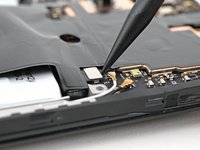
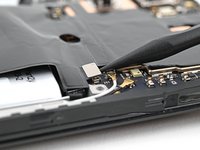
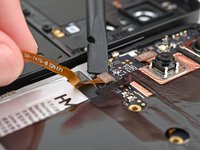
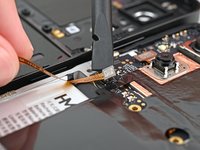
  9. HMD Fusion Back Cover Replacement, Disconnect the power button: step 9, image 1 of 3 HMD Fusion Back Cover Replacement, Disconnect the power button: step 9, image 2 of 3 HMD Fusion Back Cover Replacement, Disconnect the power button: step 9, image 3 of 3
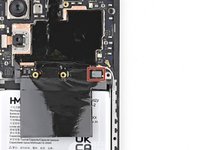
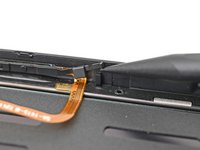
    • Use a spudger to pry up and disconnect the power button press connector.

    • Remove the back cover.

    Ask FixBot

    Add Comment

  10. HMD Fusion Back Cover Replacement, Remove the power button: step 10, image 1 of 3 HMD Fusion Back Cover Replacement, Remove the power button: step 10, image 2 of 3 HMD Fusion Back Cover Replacement, Remove the power button: step 10, image 3 of 3
    • If your replacement back cover doesn't come with a power button pre-installed, follow the next two steps to remove and transfer it.

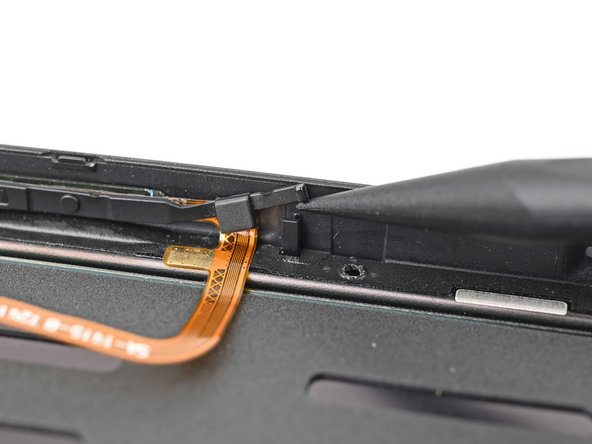
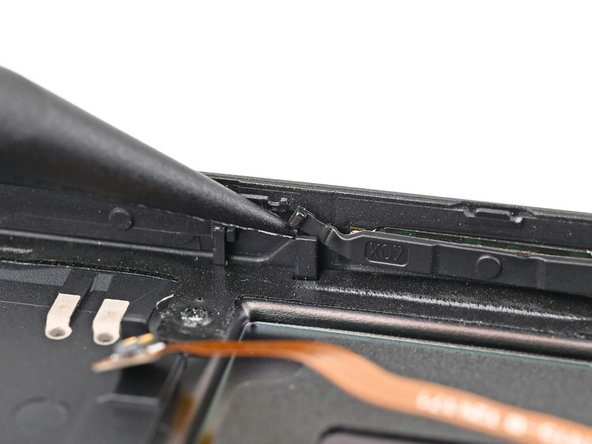
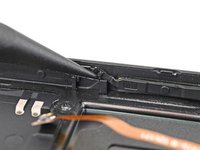
    • Use the tip of a spudger to lift the two rubber arms securing the power button out of their slots in the back cover.

    Ask FixBot

    Add Comment

  11. HMD Fusion Back Cover Replacement: step 11, image 1 of 1
    • Lift the power button out of the recess in the back cover and remove it.

    Ask FixBot

    Add Comment

Conclusion

To reassemble your device, follow these instructions in reverse order.

Take your e-waste to an R2 or e-Stewards certified recycler.

Repair didn’t go as planned? Try some basic troubleshooting, or ask our Answers community for help.

Cancel: I did not complete this guide.

Alex Diaz-Kokaisl

Member since: 01/16/22

240,961 Reputation

1,180 Guides authored

Team

iFixit Member of iFixit

Staff

122 Members

26,593 Guides authored

0 Guide Comments

Add Comment

View Statistics:

Past 24 Hours: 3

Past 7 Days: 14

Past 30 Days: 71

All Time: 1,998