
HKC P771A Camera Replacement

Sara Hill and 2 other contributors
Last updated on Dec 5, 2017
Views: 506
View statistics:
- Past 24 Hours:
- 1
- Past 7 Days:
- 12
- Past 30 Days:
- 82
- All Time:
- 506
Comments: 0
No one has left comments on this guide. Will you be first?
Go to guide commentsCompleted: 0 1
No one has marked this guide "completed." Will you be the first?
1 person has marked this guide "completed." It's you — great job!
Favorites: 0 1
No one has favorited (and subscribed to) this guide. Will you be the first?
1 person has favorited (and subscribed to) this guide — and that's you!
Needs Better Images
Better photos will improve this guide. Help out by taking, editing, or uploading new ones!
Better Introduction
Improve this guide by completing or revising its introduction.
Missing Details
Some of this guide's details are missing. Help users by adding tools, difficulty, or time.
What you need
Tools

-
-
-
Remove back of tablet using the plastic opening tool
-
Slide the opening tool between the back of the tablet and the digitizer
-
Lift along the edges until the back of the tablet and the digitizer are separated
 Ask FixBot
-
-
-
Remove yellow tape around the edges of the battery
-
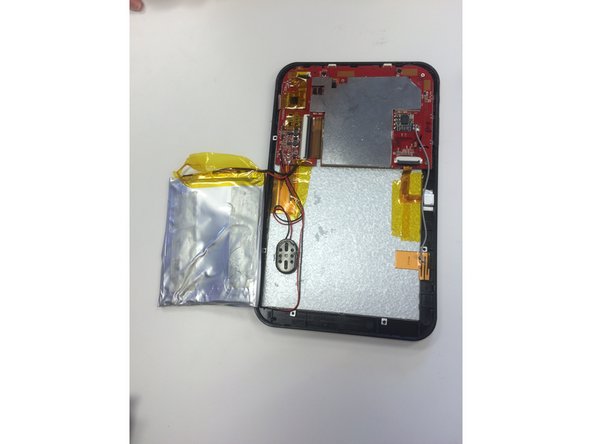
The battery is located on the right side of the tablet when the screen is facing downwards and the camera is on top
-
-
-
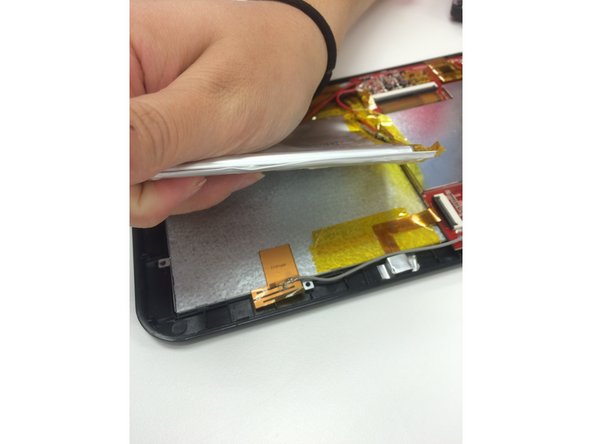
Pry battery away from the back of the tablet until the battery is completely separated from the adhesive
-
-
-
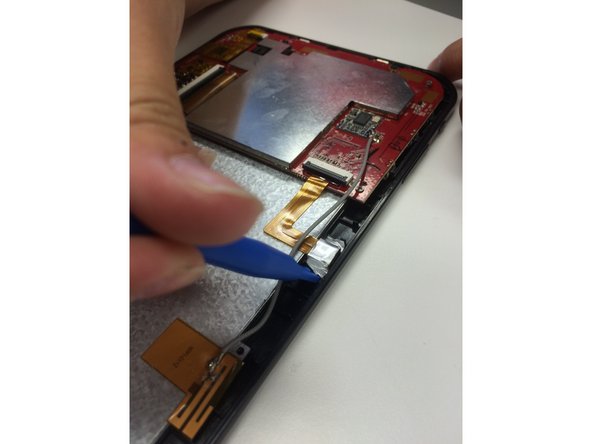
Lift the bronze, L-shaped ribbon
-
The camera is attached to the end of this ribbon so it will move with it
-
-
-
-
Flip up the black bar located on the motherboard
-
The black bar is to the left of the camera, where the ribbon is attached to the motherboard
-
-






To reassemble your device, follow these instructions in reverse order.

Team

Ohio State, Team 2-3, Garvin Fall 2015 Member of Ohio State, Team 2-3, Garvin Fall 2015
OSU-GARVIN-F15S2G3
4 Members
24 Guides authored
