Free Shipping on Domestic Orders $75+

Google Pixelbook Sound Card Replacement

What you need

  1. Google Pixelbook Sound Card Replacement, Battery (Back Panel): step 1, image 1 of 3 Google Pixelbook Sound Card Replacement, Battery (Back Panel): step 1, image 2 of 3 Google Pixelbook Sound Card Replacement, Battery (Back Panel): step 1, image 3 of 3
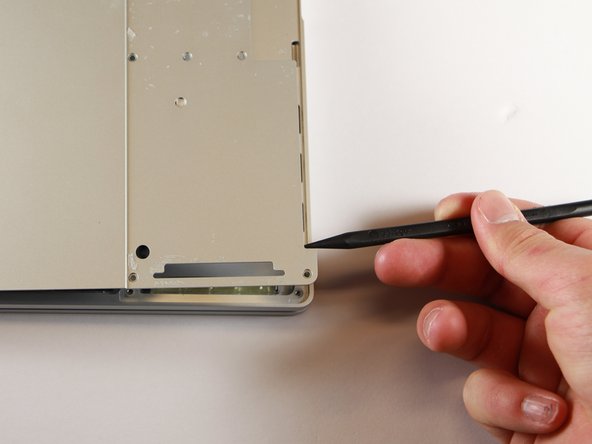
    • Use the iFixit opening tools or a metal spudger to pry the rubber covers off the back of your Pixelbook.

    • Peel the linings off completely until the back of the Pixelbook looks bare.

    Ask FixBot

    Add Comment

  2. Google Pixelbook Sound Card Replacement: step 2, image 1 of 2 Google Pixelbook Sound Card Replacement: step 2, image 2 of 2
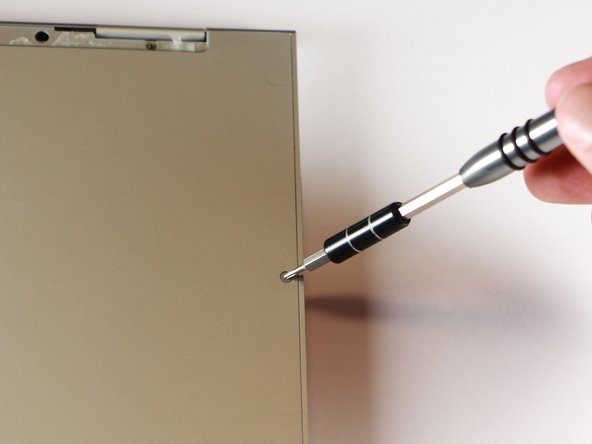
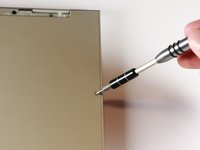
    • Remove the two yellow 2.0mm screws by using a T3 Torx screwdriver.

    Ask FixBot

    Add Comment

  3. Google Pixelbook Sound Card Replacement: step 3, image 1 of 3 Google Pixelbook Sound Card Replacement: step 3, image 2 of 3 Google Pixelbook Sound Card Replacement: step 3, image 3 of 3
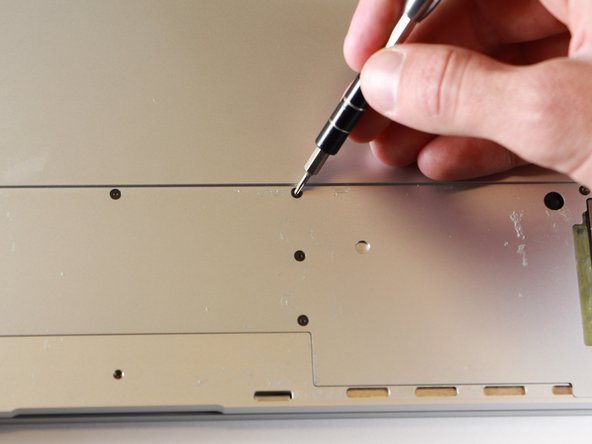
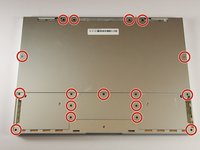
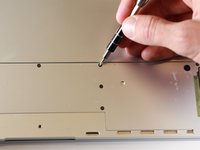
    • Remove the seventeen 3.0mm T5 Torx screws from the bottom panel.

    Ask FixBot

    Add Comment

  4. Google Pixelbook Sound Card Replacement: step 4, image 1 of 3 Google Pixelbook Sound Card Replacement: step 4, image 2 of 3 Google Pixelbook Sound Card Replacement: step 4, image 3 of 3
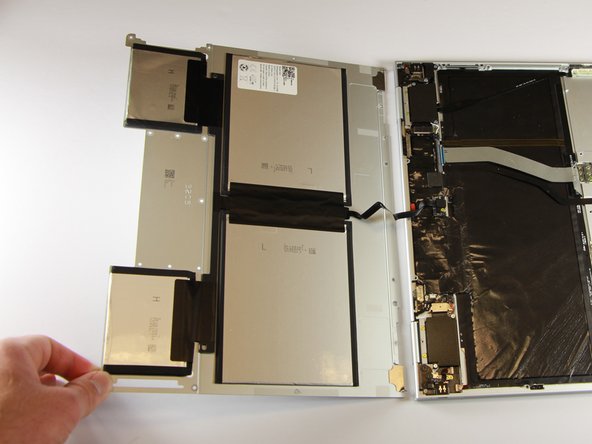
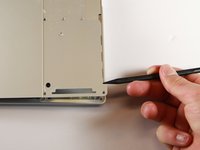
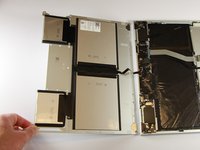
    • Use the nylon spudger to pry the edge of the Pixelbook up until you can grab the edge with your fingers.

    • Open the back panel completely and lay it flat so you see the whole inside of the computer.

    Ask FixBot

    Add Comment

  5. Google Pixelbook Sound Card Replacement: step 5, image 1 of 2 Google Pixelbook Sound Card Replacement: step 5, image 2 of 2
    • Remove the yellow 2.0mm screw from the middle of the panel by using the T3 Torx screwdriver to turn the screw counterclockwise.

    Ask FixBot

    Add Comment

  6. Google Pixelbook Sound Card Replacement: step 6, image 1 of 2 Google Pixelbook Sound Card Replacement: step 6, image 2 of 2
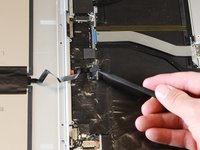
    • Remove the small, black casing by using the spudger to lift it up from its place.

    Ask FixBot

    Add Comment

  7. Google Pixelbook Sound Card Replacement: step 7, image 1 of 1
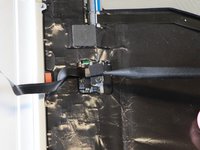
    • Disconnect the flat, black cord from the main component by using a spudger to push it out of the slot, or by using your hand to carefully pull it out.

    • Your back panel is now free from the main component.

    Ask FixBot

    Add Comment

  8. Google Pixelbook Sound Card Replacement, Right Charging Port: step 8, image 1 of 2 Google Pixelbook Sound Card Replacement, Right Charging Port: step 8, image 2 of 2
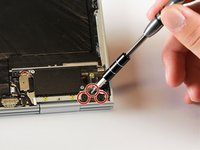
    • Remove the three 2.0mm black screws from the sound card by using a T5 Torx screwdriver to turn them counterclockwise.

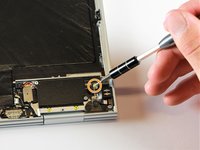
    • Remove the gold 3.0mm screw by using a T3 Torx screwdriver to turn it counterclockwise.

    Ask FixBot

    Add Comment

  9. Google Pixelbook Sound Card Replacement: step 9, image 1 of 1
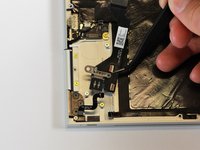
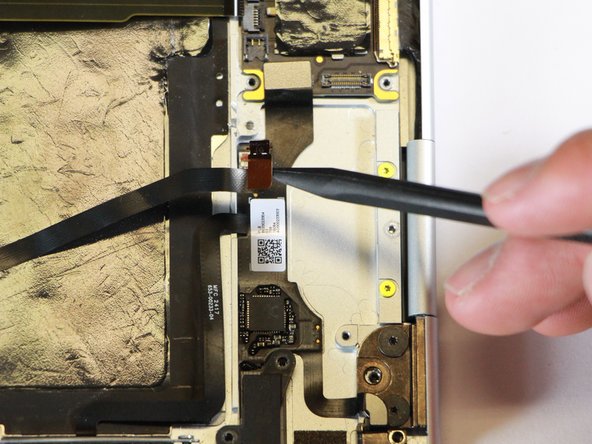
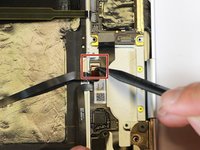
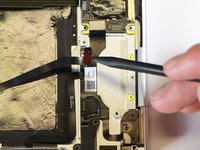
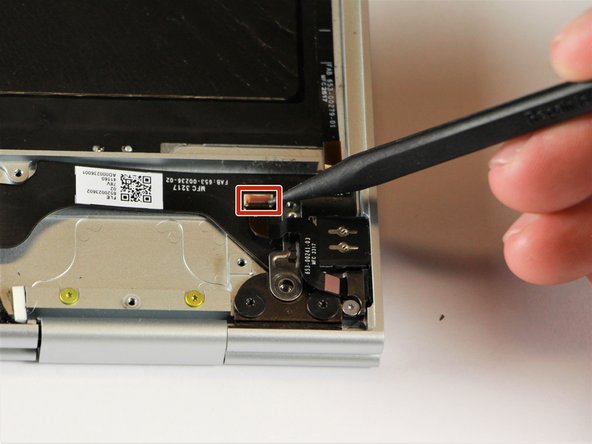
    • Disconect the thin, black and red cord from the motherboard by using the spudger to snap the connector up and out of place.

    Ask FixBot

    Add Comment

  10. Google Pixelbook Sound Card Replacement: step 10, image 1 of 1
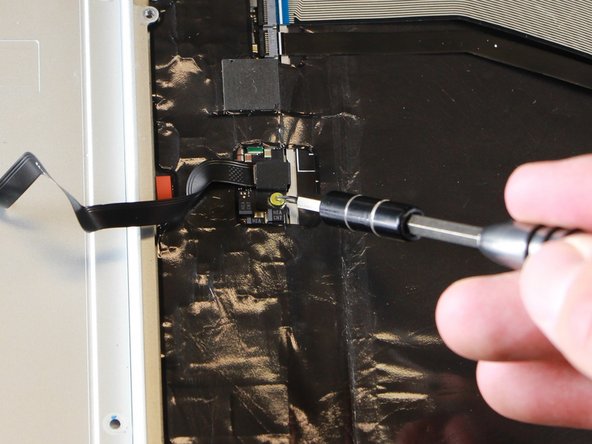
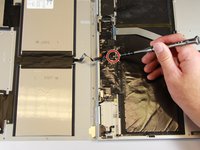
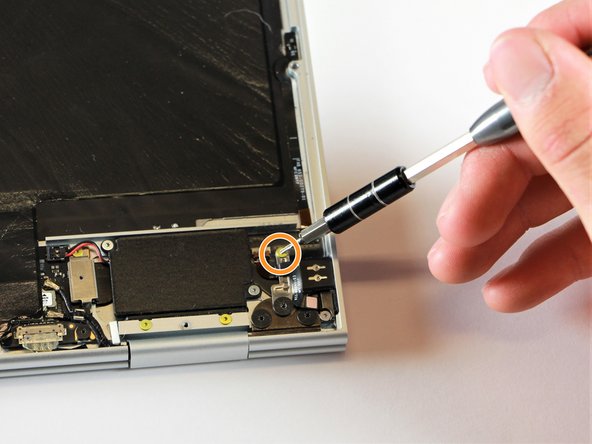
    • Remove the yellow 2.0mm screw by using the T3 Torx screwdriver to turn the screw counterclockwise.

    Ask FixBot

    Add Comment

  11. Google Pixelbook Sound Card Replacement: step 11, image 1 of 1
    • Remove the small, red component by lifting it up with the spudger.

    Ask FixBot

    Add Comment

  12. Google Pixelbook Sound Card Replacement: step 12, image 1 of 1
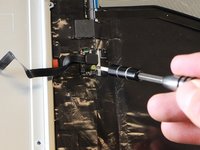
    • Disconnect the metal component of the thin, black component by lifting it up with the spudger.

    Ask FixBot

    Add Comment

  13. Google Pixelbook Sound Card Replacement: step 13, image 1 of 2 Google Pixelbook Sound Card Replacement: step 13, image 2 of 2
    Tool used on this step:
    Tweezers
    $4.99
    Buy
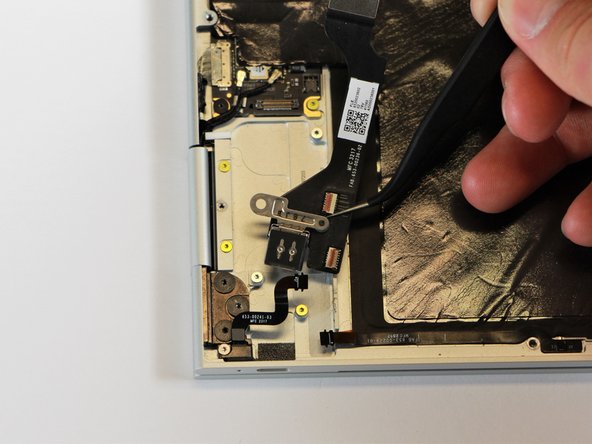
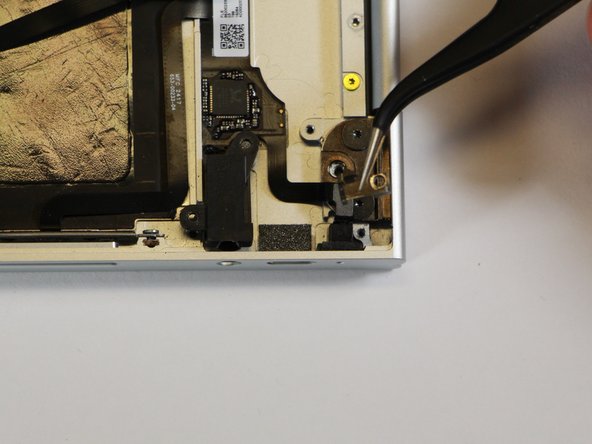
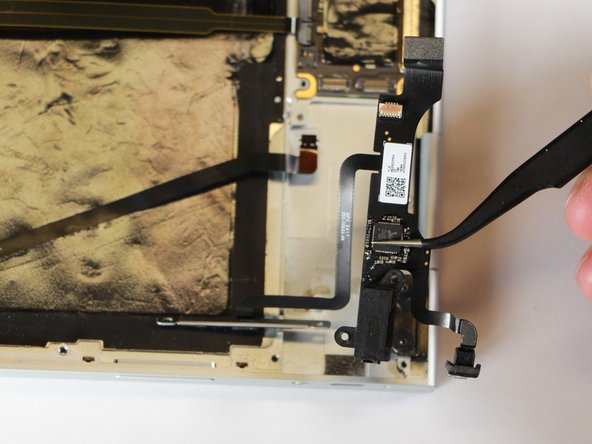
    • Remove the right charging port by picking it up with the tweezers and lifting it from the computer.

    Ask FixBot

    Add Comment

  14. Google Pixelbook Sound Card Replacement, Sound Card: step 14, image 1 of 1
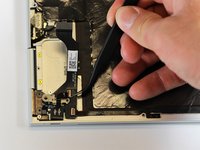
    • Use the spudger to disconnect the sound card from the motherboard by pulling the connector up and away from the motherboard.

    Ask FixBot

    Add Comment

  15. Google Pixelbook Sound Card Replacement: step 15, image 1 of 2 Google Pixelbook Sound Card Replacement: step 15, image 2 of 2
    • Flip open the connection point on the sound card by using the spudger to pop the latch upward.

    • Disconnect the black ribbon cable from the sound card by using the spudger or your fingers to pull the cable out and away from the connecting port.

    Ask FixBot

    Add Comment

  16. Google Pixelbook Sound Card Replacement: step 16, image 1 of 2 Google Pixelbook Sound Card Replacement: step 16, image 2 of 2
    Tool used on this step:
    Tweezers
    $4.99
    Buy
    • Use the needle-nose tweezers to remove the silver casing by lifting it up and out of the laptop.

    Ask FixBot

    Add Comment

  17. Google Pixelbook Sound Card Replacement: step 17, image 1 of 1
    • Disconnect the speaker from the laptop frame by pulling the black ribbon cable out and away from the port.

    • The speaker may be tough to pull out of the frame if it has not been disconnected previously.

    Ask FixBot

    Add Comment

  18. Google Pixelbook Sound Card Replacement: step 18, image 1 of 1
    • Use a T3 Torx screwdriver to remove the two silver 3.0mm screws located on the vertical edge of the casing by turning the screws counterclockwise.

    Ask FixBot

    Add Comment

  19. Google Pixelbook Sound Card Replacement: step 19, image 1 of 2 Google Pixelbook Sound Card Replacement: step 19, image 2 of 2
    • Use the needle-nose tweezers to remove the sound card by lifting it up and out of the laptop.

    Ask FixBot

    Add Comment

Conclusion

To reassemble your device, follow these instructions in reverse order.

Cancel: I did not complete this guide.

2 other people completed this guide.

Derrick Unger

Member since: 01/24/18

361 Reputation

2 Guides authored

Team

Cal Poly, Team S18-G1, Livingston Winter 2018 Member of Cal Poly, Team S18-G1, Livingston Winter 2018

CPSU-LIVINGSTON-W18S18G1

4 Members

9 Guides authored

1 Guide Comment

Great guide. My headphones broke inside the jack, tried many different techniques to get it out and am now looking to just replace the jack or soundcard. Anyone have any ideas where to source these parts? Looked everywhere, Inc eBay.

Ryan Clifford - Reply Share
Add Comment

View Statistics:

Past 24 Hours: 1

Past 7 Days: 4

Past 30 Days: 25

All Time: 2,228