Free Shipping on Domestic Orders $75+

Google Pixelbook Motherboard Replacement

What you need

  1. Google Pixelbook Motherboard Replacement, Battery (Back Panel): step 1, image 1 of 3 Google Pixelbook Motherboard Replacement, Battery (Back Panel): step 1, image 2 of 3 Google Pixelbook Motherboard Replacement, Battery (Back Panel): step 1, image 3 of 3
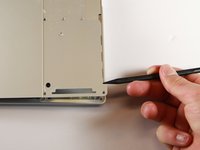
    • Use the iFixit opening tools or a metal spudger to pry the rubber covers off the back of your Pixelbook.

    • Peel the linings off completely until the back of the Pixelbook looks bare.

  2. Google Pixelbook Motherboard Replacement: step 2, image 1 of 2 Google Pixelbook Motherboard Replacement: step 2, image 2 of 2
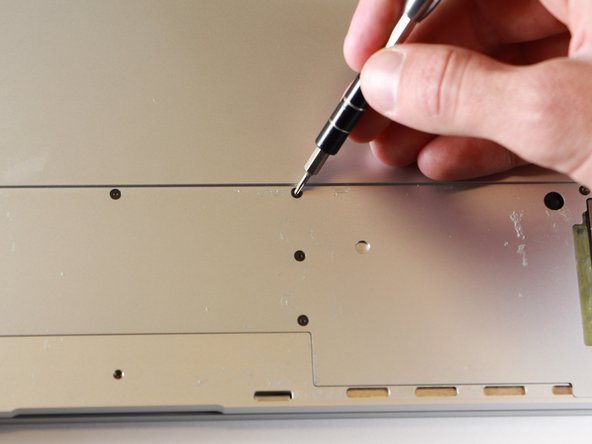
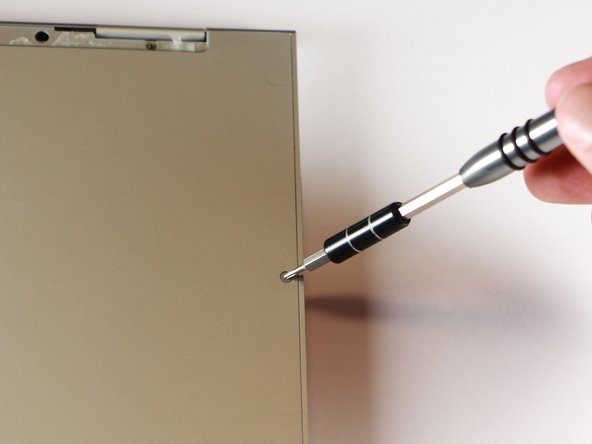
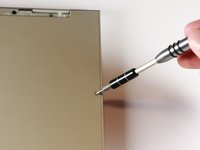
    • Remove the two yellow 2.0mm screws by using a T3 Torx screwdriver.

  3. Google Pixelbook Motherboard Replacement: step 3, image 1 of 3 Google Pixelbook Motherboard Replacement: step 3, image 2 of 3 Google Pixelbook Motherboard Replacement: step 3, image 3 of 3
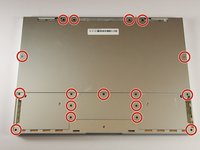
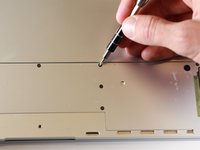
    • Remove the seventeen 3.0mm T5 Torx screws from the bottom panel.

  4. Google Pixelbook Motherboard Replacement: step 4, image 1 of 3 Google Pixelbook Motherboard Replacement: step 4, image 2 of 3 Google Pixelbook Motherboard Replacement: step 4, image 3 of 3
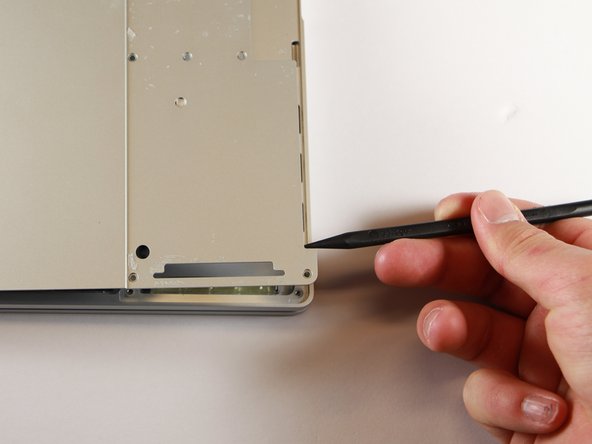
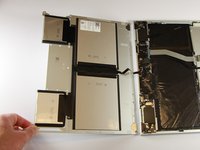
    • Use the nylon spudger to pry the edge of the Pixelbook up until you can grab the edge with your fingers.

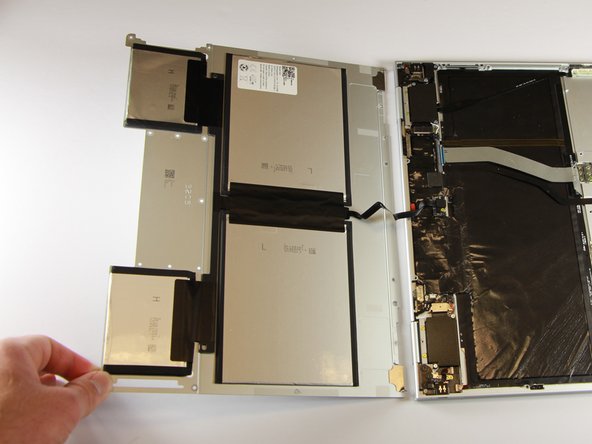
    • Open the back panel completely and lay it flat so you see the whole inside of the computer.

  5. Google Pixelbook Motherboard Replacement: step 5, image 1 of 2 Google Pixelbook Motherboard Replacement: step 5, image 2 of 2
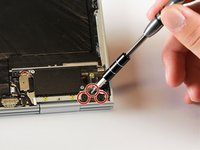
    • Remove the yellow 2.0mm screw from the middle of the panel by using the T3 Torx screwdriver to turn the screw counterclockwise.

  6. Google Pixelbook Motherboard Replacement: step 6, image 1 of 2 Google Pixelbook Motherboard Replacement: step 6, image 2 of 2
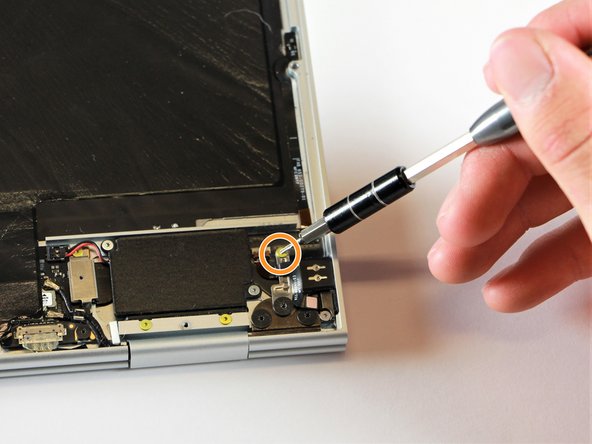
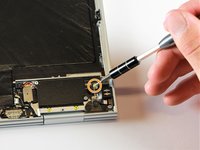
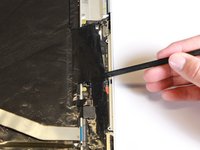
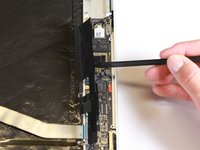
    • Remove the small, black casing by using the spudger to lift it up from its place.

  7. Google Pixelbook Motherboard Replacement: step 7, image 1 of 1
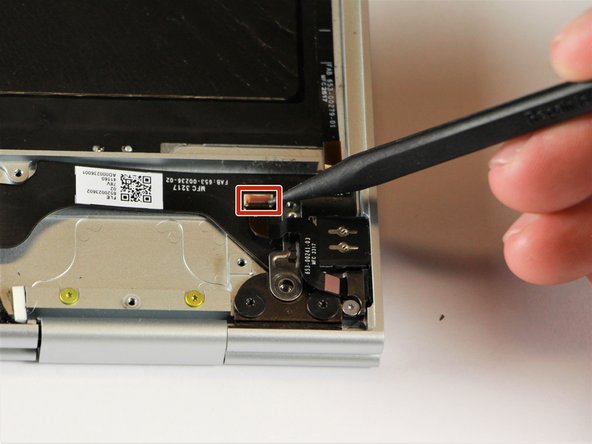
    • Disconnect the flat, black cord from the main component by using a spudger to push it out of the slot, or by using your hand to carefully pull it out.

    • Your back panel is now free from the main component.

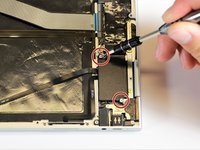
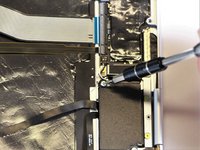
  8. Google Pixelbook Motherboard Replacement, Left Charging Port: step 8, image 1 of 2 Google Pixelbook Motherboard Replacement, Left Charging Port: step 8, image 2 of 2
    • Remove the two 3.0mm silver screws from the thin, black component by using a T3 Torx screwdriver to turn the screws counterclockwise.

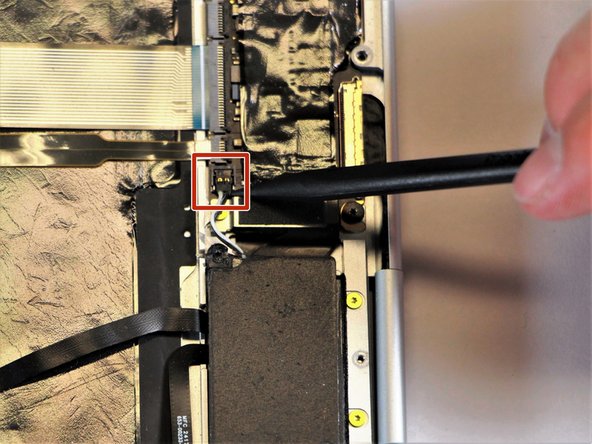
  9. Google Pixelbook Motherboard Replacement: step 9, image 1 of 2 Google Pixelbook Motherboard Replacement: step 9, image 2 of 2
    • Disconnect the thin, black and white cord from the motherboard by using the spudger to snap the connector up and out of place.

  10. Google Pixelbook Motherboard Replacement: step 10, image 1 of 1
    • Remove the thin, black component by pulling it up and out of the laptop with your fingers.

    • This photo shows the bottom screw still in the black box, but yours should be removed.

  11. Google Pixelbook Motherboard Replacement: step 11, image 1 of 1
    • Remove the gold 2.0mm corner screw by turning it counterclockwise with a T3 Torx screwdriver.

  12. Google Pixelbook Motherboard Replacement: step 12, image 1 of 2 Google Pixelbook Motherboard Replacement: step 12, image 2 of 2
    Tool used on this step:
    Tweezers
    $4.99
    Buy
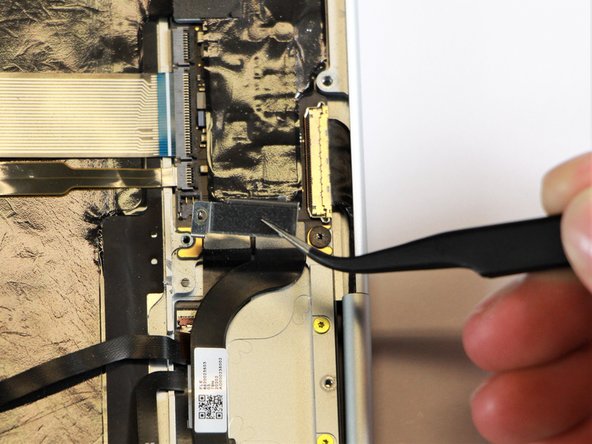
    • Using needle-nose tweezers, remove the silver casing by lifting it up and out of the computer.

  13. Google Pixelbook Motherboard Replacement: step 13, image 1 of 2 Google Pixelbook Motherboard Replacement: step 13, image 2 of 2
    • Remove the three 3.0mm black screws on the right side by using a T5 Torx screwdriver to turn the screws counterclockwise.

    • Remove the silver 2.0mm screw on the left side by using a T3 Torx screwdriver to turn the screw counterclockwise.

  14. Google Pixelbook Motherboard Replacement: step 14, image 1 of 1
    • Disconnect the thin, black ribbon cable by using the spudger to lift it up from the computer.

  15. Google Pixelbook Motherboard Replacement: step 15, image 1 of 2 Google Pixelbook Motherboard Replacement: step 15, image 2 of 2
    • Use the needle-nose tweezers to remove the charging port by lifting the component up and out of the Pixelbook.

  16. Google Pixelbook Motherboard Replacement, Right Charging Port: step 16, image 1 of 2 Google Pixelbook Motherboard Replacement, Right Charging Port: step 16, image 2 of 2
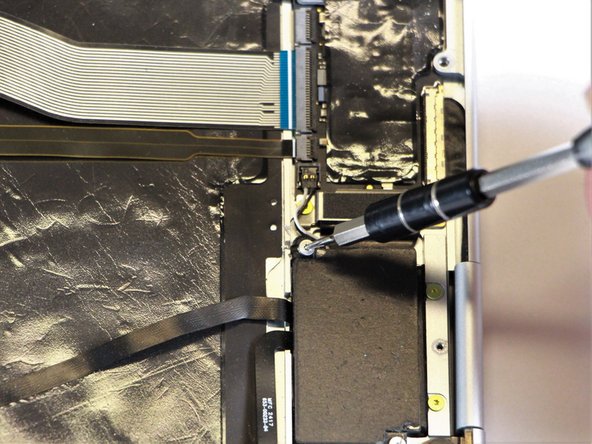
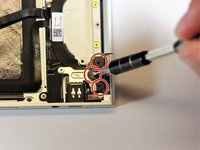
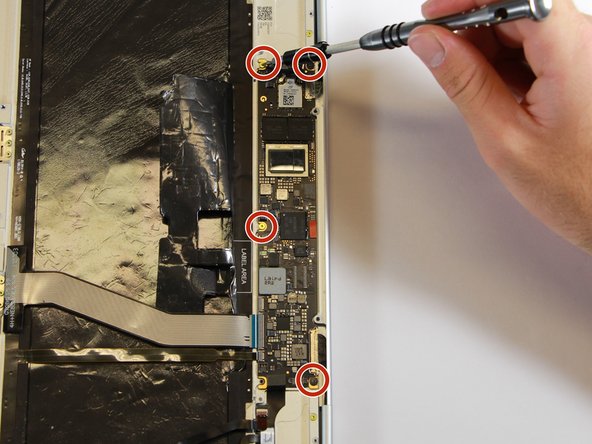
    • Remove the three 2.0mm black screws from the sound card by using a T5 Torx screwdriver to turn them counterclockwise.

    • Remove the gold 3.0mm screw by using a T3 Torx screwdriver to turn it counterclockwise.

  17. Google Pixelbook Motherboard Replacement: step 17, image 1 of 1
    • Disconect the thin, black and red cord from the motherboard by using the spudger to snap the connector up and out of place.

  18. Google Pixelbook Motherboard Replacement: step 18, image 1 of 1
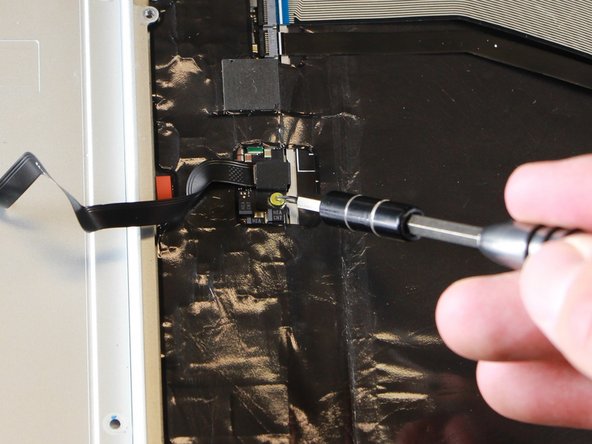
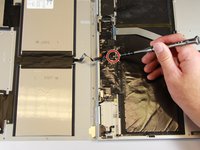
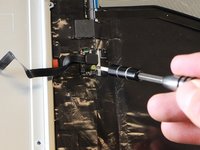
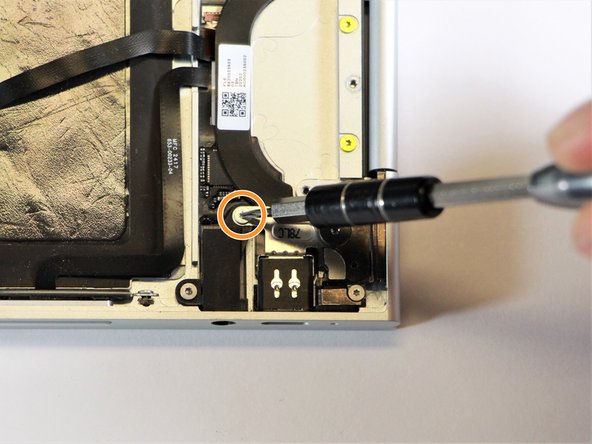
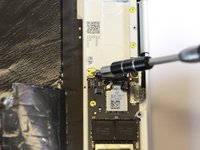
    • Remove the yellow 2.0mm screw by using the T3 Torx screwdriver to turn the screw counterclockwise.

  19. Google Pixelbook Motherboard Replacement: step 19, image 1 of 1
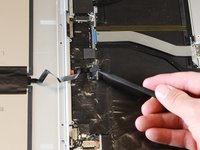
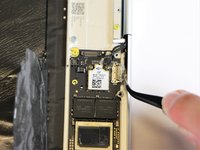
    • Remove the small, red component by lifting it up with the spudger.

  20. Google Pixelbook Motherboard Replacement: step 20, image 1 of 1
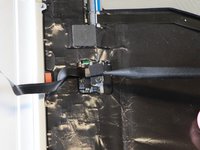
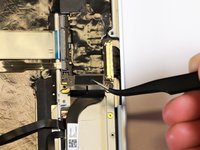
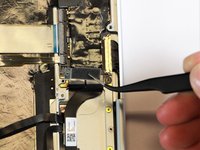
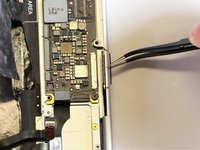
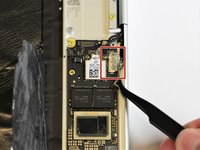
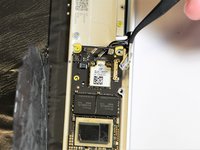
    • Disconnect the metal component of the thin, black component by lifting it up with the spudger.

  21. Google Pixelbook Motherboard Replacement: step 21, image 1 of 2 Google Pixelbook Motherboard Replacement: step 21, image 2 of 2
    Tool used on this step:
    Tweezers
    $4.99
    Buy
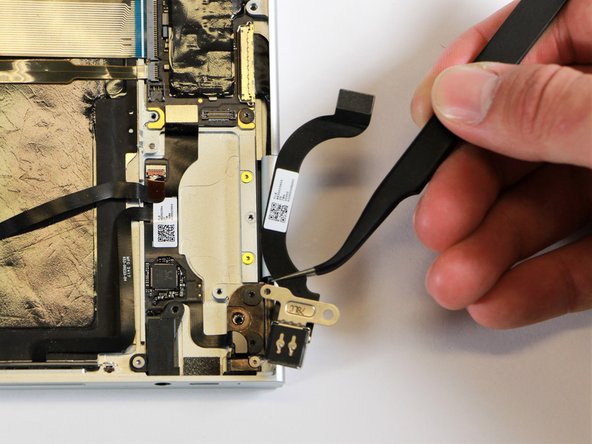
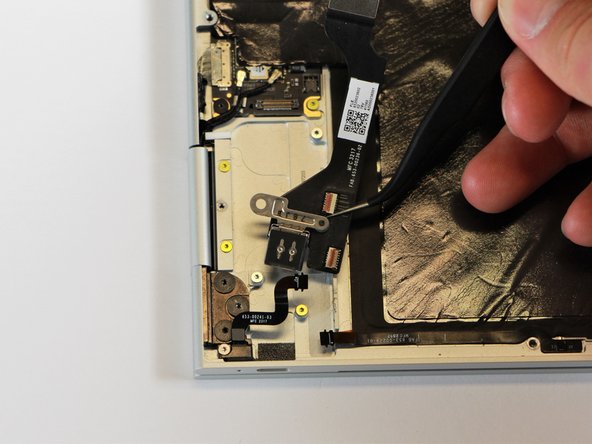
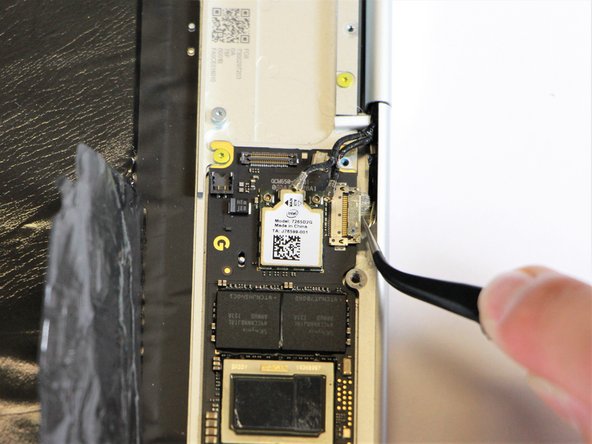
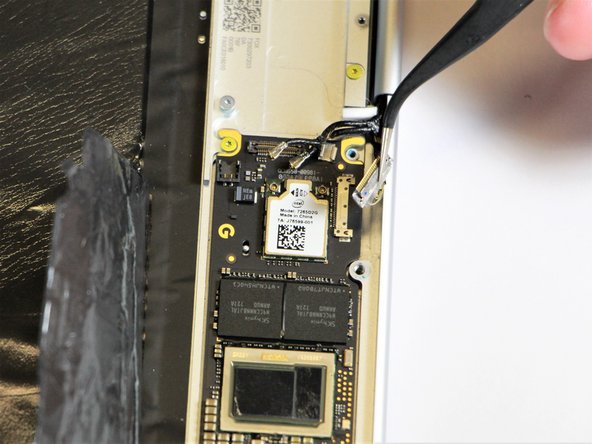
    • Remove the right charging port by picking it up with the tweezers and lifting it from the computer.

  22. Google Pixelbook Motherboard Replacement, Motherboard: step 22, image 1 of 2 Google Pixelbook Motherboard Replacement, Motherboard: step 22, image 2 of 2
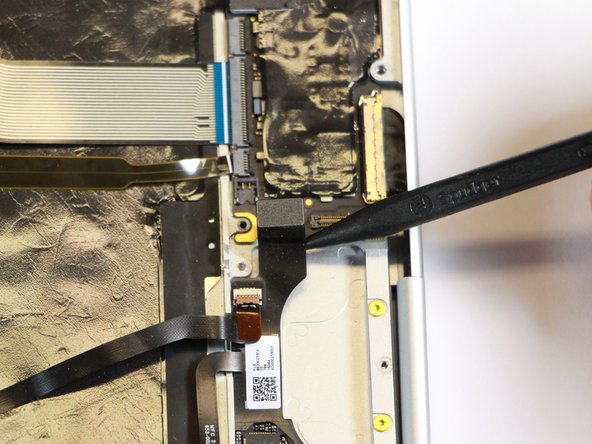
    • Disconnect the flat, black cord from the motherboard by using a spudger to push it upwards out of the slot, or by using your hand to carefully pull upward.

  23. Google Pixelbook Motherboard Replacement: step 23, image 1 of 3 Google Pixelbook Motherboard Replacement: step 23, image 2 of 3 Google Pixelbook Motherboard Replacement: step 23, image 3 of 3
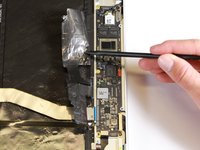
    • Fold back the plastic covering on the motherboard using the nylon spudger.

  24. Google Pixelbook Motherboard Replacement: step 24, image 1 of 3 Google Pixelbook Motherboard Replacement: step 24, image 2 of 3 Google Pixelbook Motherboard Replacement: step 24, image 3 of 3
    Tool used on this step:
    Tweezers
    $4.99
    Buy
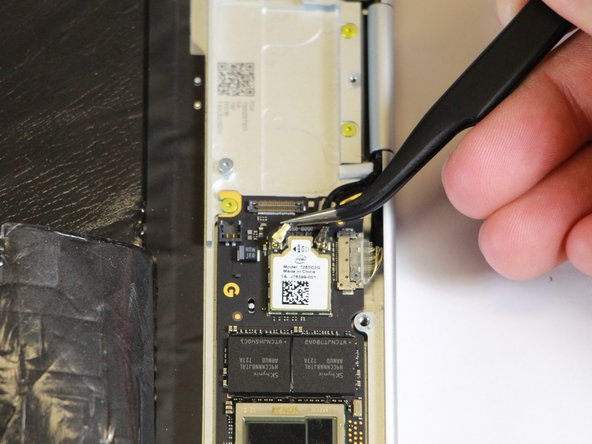
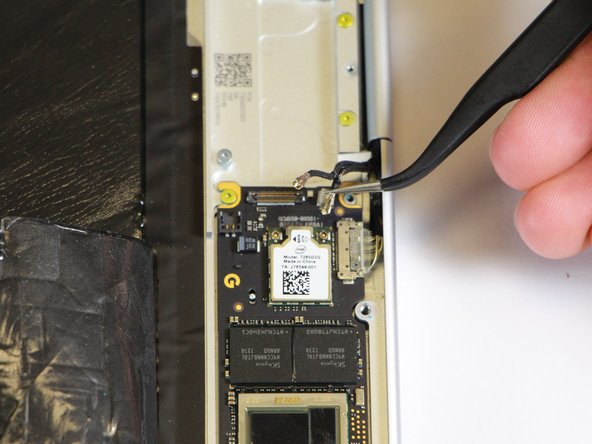
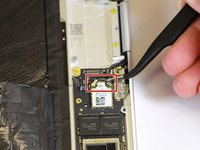
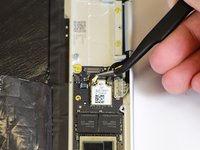
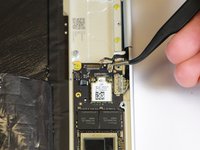
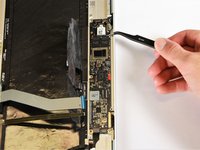
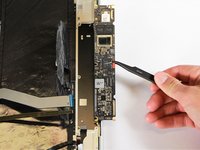
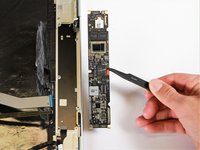
    • Disconnect the two black cables from the motherboard by pulling the connectors upward using the needle-nose tweezers.

  25. Google Pixelbook Motherboard Replacement: step 25, image 1 of 3 Google Pixelbook Motherboard Replacement: step 25, image 2 of 3 Google Pixelbook Motherboard Replacement: step 25, image 3 of 3
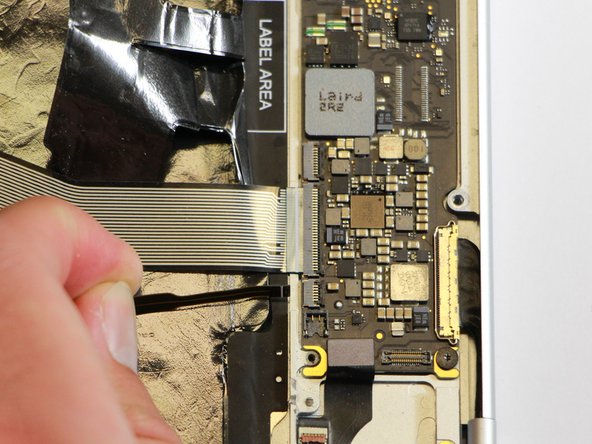
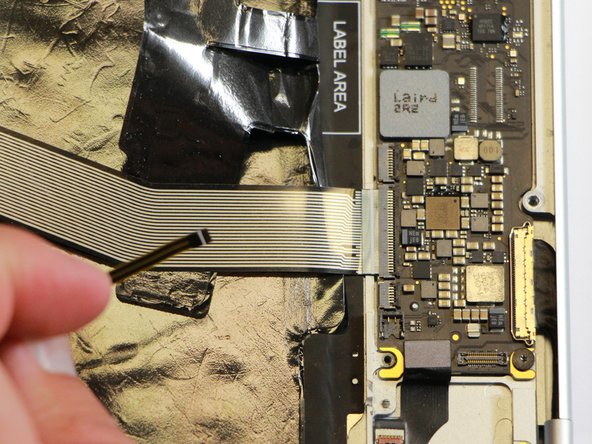
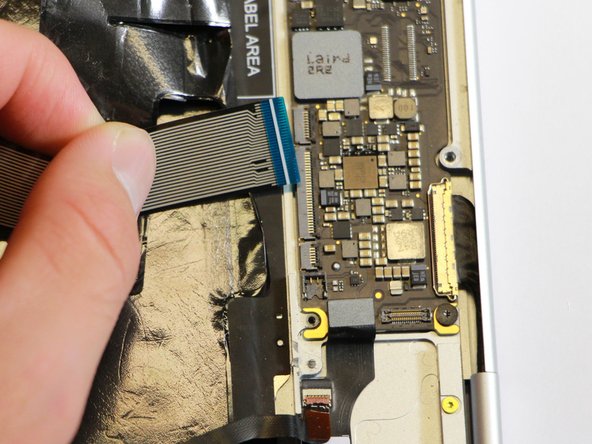
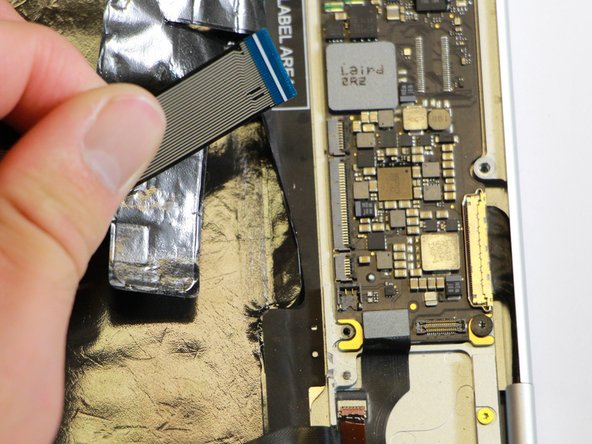
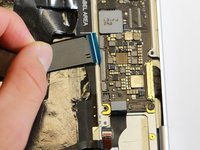
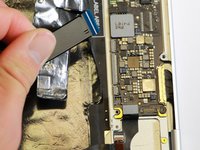
    • Disconnect the flat ribbon cable from the motherboard by using your hand to gently pull it out of the socket, or by using a pair of tweezers to pull it out.

  26. Google Pixelbook Motherboard Replacement: step 26, image 1 of 3 Google Pixelbook Motherboard Replacement: step 26, image 2 of 3 Google Pixelbook Motherboard Replacement: step 26, image 3 of 3
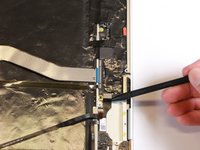
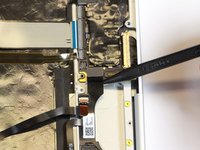
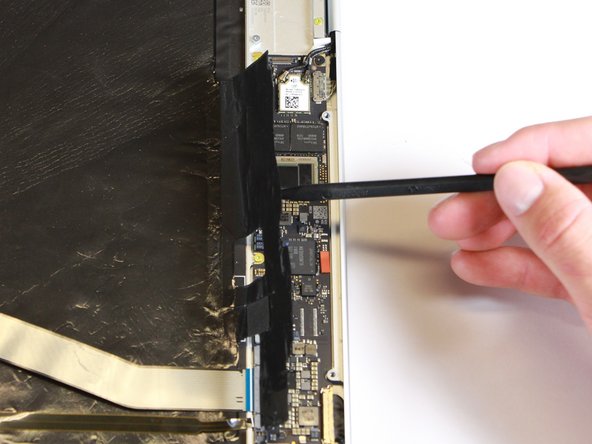
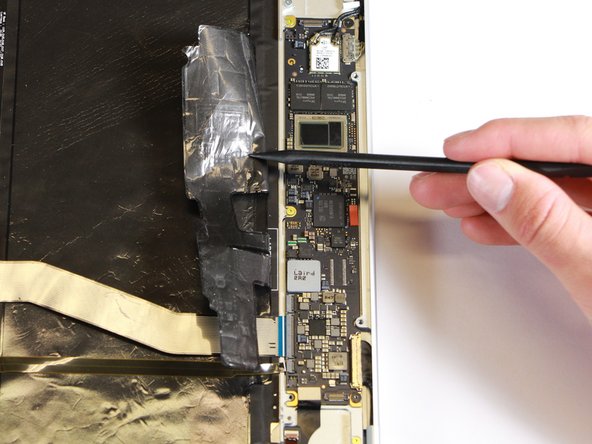
    • Disconnect the large flat ribbon cable from the motherboard by using your hand to gently pull it out of the socket, or by using a pair of tweezers to pull it out.

  27. Google Pixelbook Motherboard Replacement: step 27, image 1 of 3 Google Pixelbook Motherboard Replacement: step 27, image 2 of 3 Google Pixelbook Motherboard Replacement: step 27, image 3 of 3
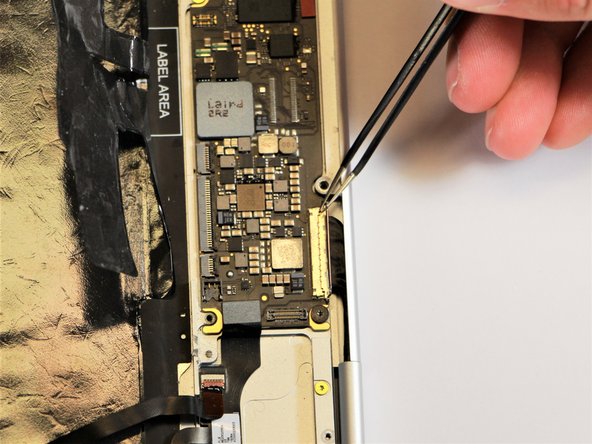
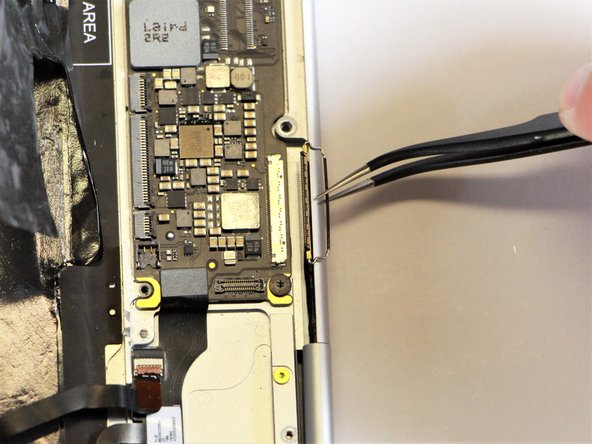
    • Raise the retaining latch of the motherboard connector by using the needle-nose tweezers.

    • Disconnect the large flat cable from the motherboard by gently pulling on the latch using the needle-nose tweezers.

  28. Google Pixelbook Motherboard Replacement: step 28, image 1 of 3 Google Pixelbook Motherboard Replacement: step 28, image 2 of 3 Google Pixelbook Motherboard Replacement: step 28, image 3 of 3
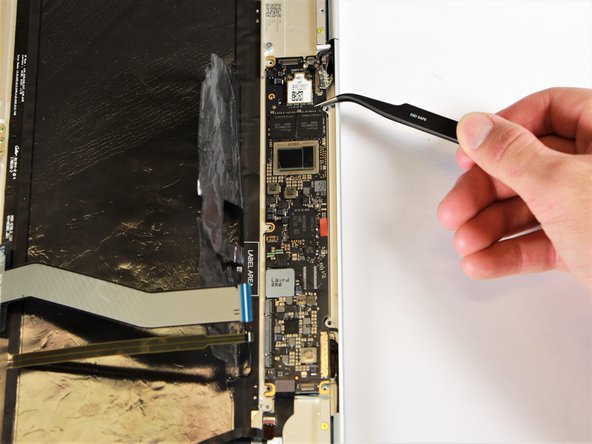
    • Disconnect the flat cable from the motherboard by using the needle-nose tweezers to gently pull the connector out of the slot.

  29. Google Pixelbook Motherboard Replacement: step 29, image 1 of 2 Google Pixelbook Motherboard Replacement: step 29, image 2 of 2
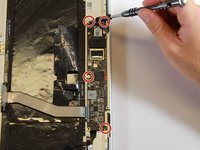
    • Remove the gold 3.0mm screws and the black, flat 2.0mm screws from the motherboard by using a T3 Torx screwdriver to turn the screws counterclockwise.

  30. Google Pixelbook Motherboard Replacement: step 30, image 1 of 3 Google Pixelbook Motherboard Replacement: step 30, image 2 of 3 Google Pixelbook Motherboard Replacement: step 30, image 3 of 3
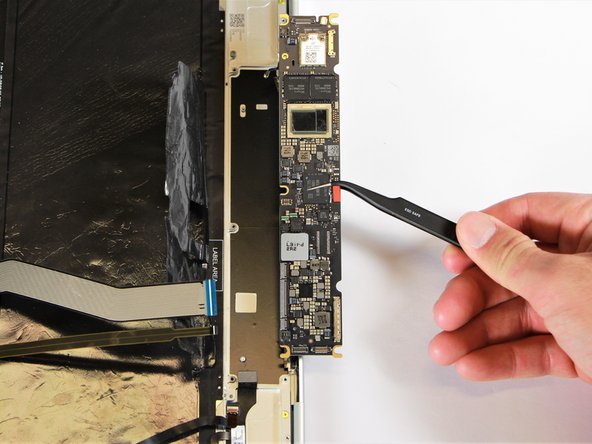
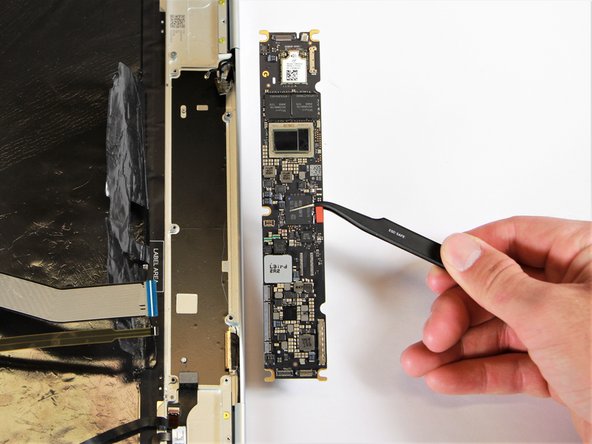
    • Remove the motherboard by gently lifting it out of the laptop using the needle-nose tweezers.

Conclusion

To reassemble your device, follow these instructions in reverse order.

9 other people completed this guide.

Logan Lawson

Member since: 01/24/18

410 Reputation

1 Guide authored

Team

Cal Poly, Team S18-G1, Livingston Winter 2018 Member of Cal Poly, Team S18-G1, Livingston Winter 2018

CPSU-LIVINGSTON-W18S18G1

4 Members

9 Guides authored

14 Guide Comments

This would be much more helpful if all the “components” being removed were identified.

TIA,

R

rocwoof - Reply Share
You’ve put together a very good procedure for replacing a motherboard. My pixelbook needs a motherboard. Where can I buy one? Google does not sell them.

Tony Meier - Reply Share
You’ve put together a very good procedure for replacing a motherboard. My pixelbook needs a motherboard. Where can I buy one? Google does not sell them.

Tony Meier - Reply Share
I believe the step8 & step16 mentioned “charging port“ shall be the loudspeaker in fact.

baokai zheng - Reply Share
It’s bad instruction to pull cable out without unlocking the retaining tab, also it’s impossible to put cable back while the connector is still in locking position. Never pull a cable while it’s locked in the connector, this practice is only used by novices.

nabe_03 - Reply Share

Add Comment

View Statistics:

Past 24 Hours: 5

Past 7 Days: 20

Past 30 Days: 107

All Time: 16,120