Introduction
If you want your device to handle multiple tasks smoothly, have faster memory, and boost the efficiency of your workflow, you may want to replace or upgrade your RAM. The following guide shows you how to replace the RAM in your Google Cr-48 Chromebook in seven easy steps.
Your computer's RAM or random access memory gives applications a place to store and access short-term data. RAM is one of your computer's most important components for improving performance. If you notice your system is sluggish, or you have frequent crashes, reboots, blue screens, distorted graphics, or memory errors, it may be due to having too little RAM.
Before beginning this repair or upgrade, be sure to power off your laptop and disconnect from the charger.
What you need
-
-
-
To take out the battery, slide the switch on the bottom of the laptop.
-
The battery should then pop out and you can remove it.
 Ask FixBot
-
-
-
-
Tool used on this step:Tweezers$4.99
-
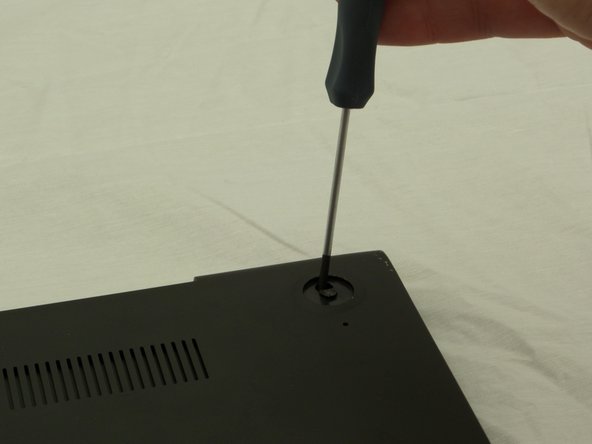
Using a pair of tweezers, remove the two rear rubber feet. You should then see the two screws underneath.
-
-
-
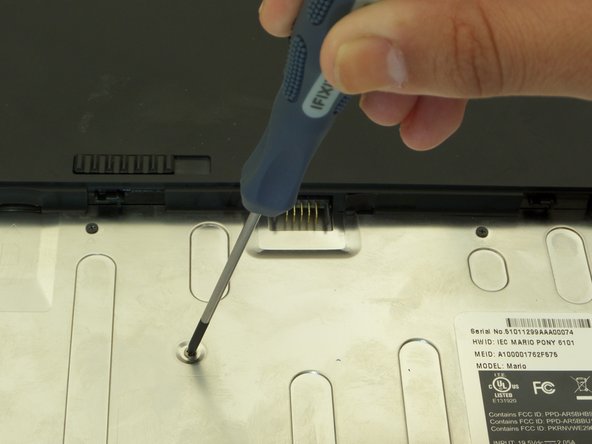
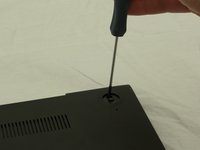
First, position the computer to have the silver battery compartment closest to you. Then, using a Phillips #00 screwdriver, remove the ten 3 mm screws in the battery compartment.
-
Now, using the same screwdriver, remove the two 4.5 mm screws that were underneath the previously removed rubber feet.
-
-
-
-
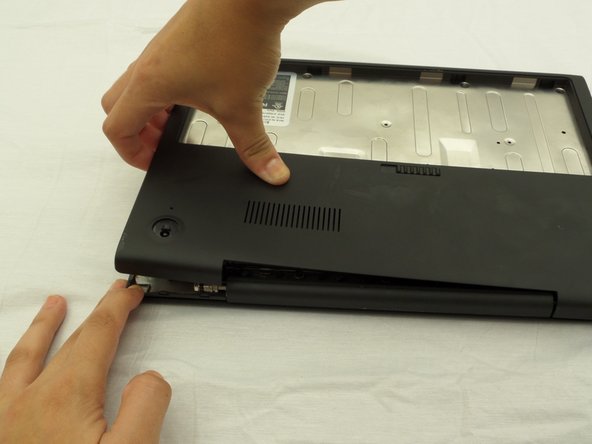
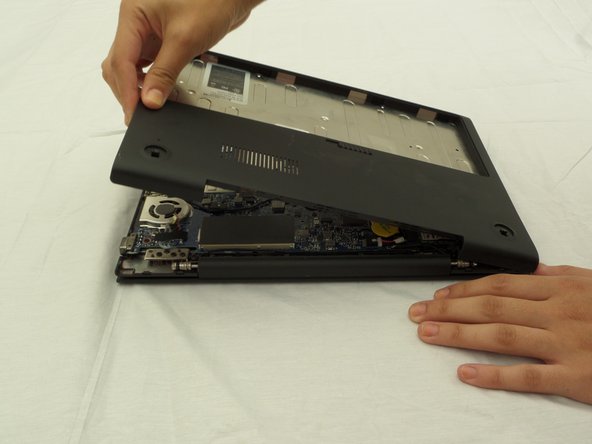
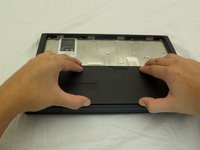
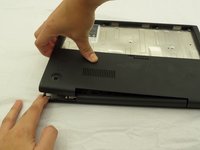
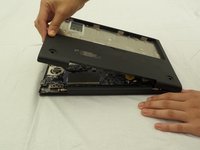
Starting where the body of the laptop and the laptop screen meet, pry apart the lower case from the rest of the laptop.
-
-
-
-
-
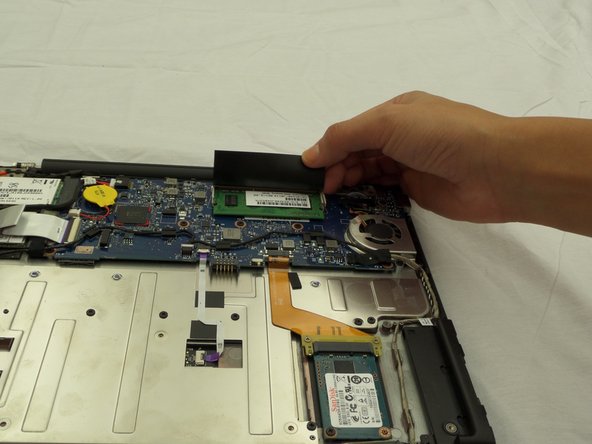
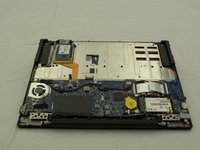
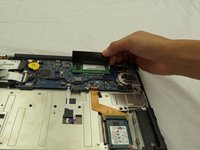
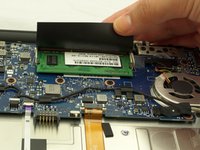
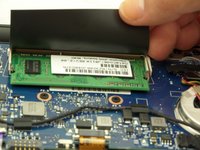
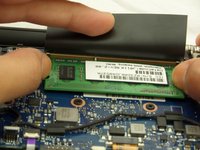
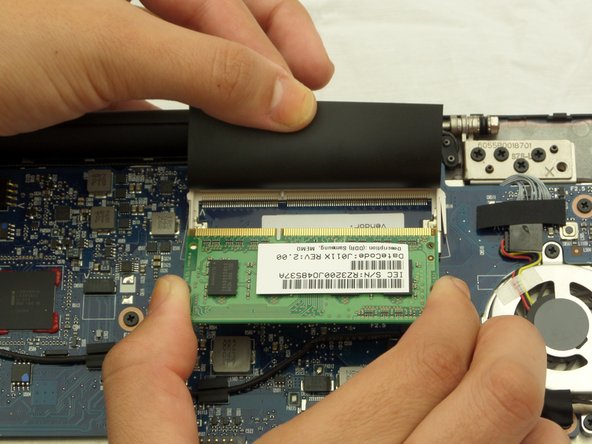
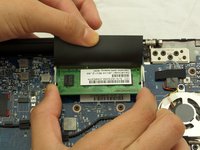
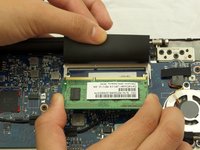
Locate the RAM under a black flap alongside where the laptop screen and device body meet.
-
-
-
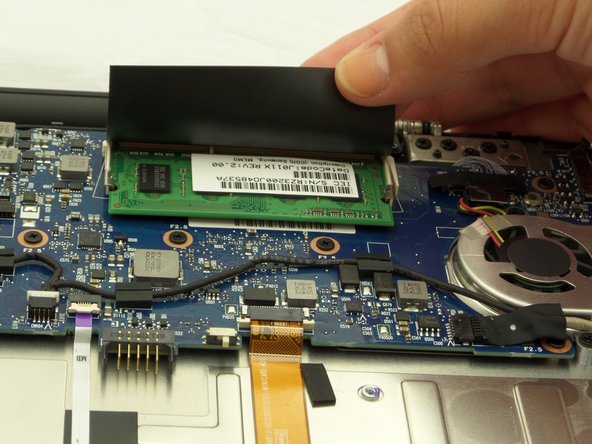
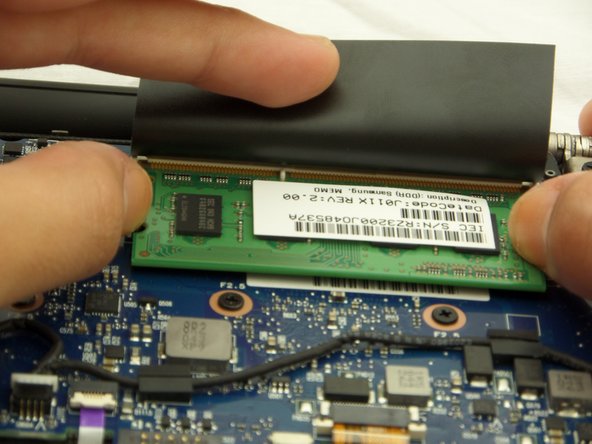
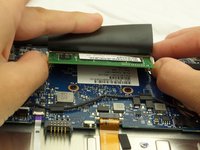
Using your thumbs, pull the metal arms away from the RAM and then the RAM card should pop up.
-
-







To reassemble your device, follow these instructions in reverse order.
Cancel: I did not complete this guide.
2 other people completed this guide.

Team

CSU Fullerton, Team 2-2, Bruce Fall 2014 Member of CSU Fullerton, Team 2-2, Bruce Fall 2014
CSUF-BRUCE-F14S2G2
3 Members
60 Guides authored
